
Quick Summary
| Key Insight | What You Need to Know |
|---|---|
| Why Instagram Doesn't Support | Why Instagram Doesn't Support Native GIF Files, And What You Need to Know The Technical Limitation Behind GIF Incompatibility How File Format Compatibility Affects Your Upload Workflow |
| The Technical Limitation Behind | The Technical Limitation Behind GIF Incompatibility |
| How File Format Compatibility | How File Format Compatibility Affects Your Upload Workflow |
| How to Post a GIF on Instagram | Direct and Indirect Workflows Direct Upload: Converting GIFs to MP4 Format Indirect Upload: Using Third-Party Apps and Sticker Libraries |
| Direct Upload | Converting GIFs to MP4 Format |
| Indirect Upload | Using Third-Party Apps and Sticker Libraries |
Table of Contents
- Why Instagram Doesn't Support Native GIF Files, And What You Need to Know
- How to Post a GIF on Instagram: Direct and Indirect Workflows
- Instagram GIF Maker Tools: Creating Custom Animated Content
- Uploading GIFs to Instagram Stories: Dimensions and Best Practices
- Instagram Reels and Feed: Uploading Animated Content Beyond Stories
- Instagram GIF Best Practices for Brand Identity and Engagement
- Troubleshooting Common GIF Upload Errors and Performance Issues
- Conclusion
Animated GIF for Instagram: Complete Guide to Uploading & Creating
Last Updated: August 1, 2026
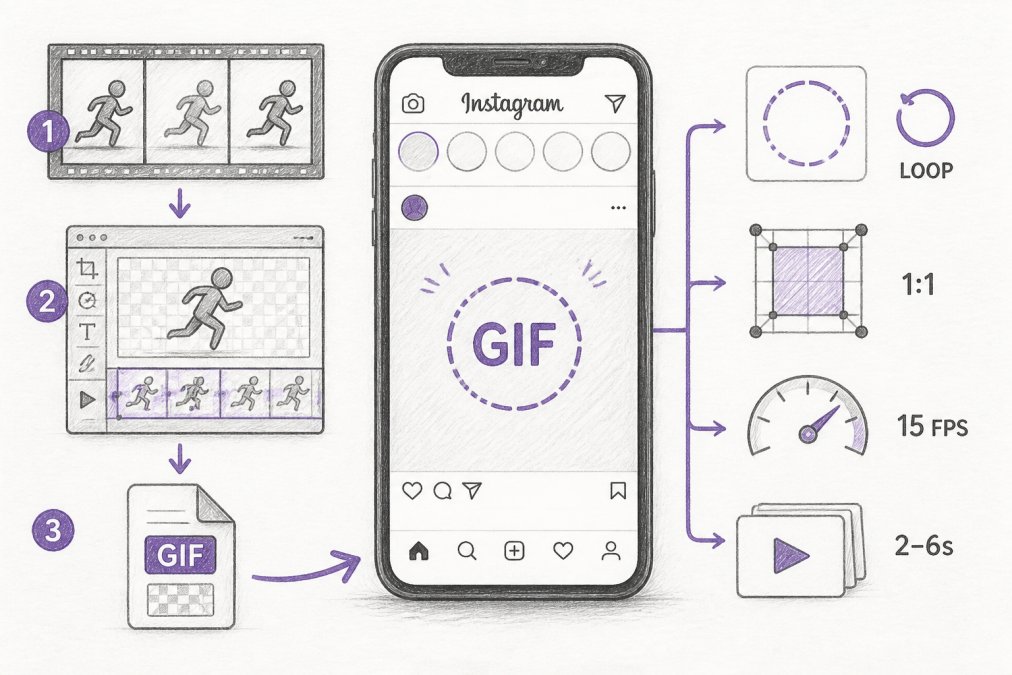
Creating an animated gif for instagram requires understanding a fundamental technical limitation: Instagram's native feed doesn't support GIF files directly. This constraint shapes everything from file conversion workflows to upload strategies. Below, we'll walk you through exact conversion methods, dimension specifications, and the tools that actually work, so you can post animated content without the trial-and-error most creators face.
Why Instagram Doesn't Support Native GIF Files, And What You Need to Know
Instagram standardized on MP4 video format because it delivers superior compression, faster loading on mobile networks, and better device compatibility than GIFs. When you attempt to upload a GIF directly to Instagram's feed, the system either rejects it or converts it automatically, but that conversion rarely preserves animation quality. The platform's algorithm detects the file format and either treats it as a static image or attempts transcoding that strips the looping animation.
Understanding this constraint is the first step to working around it effectively. Direct uploads require converting your GIF to MP4 before touching Instagram's interface. Indirect uploads use third-party apps that handle conversion automatically, trading some control for convenience. The choice depends on your technical comfort level and whether you need frame-by-frame precision.
How to Post a GIF on Instagram: Direct and Indirect Workflows
Posting an animated gif for instagram means choosing between two workflows: converting the file yourself before upload, or using apps that handle conversion automatically. Direct upload requires more steps upfront but gives you full control over quality settings. Indirect upload is faster but depends on third-party tools maintaining compatibility with Instagram's API.
Direct Upload: Converting GIFs to MP4 Format
The direct workflow converts your GIF to MP4 using desktop software, then uploads the video file through Instagram's native interface. This method preserves animation quality and gives you precise control over frame rate and bitrate settings.
Step 1: Choose Your Conversion Software
Desktop software options include FFmpeg (free, command-line), Adobe Media Encoder (paid, integrated workflow), and Handbrake (free, user-friendly GUI). FFmpeg is the industry standard because it supports every codec and bitrate specification. For non-technical users, Handbrake provides a graphical interface requiring no command-line knowledge.
Step 2: Configure Video Codec and Bitrate Settings
Use H.264 video codec with a bitrate between 3,000-6,000 kbps for feed posts. Set frame rate to 24-30 fps. Use progressive scan, 8-bit color depth, and no alpha channel (transparency doesn't work in feed videos).
Step 3: Export and Verify File Size
Export your MP4 file and confirm it's under 4GB (Instagram's hard limit). Most animated GIFs convert to files under 50MB. Check that the looping animation plays smoothly by opening the file in VLC or your system's default video player.
Step 4: Upload to Instagram Feed
Open Instagram's web or mobile app, select "Create" → "Post", and choose your MP4 file. Instagram detects the video automatically and displays a preview. Add caption, adjust thumbnail if needed, and publish.
Indirect Upload: Using Third-Party Apps and Sticker Libraries
Indirect upload leverages apps that automate GIF-to-video conversion and handle Instagram compatibility automatically. Many content creators use apps like Giphy, Tenor, or platform-specific sticker libraries that integrate directly with Instagram Stories. For custom GIFs, apps like ezgif.com or Kapwing offer browser-based conversion without software installation. Upload your GIF, select MP4 output format, and download the converted file within 2 minutes.
Workflow for Indirect Upload:
- Upload GIF to a conversion app (ezgif, Kapwing, or similar)
- Select MP4 format and adjust quality slider if available
- Download the converted file
- Upload MP4 to Instagram using the direct method above
This approach works well for brands posting animated GIFs occasionally. If you're creating dozens of animations monthly, desktop software is more efficient.
Instagram GIF Maker Tools: Creating Custom Animated Content
Creating animated GIFs from scratch requires motion graphics software or video animation tools. Most brands choose between desktop applications (Adobe Animate, Cinema 4D) and browser-based GIF makers (Animaker, Canva Pro).
Desktop Software for Motion Graphics and Animation
Adobe Animate remains the industry standard for frame-by-frame animation. The software exports directly to GIF format, eliminating conversion steps. You build animations frame-by-frame, control timing precisely, and preview looping before export. A single animation takes 2-4 hours from concept to export, depending on complexity.
Cinema 4D handles 3D animation and complex visual effects. Render output directly as video, then convert to GIF using FFmpeg. Blender (free, open-source) offers comparable 3D animation capabilities and produces broadcast-quality output.
For most social media teams, Adobe Animate is the practical choice. It's optimized for web animation, exports GIFs directly, and integrates with other Creative Cloud tools.
Mobile-Only Workflow: Creating GIFs on Your Phone
Apps like Unfold, Animoto, and Canva Pro let you build animations by selecting templates, uploading images, and letting the app handle animation rendering. Unfold specializes in Stories animations with pre-built templates for product launches and testimonials. Canva Pro includes animation features for static designs with motion effects.
The mobile-only workflow is fastest (5-10 minutes per animation) but produces the most basic results. Use this method for quick promotional content or when posting from location without laptop access.
Uploading GIFs to Instagram Stories: Dimensions and Best Practices
Instagram Stories support animated content differently than feed posts. The Stories interface accepts GIFs through sticker libraries and allows video uploads with different aspect ratio requirements than feed content.
Optimal Aspect Ratio and Pixel Dimensions for Story GIFs
Instagram Stories demand a 9:16 aspect ratio (vertical video) with 1080×1920 pixel dimensions. This specification differs from feed posts, which use 4:5 ratio (1080×1350 pixels). When converting your GIF for Stories, ensure the source animation is already vertical. If your GIF is horizontal or square, resizing to fit the 9:16 frame will add black bars or crop content.
File size limits for Stories are 4GB, same as feed videos, but Stories compress more aggressively. To compensate, export Stories animations at higher bitrate (5,000-7,000 kbps) before upload.
Looping Animation and Frame Rate Settings for Mobile Optimization
Stories animations loop automatically, so ensure your GIF ends smoothly without jarring transitions. Frame rate for Stories should be 24-30 fps. Stories display on smaller screens, so slightly lower frame rates (20-24 fps) are acceptable without visible quality loss. This trade-off reduces file size while maintaining smooth animation.
Mobile optimization for Stories means considering battery drain and data usage. Shorter animations (2-4 seconds) perform better than longer ones because viewers skip Stories quickly.
Instagram Reels and Feed: Uploading Animated Content Beyond Stories
Instagram Reels and feed posts have different dimension requirements and compression behaviors. Understanding these specifications prevents upload errors and ensures your animated content displays correctly.
Vertical Video Specifications for Reels and Feed Posts
Instagram Reels use a 9:16 aspect ratio (1080×1920 pixels), identical to Stories. Feed posts use 4:5 ratio (1080×1350 pixels) for portrait orientation or 1.91:1 ratio (1080×566 pixels) for landscape. Most animated GIFs are square (1:1 ratio) or horizontal, so converting them requires resizing rather than cropping to preserve the full animation.
Reels support up to 90 seconds of content, far longer than Stories (15 seconds). Feed videos support up to 60 minutes, but Instagram's algorithm favors videos under 3 minutes. For animated content, 30-60 seconds is optimal.
File Compression and Bitrate Optimization for Social Media
Instagram compresses all video uploads, regardless of source format. Export your MP4 at 6,000-8,000 kbps bitrate for feed posts and Reels. Instagram targets 2,500-4,000 kbps for final delivery, so starting higher ensures quality after compression. For Stories, use 5,000-7,000 kbps because Stories compress more aggressively.
Resolution matters less than bitrate for animation quality. A 1080p animation at 3,000 kbps looks better than a 4K animation at 2,000 kbps. Instagram's servers downscale 4K to 1080p anyway, so exporting at 1080p saves file size without quality loss.
Use AAC audio codec at 128 kbps for optimal quality-to-file-size ratio. Test your compression settings by uploading a test animation and comparing it to your source file. If the uploaded version looks noticeably degraded, increase bitrate by 1,000-2,000 kbps and re-export.
Instagram GIF Best Practices for Brand Identity and Engagement
Animated content performs better than static images on Instagram, but only when executed with strategic intent. Motion graphics communicate emotion and urgency faster than static images. A product launch animation that zooms in on key features captures attention in the first 2 seconds.
Brand consistency matters in animation. Use the same color palette, typography, and motion style across all animated content. This consistency builds recognition. User engagement increases when animations are surprising or delightful. Create animations with a clear call-to-action. An animation showing product benefits should end with "Shop Now" or "Learn More" text.
Copyright, Licensing, and Asset Management for Digital Content
Using copyrighted music or footage in your animations violates Instagram's terms and exposes your brand to takedown notices. Always use royalty-free assets or music you've licensed. Platforms like Unsplash, Pexels, and Pixabay offer free stock video and images with Creative Commons licenses. For music, use royalty-free libraries like Epidemic Sound, Artlist, or YouTube Audio Library.
If you're using licensed music, keep records of the license agreement. Asset management becomes critical when creating dozens of animations. Store source files in a centralized location with clear naming conventions so you can quickly update animations if brand guidelines change.
Troubleshooting Common GIF Upload Errors and Performance Issues
Upload failures and animation playback problems are usually caused by file format issues, dimension mismatches, or bitrate settings. Systematic troubleshooting resolves 95% of problems without requiring technical support.
Why Your Animated GIF Won't Play or Loop on Instagram
The most common issue: uploading a GIF file directly instead of converting to MP4. Instagram's system rejects GIF files for feed posts or converts them to static images. Always convert to MP4 before uploading.
Second most common issue: aspect ratio mismatch. If your animation is square (1:1) but you're uploading to Reels (9:16), Instagram crops or adds borders. Verify your animation dimensions match the target platform before export.
Animation stuttering during playback usually indicates frame rate mismatch. Export at 24-30 fps regardless of source frame rate. Looping issues occur when your animation doesn't end cleanly. Ensure your animation's final frame matches the first frame, or add a smooth transition between them.
Resolving Render Settings and Transcoding Problems
Use H.264 video codec and H.265 if Instagram supports it. Avoid ProRes or other professional codecs. Color space should be rec.709 (standard for web video). Always export progressive scan (non-interlaced) for web video.
If upload fails repeatedly, try uploading through Instagram's web interface instead of mobile app. If web upload fails, reduce file size by lowering bitrate 20% and re-export.
Creating an animated gif for instagram requires converting GIF files to MP4 format because Instagram's native feed doesn't support GIF directly. The process takes 20-30 minutes for direct conversion or 5-10 minutes using third-party apps. FeedGuardians provides an AI-powered comment moderation and response solution for brands across Instagram, Facebook, TikTok, and YouTube, ensuring a dominant online presence. It automatically detects and hides spam, hate speech, and competitor links with 98.7% accuracy, while also delivering 24/7 AI-powered replies in your unique brand voice, saving businesses hours daily and boosting ad performance. This real-time moderation and intelligent automation protect brand reputation and turn comments into valuable conversations and conversions for businesses that cannot afford missteps in their social media engagement. Start for Free and discover how automation transforms your Instagram strategy.
Frequently Asked Questions
Can you post GIFs directly to Instagram, or do you always need to convert them?
Instagram does not natively support GIF files in your social media feed or stories. You must convert your animated GIF to MP4 format to upload directly to Instagram's feed or Reels. Alternatively, you can use third-party apps or Instagram's built-in sticker library to add animated content indirectly. The direct MP4 conversion workflow is faster for brands managing high-volume content creation and ensures consistent video codec and bitrate settings across your digital assets.
What are the ideal dimensions for Instagram story GIFs and animated content?
Instagram Stories require a 9:16 aspect ratio (vertical video) with pixel dimensions of 1080x1920px. For Instagram Reels and feed posts, use a 4:5 aspect ratio (1080x1350px). These specifications ensure your looping animation displays correctly on mobile app interfaces without cropping or distortion. Frame rate should be 24-30 fps for smooth animation. Proper aspect ratio optimization prevents rendering issues and maximizes user engagement when your content appears in the social media feed.
What's the best tool or app to make GIFs for Instagram?
Desktop software like Adobe Animate, Blender, or DaVinci Resolve offers advanced motion graphics and render settings for professional-quality animated files. For mobile-only workflows, apps like Giphy, Imgflip, or Canva simplify GIF creation without post-production complexity. The best choice depends on your content creation needs: desktop tools give you precise control over video codec, frame rate, and file compression; mobile apps prioritize speed and ease of use. Many brands use a hybrid approach, creating assets on desktop and optimizing them on mobile before upload.
How does copyright and licensing work when sharing animated GIFs on Instagram?
Always verify ownership before uploading any animated GIF to Instagram. User-generated GIFs from platforms like Giphy or Tenor are licensed for social media sharing, but verify the original creator's terms. For brand-created content, ensure all music, footage, and design elements comply with copyright law. When using third-party assets in your digital asset library, document licensing agreements to protect your brand reputation. Unlicensed content can result in content removal or account restrictions, impacting your social media engagement and ad performance.
This article was written using GrandRanker
Tired of manually moderating comments?
FeedGuardians automates spam filtering, responds to customers, and protects your brand — setup in 3 minutes.
Frequently Asked Questions
Can you post GIFs directly to Instagram, or do you always need to convert them?
Instagram does not natively support GIF files in your social media feed or stories. You must convert your animated GIF to MP4 format to upload directly to Instagram's feed or Reels. Alternatively, you can use third-party apps or Instagram's built-in sticker library to add animated content indirectly. The direct MP4 conversion workflow is faster for brands managing high-volume content creation and ensures consistent video codec and bitrate settings across your digital assets.
What are the ideal dimensions for Instagram story GIFs and animated content?
Instagram Stories require a 9:16 aspect ratio (vertical video) with pixel dimensions of 1080x1920px. For Instagram Reels and feed posts, use a 4:5 aspect ratio (1080x1350px). These specifications ensure your looping animation displays correctly on mobile app interfaces without cropping or distortion. Frame rate should be 24-30 fps for smooth animation. Proper aspect ratio optimization prevents rendering issues and maximizes user engagement when your content appears in the social media feed.
What's the best tool or app to make GIFs for Instagram?
Desktop software like Adobe Animate, Blender, or DaVinci Resolve offers advanced motion graphics and render settings for professional-quality animated files. For mobile-only workflows, apps like Giphy, Imgflip, or Canva simplify GIF creation without post-production complexity. The best choice depends on your content creation needs: desktop tools give you precise control over video codec, frame rate, and file compression; mobile apps prioritize speed and ease of use. Many brands use a hybrid approach—creating assets on desktop and optimizing them on mobile before upload.
How does copyright and licensing work when sharing animated GIFs on Instagram?
Always verify ownership before uploading any animated GIF to Instagram. User-generated GIFs from platforms like Giphy or Tenor are licensed for social media sharing, but verify the original creator's terms. For brand-created content, ensure all music, footage, and design elements comply with copyright law. When using third-party assets in your digital asset library, document licensing agreements to protect your brand reputation. Unlicensed content can result in content removal or account restrictions, impacting your social media engagement and ad performance.