
Quick Summary
| Key Insight | What You Need to Know |
|---|---|
| How to Block Specific | How to Block Specific Words in YouTube CommentsWhat happens when you block a wordWhat blocked words do not filter |
| What happens when you | What happens when you block a word |
| What blocked words do | What blocked words do not filter |
| Accessing Your YouTube Comment | Accessing Your YouTube Comment Moderation Settings |
| Creating and Managing Your | Creating and Managing Your YouTube Blocked Words ListAdding words and phrasesSaving your blocked-word settings |
| Adding words and phrases | Adding words and phrases |
Table of Contents
- How to Block Specific Words in YouTube Comments
- Accessing Your YouTube Comment Moderation Settings
- Creating and Managing Your YouTube Blocked Words List
- Blocking Swear Words and Offensive Language in YouTube Comments
- Managing YouTube Blocked Words on Mobile
- Reviewing and Approving Comments Held for Moderation
- Testing and Troubleshooting Your Blocked-Word Filter
- Beyond Manual Blocking: Scaling Comment Moderation
- Frequently Asked Questions
Last Updated: October 6, 2026
How to Block Specific Words in YouTube Comments
Unwanted comments damage brand reputation and viewer experience. YouTube's built-in filter to block specific words youtube comments gives creators control over what appears on their channel. This FeedGuardians guide covers setting up, managing, and troubleshooting your blocked words list.
What happens when you block a word
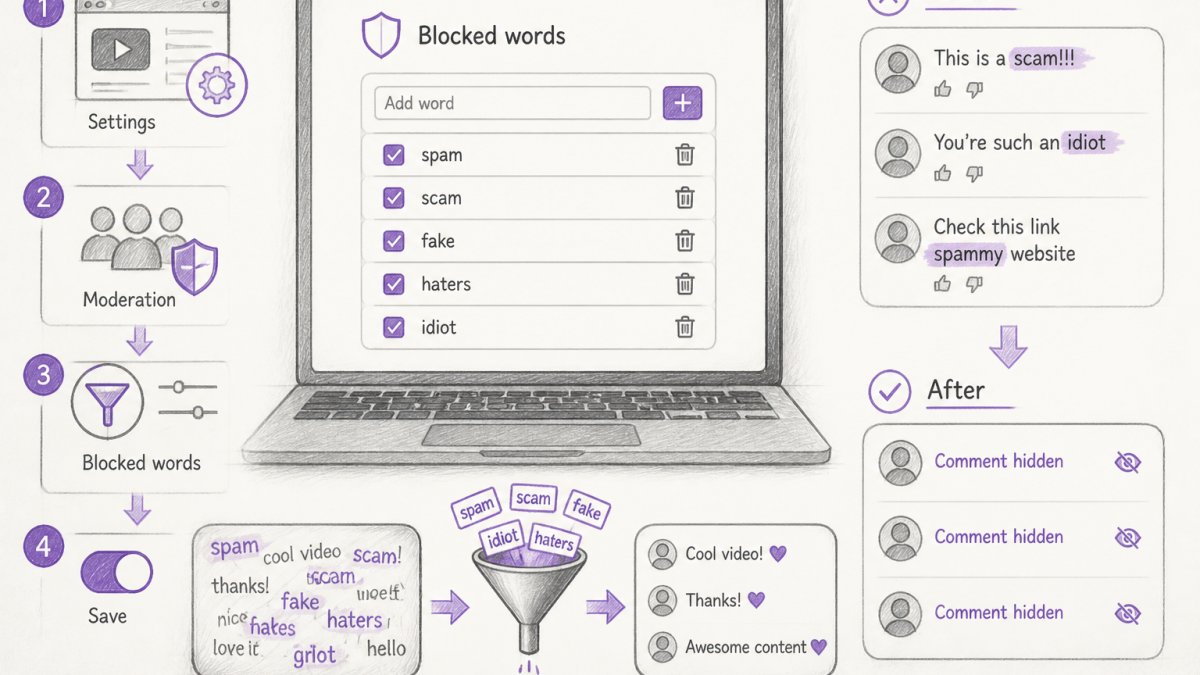
When you add a word to your blocked-words list, YouTube holds any comment containing that term for review, hidden until you approve it.
The filter works in real time: a comment with a blocked term goes straight to your moderation queue under the "Held" tab in YouTube Studio.
Blocked words don't delete comments, they hide them from public view until you act, preserving evidence of spam or harassment.
What blocked words do not filter
YouTube's blocked-words filter has real limits. It won't catch misspellings, numbers substituted for letters, or creative variations, "sp4m" or "spamm" slips through.
It also doesn't work across languages: blocking "hate" in English won't catch equivalents elsewhere, so add those separately.
Blocked words don't stop someone posting repeatedly or flooding your channel with links, they only catch specific text matches.
Accessing Your YouTube Comment Moderation Settings
Open YouTube Studio in a desktop browser and log in with the account that manages your channel.
Click Settings at the bottom of the left sidebar, then select Community, where all your comment moderation tools live.
Next, find Moderation settings within the Community section.
This page is your command center: everything you need to block specific words youtube comments and manage held comments lives here.
Creating and Managing Your YouTube Blocked Words List
Your blocked-words list is the foundation of proactive comment filtering. YouTube sets no hard limit, but a focused list works better than hundreds of random terms.
Adding words and phrases
On the Moderation settings page, scroll to Blocked words and phrases. Type each word or phrase you want to block, then press Enter to add it.
You can add single words like "spam" or phrases like "click here now", useful for catching common scams or competitor links. Type phrases exactly as you want them matched.
The filter is case-insensitive: blocking "Spam" catches "spam," "SPAM," and "SpAm," so you don't need case variations.
Saving your blocked-word settings
YouTube saves each term automatically as soon as you press Enter, no separate save button.
To remove a word, click the X next to it; the change takes effect immediately.
Blocked-words settings apply going forward: they won't retroactively filter existing comments, but new matching comments will be held for review.
Blocking Swear Words and Offensive Language in YouTube Comments
Filtering profanity and hate speech is one of the most common uses of YouTube's blocked-words feature.
Identify the terms you want to remove.
Add these terms to your blocked-words list one by one. YouTube holds any comment containing them, and you decide whether to approve or delete it.
Context matters: a comment might use a blocked word innocuously.
For hate speech and slurs, blocking is essential.
Managing YouTube Blocked Words on Mobile
The short answer: you cannot edit your blocked-words list from the YouTube mobile app. The editor lives in YouTube Studio's desktop settings, which is why many phone-first creators think their filter "stopped working."
What the mobile app can and cannot do
What you can do from the YouTube app on iOS or Android:
- Read, reply to, and delete individual comments on your videos and on the Community tab.
- Approve or remove comments already sitting in your held queue.
- Block or hide a specific user from your channel.
- Report a comment to YouTube for policy review.
What you cannot do from the app:
- Add, edit, or delete entries on your blocked-words and phrases list.
- Change who is allowed to comment (for example, switching to "Hold potentially inappropriate comments for review").
- Add or remove blocked channels from the moderation settings page.
If you only need to react to a comment already in front of you, the app is fine. To change the rules that decide which comments get held, you have to leave the app.
The mobile workaround that actually works
The reliable path is opening YouTube Studio in a mobile browser instead of the app:
- Open Safari (iOS) or Chrome (Android) and go to
studio.youtube.com. - Sign in with the Google Account that owns the channel.
- Tap the menu icon in the top-left to open the sidebar.
- Tap Settings, then Community.
- Scroll to Blocked words and phrases and edit the list.
On a phone, Studio renders in a compressed layout, the sidebar collapses into a hamburger menu and the settings page needs more scrolling. It works, but adding a long list is slow and error-prone; many creators draft terms in a notes app first, then paste them in one at a time.
Reviewing held comments on mobile
Held comments are reachable from the app: tap your profile picture, then Your channel, then Comments, or use the YouTube Studio app. They appear separately from published comments, and you can approve or delete them with the same controls as desktop.
What you lose on mobile is context: long comments are truncated and you can't easily cross-reference a commenter's history. For borderline cases, wait until you're at a computer.
A note on the YouTube Studio app
Google ships a separate YouTube Studio app for iOS and Android with a dashboard, analytics, and comment management, generally better than the main app for moderation. Even so, the blocked-words editor has historically not been exposed there. Treat the Studio app as a review-and-respond tool and studio.youtube.com in a browser as where you configure the filter.
Reviewing and Approving Comments Held for Moderation
Once your blocked-words list is set up, matching comments appear in your moderation queue. Go to YouTube Studio and click Comments in the left sidebar.
Click the Held tab to see comments blocked by your word filter, those that matched your list but haven't been approved or removed yet.
Read each held comment in full context. Delete spam or offensive comments with the trash icon; approve legitimate ones that merely contain a blocked word with the checkmark.
Testing and Troubleshooting Your Blocked-Word Filter
An untested blocked-words list is a guess. The filter's surprises are almost always about how YouTube matches text, not whether the feature is broken.
How to run a controlled test
The cleanest test uses a second account you control, so you can delete the test comment afterward:
- Sign in to a second Google Account in a private or incognito browser window.
- Open one of your videos and post a comment that contains a term from your blocked list, plus a unique marker like
test-0426so you can find it later. - Switch back to your main account in YouTube Studio and open Comments > Held.
- Confirm the test comment is sitting in the held queue.
- Delete the test comment when you're done so it doesn't pollute your real moderation history.
If the comment appears publicly instead of in the held queue, the term isn't on your list or is matching differently than expected. Work through the diagnostics below.
Why a blocked word still shows up publicly
Work through these in order, they cover the vast majority of "my filter isn't working" cases:
1. The term was never saved. YouTube saves each entry when you press Enter, but it's easy to click away and assume it saved. Reopen Settings > Community > Blocked words and phrases and confirm the term is in the list, the most common cause by far.
2. The match is exact, not fuzzy. Blocking spam won't catch spamming, spammer, sp4m, or sp@m.
**3.
4. Punctuation and spacing break phrase matches. click here now won't match click here, now or click here now (double space).
5. The comment was posted before the term was added. Blocked words are not retroactive, already-published comments stay published; only new comments are evaluated.
**6.
7. Case and accents. Case isn't the issue, Spam, spam, and SPAM are treated the same.
Common mistakes that make the filter feel broken
- Blocking everyday words. Adding
the,and,free, orlinkholds a large share of legitimate comments and buries real problems. Start narrow. - Building a 200-term list on day one. You'll forget what's on it and approve the same false positives repeatedly. Start with 10-15 terms tied to real problems, then expand.
- Never reviewing the held queue. Holding comments you never approve is functionally the same as deleting them. If you can't check the queue every few days, keep the list short.
- Assuming the filter covers other languages. A term blocked in English won't catch its equivalent elsewhere. For multilingual audiences, add entries in each language you see.
When native filtering genuinely isn't enough
If you've verified and tested your list but still see coordinated spam, coded slurs, or competitor links no keyword can catch, the limit isn't your list, it's text matching itself. Spam that rotates characters, splits words across lines, or uses context-dependent phrasing slips past any keyword filter, including YouTube's. That's when creators layer in a dedicated moderation tool, rather than updating the list faster than spammers mutate their text.
Beyond Manual Blocking: Scaling Comment Moderation
For high-volume channels, manual moderation becomes unsustainable.
AI-powered moderation fills the gap: dedicated tools detect spam with higher accuracy, identify toxic behavior, and generate brand-appropriate responses automatically.
Start with YouTube's native blocked-words feature to learn your comment patterns, then layer in tools as your channel grows.
YouTube's official Community guidelines outline what content violates platform rules, helping you identify terms worth blocking beyond just spam.
Google's guide to comment moderation best practices provides framework recommendations for managing community engagement safely.
Content Moderation Association resources offers industry standards for protecting online communities from harmful content.
Frequently Asked Questions
How do I block specific words in YouTube comments?
Open YouTube Studio, go to Settings > Community > Moderation, and add words or phrases to your blocked-words list. Comments containing those exact words are held for review. Save your changes after adding terms, and YouTube will automatically filter incoming comments against your list.
Can I block specific words in YouTube comments on mobile?
Yes. Open the YouTube app, tap your profile icon, select YouTube Studio, then go to Settings > Community > Moderation. Add words and phrases to your blocked-words list just as you would on desktop. Mobile access to YouTube comment moderation settings works the same way, though the interface is condensed for smaller screens.
Do blocked words automatically hide comments or send them for review?
Blocked words send comments to your Held tab for review, not automatic deletion. You decide whether to approve or remove each held comment. This prevents accidental removal of legitimate comments that happen to contain a blocked term. You retain full control over what appears on your channel.
What's the difference between YouTube's native blocked-word filter and third-party moderation tools?
YouTube's built-in filter handles keyword blocking only. Third-party tools like FeedGuardians detect spam, hate speech, and competitor links automatically with AI, plus deliver 24/7 replies in your brand voice. Native filtering requires manual review of held comments; AI moderation tools flag and hide harmful content instantly, saving hours daily for high-volume channels.
Ready to protect your brand reputation at scale? Start with YouTube's blocked-words filter to handle basic text matching. As your comment volume grows, FeedGuardians layers AI-powered detection on top of native YouTube tools, catching spam, hate speech, and competitor links that simple word lists miss. Get started free and see how automation transforms your moderation workflow.
Tired of manually moderating comments?
FeedGuardians automates spam filtering, responds to customers, and protects your brand — setup in 3 minutes.
Frequently Asked Questions
How do I block specific words in YouTube comments?
Open YouTube Studio, go to Settings > Community > Moderation, and add words or phrases to your blocked-words list. Comments containing those exact words are held for review. Save your changes after adding terms, and YouTube will automatically filter incoming comments against your list.
Can I block specific words in YouTube comments on mobile?
Yes. Open the YouTube app, tap your profile icon, select YouTube Studio, then go to Settings > Community > Moderation. Add words and phrases to your blocked-words list just as you would on desktop. Mobile access to YouTube comment moderation settings works the same way, though the interface is condensed for smaller screens.
Do blocked words automatically hide comments or send them for review?
Blocked words send comments to your Held tab for review, not automatic deletion. You decide whether to approve or remove each held comment. This prevents accidental removal of legitimate comments that happen to contain a blocked term. You retain full control over what appears on your channel.
What's the difference between YouTube's native blocked-word filter and third-party moderation tools?
YouTube's built-in filter handles keyword blocking only. Third-party tools like FeedGuardians detect spam, hate speech, and competitor links automatically with AI, plus deliver 24/7 replies in your brand voice. Native filtering requires manual review of held comments; AI moderation tools flag and hide harmful content instantly, saving hours daily for high-volume channels.