
Quick Summary
| Key Insight | What You Need to Know |
|---|---|
| Keeps Everyone Focused | It stops spam and off-topic chatter from derailing the conversation and distracting you and your legitimate viewers. |
| Protects Your Brand | A clean, positive comment section shows you're professional and prevents trolls from tarnishing your reputation. |
| Makes for a Better Viewer Experience | It creates a space where your true fans feel safe and comfortable enough to actually participate. |
Of course, you can hide comments on Instagram Live. It's actually pretty simple. Whether you're a creator trying to keep your stream focused or just a viewer who wants a less cluttered screen, Instagram has the tools built right in. Let's walk through how to manage comments so you can have a better, more productive live experience.
Creating a Positive Space on Instagram Live
Instagram Live is an incredible tool for connecting with your audience instantly, but a messy comment section can throw the whole thing off track. You can do more than just turn comments on or off; with a little strategy, you can create a genuinely safer and more engaging community during your broadcasts.
A well-moderated stream makes a huge difference for everyone involved. It sets a positive tone and encourages the kind of interaction you actually want.
Why Bother Controlling Comments?
Figuring out how to hide comments on Instagram Live isn't just about flipping a switch—it’s a fundamental part of managing your community. When you get it right, you turn a potential free-for-all into a real, guided conversation.
Getting a handle on your comments is crucial for a few key reasons:
- Keeps Everyone Focused: It stops spam and off-topic chatter from derailing the conversation and distracting you and your legitimate viewers.
- Protects Your Brand: A clean, positive comment section shows you're professional and prevents trolls from tarnishing your reputation.
- Makes for a Better Viewer Experience: It creates a space where your true fans feel safe and comfortable enough to actually participate.
This kind of proactive management is a non-negotiable for businesses and serious creators. Think about it: social research indicates that 86% of potential customers might ditch an account if they see negative or inappropriate comments. That's a direct line between the quality of your comments and your ability to keep an audience. For more on building a strong community, check out these insights from Richpanel.
Key Takeaway: Moderating your Instagram Live comments isn't about silencing people. It's about cultivating a high-quality, safe, and engaging environment that protects your brand and encourages the right kind of participation. For any serious creator, it's an essential skill.
Using Instagram's Built-In Comment Controls
Your best starting point for managing comments is right inside the Instagram app. You don't need fancy third-party software to get a handle on your live stream's vibe; the native tools are surprisingly powerful and give you direct control over the conversation.
Sometimes, the simplest solution is the best: just turn comments off. This might feel drastic, but it’s a lifesaver in certain situations. Think about a sensitive announcement, a focused tutorial where you need zero distractions, or if your stream is suddenly hit by a spam attack. Killing the comments lets you deliver your message without any noise.
During your live, just tap the three dots in the comment box and hit Turn Off Commenting. Problem solved.
Mastering the Hidden Words Filter
If you want more nuance than just an on/off switch, Instagram's Hidden Words feature is a game-changer. It lets you automatically filter out comments containing specific words, phrases, or even emojis you’d rather not see. It's the perfect way to proactively block spam, profanity, or people trying to plug their own stuff in your stream.
To get this set up, head to your profile's Settings and Privacy and look for the Hidden Words section. From there, you can turn on the default filters or, even better, build your own custom list. This is where you can get really strategic. Go beyond just the obvious swear words.
- Kill common spam phrases: Add things like "follow back," "check my page," or other bot-like comments.
- Dodge specific topics: Don't want spoilers for a movie you're discussing? Add character names or key plot points to the list.
- Block competitor mentions: Keep others from advertising on your turf.
Taking a few minutes to set this up is one of the smartest things you can do for your comment section. For a full breakdown, check out our guide on how to turn on the Instagram comment filter.
The brilliant thing about this filter is its subtlety. When a comment gets hidden, it vanishes for you and everyone else watching. But the person who wrote it can still see their own comment, so they have no idea they've been moderated.
This "ghosting" approach is fantastic. It prevents the commenter from getting angry and trying to post again, which keeps your live stream's atmosphere positive and avoids any direct confrontation. It's a clever design that just works. According to the team at NapoleonCat, this discreet system is a key way Instagram helps creators protect their space without escalating conflict.
Advanced Moderation for Proactive Control
Once you've got your basic filters in place, it's time to get more strategic. Filters are great for catching common spam, but what about specific individuals who are determined to derail your stream? This is where you shift from broad, automated rules to targeted, user-specific actions.
Dealing with a persistent troll is a whole different ballgame than handling a random bot. For a one-off spammer, a quick report and block might be enough. But for someone who keeps coming back, you need to be a bit smarter.
Restricting vs. Blocking: Choosing Your Weapon
Instagram gives you two powerful tools for dealing with problematic users: Restricting and Blocking. They might sound similar, but they have very different effects, especially during a live broadcast.
- Blocking is your sledgehammer. When you block someone, they’re gone. Completely. They can't find your profile, view your content, or join your Live. It's the best choice for clear-cut cases of harassment or for users you never want to see again, period.
- Restricting is more like a scalpel—a subtle but incredibly effective tool. When you restrict an account, their comments on your Live stream are only visible to them. To you and everyone else in the audience, it’s like they’re shouting into the void.
This infographic can help you decide which tool is right for the situation.
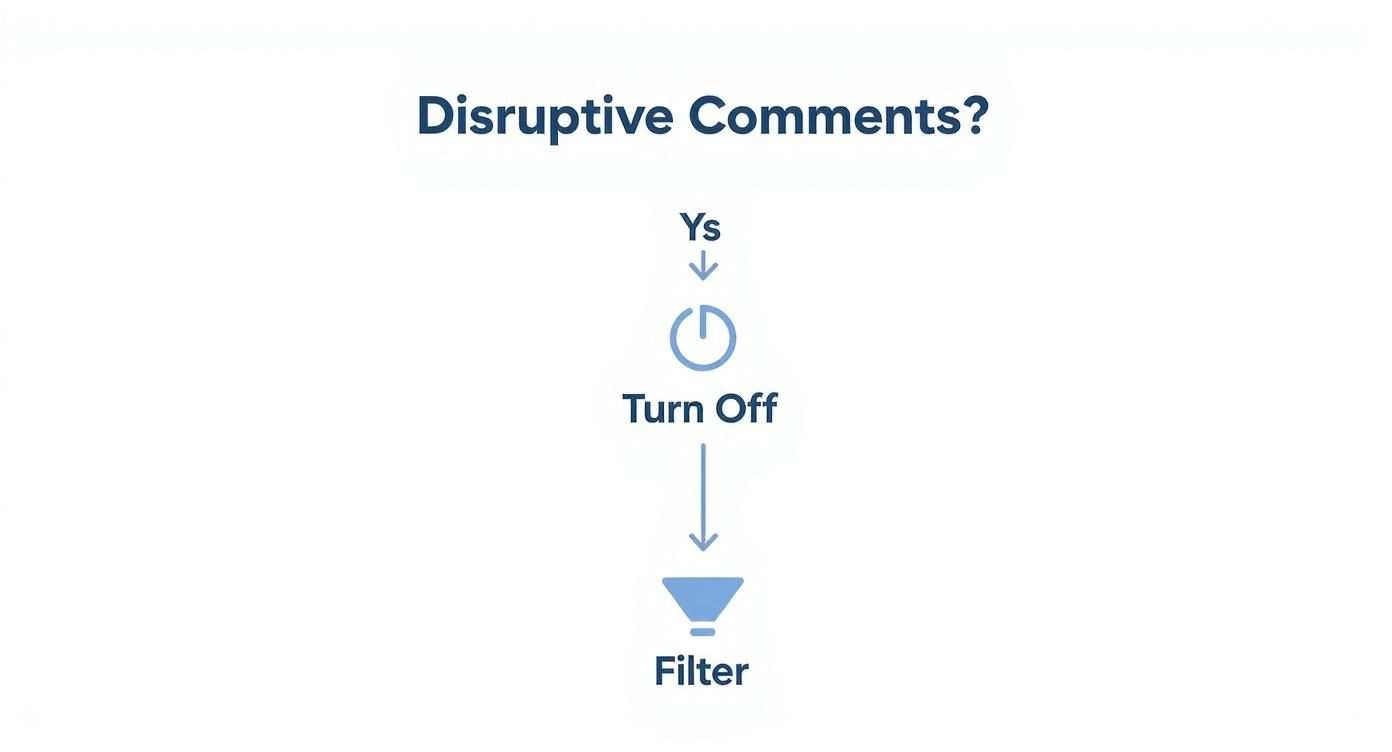
As you can see, filtering is a solid first line of defense. But when you need to handle individuals, Restricting often hits the sweet spot. It neutralizes a troublemaker without them even knowing it, which often stops them from just creating a new account to continue the disruption.
Bring in a Human Moderator
Let's be real: if your Live stream is buzzing, trying to manage the chat while also hosting is next to impossible. You can't engage with your audience and play whack-a-mole with trolls at the same time. This is why you need a moderator.
Bringing on a trusted friend, a team member, or even a long-time community member to help out is a game-changer. They can be your eyes and ears in the chat, freeing you up to actually focus on your content.
Here’s what a good moderator can do for you in real-time:
- Pin positive comments to keep the good vibes front and center.
- Remove disruptive users by restricting or blocking them as needed.
- Answer simple, recurring questions that you might miss.
By delegating moderation, you're not just offloading a task; you're investing in your community's health. A good moderator acts as a guardian for your live space, ensuring it remains a positive and engaging environment for everyone. Choose someone who understands your community's vibe and can act decisively but fairly.
When to Bring in the Heavy Hitters: Third-Party Moderation Tools
Let's be real: once your audience hits a certain size, trying to manually hide comments on an Instagram Live is like trying to catch rain in a thimble. Instagram's built-in filters are a decent first line of defense, but for a high-volume stream, they just can't keep up.
This is where specialized third-party moderation tools come into play. Think of them as an automated, AI-powered bouncer for your comment section.
These platforms plug right into your Instagram account and get to work instantly. Using sophisticated AI, they analyze every single comment in real-time, automatically hiding spam, hate speech, or anything else that breaks the rules you've set. They’re faster and more thorough than any human moderator could ever hope to be.
So, Why Pay for a Tool?
For a busy creator or brand, the answer is simple: you get your time and sanity back. Instead of anxiously scanning the chat for trolls, you can actually focus on creating a great experience for your audience.
Most of these services provide a central dashboard where you can see everything that’s happening at a glance. For example, here's a look at the one from FeedGuardians.
This isn't just about deleting bad comments. A good dashboard gives you powerful insights into what’s going on—tracking sentiment, spotting spam trends, and identifying repeat offenders. This data is gold for fine-tuning your moderation strategy over time.
An automated tool does more than just clean up your live chat. It actively protects your brand's reputation and creates a genuinely positive space for your community. That translates directly to better engagement and a more loyal following.
Of course, these tools aren't free; they typically involve a subscription fee. And while the AI is incredibly good, it's not perfect—an occasional false positive can happen. But for any account dealing with a constant flood of negativity, the trade-off is almost always worth it.
If you think this is the right move for you, it's a good idea to explore the different Instagram moderation tools out there to find one that fits your specific needs and budget.
Best Practices for a Healthy Live Community
Knowing how to hide comments is a useful tool, but it's fundamentally reactive. The real goal is to cultivate a positive space where heavy-handed moderation isn't even necessary. Think of it as building a community, not just policing one.
A great way to start is by setting the tone right from the beginning of your broadcast. Kick things off with a simple reminder like, “Hey everyone, let’s keep the chat respectful and on-topic so we can all have a great time!” You can even pin a comment with your rules so anyone joining late sees it right away.
Foster Positive Engagement
Don't just focus on the negative. Actively guide the conversation by rewarding the kind of behavior you want to see more of. When you spot an insightful question or a really supportive comment, give that person a shout-out. Thanking them by name does wonders to encourage others to contribute in a similar way.
Overly aggressive moderation can actually backfire, making your space feel sterile and killing authentic conversation. It’s all about finding that sweet spot—a balance that protects your community without silencing it.
Getting this balance right is so important for your brand's image. A healthy comment section is a direct reflection of your public perception, which is why a solid online reputation management guide can be incredibly valuable for any creator.
With daily viewership for Instagram Live now past 100 million users, creating a welcoming environment is no longer optional. These streams can spark way more interaction than a standard post, making them a powerful tool for connecting with your audience on a deeper level. To learn more about this, check out the stats on live streaming engagement on Cropink.
Got Questions? We've Got Answers
Jumping into Instagram Live comment moderation can feel like a lot at first. You're trying to connect with your audience, but you also need to keep the space positive. Let's clear up a few of the most common questions people have.
Can I Just Hide One Bad Comment During My Live?
Unfortunately, no. Instagram doesn't give you a button to zap a single, specific comment while you're live. Once it's there, it's there for everyone to see.
Your best bet is to deal with the person who left it. You can quickly report the comment, mute them for the rest of the stream, or even restrict or block them. I usually find that restricting is the smoothest move—their comments become invisible to everyone but them, so they don't even realize they've been sidelined.
Will Someone Know if I Filter Their Comment?
Nope, they'll be completely in the dark. When your Hidden Words filter catches a comment, it simply vanishes for you and your audience. The person who posted it, however, can still see their own comment on their screen.
This is a really subtle and effective way to handle trolls or spam. Since they aren't notified, they don't get angry and try to spam you again. You're quietly cleaning up the chat without kicking off a bigger argument.
Does Turning Off Comments Hurt My Engagement?
It can, and it's something to think about seriously. Shutting down comments is the nuclear option—it stops the bad stuff, but it also kills all the good conversation, the questions, and the support from your real fans.
This can make your broadcast feel less like a community and more like a one-way speech, which might hurt your engagement numbers. I'd recommend keeping this as a last resort. Try using word filters, assigning moderators, or restricting specific users first. Only turn comments off entirely if things are truly getting out of hand.
Ready to stop worrying about trolls and spam altogether? FeedGuardians uses smart AI to hide harmful comments automatically, 24/7, so you can focus on what matters. Learn how FeedGuardians can protect your community.
Article created using Outrank
Tired of manually moderating comments?
FeedGuardians automates spam filtering, responds to customers, and protects your brand — setup in 3 minutes.