
Quick Summary
| Key Insight | What You Need to Know |
|---|---|
| Why Comment Moderation Matters | Why Comment Moderation Matters for Your TikTok Account |
| Accessing and Configuring Your | Accessing and Configuring Your TikTok Comment Settings Where to Find Comment Settings in Your Creator Account Understanding Your Privacy and Safety Options |
| Where to Find Comment | Where to Find Comment Settings in Your Creator Account |
| Understanding Your Privacy and | Understanding Your Privacy and Safety Options |
| How to Block Words | How to Block Words on TikTok Using Keyword Filtering Setting Up Your Keyword Filter List Managing Offensive Language and Spam Prevention |
| Setting Up Your Keyword | Setting Up Your Keyword Filter List |
Table of Contents
- Why Comment Moderation Matters for Your TikTok Account
- Accessing and Configuring Your TikTok Comment Settings
- How to Block Words on TikTok Using Keyword Filtering
- How to Assign a Moderator on TikTok LIVE
- How to Report Inappropriate Comments on TikTok
- Advanced Comment Moderation Strategies for High-Volume Accounts
- Troubleshooting Common Moderation Issues
- Conclusion
Last Updated: August 10, 2026
Why Comment Moderation Matters for Your TikTok Account
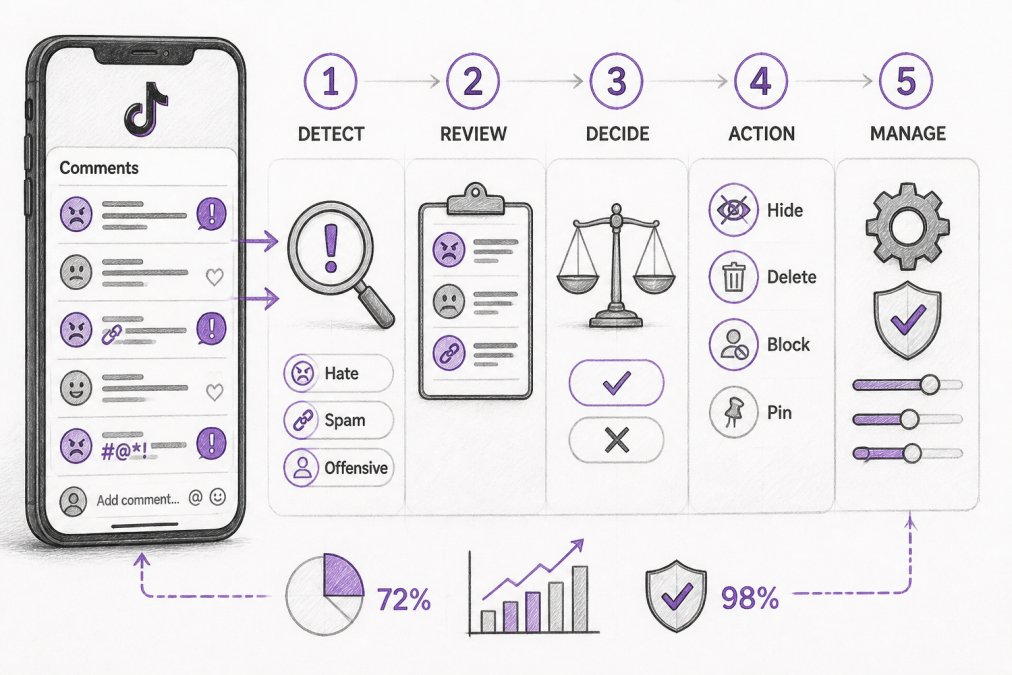
TikTok comment sections can turn into a brand liability in seconds. A single hateful message, spam link, or competitor jab left visible on your content damages credibility and tanks engagement metrics. The platform's algorithm punishes videos with high volumes of negative or low-quality interactions, which means unmoderated comments directly suppress your reach.
This is where learning how to moderate TikTok comments step by step becomes essential. Comment moderation isn't just about hiding bad content, it's about controlling the conversation around your brand and protecting your audience from harm. For e-commerce brands, marketing agencies managing multiple accounts, and content creators with high engagement, manual moderation alone won't scale. You need a system.
At FeedGuardians, we provide an AI-powered comment moderation and response solution for brands across Instagram, Facebook, TikTok, and YouTube, ensuring a dominant online presence. The difference between a chaotic comment section and a thriving community comes down to strategy and the right tools working together.
Below, we'll walk through every moderation feature TikTok offers, from basic settings to advanced strategies for high-volume accounts. Whether you're getting started or scaling your approach, this guide covers the exact steps you need.
Accessing and Configuring Your TikTok Comment Settings
The foundation of effective comment management starts in your account settings. TikTok's privacy and safety options give you granular control over who can comment and what appears on your videos.
Where to Find Comment Settings in Your Creator Account
Open TikTok and go to your profile. Tap the menu icon (three horizontal lines) in the top right corner. Select "Settings & privacy," then tap "Privacy." Under the "Interactions" section, you'll find "Comments." This is where all your comment-level settings live.
From here, you can toggle who's allowed to comment on your videos. Your options are:
- Everyone (default)
- Friends only
- Off (disables comments entirely)
Most creators and brands choose "Everyone" to maximize engagement, but you can restrict this based on your content strategy. If you're dealing with a harassment campaign or testing a new product launch, switching to "Friends only" temporarily gives you breathing room.
Understanding Your Privacy and Safety Options
Beyond the basic comment toggle, TikTok's privacy settings include options for filtering and controlling viewer interaction. Under "Restricted accounts," you can manually block specific users from commenting on any of your videos. This is useful for repeat offenders, but it doesn't scale for high-volume accounts.
The real power comes from TikTok's keyword filtering feature, which we'll cover in the next section. But first, understand that your comment settings interact with TikTok's community guidelines enforcement. Comments that violate guidelines, harassment, hate speech, spam, are automatically flagged by TikTok's systems. Your job is to catch what the algorithm misses and manage the gray areas: off-topic comments, competitor links, or brand-voice violations that aren't technically against the rules but hurt your engagement strategy.
Setting up these foundational controls takes five minutes. Most brands skip this step and regret it when they're drowning in spam. Don't be that brand.
How to Block Words on TikTok Using Keyword Filtering
Keyword filtering is your first line of defense against spam, offensive language, and competitor mentions. TikTok's built-in keyword filter lets you automatically hide comments containing words or phrases you specify.
Setting Up Your Keyword Filter List
Go to Settings & privacy > Privacy > Comments. Scroll down to "Filter comments." Tap "Manage keyword filter." You'll see a text field where you can add words or phrases, one per line.
Here's where strategy matters. Don't just add curse words, TikTok's algorithm already catches most of those. Instead, focus on:
- Competitor brand names (if relevant to your business)
- Spam keywords ("click here," "dm for details," "link in bio")
- Specific slurs or hateful language your audience uses
- Off-topic keywords that don't fit your brand
For example, if you sell fitness products, you might filter "crypto," "forex," and "MLM" to keep your comment section focused. If you're in e-commerce, filter payment-related spam like "free money" or "easy cash."
The keyword filter hides comments from public view, but you can still review them in a separate "Filtered" section. This is important: filtered comments aren't deleted, so you can catch false positives and adjust your list over time.
Managing Offensive Language and Spam Prevention
TikTok offers a toggle for "Filter likely offensive comments." When enabled, the platform's AI automatically hides comments it predicts will contain offensive content. This is useful as a baseline, but it's not precise. False positives happen, sarcasm gets flagged, context gets lost.
The best approach is to combine TikTok's automated filtering with your custom keyword list. Let the platform catch obvious violations, then layer in your specific business rules. For high-volume accounts, this hybrid approach saves hours of manual review while keeping your comment section on-brand.
One tactical tip: review your filtered comments weekly. You'll spot patterns in spam or harassment that your keyword list should catch. If you notice the same phrase appearing repeatedly in filtered comments, add it to your custom filter. This iterative approach keeps your filter list relevant as spam tactics evolve.
How to Assign a Moderator on TikTok LIVE
Live broadcasts create real-time interaction that's impossible to moderate alone. TikTok's moderator feature lets you grant trusted team members permission to manage comments during your streams.
Granting Moderator Access During Live Broadcasts
Start a TikTok LIVE broadcast. Once the stream is active, tap the comment icon at the bottom of your screen. You'll see a list of viewers. Long-press on a viewer's name, and you'll get the option to "Make moderator." That's it, they now have moderation access for that live session.
The moderator can:
- Pin comments to highlight important questions or positive engagement
- Hide or delete comments in real time
- Block viewers from commenting further
This is critical for high-engagement streams. If you're doing a product launch or Q&A, having a moderator handle the comment flow lets you focus on content. Without a moderator, you're reading, responding, and managing chaos simultaneously, which tanks your broadcast quality.
Managing Moderator Permissions and Responsibilities
TikTok doesn't offer granular permission controls. Once someone's a moderator, they have full comment-management access for that broadcast. This means you need to trust your moderators completely. Choose team members who understand your brand voice and community guidelines.
Set clear expectations before going live. Brief your moderator on:
- What types of comments to hide (spam, harassment, off-topic)
- What to pin (questions you want to answer, positive engagement)
- When to escalate to you (edge cases, potential PR issues)
For agencies managing multiple client accounts, this becomes more complex. You might have different moderation rules for different clients. Document these rules and share them with your moderation team before each broadcast. A simple checklist prevents mistakes.
One workflow note: after the broadcast ends, review what your moderator did. Did they hide comments that should have stayed visible? Did they miss obvious spam? This feedback loop improves your moderation over time and catches moderators who aren't aligned with your standards.
How to Report Inappropriate Comments on TikTok
Not every problem comment can be solved with filters or moderators. Some require escalation to TikTok's trust and safety team.
Reporting Content That Violates Community Guidelines
Long-press any comment and select "Report." You'll be prompted to choose a reason: harassment, hate speech, spam, misinformation, or other. Select the category that best matches the violation, then submit.
TikTok's team reviews reports and takes action based on severity. Repeated violations from the same user trigger account warnings or suspensions. This is why reporting matters, it's not just about your comment section; it's about protecting the broader community.
The key here: report strategically. Don't report every disagreement or slightly off-topic comment. Focus on clear violations. If you report everything, TikTok's systems will deprioritize your reports as noise, and genuine violations won't get the attention they deserve.
Blocking Harmful Users and Managing Viewer Interaction
Blocking is more aggressive than filtering. When you block a user, they can't see your profile, comment on your videos, or message you. They also can't follow you.
Use blocking for:
- Repeat harassers who ignore warnings
- Users posting illegal content
- Coordinated spam campaigns from the same account
You can block users from their profile page or directly from a comment. Tap the three dots next to their comment, then select "Block."
For high-volume accounts, blocking becomes a daily task. Some brands experience coordinated attacks, competitor harassment, troll campaigns, or hate speech. In these cases, blocking individual accounts is whack-a-mole. This is where tools like FeedGuardians become essential. Automated moderation systems can identify and hide harmful content in real time, across thousands of comments, without requiring manual block-by-block action.
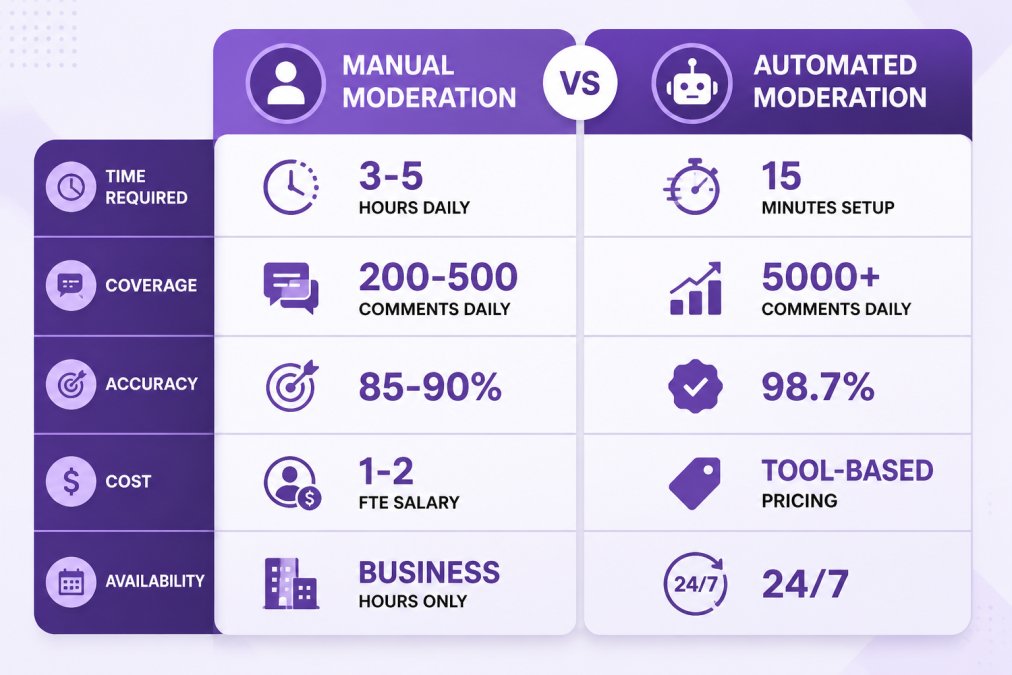
The difference between manual blocking and automated moderation is scale. Manual blocking works for accounts with hundreds of comments per video. For accounts with thousands of comments daily, you need systems that work 24/7.
Advanced Comment Moderation Strategies for High-Volume Accounts
Once you've mastered the basics, the next level is building a moderation strategy that scales with your growth.
Pinning Comments and Engagement Management
Pinning is underrated. When you pin a comment, it appears at the top of your comment section for 24 hours, visible to everyone. This is powerful for:
- Highlighting customer questions you're about to answer
- Showcasing positive reviews or user-generated content
- Correcting misinformation by pinning a clarification
- Building community by spotlighting engaged followers
Strategy: pin comments that add value to your video or move the conversation forward. If you pin random positive comments, it looks like you're fishing for compliments. If you pin questions you're about to answer, it looks intentional.
Engagement management goes beyond pinning. It includes:
- Responding to comments with your own replies (boosts visibility and algorithm favor)
- Liking comments from your audience (signals what you value)
- Hiding low-quality or off-topic comments (keeps the section focused)
The algorithm rewards videos with high engagement velocity. Comments that generate replies and likes get more visibility. This means your moderation strategy should actively encourage quality conversation, not just suppress bad content.
Balancing Automated and Manual Moderation
Here's the tension every scaling brand faces: you need speed and coverage, but you also need human judgment. Full automation misses context. Full manual moderation can't keep up with volume.
The answer is layered moderation. Use automation to handle obvious violations, spam, hate speech, competitor links, then route edge cases to your team for human review. This approach catches 98%+ of harmful content while preserving the nuance that automation misses.
FeedGuardians uses AI to automatically detect and hide spam, hate speech, and competitor links with 98.7% accuracy across TikTok, Instagram, Facebook, and YouTube. It also includes a human escalation option, where comments the system is uncertain about get flagged for your team to review. This hybrid model scales without sacrificing judgment.
The practical workflow looks like this:
- Automation screens all incoming comments in real time
- Clearly harmful content is hidden immediately
- Uncertain comments are queued for human review
- Your team reviews the queue (takes 15 minutes per day for most accounts)
- You adjust the system based on feedback
This approach saves hours daily compared to manual moderation alone, while maintaining the control you need to protect your brand.
Troubleshooting Common Moderation Issues
Even with a solid system, problems arise. Here are the most common issues and how to fix them.
Issue: Filtered Comments Are Hiding Legitimate Discussion
Your keyword filter is too aggressive. Review the "Filtered" section weekly and look for false positives. If you're filtering a word that's being used in context (like "free" when customers say "free shipping"), adjust or remove it.
Tactic: Create a "whitelist" of exceptions. Some moderation tools let you exclude certain phrases or accounts from filtering. If "free shipping" is legitimate but "free money" is spam, filter the longer phrase instead.
Issue: Spam Comments Still Getting Through
Your keyword list is outdated. Spammers adapt constantly. If you notice the same spam pattern appearing multiple times in a week, add it to your filter immediately.
Also check: are you filtering by exact match or partial match? Spammers intentionally misspell words to bypass filters. If you're filtering "click here," they'll write "cl1ck h3r3." Partial match filtering catches variations, but it also increases false positives. Find the balance that works for your account.
Issue: Moderators Are Making Mistakes
Your brief was unclear. Before each broadcast or moderation session, review your guidelines with your team. Show examples of comments that should be hidden vs. kept. Discuss edge cases. Miscommunication is the root of most moderation errors.
Issue: You're Spending Hours on Moderation and Still Missing Stuff
You've outgrown manual moderation. At this point, investing in an automated solution can be more efficient than hiring additional team members and offers 24/7 operation. Many high-volume accounts reach this inflection point around 2,000-5,000 comments per day.
Frequently Asked Questions
What's the difference between hiding and deleting a comment on TikTok?
Hiding a comment removes it from public view on your video, but the person who posted it can still see it. Deleting permanently removes the comment entirely. Use hiding for borderline content you want to suppress without confrontation, and delete for clear violations of your community guidelines. Both actions protect your brand reputation without aggressive blocking.
How do I turn on comment filters on TikTok to block offensive language?
Go to Settings & privacy > Safety > Comment filtering to enable automated filters. TikTok's built-in filters catch common offensive terms, but you can also add custom keywords to your block list. This automated moderation works alongside manual review, combine both methods for best results, especially for high-volume accounts managing real-time interaction.
Can I assign multiple moderators to manage comments across different times?
Yes. During TikTok LIVE broadcasts, you can add multiple moderators to your chat panel. Each moderator gets access to comment review, user restrictions, and the ability to report content. For non-live videos, you manage comments manually or use third-party moderation tools. Moderator workflow best practices include clear guidelines on what to hide, delete, or escalate to you.
How long does it take to set up TikTok comment moderation if I manage multiple accounts?
Basic setup takes 10-15 minutes per account: configure privacy settings, build your keyword filter list, and assign moderators if needed. For agencies managing 15+ accounts, manual setup becomes time-intensive. AI-powered moderation platforms can scale across multiple accounts with unified settings, reducing setup time significantly and enabling consistent safety protocols across your entire client portfolio.
Comment moderation isn't a one-time setup. It's an ongoing process that evolves as your account grows and your audience changes. Start with TikTok's built-in tools, they're free and they handle the basics. As your volume increases, layer in automation to maintain quality without burning out your team. The brands that master this balance turn their comment sections from a liability into an asset: a space where customers engage, ask questions, and build community around your brand.
This article was written using GrandRanker
Tired of manually moderating comments?
FeedGuardians automates spam filtering, responds to customers, and protects your brand — setup in 3 minutes.
Frequently Asked Questions
What's the difference between hiding and deleting a comment on TikTok?
Hiding a comment removes it from public view on your video, but the person who posted it can still see it. Deleting permanently removes the comment entirely. Use hiding for borderline content you want to suppress without confrontation, and delete for clear violations of your community guidelines. Both actions protect your brand reputation without aggressive blocking.
How do I turn on comment filters on TikTok to block offensive language?
Go to Settings & privacy > Safety > Comment filtering to enable automated filters. TikTok's built-in filters catch common offensive terms, but you can also add custom keywords to your block list. This automated moderation works alongside manual review—combine both methods for best results, especially for high-volume accounts managing real-time interaction.
Can I assign multiple moderators to manage comments across different times?
Yes. During TikTok LIVE broadcasts, you can add multiple moderators to your chat panel. Each moderator gets access to comment review, user restrictions, and the ability to report content. For non-live videos, you manage comments manually or use third-party moderation tools. Moderator workflow best practices include clear guidelines on what to hide, delete, or escalate to you.
How long does it take to set up TikTok comment moderation if I manage multiple accounts?
Basic setup takes 10-15 minutes per account: configure privacy settings, build your keyword filter list, and assign moderators if needed. For agencies managing 15+ accounts, manual setup becomes time-intensive. AI-powered moderation platforms can scale across multiple accounts with unified settings, reducing setup time significantly and enabling consistent safety protocols across your entire client portfolio.