
Quick Summary
| Key Insight | What You Need to Know |
|---|---|
| Why Spam on Instagram | Why Spam on Instagram Is Getting Worse |
| How to Hide Spam | How to Hide Spam on Instagram Using Built-In Settings Filter Comments Automatically Use Hidden Words to Block Spam Keywords Restrict and Block Users |
| Filter Comments Automatically | Filter Comments Automatically |
| Use Hidden Words to | Use Hidden Words to Block Spam Keywords |
| Restrict and Block Users | Restrict and Block Users |
| Instagram Comment Moderation Settings | Instagram Comment Moderation Settings You Should Enable Adjusting Your Comment Filter Levels Managing Message Requests and Group Chat Invitations |
Table of Contents
- Why Spam on Instagram Is Getting Worse
- How to Hide Spam on Instagram Using Built-In Settings
- Instagram Comment Moderation Settings You Should Enable
- How to Stop Instagram Bot Comments Before They Appear
- Third-Party Instagram Spam Blockers and Automation Tools
- Reporting Spam and Protecting Your Account Security
- Common Mistakes That Make Spam Worse
- Conclusion
Last Updated: August 9, 2026
Why Spam on Instagram Is Getting Worse
Modern Instagram spam is sophisticated and coordinated. Today's spam includes coordinated comment attacks, phishing links, fake engagement pods, and scam accounts impersonating verified brands. Spam accounts now use AI to generate contextually relevant comments that slip past basic filters and coordinate in groups to flood posts during peak hours. Manual moderation alone can't keep pace.
Understanding how to hide spam on Instagram requires a layered approach: platform settings, keyword filters, user restrictions, and potentially third-party automation. Instagram has built powerful tools directly into the platform, and when combined with strategic account practices, you can dramatically reduce noise without missing real customer conversations.
How to Hide Spam on Instagram Using Built-In Settings
Instagram's native comment moderation tools are far more powerful than most account owners realize. Start by accessing Settings and Privacy, then select Accounts Center. Go to Moderation and Review to find the core tools for hiding spam on Instagram.
Filter Comments Automatically
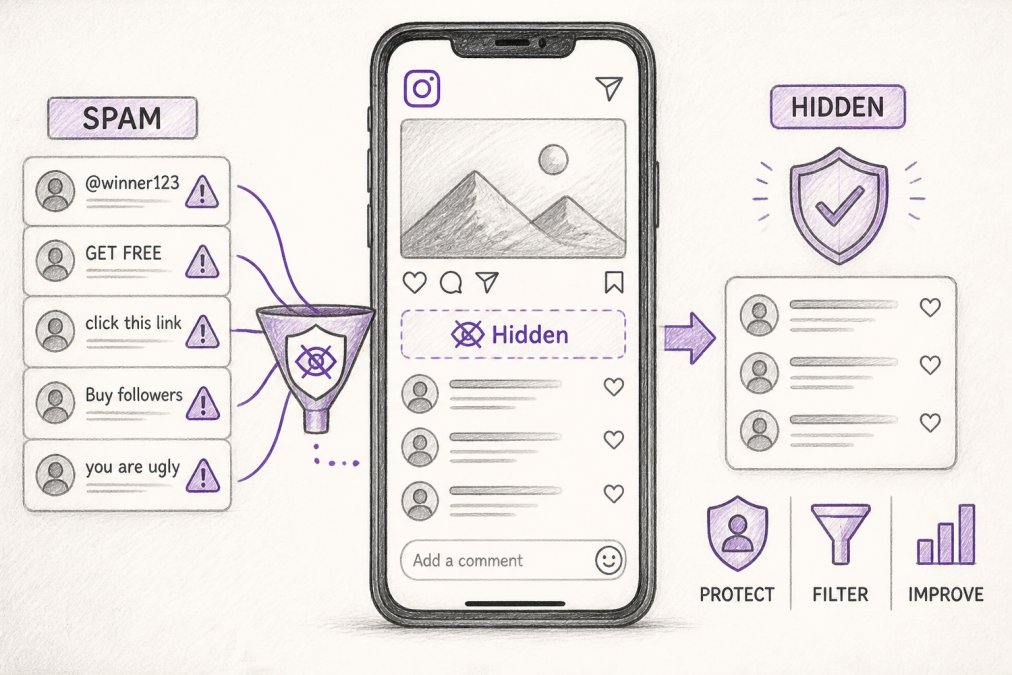
Automatic comment filtering catches spam based on patterns, language, and account behavior. Go to Settings > Accounts Center > Moderation > Comments and choose from three filter levels: Off, Standard, or Strict. Standard filters catch obvious spam, generic praise from new accounts, repetitive comments, and suspicious links. Strict filtering is more aggressive, catching comments with certain keywords or unusual patterns.
Filtered comments move to a separate "Hidden" folder where you can review them later. Check hidden comments weekly to ensure legitimate comments aren't being caught. Most brands benefit from Standard filtering as a baseline, escalating to Strict during high-spam periods.
Use Hidden Words to Block Spam Keywords
Hidden words lets you create custom keyword lists that automatically hide comments containing specific words, phrases, or hashtags. Access this through Settings > Accounts Center > Moderation > Hidden Words.
For example, an e-commerce brand selling skincare might add hidden words like "weight loss," "crypto," and "get rich quick", common spam phrases unrelated to their products. A SaaS company might block competitor domain names. You can also add hashtags to your blocklist if spam accounts consistently use certain tags.
Restrict and Block Users
Blocking prevents users from seeing your profile, comments, or messages. Use blocking for accounts that are clearly malicious, phishing, or impersonating your brand.
Restricting is more nuanced. When you restrict an account, their comments appear only to them and to you; other followers can't see them. The restricted account doesn't know they're restricted. Restrict accounts showing spam behavior but aren't necessarily malicious.
To block or restrict, visit a profile, tap the three dots menu, and select Block User or Restrict [Username]. You can also restrict directly from a comment.
Instagram Comment Moderation Settings You Should Enable
Adjusting Your Comment Filter Levels
Instagram's comment filter levels determine which comments require approval before appearing publicly. Filter levels range from Off (no filtering) to Minimal, Moderate, and Strict.
Moderate is most common for active accounts. It requires comments from accounts with minimal history to be approved before appearing, catching most bot spam while allowing established accounts to comment freely. Strict requires all comments to be approved, giving complete control but requiring active moderation.
Go to Settings > Accounts Center > Moderation > Comments > Filter Level to change your setting. Review the approval queue regularly in your Inbox or on individual posts.
Managing Message Requests and Group Chat Invitations
Message requests are direct messages from accounts you don't follow. They appear in a separate folder, preventing spam from cluttering your primary inbox.
Group chat invitations are another spam vector. Scammers create group chats to send spam links or phishing messages. Disable group chat invitations from accounts you don't follow by going to Settings > Privacy > Messages and toggling off "Allow Message Requests from Anyone."
For business accounts managing high message volume, use automated responses for common inquiries to reduce manual sorting while ensuring legitimate customers get timely replies.
How to Stop Instagram Bot Comments Before They Appear
Recognizing Bot Follower and Spam Comment Patterns
Bot accounts follow predictable patterns: new accounts with zero posts, no profile photo or stolen photos, random usernames, wildly imbalanced follower/following ratios, and generic comments unrelated to your post content.
Bot comments include generic phrases like "Love this!" or "Check out my profile," irrelevant emojis, links to external sites, and come from accounts that just followed you. Real customer comments reference specific post details, ask genuine questions, or provide constructive feedback.
Review your comment section regularly and develop intuition for what's spam. Use this to inform your hidden words list and restrict settings.
Turning Off Follow Suggestions and Limiting Discoverability
Spam accounts find your profile through Instagram's discovery algorithms. Be strategic about hashtags, using extremely popular hashtags increases spam exposure. Instead, use a mix of niche hashtags specific to your industry and moderate-volume hashtags relevant to your content.
Consider making your account private if your business model allows it. Private accounts receive fewer spam comments because bot accounts are less likely to follow private profiles.
Third-Party Instagram Spam Blockers and Automation Tools
How AI-Powered Moderation Works
AI-powered comment moderation systems analyze incoming comments using machine learning to identify spam, hate speech, scams, and phishing attempts. Advanced systems like FeedGuardians identify specific harmful content types, can be configured to match your brand guidelines, and learn from your moderation decisions.
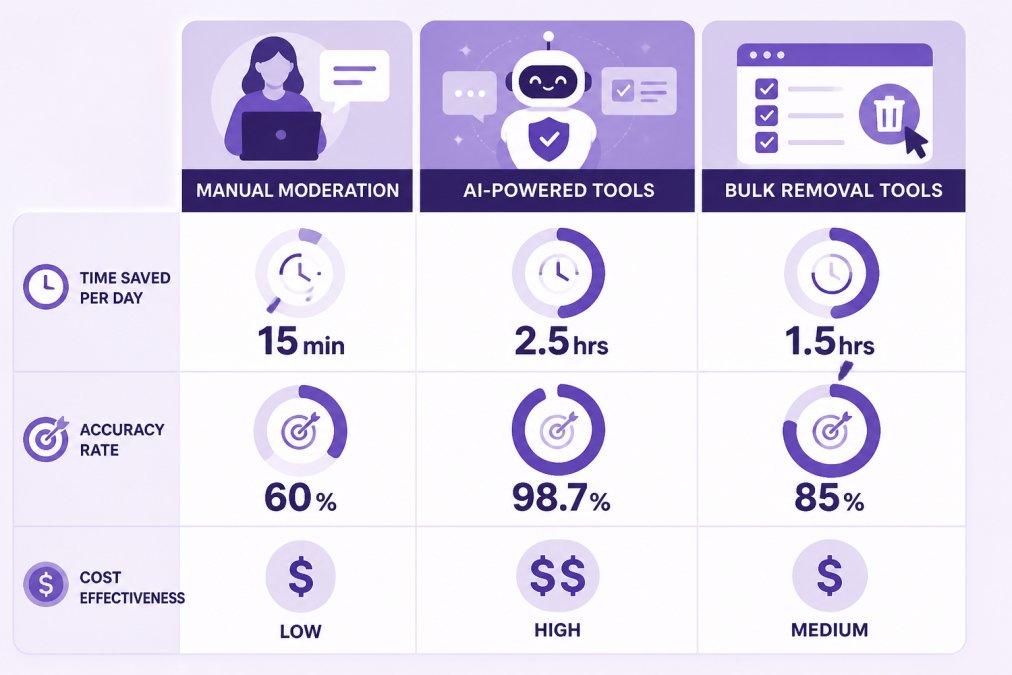
FeedGuardians detects and hides spam, hate speech, and competitor links with 98.7% accuracy while delivering 24/7 AI-powered replies in your brand voice. This removes spam and automatically responds to common customer inquiries, turning moderation into an engagement opportunity.
Bulk Removal Tools vs. Manual Methods
Manual removal works for small volumes but becomes tedious quickly. Bulk removal tools let you remove multiple comments at once based on criteria you define, trading control for speed.
Most accounts use a hybrid approach: bulk removal for obvious spam and manual review for borderline cases. Third-party tools can automate bulk removal based on sophisticated criteria like account age, posting history, and behavioral patterns, far more effective than keyword matching alone.
Reporting Spam and Protecting Your Account Security
How to Report Spam Accounts and Scam Protection
Visit a spam account's profile, tap the three dots menu, and select Report [Username]. Choose "It's spam" or "It's a scam." Reporting is most effective when multiple users report the same account.
For accounts impersonating your brand, report immediately and choose "It's pretending to be someone else." Instagram prioritizes these reports and often removes impersonating accounts within 24 hours.
Protect your own account with a strong, unique password and two-factor authentication through Settings > Security > Two-Factor Authentication. Regularly review active sessions in Settings > Security > Login Activity.
Avoiding Third-Party App Risks
Only grant access to established, reputable tools. Check reviews, company background, and privacy policy. Avoid tools asking for your Instagram password directly (legitimate tools use OAuth authentication). Avoid tools promising unrealistic results like "guaranteed follower growth."
Review permissions carefully, most legitimate moderation tools need permission to read comments and post replies, but should not need access to change passwords or delete accounts. Regularly audit authorized apps in Settings > Apps and Websites > Active Apps and remove access from tools you no longer use.
Common Mistakes That Make Spam Worse
Ignoring spam encourages more. Take action immediately by restricting accounts or hiding comments.
Using overly broad hidden words lists hides legitimate comments. Be specific and review regularly.
Responding to spam validates it and encourages more. Respond only to genuine customer inquiries.
Relying on a single approach leaves you vulnerable. Use multiple tools in combination.
Setting filter levels too high hides legitimate comments and discourages real engagement. Monitor your hidden folder and adjust if hiding more than 5-10% of comments.
Failing to update settings as you grow means strategies that worked for small accounts won't work for larger ones. Review moderation settings quarterly.
Spam on Instagram is manageable with the right combination of built-in platform tools, strategic settings, and potentially third-party automation. Start with Instagram's native features: automatic comment filtering, hidden words, and user restrictions. As your account grows or spam becomes more sophisticated, layer in third-party moderation solutions that detect complex patterns and automate responses.
The goal isn't eliminating every piece of spam, that's impossible, but making your comment section clean, trustworthy, and focused on real customer engagement. A layered moderation approach saves hours daily while improving engagement metrics and community health.
Ready to automate your Instagram spam defense? FeedGuardians detects and hides spam, hate speech, and competitor links with 98.7% accuracy while delivering 24/7 AI-powered replies in your brand voice. Save hours every day and protect your brand reputation. Start for free and see how AI-powered comment moderation transforms your Instagram presence.
| Moderation Strategy | Best For | Setup Time | Ongoing Effort |
|---|---|---|---|
| Instagram automatic filter | All accounts | 5 minutes | Minimal (weekly review) |
| Hidden words + restricted accounts | High-spam accounts | 15-30 minutes | Moderate (update keywords monthly) |
| Bulk removal tools | Cleanup after attacks | 30 minutes | Low (as-needed) |
| AI-powered moderation (FeedGuardians) | High-volume accounts | 1-2 hours | Low (system learns over time) |
| Manual moderation only | Small accounts | None | High (daily review required) |
Frequently Asked Questions
How do I turn off spam on Instagram?
Start by enabling Instagram's built-in comment filters in Settings > Account > Comment Controls. Set your filter to 'Standard' or 'Strict' depending on your spam volume. Then use hidden words to block specific keywords associated with scams or malicious links. For accounts with high comment volume, consider third-party Instagram spam blockers that automatically detect and hide spam comments with AI-powered accuracy, protecting your account security and engagement metrics.
Can I automatically hide spam comments on Instagram?
Yes. Instagram's native comment filter automatically hides suspected spam, but it catches only basic bot activity. For more comprehensive protection, third-party spam blockers use AI to detect inappropriate content, phishing attempts, and competitor links with higher accuracy. Tools like FeedGuardians filter comments in real-time, hiding spam automatically while allowing you to review flagged comments before they appear on your profile. This saves hours daily compared to manual moderation.
How do I stop getting added to random Instagram spam groups?
Adjust your message request settings to limit who can add you to group chats. Go to Settings > Messages > Message Requests and toggle 'Filter Unknown Senders.' You can also restrict specific users who repeatedly add you to unwanted groups. Additionally, avoid accepting follow suggestions from suspicious accounts and review your follower audit regularly to identify and block bot followers before they invite you to spam group chats.
What's the difference between manual comment moderation and automated spam blockers?
Manual moderation requires your team to review each comment individually, consuming hours daily for high-volume accounts. Bulk removal tools let you delete comments in batches but still require manual review. AI-powered spam blockers automatically detect and hide spam, scams, and hate speech without human intervention, achieving 98.7% accuracy on average. They also learn your brand voice and guidelines, enabling 24/7 automated replies that protect your reputation while scaling to multiple platforms and accounts without additional setup overhead per client.
This article was written using GrandRanker
Tired of manually moderating comments?
FeedGuardians automates spam filtering, responds to customers, and protects your brand — setup in 3 minutes.
Frequently Asked Questions
How do I turn off spam on Instagram?
Start by enabling Instagram's built-in comment filters in Settings > Account > Comment Controls. Set your filter to 'Standard' or 'Strict' depending on your spam volume. Then use hidden words to block specific keywords associated with scams or malicious links. For accounts with high comment volume, consider third-party Instagram spam blockers that automatically detect and hide spam comments with AI-powered accuracy, protecting your account security and engagement metrics.
Can I automatically hide spam comments on Instagram?
Yes. Instagram's native comment filter automatically hides suspected spam, but it catches only basic bot activity. For more comprehensive protection, third-party spam blockers use AI to detect inappropriate content, phishing attempts, and competitor links with higher accuracy. Tools like FeedGuardians filter comments in real-time, hiding spam automatically while allowing you to review flagged comments before they appear on your profile. This saves hours daily compared to manual moderation.
How do I stop getting added to random Instagram spam groups?
Adjust your message request settings to limit who can add you to group chats. Go to Settings > Messages > Message Requests and toggle 'Filter Unknown Senders.' You can also restrict specific users who repeatedly add you to unwanted groups. Additionally, avoid accepting follow suggestions from suspicious accounts and review your follower audit regularly to identify and block bot followers before they invite you to spam group chats.
What's the difference between manual comment moderation and automated spam blockers?
Manual moderation requires your team to review each comment individually, consuming hours daily for high-volume accounts. Bulk removal tools let you delete comments in batches but still require manual review. AI-powered spam blockers automatically detect and hide spam, scams, and hate speech without human intervention, achieving 98.7% accuracy on average. They also learn your brand voice and guidelines, enabling 24/7 automated replies that protect your reputation while scaling to multiple platforms and accounts without additional setup overhead per client.