
Quick Summary
| Key Insight | What You Need to Know |
|---|---|
| Why TikTok Keyword Filters | Why TikTok Keyword Filters Matter for Brand Safety |
| Understanding TikTok Comment Moderation | Understanding TikTok Comment Moderation Best PracticesSetting account-level safety parametersConfiguring negative keyword lists |
| Setting account-level safety parameters | Setting account-level safety parameters |
| Configuring negative keyword lists | Configuring negative keyword lists |
| Step 1 | Access your account safety settings |
| Step 2 | Choose your filtering mode |
Table of Contents
- Why TikTok Keyword Filters Matter for Brand Safety
- Understanding TikTok Comment Moderation Best Practices
- Step-by-Step: Setting Up Your Keyword Filters
- AI-Powered Comment Moderation for Real-Time Protection
- Managing Negative Comments on Social Media
- Common Filter Errors and How to Fix Them
- Best Practices for Keyword List Maintenance
- Frequently Asked Questions
Last Updated: September 26, 2026
Why TikTok Keyword Filters Matter for Brand Safety
On TikTok, manually reviewing thousands of daily comments isn't realistic. Understanding tiktok keyword filters safety lets you control what appears under your videos before customers see it.
A single hateful comment, spam link, or competitor attack can damage your brand's credibility in seconds. Keyword filters catch these problems automatically, 24/7.
Teams without filters spend hours daily managing toxic comments. Teams with filters spend minutes, gaining peace of mind and better ad performance.
Understanding TikTok Comment Moderation Best Practices
Comment moderation combines automated filtering with human judgment to protect your brand while keeping real conversations alive.
Setting account-level safety parameters
Your account-level settings form the foundation of all moderation and apply across every video you post.
Account-level safety parameters restrict comments based on account age, verification status, and follower count. Blocking new accounts with zero followers cuts spam significantly.
Start with "All Comments" mode to observe your comment patterns. Many brands find requiring accounts to have at least 100 followers cuts spam by half without blocking legitimate customers.
Configuring negative keyword lists
A negative keyword list contains words, phrases, and patterns you never want to see under your videos. When someone uses these words, the system hides the comment automatically.
Start with slurs, hate speech, and competitor brand names. Include common spam phrases like "click here," "DM for promo," and "check my profile," plus misspellings spammers use to evade filters.
Review hidden comments weekly and add recurring harmful phrases to your list.
Step-by-Step: Setting Up Your Keyword Filters
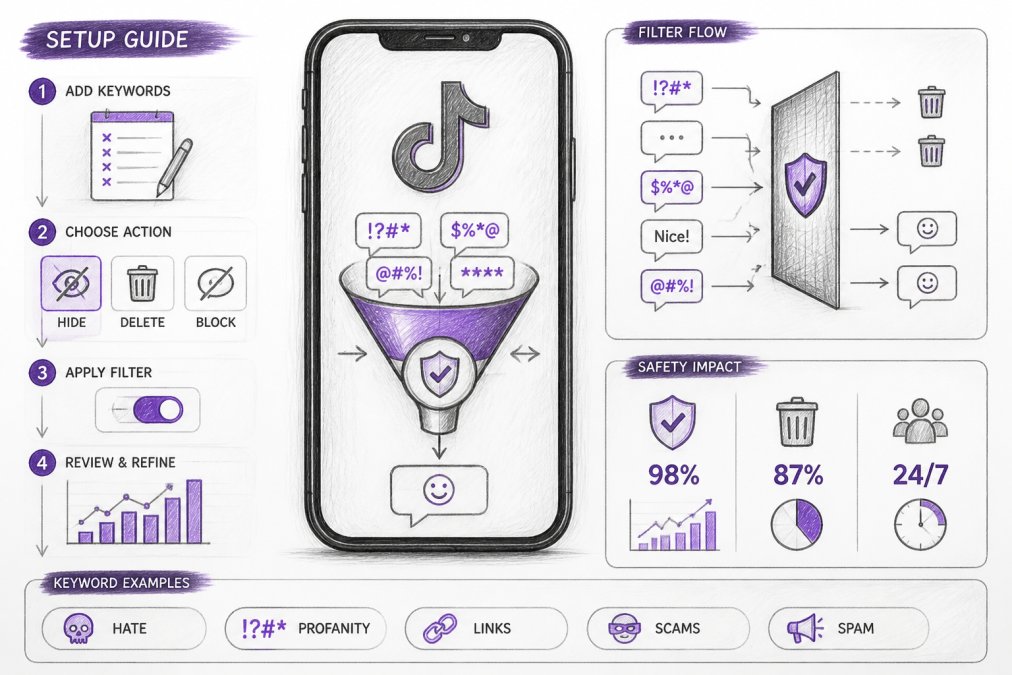
Implementing tiktok keyword filters safety takes about 15 minutes. This section walks you through the exact screens you'll see on desktop and common mistakes to avoid.
Step 1: Access your account safety settings
Open TikTok on desktop, click your profile icon, then select "Settings and Privacy."
On the left sidebar, click "Safety and Privacy" to access all moderation and filtering tools.
Look for "Comment Controls" or "Moderation Settings" and click that section.
Step 2: Choose your filtering mode
TikTok offers three comment filtering modes. You must choose one before adding keywords:
Mode 1: All Comments, Every comment appears publicly. Use this mode for 1-2 weeks to observe your comment patterns and prevent over-filtering later.
Mode 2: Filtered Comments, TikTok's automated system hides suspected spam, hate speech, or low-quality comments, but offers less control than custom keyword filtering.
Mode 3: Restricted Comments, Only approved accounts' comments appear publicly. This is best for brands receiving heavy spam or harassment.
Start with All Comments mode, then graduate to Filtered Comments or Restricted Comments after building a custom keyword list.
Step 3: Add keywords to your filter list
Once you've selected your filtering mode, look for the "Restricted Words" or "Custom Keywords" section. This is where you build your custom filter list.
Click "Add Words" or "Create New List." A text input box will appear.
Type one keyword or phrase per line. Include spam phrases ("click here," "dm for promo," "check my profile"), competitor names with misspellings, slurs and hate speech with common misspellings, and adult content markers if applicable. Start with 25-35 keywords total and refine weekly.
Step 4: Set auto-hide versus flag-for-review behavior
For each keyword or keyword group, you must decide: Auto-hide or Flag for Review?
Auto-hide: Comments disappear immediately. Use for obvious spam and slurs. Flag for Review: Comments go to a moderation queue for your review. Use for borderline cases.
Step 5: Enable notifications for flagged content
If you've set any keywords to "Flag for Review," enable notifications so you know when comments need your attention.
Step 6: Save and test your settings
Click "Save" or "Apply." Test by asking a colleague to post a comment with one of your keywords to verify it auto-hides or appears in your review queue.
Mobile app differences
On mobile, go to Profile → three-line menu → Settings and Privacy → Safety and Privacy → Comment Controls. Do initial setup on desktop for easier keyword input, then manage updates on mobile. Check desktop regularly to review flagged comments.
AI-Powered Comment Moderation for Real-Time Protection
Keyword filters are deterministic, they match exact strings or patterns you define. AI-powered moderation adds a layer that keyword filters alone cannot: contextual understanding and pattern detection across thousands of comments simultaneously.
How AI moderation differs from keyword filtering
Keyword filters match exact strings ("if comment contains X, hide it"). AI moderation classifies comments by category based on linguistic patterns and account history. AI distinguishes between a spammer posting "check my profile" 50 times in one hour versus a legitimate mention, catches coded language and evolving slang, and understands context, "cheap" in "your prices are cheap" differs from "cheap knockoff."
Real-time detection and velocity-based filtering
AI detects coordinated spam and attack patterns by recognizing when the same link or message appears 100 times in 10 minutes. Velocity-based filtering flags unusual patterns during product launches or controversies when comment volume spikes.
Trade-offs: AI versus keyword filtering
AI moderation isn't a replacement for keyword filters, it's a complement. Here's when to use each:
Use keyword filters for:
- Obvious, non-negotiable content (slurs, hate speech, explicit adult content)
- Brand-specific terms (competitor names, internal jargon you want hidden)
- Consistent spam patterns your team has already identified
Use AI moderation for:
- Emerging threats and evolving spam tactics
- Context-dependent decisions (is this criticism or spam?)
- High-volume comment streams where manual review is impossible
- Account-level behavior analysis (is this account a bot?)
Accuracy and false-positive rates
AI moderation systems vary widely in accuracy. Most commercial systems report 85-95% accuracy on spam detection, but accuracy alone doesn't tell the full story. A system that's 95% accurate at catching spam might also hide 8-12% of legitimate comments (false positives). For a brand receiving 10,000 comments daily, that could mean 800-1,200 real customer comments hidden incorrectly.
Implementation considerations
Start AI moderation in "flag for review" mode for one week before enabling auto-hide. Consider cloud-based systems (faster, no setup, but data shared) versus on-premise systems (private, but more technical configuration).
Managing Negative Comments on Social Media
Separate negative comments into three types: hate speech and slurs (hide immediately), spam and scams (hide), and legitimate criticism (respond publicly). Hide only Types 1 and 2. Brands that publicly address complaints look trustworthy; those hiding all negativity look dishonest.
Common Filter Errors and How to Fix Them
Keyword filters aren't perfect. Here are the problems you'll encounter and how to solve them.
Error 3: Competitor mentions get hidden
Error 4: Webhook notifications aren't working
Best Practices for Keyword List Maintenance
Your keyword list isn't a "set it and forget it" tool. It needs regular maintenance to stay effective. Here's how to keep it sharp.
Frequently Asked Questions
How do I enable safety settings and keyword filters on TikTok?
Log into your TikTok Creator or Business account, navigate to Settings & Privacy, then go to Safety. Select Comment Controls and enable keyword filtering. From there, you can add specific words or phrases you want to filter. You'll choose whether comments with those keywords are hidden automatically or flagged for your review. The process takes about 5 minutes to set up initial filters, though you'll refine them over time as you see what comments appear on your videos.
What's the difference between TikTok comment moderation best practices and just using filters?
Filters alone catch keywords, but best practices combine multiple approaches: setting account-level safety parameters, maintaining updated negative keyword lists, monitoring engagement metrics, and reviewing flagged content regularly. Best practices also include training your team on what to escalate, when to respond versus hide comments, and how to handle repeat offenders. This layered approach catches more harmful content than keyword filters alone, reducing the risk of brand damage.
Can AI-powered comment moderation catch things that keyword filters miss?
Yes. AI-powered comment moderation analyzes context, intent, and metadata, not just exact keyword matches. It detects hate speech, spam, competitor links, and scams even when they use slang, misspellings, or coded language that keyword filters wouldn't catch. For example, a keyword filter might miss a competitor link disguised in a shortened URL, but AI evaluates the domain and behavior pattern. FeedGuardians uses this approach to achieve 98.7% accuracy in detecting harmful content across Instagram, Facebook, TikTok, and YouTube.
How often should I update my keyword filter list?
Review and update your keyword list at least monthly, or more frequently if you manage high-comment-volume accounts. Check your moderation logs to see what slipped through or what was over-filtered. Remove keywords that generate false positives (legitimate words you didn't intend to block) and add new terms based on comments you're manually hiding. Seasonal campaigns, trending slang, and industry-specific language change constantly, so active maintenance keeps your filters effective.
Tired of manually moderating comments?
FeedGuardians automates spam filtering, responds to customers, and protects your brand — setup in 3 minutes.
Frequently Asked Questions
How do I enable safety settings and keyword filters on TikTok?
Log into your TikTok Creator or Business account, navigate to Settings & Privacy, then go to Safety. Select Comment Controls and enable keyword filtering. From there, you can add specific words or phrases you want to filter. You'll choose whether comments with those keywords are hidden automatically or flagged for your review. The process takes about 5 minutes to set up initial filters, though you'll refine them over time as you see what comments appear on your videos.
What's the difference between TikTok comment moderation best practices and just using filters?
Filters alone catch keywords, but best practices combine multiple approaches: setting account-level safety parameters, maintaining updated negative keyword lists, monitoring engagement metrics, and reviewing flagged content regularly. Best practices also include training your team on what to escalate, when to respond versus hide comments, and how to handle repeat offenders. This layered approach catches more harmful content than keyword filters alone, reducing the risk of brand damage.
Can AI-powered comment moderation catch things that keyword filters miss?
Yes. AI-powered comment moderation analyzes context, intent, and metadata—not just exact keyword matches. It detects hate speech, spam, competitor links, and scams even when they use slang, misspellings, or coded language that keyword filters wouldn't catch. For example, a keyword filter might miss a competitor link disguised in a shortened URL, but AI evaluates the domain and behavior pattern. FeedGuardians uses this approach to achieve 98.7% accuracy in detecting harmful content across Instagram, Facebook, TikTok, and YouTube.
How often should I update my keyword filter list?
Review and update your keyword list at least monthly, or more frequently if you manage high-comment-volume accounts. Check your moderation logs to see what slipped through or what was over-filtered. Remove keywords that generate false positives (legitimate words you didn't intend to block) and add new terms based on comments you're manually hiding. Seasonal campaigns, trending slang, and industry-specific language change constantly, so active maintenance keeps your filters effective.