
Quick Summary
| Key Insight | What You Need to Know |
|---|---|
| Sneaky Spam | Comments that aren't obvious bot-spam but are clearly promoting another business or dropping unsolicited links. |
| Off-Topic Tangents | Conversations that completely derail the point of your original post and confuse other readers. |
| Low-Value Negative Remarks | Vague complaints or trolling attempts that add nothing constructive to the discussion. |
| Sensitive Customer Info | Hiding a comment that contains personal information while you take the conversation to a private channel like Messenger. |
When you hide a comment on Facebook, you're essentially making it invisible to everyone except the person who wrote it and their friends. It's a clever moderation trick—a subtle way to deal with spam, negativity, or off-topic chatter without sparking a fight by outright deleting the comment.
Why Hiding Comments Is a Smarter Strategy
Before we get into the "how-to," let's talk about the "why." Choosing to hide a comment instead of deleting it is a strategic move that lies at the heart of good community management. Think of it as a precision tool for protecting your brand's reputation and sidestepping unnecessary drama.
When you delete a comment, the poster almost always notices. This can easily provoke someone who's already upset, leading them to post again, bombard you with negative reviews, or take their grievances to another platform where you have zero control. Hiding, on the other hand, is a quiet, non-confrontational fix.
The Psychology Behind Hiding a Comment
The real genius of this feature is its subtlety. From the commenter's point of view, everything looks normal. They (and their friends) can still see their comment sitting right there on your post, so they rarely realize it has been cloaked from the public. This neat trick stops them from feeling censored or ignored.
This approach is fantastic for de-escalating conflicts before they even start. You get to clean up your comment section by removing problematic content from public view, all without kicking off a public argument. It gives you effortless control over the tone of the conversation.
When Hiding Is the Best Call
Knowing when to use the hide function is crucial for effective moderation. It’s not about silencing every critic; it's about fostering a constructive and safe space for your audience.
Here are a few classic scenarios where hiding is the perfect move:
- Sneaky Spam: Comments that aren't obvious bot-spam but are clearly promoting another business or dropping unsolicited links.
- Off-Topic Tangents: Conversations that completely derail the point of your original post and confuse other readers.
- Low-Value Negative Remarks: Vague complaints or trolling attempts that add nothing constructive to the discussion.
- Sensitive Customer Info: Hiding a comment that contains personal information while you take the conversation to a private channel like Messenger.
To manage your community well, you need to know the difference between your main moderation options. Hiding is subtle, deleting is final, and banning is a last resort.
Hide vs. Delete vs. Ban: A Quick Comparison
Understanding the key differences between Facebook's main moderation actions helps you choose the right tool for each situation.
| Action | What Happens | Best For |
|---|---|---|
| Hide | The comment becomes invisible to the public but remains visible to the commenter and their friends. | Handling spam, off-topic remarks, and mild negativity without confrontation. |
| Delete | The comment is permanently removed and is no longer visible to anyone. | Removing rule-breaking content like hate speech or severe misinformation. |
| Ban | The user is blocked from your Page/Group and can no longer post, comment, or interact. | Dealing with repeat offenders, trolls, or users who consistently violate policies. |
Each action serves a different purpose. Choosing the right one helps maintain a healthy and engaging community space.
The goal is selective moderation—protecting your page without silencing legitimate feedback. Deleting can feel like censorship, while hiding simply removes a comment from the public stage.
This tactic has become a go-to for experienced social media managers. In fact, a 2024 survey showed that 62% of Facebook page managers prefer hiding comments over deleting them, citing its less confrontational nature. If you're looking for even more control, our guide on how to disable comments on Facebook explores other options. Ultimately, using the hide function is a powerful way to maintain a cleaner, more positive space for your community.
How to Manually Hide Comments on Any Device

Alright, you understand the why behind hiding comments. Now for the how.
The good news is that it’s incredibly simple, whether you're on your phone or a computer. The process is slightly different depending on where you are—your personal profile, a business Page, or a Group—but the core action is the same. This is your go-to move for quickly dealing with a comment that’s out of line.
Hiding Comments from a Desktop Browser
When you’re at your desk, this is the quickest way to clean up a comment section. You get a nice, big view of the conversation, making it easy to spot what needs to go.
Just navigate to the post and find the specific comment you want to hide. Look for the three dots (•••) right next to it. Clicking that little icon pulls up a menu with everything you can do to that comment.
From that list, just choose "Hide comment."
Instantly, the comment grays out. Only you and the person who wrote it (and their friends) can see it now. You'll also notice the option has changed to "Unhide," so you can easily reverse course if you hit it by mistake.
Hiding Comments on the Facebook Mobile App
Let's be real—most of us are managing our social media from our phones. Thankfully, the Facebook app (for both iOS and Android) makes hiding comments just as easy on the go.
Pull up the post and scroll to the comment you want to zap. Instead of clicking, you’ll press and hold your finger on the comment for a second or two. A new menu will pop up from the bottom of your screen.
You’ll see a few choices, including "Reply" and "Report." The one you want is "Hide." Tap it, and it’s gone from public view. Simple as that. It works exactly like the desktop version, graying out the comment so you can find it and unhide it later if you need to.
Pro Tip: Speed matters. The faster you hide a toxic or spammy comment, the less oxygen it gets. Hiding it quickly prevents it from sparking negative replies and derailing the entire conversation on your post.
Finding and Unhiding a Comment
Ever hide a comment and immediately regret it? Or maybe you had a change of heart after a situation cooled down. No worries—reversing the action is just as straightforward.
Go back to the post where you hid the comment.
You’ll have to scroll through the comment thread to find it, but it will be there, looking a bit faded and grayed out. Right next to it, where the original menu was, you'll see a clear "Unhide" link.
Just click (or tap) that, and the comment pops right back into public view for everyone. It's a great safety net, giving you the final say over your comment section and letting you fix any moderation mistakes in a snap.
Tapping into Facebook's Built-In Moderation Tools
Manually hiding comments is a decent starting point, but let's be honest, it's a reactive game. When you're running a busy Page or Group, you can't be on high alert 24/7. That's where Facebook’s own automation tools come in handy, letting you get ahead of the chaos without being glued to your screen.
Think of these built-in features as a digital bouncer for your posts. They automatically screen and hide comments based on rules you set up, which is absolutely essential for scaling your moderation and putting your community management on a kind of autopilot.
Meet Moderation Assist
For anyone running a Page or Group, Moderation Assist is your best friend. It’s essentially a set of instructions you give Facebook to manage your comment section for you. It can automatically hide comments that meet certain criteria, saving you a massive amount of time and energy.
Getting it set up is pretty straightforward. You just need to head into your Page or Group settings, find Moderation Assist, and start telling it what to look for. This lets you build a custom filter that’s perfectly suited to whatever issues you're dealing with, from spammy links to persistent trolls.
Creating Your First Automated Rules
The real magic of Moderation Assist is in its custom rules. You can mix and match different criteria to build a surprisingly sophisticated filter that catches junk comments before they ever become a problem.
Here are a few of the most effective criteria I always recommend for automatically dealing with Facebook hide comments:
- Keywords in Comment: This is the big one. You can create a list of words, phrases, and even emojis that will get a comment hidden instantly. Think of things like profanity, your competitors' names, or common spam phrases like "DM me for info."
- Link in Comment: A huge chunk of spam comments are just there to drop a link. Turning this rule on is a quick win—it will instantly hide any comment trying to pull your audience away to another site.
- No Profile Picture: Accounts without a profile picture are often brand-new spam bots or trolls looking to cause trouble. Filtering them out is a simple but surprisingly effective tactic.
- New Account: You can also set a rule to hide comments from Facebook accounts that are super new, like less than a week or a month old. This is another great way to stop those throwaway troll accounts in their tracks.
Key Takeaway: Don't try to boil the ocean on day one. Start with a few simple rules, like blocking links and adding a short list of obvious spam keywords. You can always build on it later as you see what kind of comments your Page attracts.
Building an Effective Keyword Filter List
Your keyword list is the heart of your automated moderation. A well-thought-out list will catch most of the unwanted noise, but a lazy one might end up hiding legitimate comments from your community.
The best way to start is by brainstorming words you absolutely, positively do not want on your Page. I find it helps to group them into categories.
Profanity and Inappropriate Language
This one’s a no-brainer. Pull together a list of common swear words and all their variations. Don't forget to include common misspellings or versions that swap letters for symbols (like "s#&t").
Spam and Scams
Get into the mind of a spammer. What do they usually say?
- "Free followers"
- "DM me"
- "Check my bio"
- "Crypto"
- "Investment"
Competitor Mentions
If you don't want people poaching your audience in your own comment section, add your competitors' brand names to the list. For example, if you're a local coffee shop, you might add the names of the other cafes in your town to stop them from soliciting your customers.
Spammers are always changing their tactics, so you'll see new phrases pop up over time. Make it a regular habit—maybe every few weeks—to check your hidden comments and update your keyword list. Keeping this list fresh is a vital part of any good facebook comment moderation 2025 strategy.
Reviewing What Automation Is Doing
Automation is a lifesaver, but it's not infallible. You’ll want to periodically check in on what Moderation Assist has been up to, just to make sure it isn't getting a little too aggressive.
Inside the Moderation Assist settings, Facebook gives you an Activity Log. This log shows you every single comment that was automatically hidden and which specific rule was triggered.
I recommend spending just a few minutes a week looking through this log. It’s a great way to:
- Spot False Positives: You might find a perfectly good comment got zapped because it accidentally contained a keyword. From the log, you can unhide it with a single click.
- Refine Your Rules: If you see one of your rules is consistently flagging the wrong kinds of comments, you can easily tweak it or just get rid of it.
- Identify New Threats: The log is also a goldmine for spotting new spam phrases or troll tactics, which you can then add right back into your keyword list.
By really leaning into these native tools, you can take your comment management from a draining, manual chore to an efficient, automated system that protects your brand and community around the clock.
Automating Comment Moderation With Third-Party Tools
Facebook’s built-in moderation tools are a decent starting point, but they have their limits. If you’re juggling multiple ad campaigns, dealing with a post that’s gone viral, or managing a large community, the flood of comments can become impossible to handle manually.
This is where dedicated third-party platforms come in. They offer a much more powerful and precise way to automate comment moderation.
These tools are more than just simple keyword filters. They give you a central dashboard to manage conversations across all your social channels, not just Facebook. This lets you create complex, layered rules that Facebook's Moderation Assist just can't match, giving you pinpoint control over your community’s vibe.
Why Go Beyond Facebook's Native Tools?
The main reason to look beyond Facebook’s own tools is scale. As your brand grows, your comment volume will too. Trying to keep up manually or with basic filters quickly becomes a losing battle. You’ll start missing customer questions, spam will linger, and negativity can fester, damaging your brand's reputation.
A specialized platform helps you build a system that can actually grow with you. It lets you create advanced rules, connect with other business software, and provides deep analytics on comment trends and even your moderation team's performance. It transforms a tedious chore into a streamlined, data-driven operation that protects your brand 24/7.
The basic idea is to create an automated workflow that filters comments, applies your rules, and hides what you don’t want seen—all before it can cause any trouble.
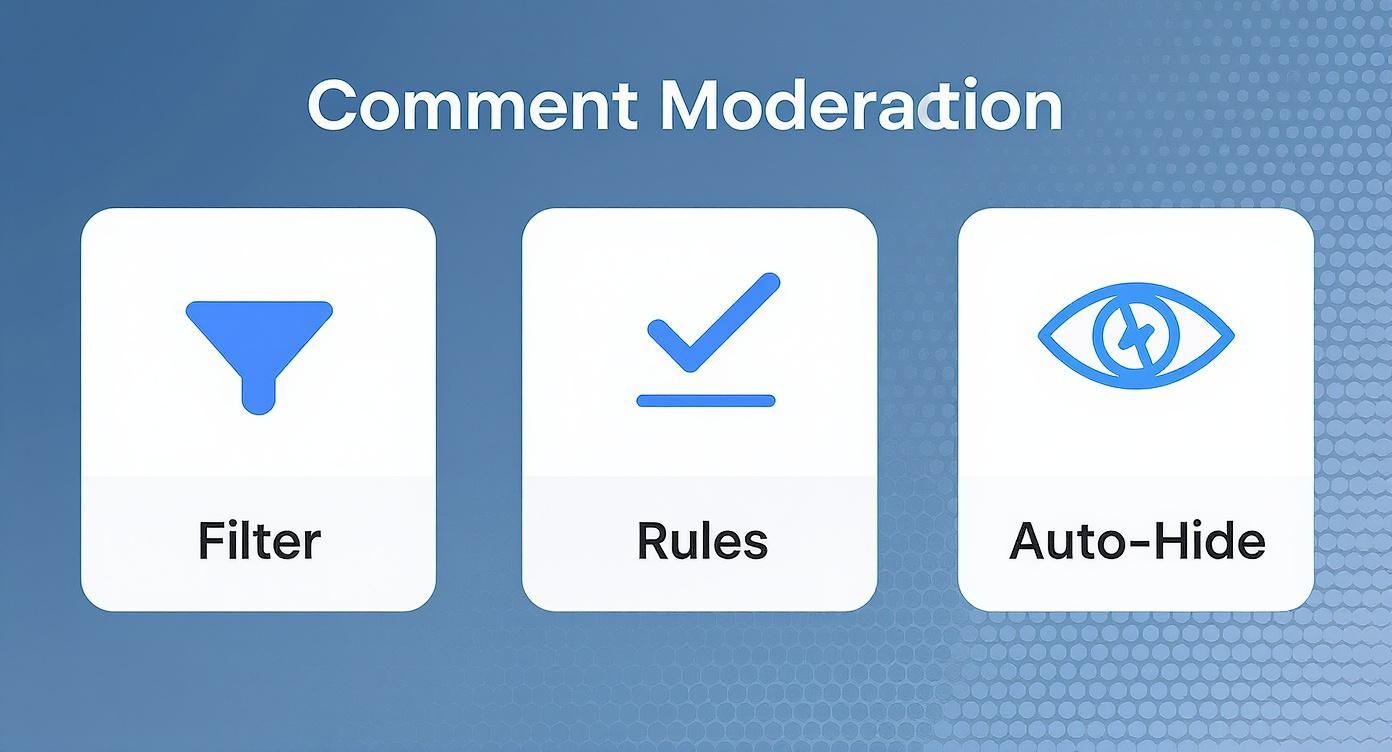
This automated process acts as a protective shield. It ensures only comments that meet your standards are publicly visible, safeguarding your community around the clock.
Creating Advanced Automation Rules
The real magic of these tools is crafting rules that are both smart and specific. Instead of just blocking a list of swear words, you can combine multiple conditions to catch nuanced, tricky comments with impressive accuracy.
Let's walk through a real-world scenario. Imagine you're an e-commerce brand running a massive sales campaign. You're expecting a huge spike in comments—some good, some bad—and you can't have your team working overnight to police them all.
Here’s an example of an advanced rule you could build with a tool like NapoleonCat:
- Trigger 1: Detects a comment with negative sentiment using AI analysis.
- Trigger 2: Checks if the comment was posted outside of your business hours (say, between 10 PM and 6 AM).
- Trigger 3: Verifies that the comment does not contain purchase-intent keywords like "price," "buy," or "how much."
- Action: If all three conditions are met, the tool automatically hides the comment.
See how smart that is? This rule lets your team address legitimate customer issues with buying intent while preventing trolls or late-night complaints from derailing your post’s momentum. You can even set it up to send a notification, flagging these hidden comments for a human to review when the team is back online.
Expert Tip: The most effective automation strategies I've seen combine keyword filters with sentiment analysis. This helps you tell the difference between a sarcastic comment using a "negative" word and a genuinely abusive one. It dramatically reduces false positives, so you don't accidentally hide valuable customer feedback.
Facebook Native Tools vs Third-Party Platforms
Deciding between Facebook's free tools and a paid platform can be tough. It really comes down to your specific needs, the scale of your community, and your budget. This table breaks down the key differences to help you choose the right solution.
| Feature | Facebook Moderation Assist | Third-Party Tools (e.g., NapoleonCat) |
|---|---|---|
| Basic Keyword Filtering | Yes | Yes |
| Sentiment Analysis | No | Yes, typically AI-powered |
| Multi-Platform Support | No (Facebook only) | Yes (Instagram, YouTube, etc.) |
| Time-Based Rules | No | Yes |
| Detailed Analytics | Limited activity log | Comprehensive reporting |
| Team Collaboration | Limited | Advanced features for teams |
| Purchase Intent Detection | No | Yes |
As you can see, Facebook offers a great free option for basic needs. But if you're serious about community management, a dedicated platform provides a much deeper set of features designed for businesses.
For a closer look at the different options out there, our guide on AI comment moderation tools for 2025 offers a deep dive into the leading platforms available.
Ultimately, the goal is to build a system that lets you confidently manage your Facebook hide comments strategy at any scale. By offloading the repetitive, draining parts of moderation to a smart tool, you free up your team to focus on what really matters: engaging with your customers and building a great online community.
Making Your Comment Moderation Actually Work
Having the tools to moderate comments is one thing. Knowing how to use them effectively—with a clear, fair strategy—is what really protects your brand and builds a healthy community. A great approach isn’t about just stamping out negativity; it's about creating a space where constructive conversation can thrive.
It’s a balancing act, for sure. You need to walk that fine line between shielding your community from truly harmful stuff and shutting down valid criticism. The goal is to build an environment where people feel heard, even when they're complaining, while showing trolls and spammers the door.
First, Set the Rules of the Road
Before you hide your first comment, everyone needs to know the rules of engagement. Put together a simple, public set of community guidelines and pin it right to the top of your Page or Group. This document is your North Star—it tells people exactly what’s okay and what’s not.
Keep your guidelines short and sweet. Focus on the big stuff:
- Play Nice: No personal attacks, hate speech, or bullying. Simple.
- No Spamming: We'll remove self-promo, shady links, and copy-pasted comments.
- Keep it Relevant: Let's try to keep conversations on topic.
When your rules are out in the open, your moderation decisions have a solid, transparent foundation. If you have to hide or delete something, you can point directly to the rule that was broken. It immediately shuts down any claims of unfair censorship.
Know When to Reply vs. When to Hide
That knee-jerk reaction to hide every negative comment is tempting, but it’s often the wrong move. Sometimes, a public reply is your most powerful tool. Addressing a real complaint for all to see shows you're transparent and that you take customer service seriously.
Think about it: a bad customer experience, when handled well, can create a fiercely loyal brand advocate. When someone is frustrated, meeting them head-on with a solution can totally flip their perception of your company.
Key Insight: Solving a problem publicly doesn't just placate one unhappy customer. It builds trust with everyone who sees it, showing them you’re a brand that listens and owns its mistakes.
Of course, not every comment deserves a response. Trolls, bad-faith arguments, or vague, drive-by negativity? Those are best hidden immediately. Don't feed the trolls—giving them attention is exactly what they want.
Check In on Your Hidden Comments
Automation is a huge help, but it's not foolproof. You absolutely have to review what your filters and manual actions are hiding on a regular basis. This quick check-in is crucial to make sure you haven’t accidentally silenced legitimate feedback or customer questions.
Just set aside a few minutes each week to skim through the comments your tools have flagged. This simple audit helps you:
- Fix Goofs: Unhide anything that was caught by mistake. A keyword filter can easily misinterpret an innocent phrase.
- Tune Up Your Filters: If you see your rules are constantly snagging the wrong things, you can tweak your keywords for better accuracy.
- Keep the Human Touch: It keeps you connected to the real conversations happening on your page, even the messy parts.
This final step is what separates good moderation from great moderation. It ensures your strategy is both efficient and fair, ultimately creating an online space that feels authentic, engaging, and genuinely supportive.
Common Questions About Hiding Facebook Comments
Even with the best tools and a solid plan, you'll probably still run into some specific questions about how hiding comments actually works on Facebook. Let's clear up some of the most common ones so you can moderate with total confidence.
Does The Person Know If I Hide Their Comment on Facebook?
Nope. When you hide a comment, Facebook does not send a notification to the person who wrote it. This is precisely what makes hiding such a useful and low-key moderation tactic.
The original commenter and their friends can still see their comment, making it seem like nothing has changed. For everyone else, though, it's completely invisible. This is perfect for dealing with spam or negativity without starting an argument, since the user usually never even realizes their comment has been tucked away.
Can I Hide All Comments on a Facebook Post at Once?
Unfortunately, there's no magic "hide all" button for comments that have already been posted. If you're running a Facebook Group, you can use the "Turn off commenting" feature to prevent any new comments, but that won't affect the existing ones.
For personal profiles and business Pages, you're stuck hiding them one by one. This is exactly why it's so much better to set up proactive filters using Moderation Assist or a dedicated tool before you even publish the post.
Important Takeaway: Trying to manually hide a flood of comments is a losing battle. The smart move is to set up your automation and keyword filters ahead of time. You'll save yourself a massive headache.
What Is The Difference Between Hiding and Deleting?
Both hiding and deleting get a comment out of public view, but they are very different tools with different jobs.
- Hiding a comment is like putting it in a private room. It’s invisible to the public, but the original poster (and their friends) can still see it. Page admins can see it too. It’s a great, low-conflict way to clean up your feed.
- Deleting a comment permanently erases it for everyone, including the person who wrote it. It’s a much more aggressive move and can easily provoke a negative reaction if the user notices their comment has vanished.
I almost always recommend hiding comments for spam, off-topic rants, or general negativity. Save the delete button for the serious stuff—comments that clearly violate your rules, like hate speech or dangerous misinformation. Understanding this difference is a core part of figuring out what comment moderation means in the real world.
Where Do I Find The Comments I Have Hidden?
This is a common point of confusion—hidden comments don't just disappear into a separate folder. To find one, you have to go back to the original post.
Just scroll through the comment section, and you'll see the hidden comment grayed out. Right next to it, you’ll find the option to "Unhide". If you're using Moderation Assist for your Page, you can also check the activity log to see a list of all the actions it has taken, including which comments were hidden automatically. That log is a lifesaver for double-checking the system and unhiding anything that got caught by mistake.
Ready to stop manually policing your comments and start protecting your brand 24/7? FeedGuardians uses powerful AI to automatically hide spam and harmful comments, reply to customers, and capture sales leads in real-time. Take control of your comment section and book a demo today.
Tired of manually moderating comments?
FeedGuardians automates spam filtering, responds to customers, and protects your brand — setup in 3 minutes.