
Quick Summary
| Key Insight | What You Need to Know |
|---|---|
| First, find the comment | First, find the comment you need to remove. |
| Instead of clicking, just | Instead of clicking, just press and hold your finger directly on the comment text. |
| A new menu will | A new menu will slide up from the bottom of your screen. |
| Just tap 'Hide' from | Just tap 'Hide' from the options, and you're done. |
Hiding a comment on Facebook is surprisingly straightforward. All you have to do is find the comment you want to manage, click or tap the three-dot menu (...) right next to it, and choose 'Hide comment'. Just like that, the comment vanishes from public view, and the best part? The original poster never gets a notification. It's a clean, discreet way to tidy up your comment section.
Your Quick Guide to Hiding Facebook Comments
Knowing how to hide comments is a game-changer for managing your online space, whether you're dealing with your personal profile or a busy brand Page. Think of it as quietly guiding someone out of a conversation instead of making a scene. Deleting a comment is final and can feel aggressive, often escalating a minor issue into a major one. Hiding, on the other hand, is a much more subtle, non-confrontational move.
This is especially true for brands. When you hide a comment, it disappears for everyone except the person who wrote it and their friends. No alert is sent, no drama is started. It’s a savvy way to moderate, and the numbers back it up: 65% of marketers prefer hiding complaints to deal with them privately. This approach works wonders, resolving issues about 75% of the time, whereas public deletions can easily spark a backlash. If you're curious about how this all plays into the bigger picture, Buffer.com has a great breakdown on how Facebook's algorithm affects what people see.
Who Can See a Hidden Comment
So, what actually happens when you hit "hide"? It's not as simple as the comment just disappearing into thin air. Who sees it—and who doesn't—is precisely what makes this feature so useful.
To make it crystal clear, here’s a simple table that breaks down who can and cannot see a comment after you've hidden it.
Who Can See a Hidden Facebook Comment
| Audience | Visibility Status |
|---|---|
| The Public | Hidden. The comment is completely invisible to anyone else viewing the post. |
| The Commenter | Visible. The person who wrote the comment can still see it on the post. |
| The Commenter's Friends | Visible. Their friends can also still see the comment. |
| You (The Post Owner) | Visible. You can see the hidden comment, often grayed out, with an option to unhide it. |
This clever setup puts you in control of your post’s tone without creating unnecessary conflict. You get to clean up the public-facing conversation, all while the original commenter is none the wiser that their audience has been limited.
Hiding Individual Comments on Any Device
Whether you’re on your laptop or scrolling through your phone, getting rid of a troublesome comment is thankfully a quick and painless process. The steps are pretty much the same across the board, but knowing exactly where to tap can save you that moment of frantic searching.
Let's imagine you just posted a big win—maybe a promotion at work. Then, an old acquaintance leaves a comment that’s just a little bit snarky. It’s not breaking any rules, but it completely kills the vibe. That’s the perfect time to use the hide feature.
Hiding Comments on a Desktop Computer
When you're at your computer, you've got more screen real estate, which makes spotting and zapping unwanted comments a breeze.
All you have to do is find the comment you want to get rid of. Hover your mouse over it, and a little three-dot menu icon (...) will pop up on the right. Give that a click, and from the dropdown menu, select 'Hide comment'.
That's it. The comment will immediately turn a light gray color (visible only to you) and will be completely hidden from everyone else. The best part? The original commenter has no idea it happened—no notification, no drama. Your post's positive energy is restored.
Here’s what you should be looking for on both desktop and mobile:
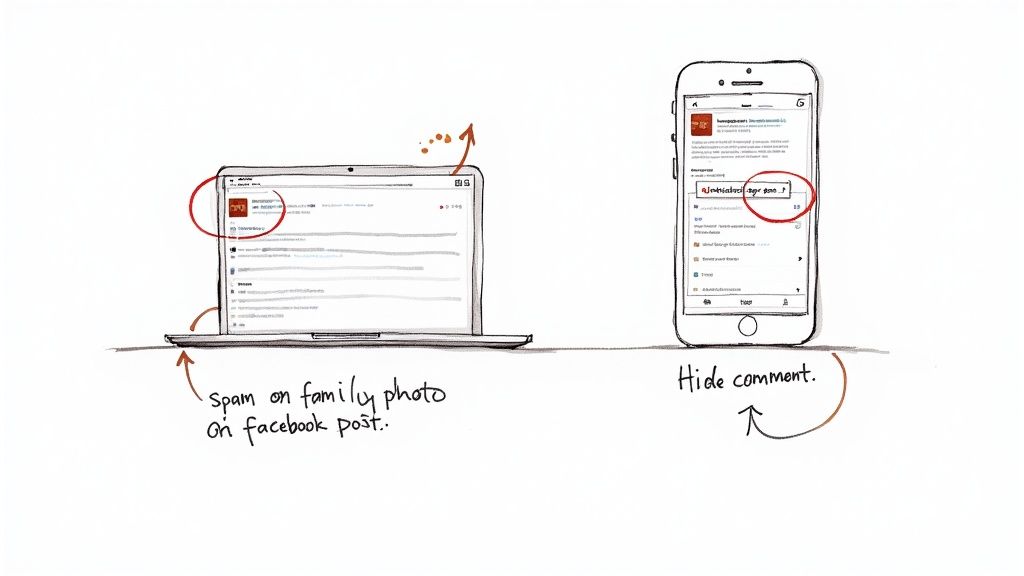
As you can see, that little three-dot menu is your go-to for comment moderation, no matter what device you're using.
Hiding Comments on Mobile Devices
The process is just as simple on your phone, and it works the same way on both the main Facebook app (for iOS and Android) and the lighter Facebook Lite version.
Say a spam account drops a shady link on a family photo you just shared. You want it gone, and you want it gone now.
- First, find the comment you need to remove.
- Instead of clicking, just press and hold your finger directly on the comment text.
- A new menu will slide up from the bottom of your screen.
- Just tap 'Hide' from the options, and you're done.
Pro Tip: Hiding a comment isn't permanent. If you ever hide one by accident, you can always find the grayed-out comment on your post and click 'Unhide'. It’s a nice little safety net to have.
Taking this quick action keeps your comment section clean and on-topic for your friends and family. It’s a simple but powerful way to maintain control over your own corner of the internet, ensuring the conversations on your posts stay positive and exactly how you want them.
When you're running a business Page or a community Group, managing comments stops being a personal choice and becomes a vital part of your strategy. The stakes are much higher, and thankfully, the tools you get through Meta Business Suite and Group settings are far more powerful. It’s no longer about what you personally like or dislike; it’s about nurturing a professional, safe, and productive online space.
For any business Page, your comment section is a direct reflection of your brand. Hiding a comment isn't just about sweeping negativity under the rug—it's a deliberate move. Let's say a customer posts a frustrated comment about a shipping delay. Hitting 'delete' is tempting, but it can easily backfire and make you look defensive. A better approach is to hide the comment. This allows you to slide into their DMs to resolve the issue privately, showing top-notch customer service without letting one complaint derail the public conversation.
Mastering Moderation in Meta Business Suite
Meta Business Suite is your command center for managing all these interactions efficiently. Instead of hopping from post to post, you get a single, consolidated stream of all your comments and messages.
Hiding a comment from your Page is straightforward:
- Head over to your Inbox in Meta Business Suite.
- Click on the Facebook Comments tab to filter the view.
- Find the comment you need to address.
- Click the three-dot menu (...) next to it and choose Hide comment.
Once you do this, the comment vanishes for the general public but remains visible to you, the original poster, and their friends. It’s a subtle but powerful tool. With Facebook boasting 3.07 billion monthly active users, hiding comments has become an indispensable skill for Page admins trying to maintain a positive brand image without completely silencing customer feedback. For more on how other admins are using this, you can discover more insights about Facebook comment management on napoleoncat.com.
Expert Tip: Always try hiding a negative comment first to resolve the issue privately. It shows you're paying attention without escalating things publicly. Save the delete button for clear-cut rule violations like spam, hate speech, or abuse.
Strategic Comment Control in Facebook Groups
Moderating a Facebook Group is a bit different. Your main goal is to cultivate a healthy, engaging community discussion. But we've all seen it happen—a post gets heated, arguments get personal, or the conversation veers completely off-topic. In those moments, hiding one or two comments just won't cut it.
That’s when turning off commenting entirely becomes your best friend. If a thread has served its purpose or just dissolved into chaos, a good moderator knows when to step in and shut it down.
- Find the post in your Group that's causing the trouble.
- Click the three-dot menu (...) at the top right of the post itself.
- Select "Turn off commenting" to lock the thread.
This move effectively "mass hides" all future comments and sends a clear signal to the community that the conversation is over. It's a proactive way to stop a bad situation from getting worse. Understanding the fine line between when to hide, delete, or turn off comments is what separates good moderators from great ones. To really get into the weeds on these tactics, take a look at our complete guide on Facebook comment moderation for 2025.
Automating Your Comment Moderation
Let's be real—manually hiding comments one by one is a decent strategy, but it just doesn't scale. If you're running a busy Page, a popular brand, or a Profile in Professional Mode, you can't be on comment duty 24/7. It's just not possible. This is where you need to get smart and put your moderation on autopilot using Facebook’s own tools.
Think of Facebook's Moderation Assist as your personal bouncer. It stands guard at the door of your comment section so you don't have to. Instead of you having to spot and zap every piece of spam or negativity, this feature does the heavy lifting for you, working tirelessly in the background.
This handy flowchart breaks down how moderation works differently for Pages versus Groups. It’s a great visual for understanding why Facebook treats business and community spaces differently.
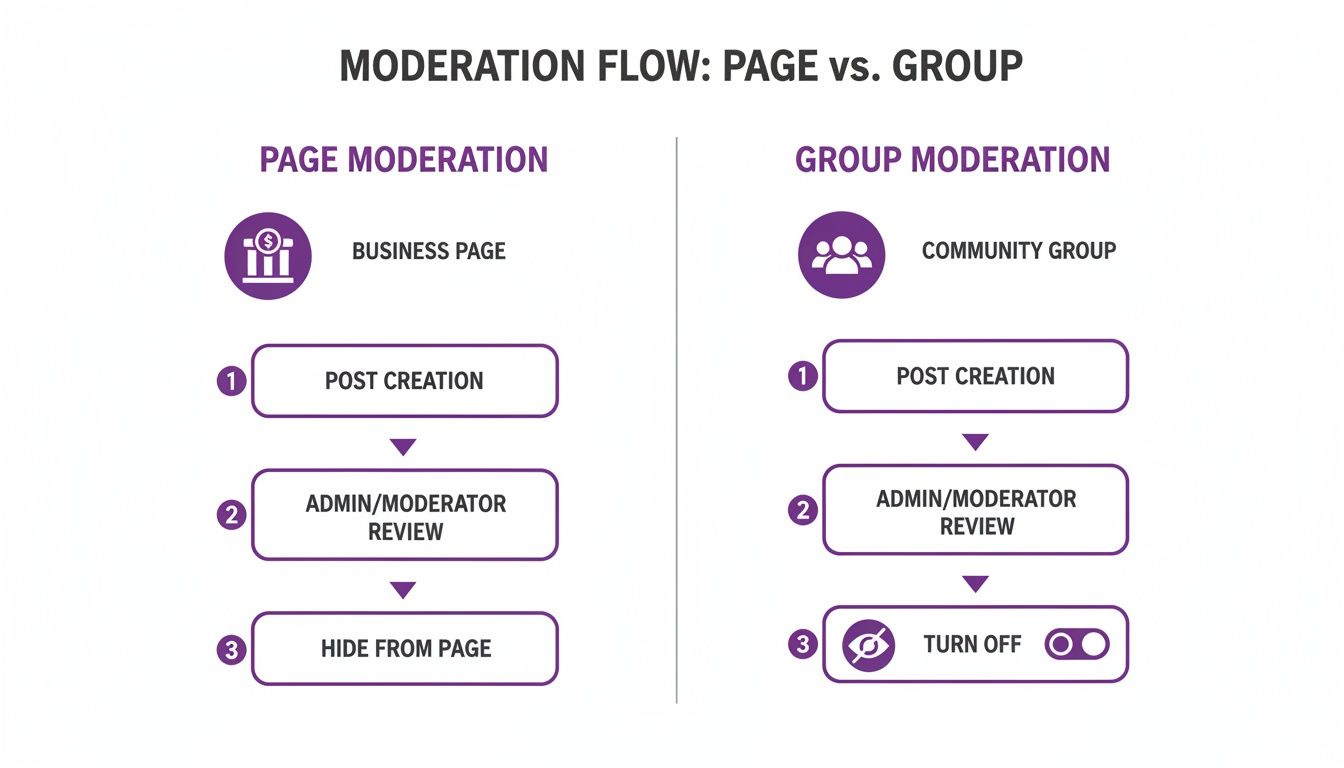
The main difference? Pages are all about discreetly hiding specific comments to clean up the conversation. Groups, on the other hand, give you the nuclear option: shutting down commenting on a post entirely.
Setting Up Keyword Filters
This is where Moderation Assist truly shines. You can build custom rules that automatically hide comments containing specific keywords, shady links, certain emojis—you name it. This is how you proactively keep your corner of the internet positive and on-brand without lifting a finger every time.
Imagine you manage a Facebook Page for a new coffee shop. Your keyword filter list could automatically hide:
- Spam: Anything with "free followers," "DM me for a deal," or suspicious-looking links.
- Competitor Ads: Comments that mention the big chain down the street.
- Profanity: Common curse words or offensive slurs to keep the vibe friendly.
Getting started is straightforward. Head to your Page or Professional Dashboard, find Moderation Assist, and start adding your criteria. While the preset options to hide comments with links or profanity are great, the custom keyword list is your most powerful weapon.
Expert Tip: A common rookie mistake is making your keyword list too broad. For example, blocking the word "problem" could hide a legitimate customer asking for help. Get specific. Target phrases like "this is a scam" or "terrible service" to catch the truly harmful comments.
The Real-World Impact of Automation
Automating moderation does more than just save you a ton of time; it actively protects your brand's reputation around the clock. In massive markets like the US and India, where Facebook has over 300 million users each, automated filtering is what stops a minor troll comment from snowballing into a full-blown PR crisis overnight.
For a clearer picture of when to use each method, here’s a quick breakdown:
Manual Hiding vs Automated Filtering
| Feature | Manual Hiding | Automated Filtering (Moderation Assist) |
|---|---|---|
| Best For | Nuanced situations, gray areas, low comment volume. | High-volume pages, clear-cut violations (spam, profanity). |
| Speed | Slow, requires constant monitoring. | Instant, works 24/7 in the background. |
| Accuracy | High. A human can understand context and sarcasm. | Can make mistakes; may hide legitimate comments if filters are too broad. |
| Effort | High. Demands significant time and attention. | Low. Set it up once and it runs on autopilot. |
Ultimately, a smart strategy uses a mix of both. You let the automated filters catch the obvious junk, which frees you up to manually handle the more complex comments that require a human touch.
While Facebook’s built-in tools are a fantastic starting point, they can feel a bit basic for Pages with massive engagement. When you're dealing with thousands of comments, you'll probably want more firepower. This is when many social media managers graduate to specialized software. These platforms offer sharper filtering, sentiment analysis, and a unified dashboard for all your accounts.
If you find yourself managing a large-scale community, exploring dedicated AI comment moderation tools for 2025 is the logical next step. It's how you can fully protect your brand and streamline your entire workflow.
Hiding vs. Deleting vs. Blocking: Making the Right Call
Knowing how to hide a Facebook comment is easy. The real art is knowing when to hide it versus bringing out the bigger guns: deleting or blocking. Each option sends a very different message, and choosing wisely can be the difference between a quick tidy-up and a full-blown community management crisis.
Think of it like this: hiding is the quiet, diplomatic approach. Deleting is drawing a firm line in the sand. Blocking? That’s for when someone has crossed the line one too many times.
When Hiding Is Your Best Bet
Hiding a comment is easily the most subtle tool you have. It’s my go-to for comments that aren't breaking any rules but are just… unhelpful. Think off-topic tangents, mild negativity, or customer service issues that are better handled behind the scenes.
For example, say you post a new product launch and someone complains about their shipping delay from a previous order. If you delete it, you look like you're silencing customers. Instead, hide it. The comment disappears from the public feed, but the original poster can still see it. This gives you a chance to reply privately and solve their problem without derailing the excitement on your post. It’s all about de-escalation.
Key Takeaway: Hiding a comment is like politely guiding someone out of a conversation without causing a scene. Since the commenter and their friends can still see it, they often don't even realize it's been hidden, which helps you sidestep a lot of unnecessary drama.
When to Pull the Trigger on Deleting
Deleting is a much stronger move, so save it for clear-cut violations of your page's rules. This isn’t for opinions you don't like; it's for content that's genuinely toxic or harmful.
It’s time to hit delete for things like:
- Obvious Spam: Those comments packed with shady links or generic sales pitches. You know the ones.
- Hate Speech or Bullying: There’s zero tolerance for comments attacking people based on race, gender, religion, or anything else.
- Explicit Content: Any comments with nudity, violence, or other graphic stuff that clearly violates Facebook’s own policies.
When you delete a comment, you're making it crystal clear that certain behavior is unacceptable. Just be aware, the user will know their comment has been removed, and some might try to retaliate.
When It's Time to Block
Blocking is the nuclear option. Use it sparingly. This is for the repeat offenders—the people who keep breaking the rules even after you've hidden or deleted their comments. A block completely removes them from your world; they won't be able to find your page, see your posts, or interact with you again.
This is the right call for persistent trolls, chronic spammers, or anyone who just won't stop harassing others in your community. It’s a permanent fix for a recurring problem. And if you ever find a post is just attracting too much negativity, you might want to look into how to disable comments on Facebook entirely.
Choosing the right action is more than just cleanup; it's a strategic move. Facebook's algorithm can actually penalize pages and profiles that get a lot of reported content, hurting your reach. This makes hiding a smart first step, as it prevents things from escalating. In fact, the way comment visibility is handled affects a massive 70% of moderated interactions. For more on platform trends, you can find interesting stats about Facebook usage on recurpost.com.
Troubleshooting Common Comment Moderation Problems
Even those of us who live and breathe social media management get tripped up by Facebook's moderation tools now and then. It’s definitely frustrating when features don't seem to work right, but thankfully, most problems have a pretty simple fix. Let's walk through a few of the most common headaches.
One of the biggest points of confusion I see is this: "I hid a comment, but it's still there. Did it even work?" Yes, it did! You, as the page admin or the person who made the post, will always see the hidden comment, as will the person who wrote it. The key is that it's now completely invisible to everyone else, which is exactly what you wanted.
Bringing Comments Back from the Brink
What if you hide a comment by accident? We’ve all done it. Don't sweat it—it's super easy to reverse.
Just go back to the post, find that grayed-out comment, and you'll see an "Unhide" option right underneath it. Click that, and it's instantly public again. No harm done.
Then there's the mystery of the "ghost comment." You get a notification that someone commented, but when you go to the post... nothing. It's vanished. This usually happens for one of two reasons: either the person deleted their comment immediately after posting, or their account got flagged by Facebook's spam filters. On rare occasions, it's just a temporary platform glitch that sorts itself out.
Key Takeaway: Hiding a comment isn't the same as deleting it. Think of it as moving the comment into a private room where only you and the original commenter can see it. This lets you clean up your public feed without permanently erasing content or notifying the user that they've been moderated.
If you ever find yourself completely unable to hide a comment, it could be a temporary bug or an issue with your specific page role permissions. The first thing to try is a simple page refresh. If that doesn't work, double-check your admin settings to make sure you have the right permissions.
And for those times you're dealing with more than just a one-off negative comment, our guide on handling trolling on social media has some great strategies for you.
Got Questions? We've Got Answers.
Even with all these tools and tricks, a few questions always pop up when you're getting the hang of comment moderation. Let's tackle some of the most common ones so you can manage your comments with total confidence.
Does Facebook Tell Someone if You Hide Their Comment?
Nope. When you hide a comment, Facebook keeps it quiet. The person who wrote it (and their friends) can still see it, so from their perspective, everything looks normal. This is exactly what makes hiding such a great first step—it de-escalates a situation without kicking off a bigger argument.
Can I Hide All Comments on a Post at Once?
There isn't a magic "hide all" button for comments already on your post, unfortunately. However, if you're running a Facebook Page or a Group, you can turn off commenting entirely for a specific post to prevent any new ones from showing up.
For personal profiles, the best you can do is adjust the privacy settings on your posts to control who can comment in the first place.
Hiding vs. Deleting: What's the Difference?
Think of hiding as a diplomatic move. The comment becomes invisible to the public, but the original commenter is none the wiser. Deleting is the nuclear option—it removes the comment for good, and there's no going back. Save deletion for clear-cut cases of spam or abuse.
Tired of manually hiding spam and negativity? FeedGuardians uses AI to automate your comment moderation, protecting your brand 24/7 so you can focus on growth. Learn more about how FeedGuardians can clean up your comments today.
Tired of manually moderating comments?
FeedGuardians automates spam filtering, responds to customers, and protects your brand — setup in 3 minutes.