
Quick Summary
| Key Insight | What You Need to Know |
|---|---|
| Why Block Spam Comments | Why Block Spam Comments on TikTok |
| Access Your Privacy Settings | Access Your Privacy Settings and Comment Controls |
| TikTok Keyword Filtering to | TikTok Keyword Filtering to Catch Spam Automatically |
| Block Individual Users and | Block Individual Users and Spam Accounts |
| How to Report Spam | How to Report Spam on TikTok |
| Automated Comment Moderation Tools | Automated Comment Moderation Tools Beyond TikTok's Defaults |
Table of Contents
- Why Block Spam Comments on TikTok
- Access Your Privacy Settings and Comment Controls
- TikTok Keyword Filtering to Catch Spam Automatically
- Block Individual Users and Spam Accounts
- How to Report Spam on TikTok
- Automated Comment Moderation Tools Beyond TikTok's Defaults
- Mobile vs. Desktop: Managing Comments Across Devices
- Frequently Asked Questions
Last Updated: September 29, 2026
Why Block Spam Comments on TikTok
Spam comments destroy your brand reputation and waste your time, learning to block spam comments is essential for any creator. They clutter your content, confuse real customers, and signal to your audience that you don't care about community management. The cost of ignoring spam goes beyond annoyance, it directly impacts engagement metrics and ad performance.
Spam signals to customers that you don't moderate, reducing engagement. TikTok's algorithm notices high spam activity and reduces how often your videos appear in feeds.
TikTok's built-in tools, keyword filtering, account blocking, and privacy controls, let you catch spam before it reaches your audience.
Access Your Privacy Settings and Comment Controls
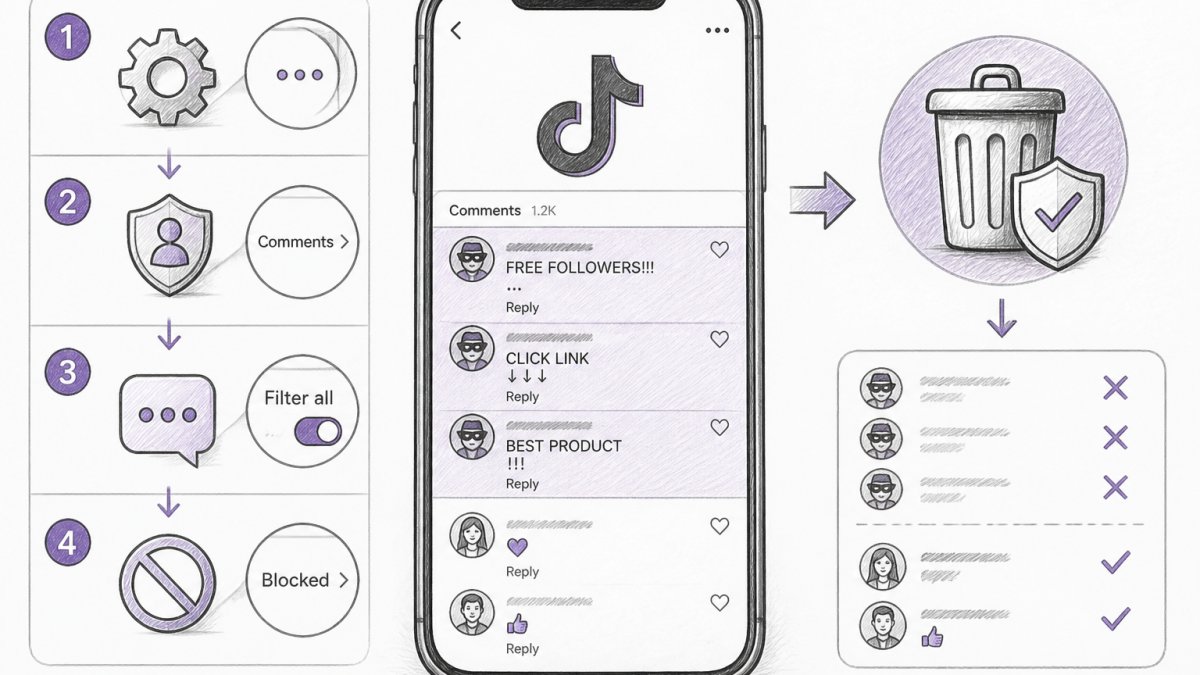
Your first line of defense lives in TikTok's privacy settings. These controls determine who can comment and what comments appear on your videos.
Step 1: Open Your Account Settings
Tap your profile icon in the bottom right corner. Select "Settings and privacy." This is where all your safety tools live.
Step 2: Find Comment Controls
Go to "Privacy" and look for "Comments." You'll see three options:
- Everyone, anyone can comment
- Friends, only people you follow can comment
- Off, comments are disabled entirely
For most brands, "Everyone" is the right choice. Switch to "Friends" temporarily if spam becomes overwhelming.
Step 3: Enable Comment Filtering
Scroll down to "Filter Comments." TikTok lets you hide comments automatically based on keywords you choose. This is where keyword filtering happens.
Step 4: Manage Restricted Accounts
Under "Restricted accounts," you'll see a list of users whose comments are hidden from your videos. You can add accounts manually here, or TikTok auto-restricts accounts that violate community guidelines.
TikTok Keyword Filtering to Catch Spam Automatically
Keyword filtering is one of the most effective spam prevention tools available. Instead of manually reviewing every comment, you tell TikTok which words and phrases signal spam, and the platform hides those comments automatically.
When you add a keyword to your filter list, comments containing that word or phrase get hidden from public view but remain in your moderation queue for review.
Step 1: Add Keywords to Your Filter
Go back to "Filter Comments" in your privacy settings. Tap "Add keywords." Enter words or phrases that commonly appear in spam targeting your niche.
Common spam keywords: URL shorteners (bit.ly, tinyurl), cryptocurrency terms (Bitcoin, crypto gains), suspicious offers (free money, easy cash), and competitor brand names.
Add 5-10 keywords first and monitor for a few days to identify which ones catch spam without hiding legitimate comments.
Add more keywords as you identify new patterns. Most brands find 15-25 keywords cover 80% of spam; beyond that, you risk hiding legitimate engagement.
Be specific with keywords. "Free" is too broad; instead filter "free money," "free cash," or "free bitcoin" to protect legitimate comments.
Block Individual Users and Spam Accounts
Keyword filtering catches most spam automatically, but some accounts are persistent. When the same user keeps posting spam or offensive content, blocking them is faster than waiting for filters to work. However, blocking becomes unsustainable at scale, this section covers both individual blocking and bulk management strategies.
Blocking a Single Account
Step 1: Find the Spam Account
Locate the spam comment on your video. On mobile, long-press the comment. On desktop (creator.tiktok.com), hover over the comment. A menu appears with options.
Step 2: Block the Account
Select "Block user" from the menu. This user can no longer see your videos, comment on them, or message you. They won't know they're blocked, TikTok doesn't notify them.
Step 3: Review Your Blocked List
Go to Settings > Privacy > Blocked accounts. You'll see everyone you've blocked. You can unblock anyone from this list if you change your mind.
Blocking prevents repeat offenders from engaging with your content entirely, while deleting only removes the comment. However, determined spammers can use multiple accounts; if new accounts appear immediately after blocking, you're dealing with a bot network.
Bulk Comment Management: When Individual Blocking Fails
If you're receiving dozens of spam comments per day, blocking individual accounts becomes unsustainable. A single viral video can generate hundreds of spam comments overnight. Here's how to handle high-volume spam:
On desktop (creator.tiktok.com), select multiple spam comments using checkboxes or Shift+click, then bulk delete or hide them at once, 50x faster than one-by-one deletion. Hidden comments stay in your queue but don't appear to your audience.
Mobile doesn't support bulk selection; for high-volume spam, use desktop instead.
Identify spam patterns before bulk-deleting: identical comments from different accounts (bot networks), similar usernames posting the same message (coordinated spam), URL shorteners, and engagement bait like "Tag someone who..." or "React if...".
Once you spot the pattern, select all matching comments and delete them in one action.
While bulk-deleting, report accounts by visiting their profile, tapping the three dots, selecting "Report account," and providing context (e.g., "This account posted identical spam 15 times in 2 hours").
How to Report Spam on TikTok
Beyond blocking and filtering, TikTok wants to know about spam. Reporting accounts helps the platform identify patterns and shut down coordinated spam campaigns.
Automated Comment Moderation Tools Beyond TikTok's Defaults
TikTok's built-in tools work well for small to medium comment volumes. But if you're managing multiple accounts or receiving hundreds of comments daily, manual moderation becomes impossible. This is where understanding spam psychology and automation capabilities becomes critical.
When to Add a Third-Party Tool
Consider automation if you:
- Manage more than 3 social accounts and can't dedicate time to each one's moderation queue
- Receive 100+ comments per day across all accounts (at this volume, manual review becomes a full-time job)
- Have experienced coordinated spam attacks (multiple accounts posting identical comments within minutes)
- Want to reply to comments automatically in your brand voice (saves hours daily on repetitive responses)
- Need detailed analytics on spam patterns to inform content strategy
- Have experienced rapid growth and can't scale your moderation team proportionally
Integration and Setup Considerations
Before adopting a third-party tool, verify:
- API access: Does TikTok allow the tool to integrate with your account? TikTok's API has limitations; not all tools have equal access.
- Data privacy: Where are your comments stored? Is the tool compliant with data protection standards?
- Approval workflow: Can you review comments before they're hidden or deleted, or does the tool act autonomously? Autonomous action is faster but riskier.
- Cost structure: Most tools charge per account or per comment volume. Calculate the cost per comment moderated to compare against hiring a part-time moderator.
Mobile vs. Desktop: Managing Comments Across Devices
TikTok's comment management works differently on mobile and desktop. Understanding both gives you flexibility and ensures you catch spam wherever it appears.
Mobile Comment Management
Desktop Comment Management
Go to your TikTok Creator Studio (creator.tiktok.com). Click "Content" and select a video. You'll see all comments in a list view. From here, you can:
- Approve or hide comments before they go live
- Bulk-select multiple comments and delete them at once
- Sort comments by newest, oldest, or most liked
- Search for specific keywords or usernames
Best Practice: Use Both
Frequently Asked Questions
How do I block spam comments on TikTok using built-in tools?
Go to Settings & Privacy > Privacy > Comments and select who can comment (Everyone, Friends Only, or Off). Use keyword filtering by adding spam-related terms to your blocked list. You can also manually block individual accounts by visiting their profile and selecting Block User. For faster protection across multiple accounts, automated comment moderation tools detect and hide spam, hate speech, and scam attempts in real-time without manual setup for each comment.
What's the best way to use TikTok keyword filtering for spam prevention?
Add common spam phrases, suspicious URLs, and competitor links to your keyword filter list in Comment Settings. Include variations like misspelled versions of scam keywords. Test your filters by checking which comments get hidden, then refine based on false positives. For brands managing high comment volumes, automated comment moderation tools can learn your specific spam patterns and adjust filtering automatically, catching a high percentage of harmful content without requiring constant manual updates.
Can I bulk delete or hide spam comments on TikTok?
TikTok's native tools don't offer bulk deletion, but you can hide multiple comments manually by selecting each one and choosing Hide. For high-volume accounts, third-party automated comment moderation tools can provide bulk management features, allowing you to review and action multiple flagged comments at once. This can save hours daily compared to manual comment-by-comment moderation, especially for accounts receiving hundreds of comments per video.
How do I report spam accounts on TikTok?
Visit the spammer's profile, tap the three-dot menu, and select Report User. Choose the reason (typically Spam or Scam), then submit. You can also report individual spam comments by tapping the three dots on the comment and selecting Report Comment. Reporting helps TikTok's community team take action, but it doesn't instantly remove the account. For immediate protection of your account, block the user and use keyword filters to prevent similar spam from appearing in your comment section.
Tired of manually moderating comments?
FeedGuardians automates spam filtering, responds to customers, and protects your brand — setup in 3 minutes.
Frequently Asked Questions
How do I block spam comments on TikTok using built-in tools?
Go to Settings & Privacy > Privacy > Comments and select who can comment (Everyone, Friends Only, or Off). Use keyword filtering by adding spam-related terms to your blocked list. You can also manually block individual accounts by visiting their profile and selecting Block User. For faster protection across multiple accounts, automated comment moderation tools detect and hide spam, hate speech, and scam attempts in real-time without manual setup for each comment.
What's the best way to use TikTok keyword filtering for spam prevention?
Add common spam phrases, suspicious URLs, and competitor links to your keyword filter list in Comment Settings. Include variations like misspelled versions of scam keywords. Test your filters by checking which comments get hidden, then refine based on false positives. For brands managing high comment volumes, automated comment moderation tools can learn your specific spam patterns and adjust filtering automatically, catching a high percentage of harmful content without requiring constant manual updates.
Can I bulk delete or hide spam comments on TikTok?
TikTok's native tools don't offer bulk deletion, but you can hide multiple comments manually by selecting each one and choosing Hide. For high-volume accounts, third-party automated comment moderation tools can provide bulk management features, allowing you to review and action multiple flagged comments at once. This can save hours daily compared to manual comment-by-comment moderation, especially for accounts receiving hundreds of comments per video.
How do I report spam accounts on TikTok?
Visit the spammer's profile, tap the three-dot menu, and select Report User. Choose the reason (typically Spam or Scam), then submit. You can also report individual spam comments by tapping the three dots on the comment and selecting Report Comment. Reporting helps TikTok's community team take action, but it doesn't instantly remove the account. For immediate protection of your account, block the user and use keyword filters to prevent similar spam from appearing in your comment section.