
Quick Summary
| Key Insight | What You Need to Know |
|---|---|
| Find the comment you | Find the comment you want to tuck away. |
| Press and hold your | Press and hold your finger right on the comment until a menu appears. |
| From the options at | From the options at the bottom, just tap "Hide." |
Hiding a Facebook comment is refreshingly simple. Just find the comment, tap the three dots (...) next to it, and choose "Hide comment." Done. The comment instantly vanishes for everyone else, but the original poster and their friends can still see it, which is perfect for avoiding unnecessary drama.
Your Quick Guide to Hiding Facebook Comments
Whether you’re managing a personal profile or a thriving brand page, the comment section is where the magic (and sometimes madness) happens. It’s fantastic for community building, but it can also be a magnet for spam, negativity, or conversations that completely derail your message.
Knowing how to hide a comment on Facebook is one of the most useful tools in your community management toolkit. It’s a subtle but powerful way to keep your online space positive and on-topic.
This isn’t about censorship; it's about curation. Facebook designed this feature so you can manage conversations without immediately reaching for the "delete" or "ban" hammer. When you hide a comment, you’re essentially tucking it out of public sight. The best part? The original commenter isn't notified, so they’re less likely to get defensive. As you can learn on NapoleonCat, this selective visibility is key to quietly handling disruptive content.
Hiding vs Deleting vs Restricting Comments
Before you start hiding everything, it’s critical to understand your options. Hiding, deleting, and restricting each serve a very different purpose. Using the wrong one can backfire, leading to accusations of censorship or making a bad situation even worse.
The goal is selective moderation—protecting your brand or personal space without silencing legitimate feedback. Hiding a comment is often the best first step for handling spam or mild negativity because it de-escalates the situation quietly.
So, how do you choose? Think about the intent behind the comment. Is it harmless spam? A genuine customer complaint that should be handled privately? Or is it truly abusive? Each scenario calls for a different play. Brushing up on what comment moderation means will give you a solid framework for making these calls.
To make it even clearer, here’s a quick breakdown of how these actions compare.
| Action | What Happens to the Comment | Who Can Still See It | Impact on the Commenter | Best Use Case |
|---|---|---|---|---|
| Hide | The comment is made invisible to the public. | The original commenter and their friends. | Unaware their comment is hidden from others. | Removing spam, off-topic remarks, or mild negativity without confrontation. |
| Delete | The comment is permanently removed from the post. | No one, including the admin (it's gone forever). | Aware the comment is gone if they check again. | Removing comments that violate community standards, like hate speech or harassment. |
| Restrict | Moves a user's future comments to a review queue. | Only the admin and the commenter. | Their comments are hidden by default from the public. | Temporarily managing a problematic user without banning them outright. |
Having this table handy can be a lifesaver when you need to make a quick decision. Ultimately, knowing which tool to use and when will make you a much more effective and respected community manager.
Hiding Comments on Your Personal Profile
Think of your personal profile as your own digital space. You get to set the vibe and decide which conversations you want to have there. Managing comments on your profile isn't really about brand reputation; it’s about keeping things comfortable and positive for you, your friends, and your family. Knowing how to hide a comment is a game-changer—it’s a quiet way to deal with awkwardness without escalating the situation.
Let's say you post some great news, and a relative drops a slightly passive-aggressive comment. Or maybe an old classmate posts a spammy link on your vacation album. These are the perfect times to just hide the comment. It tidies up the thread for everyone else, and you don't have to get into an awkward confrontation.
Luckily, the process is super simple and works pretty much the same whether you're on your computer or your phone.
Hiding a Comment on a Computer
When you're scrolling through Facebook on your desktop, it only takes a couple of clicks.
- Head over to the specific comment you want to hide.
- Next to the comment, you'll see those three little dots (...). Click them.
- A menu will pop up. Just select "Hide comment."
And that's it. The comment immediately becomes visible only to you and the person who wrote it (and their friends). It's a clean, simple way to keep your post's conversation on track.
Hiding a comment is my go-to move for low-level moderation. It’s effective because the person who posted it has no idea they've been moderated, which helps you sidestep any unnecessary drama.
Hiding a Comment on the Mobile App
Doing this on the go is just as easy. If you spot an unwanted comment while you're out, you can handle it in seconds.
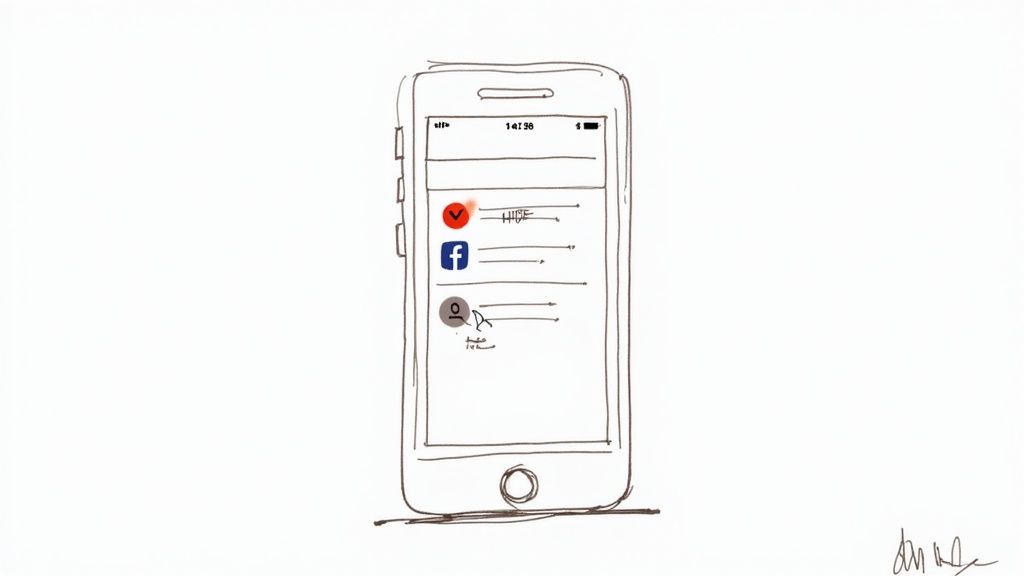
- Find the comment you want to tuck away.
- Press and hold your finger right on the comment until a menu appears.
- From the options at the bottom, just tap "Hide."
Done. The comment is now hidden from public view. This is incredibly handy for quickly managing comments without making a big deal out of it.
While hiding is great for one-off comments, sometimes you might want more control. If a post is attracting too much negativity, you might want to check out our guide on how to disable comments on Facebook altogether.
Managing Comments on a Facebook Business Page
For any business, a Facebook Page is a crucial part of your online presence—think of it as your digital storefront. That makes the comment section your front lobby, and keeping it clean and welcoming isn't just about looking professional; it's about protecting your brand.
The stakes are much higher here than on a personal profile. Negative interactions, like spam or abusive comments, generate negative feedback signals. These signals can tell Facebook’s algorithm to throttle your reach, showing your content to fewer people. As you can see in Later's Facebook analytics guide, these metrics have a real impact. This is why knowing how to hide a comment on Facebook is a non-negotiable skill for page managers.
Thankfully, Facebook gives you some solid native tools to get the job done without having to stare at your screen all day. While hiding a single comment works just like it does on a personal profile, the real game-changer is setting up proactive moderation.
Using Facebook’s Built-In Moderation Tools
Let's be honest: manually hiding every spam comment is a soul-crushing and inefficient task. A much better way to work is to let Facebook’s own moderation features handle the busywork for you. You set the ground rules, and the platform enforces them.
Your first line of defense is the profanity filter. You can flip this on in your Page settings, and it will automatically hide comments containing words from Facebook's master list of offensive terms. It’s a simple but effective start.
The real power, though, comes from creating your own custom blocklist of words and phrases. This is where you can get specific to your business and audience.
Here are a few ideas to get you started:
- Competitor Names: A simple way to stop other pages from trying to poach your customers right under your nose.
- Spammy Phrases: Think of all the junk you see—"free followers," "DM me for info," or "check the link in my bio." Add them all.
- Common Slurs or Variations: The built-in filter is good, but it's not perfect. You can add specific terms or misspellings that are common in your industry or community.
Setting up these filters is one of the best time-saving things you can do. For instance, a local restaurant might block keywords related to common health code myths or the names of rival eateries to keep the conversation on track.
Creating a Proactive Defense
The goal here isn't to be a dictator but to build a system that automatically catches 80% of unwanted comments. This frees you up to spend your time actually talking to real customers and building your community.
By combining Facebook's profanity filter with your own thoughtfully curated keyword list, you create a surprisingly effective moderation engine. This isn't about censoring legitimate criticism. It's about filtering out the noise, the scams, and the outright abuse that poisons conversations and hurts your brand.
For a more detailed look at building out a complete moderation plan, take a look at our guide to Facebook comment moderation for 2025. Taking the time to master these tools will pay off big time, helping you maintain a healthy community while protecting your brand's reputation and reach.
Taking Moderation to the Next Level with Meta Business Suite
Hiding comments one by one works fine for a personal profile, but it’s just not practical for a business. If you’re managing a page with a lively community or running ad campaigns, you know how quickly comments can pile up. It's an absolute time sink.
This is where the Meta Business Suite becomes your secret weapon. It pulls all your page interactions into a single, organized inbox, so you're not constantly jumping between different posts and notifications.
But the real magic is in the automation. You can set up rules and filters that act as your 24/7 moderation team, automatically cleaning up your comments. This frees you up from the mind-numbing task of zapping spam so you can focus on what actually grows your business: talking to real customers.
Setting Up Moderation Assist
Think of Moderation Assist as a bouncer for your Facebook Page. It’s a built-in tool that lets you define criteria for comments you want hidden automatically. For anyone serious about brand safety, this is a must-use feature that saves you from having to stare at your comments all day.
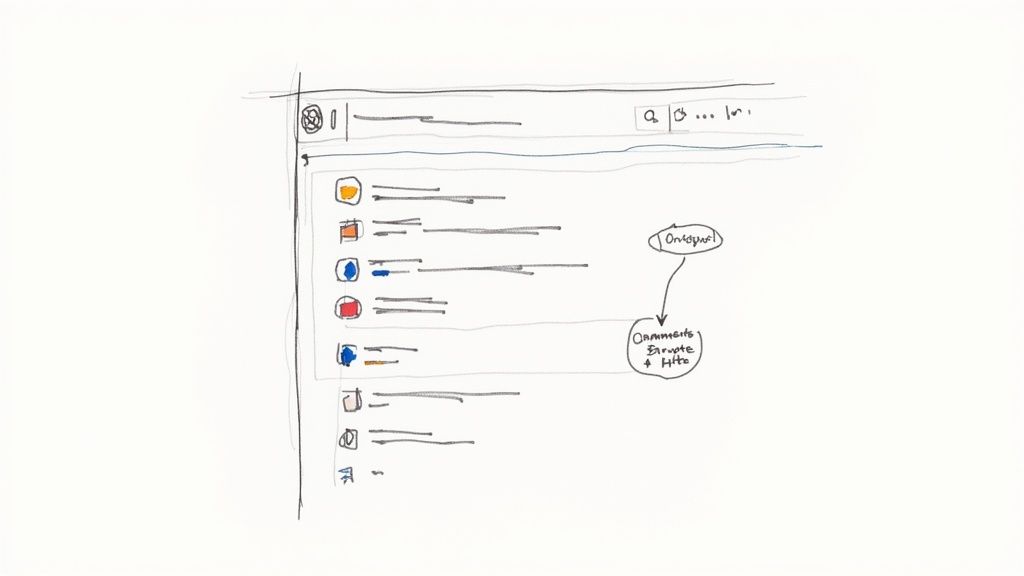
Here's a peek at where you'll be setting up these rules.
This is your command center for building a defense against trolls, spam, and other unwanted noise. You can stack multiple criteria to catch the most common offenders before they ever cause a problem.
For example, imagine you're an e-commerce brand running a flash sale. You're bound to get hit with spammy comments promising "free iPhones" or other nonsense. With Moderation Assist, you can create a rule to instantly hide any comment that includes a link or uses keywords like “free,” “giveaway,” or “DM me.” Just like that, you’ve protected your real customers from falling for a scam.
Creating Your First Automation Rule
Getting started with Moderation Assist is pretty simple. You create rules based on specific triggers, telling Facebook exactly what to look out for.
You can set up rules to automatically hide comments based on:
- Links: This is my go-to rule. It single-handedly eliminates 90% of the spam and phishing attempts I see.
- Profanity: Meta has its own built-in list of no-no words. You can filter them out with one click, choosing from low, medium, or high-intensity filtering.
- Specific Keywords: This is where you can get creative. Add a custom list of words, phrases, and even emojis. Block competitor mentions, common spam phrases ("check my profile"), or anything else you don't want to see.
- Images or Videos: If your posts tend to attract spammy or inappropriate media in the comments, you can block those, too.
Hiding a comment isn't always about your personal preference. It often aligns with platform-wide goals. While Facebook's Community Standards are there to automatically remove the worst of the worst, hiding is the perfect tool for that gray-area content that doesn’t technically break the rules but still kills the vibe on your page. Meta has some great resources if you want to dig deeper into their moderation philosophy.
While Moderation Assist is a fantastic first step, it has its limits. If you need something more sophisticated—like detecting a customer's frustration or providing automated replies—you’ll probably want to look into dedicated third-party tools.
Our guide on the best AI comment moderation tools for 2025 walks through some of the top platforms that can really elevate your social media management. By automating the grunt work, you can get back to having meaningful conversations that actually build your brand.
Smart Moderation and Community Health
Knowing the mechanics of hiding a Facebook comment is one thing. Knowing when and why to do it is a whole different ballgame—it's an art. Great moderation isn't just about zapping spam; it’s about nurturing a healthy, engaging, and safe space for your community.
If you’re too aggressive, it can look like censorship. But if you’re too hands-off, your page can quickly get overrun with negativity and junk. The sweet spot is a balance that protects your brand's reputation without silencing genuine customer feedback, even when it's critical.
A great first step is to create a simple moderation guideline for your team. This doesn't have to be a massive document—just a clear guide on what you consider spam, what crosses the line into harassment, and how to spot a genuine complaint that needs a thoughtful reply.
Developing Your Moderation Framework
Consistency is everything. You can't afford to make emotional, in-the-moment decisions that might blow up in your face later. Instead, a simple framework helps your team act with clarity and consistency, ensuring every comment is handled the right way.
Think of it as a quick mental checklist before you act:
- Is it pure spam? If you see unrelated links, blatant self-promotion, or scammy language, hide it. No hesitation needed.
- Is it abusive? Comments with hate speech, personal attacks, or profanity have no place on your page. Hide the comment and consider banning the user. This is non-negotiable.
- Is it a real complaint? Hiding a frustrated customer's comment is almost always the worst thing you can do. A public reply shows everyone you're listening. From there, you can guide them to a private channel like DMs to resolve the issue, often turning a bad experience into a great one.
- Is it just off-topic? For comments that aren't harmful but completely derail the conversation, a gentle hide is usually the best move to keep the original post's thread on track.
To help visualize this, here is a simple decision tree that shows when automated hiding is the perfect first move for obvious problems like spam links or specific keywords.
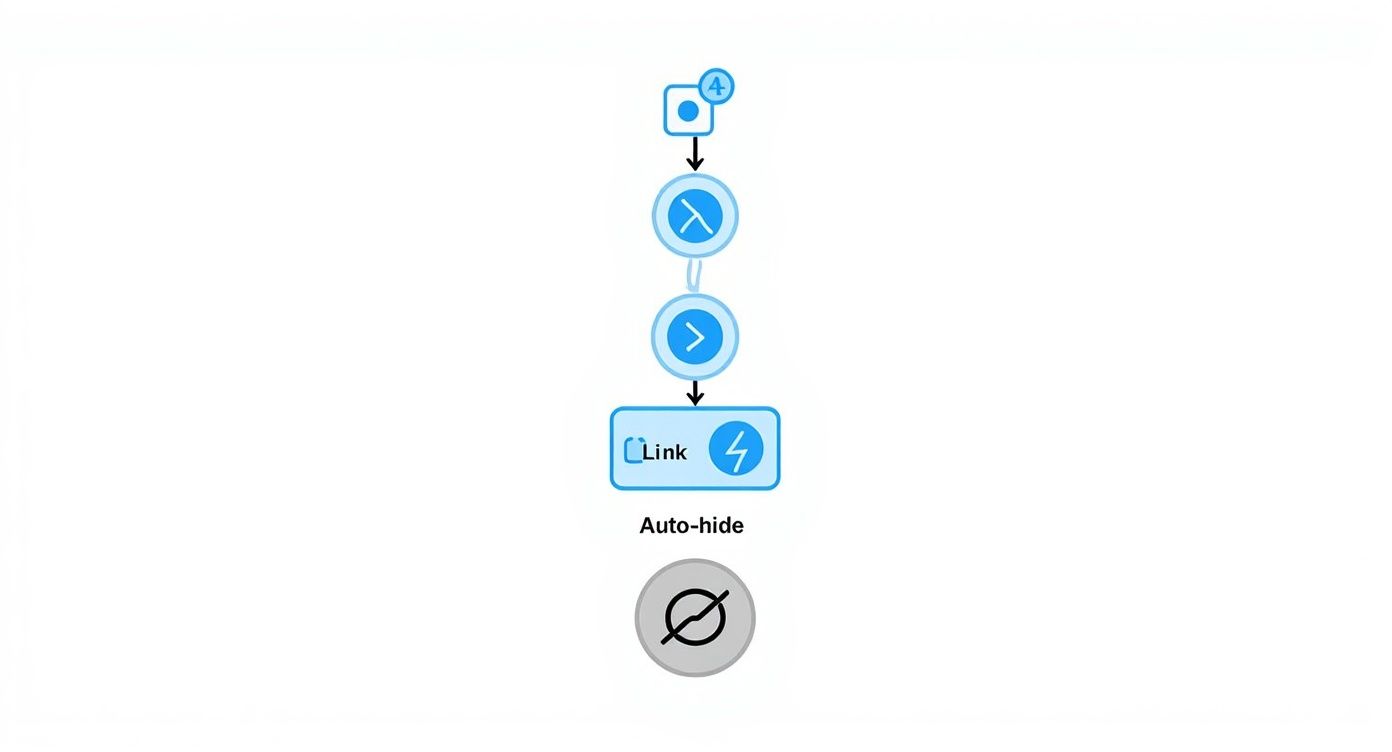
This flowchart just illustrates how setting up a few simple rules for links or keywords can take care of the low-hanging fruit automatically.
A Quick Tip on Response Time: A fast, empathetic reply to a negative comment can shut down a potential fire before it even starts. Leaving a complaint to fester for hours is an open invitation for others to jump in, turning a small problem into a public relations headache.
Ultimately, learning how to hide comments is a small but crucial part of a much bigger strategy for successful Social Media Reputation Management. It's one tool in a whole kit designed to build and protect your online presence. By mixing quick, decisive action against spam with transparent, helpful responses to real customers, you create a community where people feel both safe and genuinely heard.
Common Questions About Hiding Comments
Once you get the hang of hiding comments on Facebook, a few practical questions almost always pop up. It's one thing to know how to do it, but another to understand the nuances. Let's walk through some of the most common things people ask so you can moderate your comments section like a pro.
If I Hide A Comment On Facebook, Can The Person See It?
This is easily the number one question, and the answer is why the "hide" function is so brilliant.
Yes, the person who wrote the comment and their friends can still see it. To them, it looks like it's still sitting right there on your post, totally public. They have no idea you've made it invisible to everyone else.
This is by design. It's a low-conflict way to handle problematic comments. Since the original poster doesn't know they've been moderated, they're less likely to get angry and escalate the situation. It’s the perfect tool for dealing with spam, subtle negativity, or off-topic remarks without starting a fight.
Does Hiding A Comment Hurt My Post's Engagement?
Good news for your metrics: no, hiding a comment does not hurt your post's engagement. From Facebook's perspective, that hidden comment still counts as an interaction. It's already been factored into your post's overall engagement score.
What it does do is protect your engagement indirectly. By cleaning up the trolls and spam, you’re creating a much more positive space. This stops other visitors from getting annoyed and hiding your post or, worse, unfollowing your page—actions that would definitely tank your reach.
Think of it this way: Hiding a comment is a surgical move. You're carefully removing the bad stuff without damaging the post's performance. You get all the benefits of a clean, safe comment section while keeping the engagement you earned.
Can I Unhide A Comment After Hiding It?
Absolutely. We've all been there—you click too fast or change your mind later. Reversing the action is simple.
To unhide a comment:
- Find the comment on your post. It will still be visible to you as the page admin, but it will probably be grayed out.
- Click the three dots (...) next to the comment.
- Just select "Unhide," and it will instantly become visible to everyone again.
How Can I See All The Hidden Comments On A Post?
As a page admin or the original poster, you can always see the comments you’ve hidden right on the post itself. They just look different from the public ones—usually faded or grayed out.
But if you’re managing a busy business page, the best place to get a full overview is the Moderation Activity log. You can find this in your Page Settings or inside the Meta Business Suite. This log gives you a complete history of every moderation action, showing you which comments were hidden and who on your team did it.
Tired of manually hiding spam and negativity? FeedGuardians uses AI to automate your comment moderation 24/7. It hides harmful comments, detects customer questions, and protects your brand so you can focus on growth. Learn more about automated moderation.
Tired of manually moderating comments?
FeedGuardians automates spam filtering, responds to customers, and protects your brand — setup in 3 minutes.