Want to pull someone into an Instagram conversation? It’s as simple as typing the @ symbol, followed immediately by their username, right in the comment box. As you start typing, Instagram will helpfully suggest a list of profiles, making it a breeze to find and select the right person. Once you post the comment, they get a notification instantly.
Why Bother Tagging in Comments?
Tagging someone on Instagram is much more than just a function—it’s a powerful tool for sparking conversations and expanding a post's reach. When you mention a user, you're essentially sending them a direct invitation to join the discussion. This simple act can dramatically boost a post's engagement, which is a key ingredient for getting noticed on the platform.
Even though overall Instagram engagement rates have dipped, smart, strategic tagging is still one of the best ways for creators and brands to stand out. Studies from platforms like Social Insider consistently show that posts with this kind of intentional interaction perform better because they help people discover new accounts. In short, mastering the art of the tag is a core skill for anyone serious about growing their Instagram presence.
Think of tagging as the digital equivalent of tapping someone on the shoulder and saying, "Hey, you've got to see this." It's the most direct way to bring a specific person into a public conversation.
It's also worth knowing the subtle differences between tagging on your phone versus on a computer. Each has its own rhythm and is suited for different situations.
Tagging Methods At a Glance
Here’s a quick breakdown to help you decide which method to use and when.
| Platform | How to Tag | Best For |
|---|---|---|
| Mobile App | Type @ then begin typing the username. Select from the auto-populated list that appears above your keyboard. |
Quick, on-the-go interactions, replying to stories, and engaging in real-time conversations. |
| Web Browser | Type @ and the full username. You'll need to know it exactly, as the suggestions aren't as robust as on mobile. |
Replying from your desktop while working, community management tasks, and writing longer, more thoughtful comments. |
Both get the job done, but the mobile app definitely makes finding the right person a bit easier.
Once you get the hang of tagging, you might want to find specific conversations you've been mentioned in. When you're ready, you can learn all about how to search Instagram comments in our other guide.
Tagging on Your Phone Step by Step
Let's be honest, Instagram was built for mobile. Tagging someone in a comment on your phone is about as seamless as it gets, designed to keep conversations flowing whether you're on the bus or waiting for your coffee. It's all about quickly pulling people into a post.

First things first, find the post you want to comment on. Tap that little speech bubble icon right below it to bring up the comment field. This is where the magic happens.
Initiating the Tag
Once your keyboard pops up, just type the @ symbol. This simple character tells Instagram you're about to mention an account. The app immediately kicks into gear to help you find who you're looking for.
Start typing the username right after the "@" symbol. You don't even need the full handle. Instagram's predictive search will instantly show a list of accounts that match what you're typing. It's smart, too—it usually prioritizes people you interact with the most, so your best friends and favorite creators should appear right away.
So, if you type "@davem," you might see suggestions like davemiller_photos or davem_creates. Just scroll and tap the correct one to lock it in.
Pro Tip: Always, always tap the username from that suggestion list. This is what makes the tag a clickable blue link and, more importantly, ensures the person actually gets a notification. If you just type the full username and hit post, it'll just be plain black text, and they'll never know you mentioned them.
Tagging Multiple People and Best Practices
Want to loop in more than one person? No problem. Tagging a whole group in a single comment is perfect for sharing a meme with your friends or alerting your team to an important update. Instagram lets you tag up to 10 people in one comment.
The process is just as simple, you just repeat it:
- Type your comment, adding
@friend1where it fits. - Keep writing and then add
@friend2. - You can sprinkle these tags throughout your comment until you hit the limit.
Say a friend posts a throwback photo from a trip you all took. A great comment could be, "This was the best trip! @sarahsmith and @john.davis, we need to go back ASAP!" It brings everyone into the conversation, sparks more engagement, and gives the post a little extra boost.
Not everyone loves typing on their phone. If you're managing a business account or just prefer a proper keyboard, tagging people on Instagram from your desktop is a breeze. The larger screen and more precise control can make a huge difference.
The process itself is exactly what you're used to on mobile. Head over to Instagram.com, pull up the post you want to comment on, and click into the comment box. Type the @ symbol, start typing the username, and a list of matching accounts will pop right up. Just click the one you want, and you're set.
This method is especially handy in professional settings where getting the details right really matters.
Why Desktop Tagging Is a Game Changer
Let's say you're a community manager running a giveaway. You need to tag ten winners in a single, well-written comment. Trying to do that on a small phone screen is a recipe for typos and frustration. On a desktop, it's far more efficient.
The ability to copy and paste usernames is another massive plus. This simple trick nearly eliminates the risk of spelling an account name wrong—which is crucial when tagging a partner brand or a key influencer.
A misspelled tag means they never get the notification. That's a completely missed opportunity to connect.
The desktop interface is clean and gives you plenty of room to work, making it easier to focus on what you're writing.
For anyone who spends their day responding to customer comments or brand mentions, working from a desktop isn't just a nice-to-have; it's a core part of a professional workflow. It helps you stay organized, accurate, and on top of every important conversation.
Using Advanced Tagging Strategies

Once you've got the basics down, it's time to think about tagging as more than just a simple mention. You can turn it into a powerful tool for sparking conversations and boosting your post's visibility. This means looking beyond just dropping a single tag in a fresh comment.
A seriously underrated tactic is tagging someone in a reply. This is the perfect way to pull a new person into a conversation that's already happening. Let's say a follower asks a technical question you can't answer. You could jump into that thread and reply, "Great question! Looping in @expert_username who might have some insight here." It keeps the conversation clean and sends a direct notification to the person who can help.
Tagging on Your Own Posts
Here's another pro move: comment on your own post right after you publish it to tag relevant accounts. Doing this keeps your main caption clean and focused, which is crucial for grabbing your audience's attention.
Imagine a fitness creator posts a new workout video. Instead of jamming a bunch of tags into the caption, they can immediately add their own first comment:
- "My favorite gear for this routine is from @activewearbrand"
- "Big shoutout to @djproducer for the killer track!"
This is a classic win-win. You give proper credit to collaborators—which they love, often leading to reshares—while your main caption stays uncluttered and easy to read.
This quality-over-quantity mindset is just as important for your hashtags. Getting the right balance of tags and hashtags can make a huge difference in how your content performs.
For a clearer picture, here’s how different types of tags can impact your posts.
Effective Tag and Hashtag Usage
| Tag Type | Recommended Count | Potential Engagement Impact |
|---|---|---|
| User Tags in Caption | 1-2 | Directly notifies key collaborators, increasing reshare potential. |
| User Tags in Comments | 3-5 | Credits partners without cluttering the main caption. |
| Hashtags | 3-5 | Increases discoverability; posts with at least one see 12.6% more engagement. |
Ultimately, a thoughtful mix of user tags and relevant hashtags will almost always outperform a post with none. For a deeper dive, exploring the latest Instagram hashtag statistics can give you a real edge.
What to Do When Tagging Fails
It's happened to all of us: you type out the perfect comment, hit post, and... the tag just doesn't work. Before you throw your phone across the room, let's walk through the usual suspects, because it's almost always a simple fix.
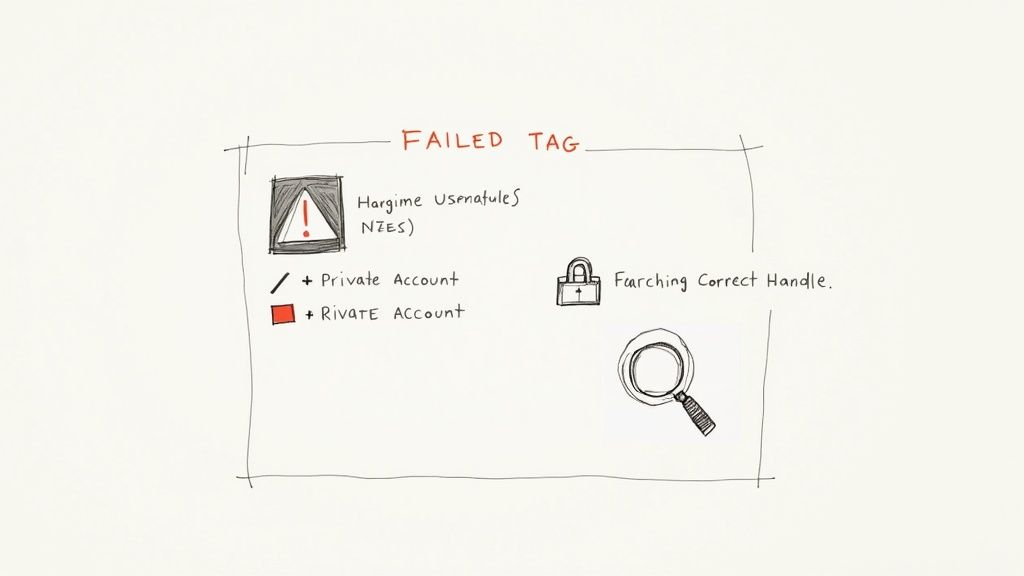
More often than not, the culprit is a tiny typo. We’ve all done it. Just give the username another look to make sure every letter and underscore is exactly right. When you start typing with the @ symbol, always select the correct profile from the list that pops up to avoid any mistakes.
Another common roadblock is privacy settings. If you’re trying to tag a private account and they don't follow you, Instagram won’t notify them. This is a built-in privacy feature, so there’s no workaround—they’ve set their account up that way for a reason.
Troubleshooting Common Errors
So, you've double-checked the spelling and you know the account is public. What now?
It's possible the person simply changed their handle. People update their usernames all the time, so a quick search for their name should pull up their new profile.
Sometimes, the problem isn't you—it's Instagram. The platform can have temporary glitches that mess with comments and tags. Or, if you've been on a commenting spree, you might have hit an invisible rate limit designed to stop spam.
If your comment with the tag disappears or just won't post, the best thing to do is take a breath. Wait a few minutes and then try again. Sometimes, repeatedly trying to post can flag your account's activity.
Making sure your app is updated is another pro tip. Running an old version of Instagram can cause all sorts of weird bugs, and a quick trip to the app store often solves them.
And what if you tag the wrong person? We can't edit comments, unfortunately. Your only move is to delete it and start over. Knowing how to delete Instagram comments is a must. It’s a clean fix that avoids any awkward confusion and makes sure the right person sees your mention.
Tagging Best Practices For Brands
Tagging someone in the comments is more than a shout-out. For a brand, it can be the spark that ignites conversations, solves questions in real time, and deepens customer loyalty. When you ping followers directly, you’re inviting them into a two-way dialogue.
Encourage User-Generated Content
One of the fastest ways to get people talking about your brand is through user-generated content (UGC). Here’s how to make it happen:
- Host a photo contest: Ask fans to share images of your product and tag your handle.
- Give credit where it’s due: When you feature a customer’s photo, tag them back in the caption or comments.
- Share follow-up stories: Post customer testimonials or behind-the-scenes reactions and tag everyone who contributed.
That small act of recognition goes a long way in building genuine connections.
Monitor And Moderate Your Tags
Even with a flood of positive mentions, you can’t overlook negative comments or spam. Stay on top of who’s tagging you by:
- Responding quickly to praise—or to a customer service question
- Setting up Instagram’s comment filters to catch unwanted or abusive tags
- Flagging and hiding spammy messages before they clutter your thread
For deeper insights into keeping your community engaged, check out our guide on the best practices for social media engagement.
Key Takeaway: Tag management isn’t just about clearing out spam. It’s about nurturing a space that reflects your brand’s voice and encourages real interaction.
With $67.27 billion in ad revenue on the line, strategic tagging can become one of your most powerful engagement tools. By naming partners, influencers, or loyal customers in your comments, you’re weaving tiny networks that boost visibility and drive sales.
Explore more about these powerful Instagram statistics.
Your Top Tagging Questions, Answered
Got a question about tagging? You're not the only one. Here are some quick answers to the things people ask most often about tagging in Instagram comments.
Can I Edit a Tag After I've Posted a Comment?
Unfortunately, no. Once a comment is live, you can't edit it—and that includes any tags within it.
If you've tagged the wrong person or spotted a typo, your only move is to delete the comment and start over. It's a bit of a pain, but it's the only way to make sure the right person gets the notification.
How Many People Can I Tag in a Single Comment?
Instagram lets you tag up to 10 accounts in one comment.
While that's a pretty high limit, it's rarely a good idea to use all of them. For genuine engagement, tagging just a few relevant people is far more effective. Maxing out your tags can come across as spammy and might even get your comment flagged.
Why Can't I Seem to Tag Someone?
Running into trouble tagging a specific account? There are a handful of common reasons this happens.
- Privacy Settings: The person might have their account set to private and not follow you back. They could also have adjusted their settings to block or limit who can tag them.
- A Simple Typo: It happens to all of us. Double-check the username for any spelling mistakes. One wrong letter is all it takes for the tag to fail.
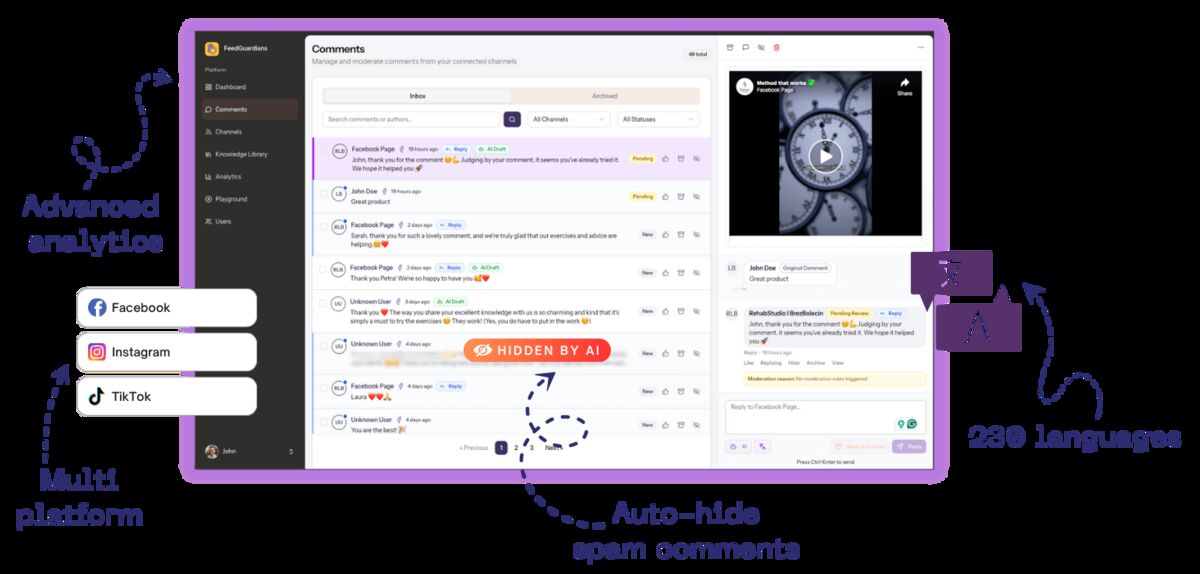
Managing a busy comment section is no small feat. That's where FeedGuardians comes in. It uses AI to automatically hide toxic comments, respond to customer questions, and even spot potential sales leads as they happen. This frees you up to focus on the bigger picture. Find out how FeedGuardians can safeguard your brand's reputation.
Ready to Protect Your Brand?
FeedGuardians uses smart AI to hide harmful comments automatically, 24/7.
Start Free 7-Day Trial →