
Quick Summary
| Key Insight | What You Need to Know |
|---|---|
| How to Like a | How to Like a Comment on YouTube Desktop Instructions Mobile Instructions |
| Managing Your Own Comments | Managing Your Own Comments and Engagement How to Delete or Edit Comments Responding to Comments Effectively |
| How to Delete or | How to Delete or Edit Comments |
| Responding to Comments Effectively | Responding to Comments Effectively |
| YouTube Engagement Strategies for | YouTube Engagement Strategies for Creators |
| Psychology of High-Engagement Comments | Psychology of High-Engagement Comments |
Table of Contents
- How to Like a Comment on YouTube
- Managing Your Own Comments and Engagement
- YouTube Engagement Strategies for Creators
- Psychology of High-Engagement Comments
- YouTube Algorithm Explained: How Comments Impact Visibility
- Best YouTube Comment Examples That Drive Likes
- YouTube Analytics for Creators: Tracking Comment Performance
- Automation Tools and Safety Risks for Comment Management
How to Like Comments on YouTube: Complete Guide
Last Updated: July 16, 2024
Liking comments on YouTube is a fundamental interaction that shapes community engagement. Videos with higher comment engagement rates see up to 40% more watch time, making this skill essential for creators and viewers alike. This guide covers how to like comments across all devices, strategies for managing your own comments, and why comment engagement matters for channel growth.
How to Like a Comment on YouTube
Liking a comment on YouTube is straightforward but differs slightly between desktop and mobile. The comment section is where creators and audiences build direct relationships.
Desktop Instructions
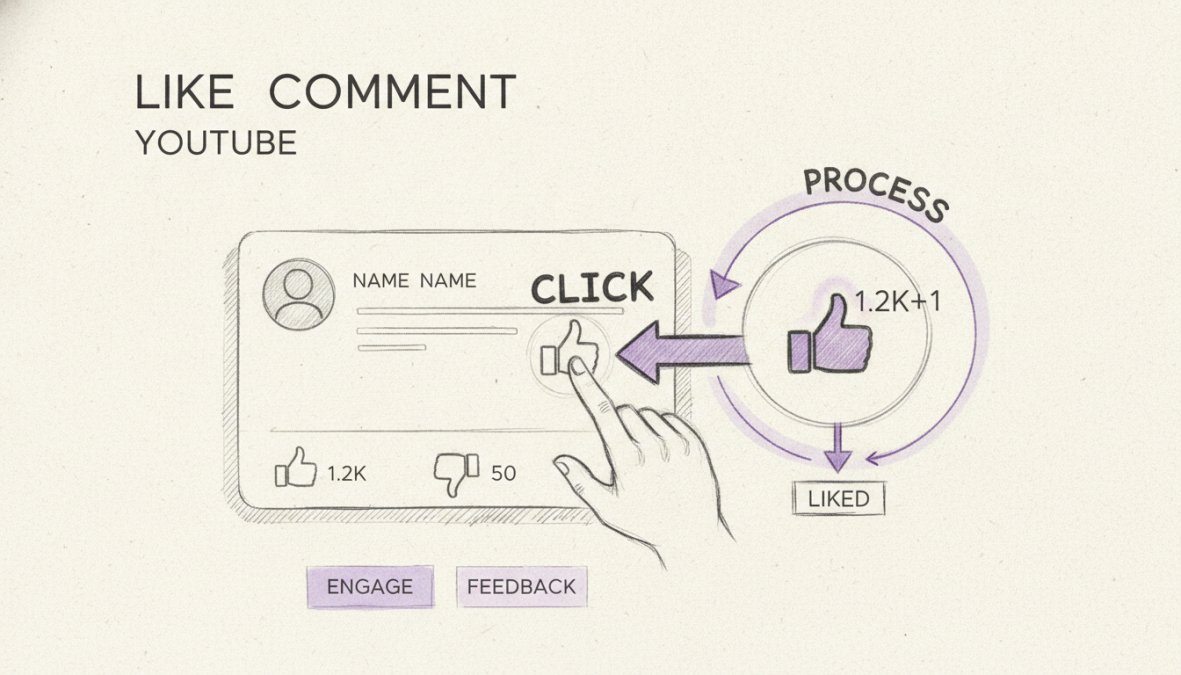
Navigate to any YouTube video and scroll to the comments section. Below each comment, you'll find a thumbs-up icon, thumbs-down icon, and reply option. Click the thumbs-up icon to like the comment, it will highlight and the like count will increase by one. Click again to remove your like.
YouTube hides the dislike count but keeps like counts visible. Comments with more likes rank higher in the section, giving them greater visibility. This means your likes directly influence which comments other viewers see first.
Mobile Instructions
Open the YouTube app and select any video. Scroll past the description to reach comments. Tap the thumbs-up icon below any comment to like it. The icon will change color and the like count will increment. Tap again to remove your like.
Mobile users can change the sort order by tapping the filter dropdown near the top of the comment section to view newer comments or replies from the video creator.
Managing Your Own Comments and Engagement
As a channel owner, your comment management directly impacts audience retention and community health. The comment section is where genuine audience relationships form.
How to Delete or Edit Comments
To delete a comment you've posted, hover over it and click the three-dot menu icon. Select "Delete" and the comment will be removed immediately. To edit your own comment, click the three-dot menu and select "Edit." A text field will appear allowing you to modify your text. Edited comments show a small "edited" label.
For channel owners managing comments on your videos, click the three-dot menu next to any comment and select "Remove" to delete it. Use YouTube Studio's comment management tools to bulk delete comments, filter by date, or review flagged content.
Responding to Comments Effectively
Responding to comments boosts engagement and builds loyalty. When you reply, your response appears as a nested reply, creating a conversation thread. YouTube's algorithm rewards videos with higher comment reply rates by promoting them in recommendations.
Reply within the first 24 hours when engagement is highest. Keep responses brief and conversational, ask follow-up questions, and thank users for thoughtful comments. When viewers see their comment has been replied to by the creator, they're significantly more likely to watch more content and subscribe.
YouTube Engagement Strategies for Creators
Building a strong presence requires encouraging viewers to interact through comments. Create content that naturally invites discussion by asking questions: "What's your take on this?" or "Let me know which option you prefer." These calls-to-action dramatically increase comment volume.
Respond to comments consistently, especially in the first 48 hours. YouTube's algorithm gives weight to videos with active comment threads, meaning engaged videos get recommended more frequently. Creators who respond to comments see up to 25% more total engagement compared to those who don't.
Use the comment section to gather feedback for future videos. Pay attention to which comments get the most likes and replies, these reveal what your audience cares about most. If multiple people ask the same question, create a dedicated video addressing that topic.
Psychology of High-Engagement Comments
The most-liked comments typically offer genuine value. They provide additional information, ask thoughtful questions, or add relevant humor. Comments that feel authentic and conversational receive more likes than generic praise like "great video!"
Specificity matters: a comment referencing a particular video moment or building on the creator's point gets more engagement than vague statements. Timing also plays a role, comments posted within the first hour receive more visibility and opportunity to accumulate likes.
Social proof is real on YouTube. Comments that already have many likes tend to receive even more as viewers assume they're worth liking. This creates a compounding effect. Comments from verified accounts or the video creator automatically get more visibility and engagement.
YouTube Algorithm Explained: How Comments Impact Visibility
The YouTube algorithm considers comment activity as a signal for video quality. While watch time remains most important, comment count, comment likes, and reply activity all influence recommendation frequency.
Videos with active comment sections are treated as higher-quality content. When YouTube sees meaningful conversation, it interprets this as audience interest and promotes the video in recommendations and homepages.
YouTube's comment ranking algorithm surfaces relevant comments based on engagement and authenticity. Comments with more likes appear higher, but YouTube also factors in whether the commenter is subscribed, whether it's from the creator, and whether it's generating replies.
YouTube's algorithm detects spam and bot-generated engagement. Suspicious activity patterns receive lower visibility. Creators who actively respond to comments signal that their channel is community-focused, which YouTube rewards with better algorithmic promotion.
Best YouTube Comment Examples That Drive Likes
High-performing comments fall into distinct categories. Insightful observations add new information or perspective. For example: "The Pomodoro Technique works better if you adjust the timer based on energy levels. I've found 35 minutes works better for deep work, 15 minutes for admin tasks."
Relatable personal stories show how content applies to real life: "I tried this method last week and my anxiety about public speaking dropped by half after implementing the breathing technique."
Humorous observations that relate to the video topic perform well because they're memorable. Thoughtful questions encourage creator responses and increase thread visibility: "Did you test this with different age groups?"
Generic comments ("great video!"), off-topic content, and obvious self-promotion receive minimal engagement.
YouTube Analytics for Creators: Tracking Comment Performance
YouTube Studio provides detailed analytics about comment activity. Navigate to the "Community" tab to see real-time comments, filter by video, and identify which comments generated the most replies.
Track your response rate to comments. If you're responding to less than 20% of comments, you're missing an algorithmic opportunity. Identify patterns in which video topics generate more comments and higher-quality discussion, then create more content in those categories.
Automation Tools and Safety Risks for Comment Management
As channels grow, manual comment management becomes difficult. Automation tools can help, but come with significant risks.
Comment Automation Tools: What Works and What Doesn't
Moderation tools automatically flag and hide spam, hate speech, and off-topic comments using AI detection. These are generally safe and recommended. Response automation tools use templates to generate replies to common questions, which works well for FAQs but can feel impersonal if overused.
Engagement automation tools that artificially inflate likes or generate fake comments should be avoided entirely. YouTube's detection systems identify bot-generated engagement and penalize channels severely, sometimes resulting in permanent suspension.
Safety and Privacy Risks of Bot-Driven Engagement
The primary risk is account suspension. YouTube's terms of service prohibit artificial engagement manipulation. If detected, you face warnings, temporary suspension, or permanent termination.
Privacy is another concern. Many third-party tools require access to your YouTube account, giving external companies permission to access your channel data and viewer information. Always check privacy policies and security certifications before using any tool.
Data security matters when tools store response templates or audience data. If a tool is breached, hackers could access sensitive information about your channel strategy. Stick with established, reputable tools that have undergone security audits.
Ethical Engagement vs. Spam: Platform Policy Compliance
Ethical engagement adds value to your community. Spam manipulates metrics without providing value. YouTube prohibits artificially inflated engagement, misleading content, and repetitive comments designed to promote external links.
If you use automation, responses should feel authentic and relevant to what the commenter said. Generic templated responses that don't acknowledge specific comments border on spam and harm community reputation.
Spam includes comments with only external links, repetitive comments across videos, off-topic content, misleading or scamming comments, and obvious bot-generated language.
The best approach combines light automation with personal touch. Use moderation tools to remove spam and hate speech. Use response templates for frequently asked questions. But always make time to personally respond to thoughtful comments and engage directly with loyal viewers. This balance maintains community health while making your workload manageable.
Understanding how to like comments and manage engagement is fundamental to building a thriving creator community. The comment section represents your most direct line to audience feedback and loyalty. YouTube's algorithm rewards channels that foster active, authentic discussion, which means your engagement strategy directly impacts your channel's growth and visibility.
Frequently Asked Questions
How do I like a comment on YouTube?
To like a comment on YouTube, find the comment in the comment section below the video. Click the thumbs-up icon next to the comment. On mobile, tap the thumbs-up icon. Your like will increase the comment's like count and help boost its visibility in the comment ranking algorithm. You can unlike a comment by clicking the thumbs-up icon again.
What are the best YouTube engagement strategies to encourage more comment likes?
Strong YouTube engagement strategies include asking questions that invite responses, pinning high-quality comments, responding to comments with thoughtful replies, and creating content that sparks conversation. Use YouTube Studio to monitor which comments get the most engagement. Encourage authentic interaction by engaging with your audience genuinely, this builds social proof and signals to the algorithm that your community is active and engaged.
Can I use automation tools to get more likes on my YouTube comments?
While comment automation tools exist, they carry significant risks including account suspension, bot detection by YouTube's spam filters, and violation of platform policy. Authentic engagement, genuine likes from real users, is far more valuable for your channel's long-term health. Instead of automation, focus on creating comments that naturally attract likes by being helpful, relevant, and adding real value to the conversation.
How do comment likes affect my YouTube video's performance and watch time?
Comment likes signal to YouTube's algorithm that your community is engaged and that the comment section contains valuable content. High engagement in the comment section correlates with better audience retention and can indirectly boost your video's visibility. However, the primary ranking factors are watch time and audience retention. Comments and their likes support these metrics by keeping viewers in your community and encouraging them to return.
This article was written using GrandRanker
Tired of manually moderating comments?
FeedGuardians automates spam filtering, responds to customers, and protects your brand — setup in 3 minutes.
Frequently Asked Questions
How do I like a comment on YouTube?
To like a comment on YouTube, find the comment in the comment section below the video. Click the thumbs-up icon next to the comment. On mobile, tap the thumbs-up icon. Your like will increase the comment's like count and help boost its visibility in the comment ranking algorithm. You can unlike a comment by clicking the thumbs-up icon again.
What are the best YouTube engagement strategies to encourage more comment likes?
Strong YouTube engagement strategies include asking questions that invite responses, pinning high-quality comments, responding to comments with thoughtful replies, and creating content that sparks conversation. Use YouTube Studio to monitor which comments get the most engagement. Encourage authentic interaction by engaging with your audience genuinely—this builds social proof and signals to the algorithm that your community is active and engaged.
Can I use automation tools to get more likes on my YouTube comments?
While comment automation tools exist, they carry significant risks including account suspension, bot detection by YouTube's spam filters, and violation of platform policy. Authentic engagement—genuine likes from real users—is far more valuable for your channel's long-term health. Instead of automation, focus on creating comments that naturally attract likes by being helpful, relevant, and adding real value to the conversation.
How do comment likes affect my YouTube video's performance and watch time?
Comment likes signal to YouTube's algorithm that your community is engaged and that the comment section contains valuable content. High engagement in the comment section correlates with better audience retention and can indirectly boost your video's visibility. However, the primary ranking factors are watch time and audience retention. Comments and their likes support these metrics by keeping viewers in your community and encouraging them to return.