
Quick Summary
| Key Insight | What You Need to Know |
|---|---|
| Write a full inventory | Write a full inventory of accounts, team access, recurring reports, and saved replies before canceling anything. |
| Export about 13 months | Export about 13 months of analytics per network, and export each network into its own file. |
| Freeze the old queue | Freeze the old queue at least one publishing cycle before cutover and include time zones in the export. |
| Rebuild approval roles in | Rebuild approval roles in the new tool and test one draft through the full approval path. |
| Run both tools in | Run both tools in parallel for two to four weeks before canceling the old subscription. |
| Why Teams Switch Social Media Management Platforms and What to Audit FirstPre-Switch Audit | Documenting Your Current SetupDecision Criteria for Choosing a New Platform |
Last Updated: October 29, 2026
Quick Summary
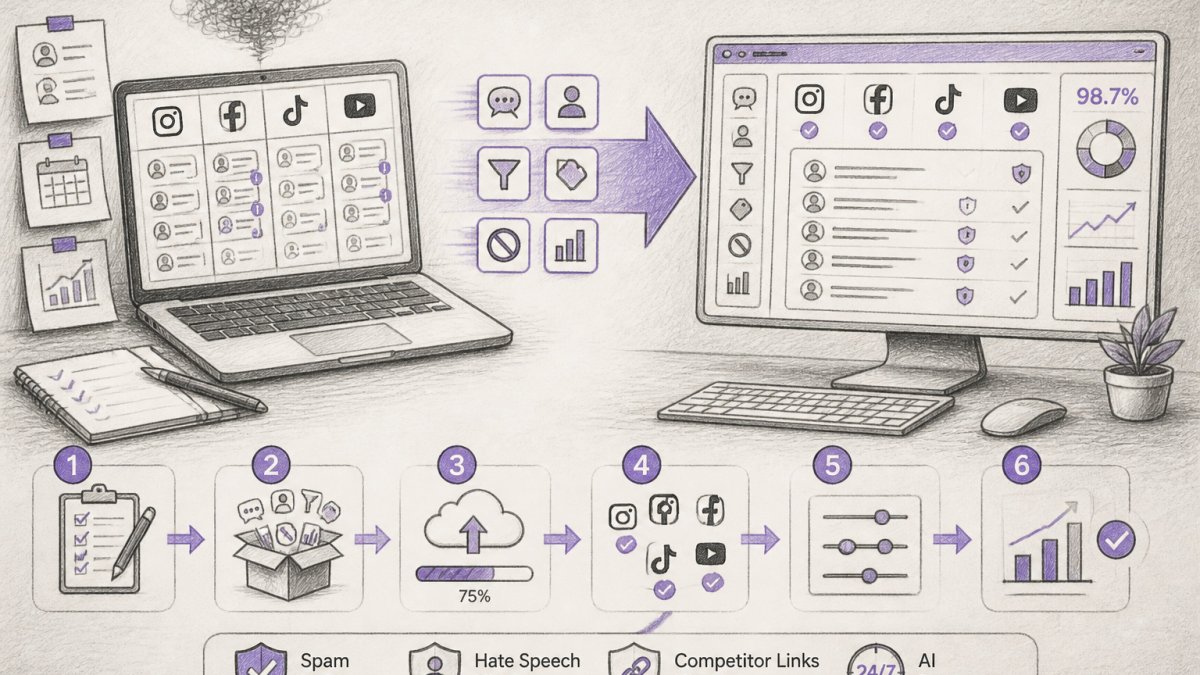
To switch social media management platforms safely, first audit your current setup and export your analytics history and scheduled posts. Then choose a replacement against your documented needs, run both tools in parallel for two to four weeks, and cancel the old subscription only after the new queue has run cleanly for a full cycle.
- Write a full inventory of accounts, team access, recurring reports, and saved replies before canceling anything.
- Export about 13 months of analytics per network, and export each network into its own file.
- Freeze the old queue at least one publishing cycle before cutover and include time zones in the export.
- Rebuild approval roles in the new tool and test one draft through the full approval path.
- Run both tools in parallel for two to four weeks before canceling the old subscription.
Table of Contents
- Why Teams Switch Social Media Management Platforms and What to Audit First
- Social Media Management Tool Comparison: Matching Features to Your Workflow
- Exporting Social Media Analytics Data Export Before You Cancel
- Moving Your Content Calendar and Scheduled Posts
- Reconnecting Accounts with a Social Media Platform Integration Checklist
- Running a Parallel Test, Managing Risk, and Getting Your Team Onboarded
- Booking Your Next Step with FeedGuardians Before Your Current Contract Ends
- Frequently Asked Questions
Why Teams Switch Social Media Management Platforms and What to Audit First
Deciding to switch social media management platforms is rarely a casual decision. For most teams it follows a trigger: rising comment volume that no one can keep up with, a tool that no longer covers every network, or a contract renewal that forces a hard look at cost.
The most important step happens before you cancel anything. Audit what you have. Most teams underestimate how much their current platform quietly does for them, from approval workflows to saved response templates to the historical data that feeds monthly reports.
Pre-Switch Audit: Documenting Your Current Setup
Start with a written inventory. List every connected account, every team member with access, every recurring report, and every automation or saved reply in use. Note the scheduled posts that fall in the next 30 to 60 days, because those are the items most likely to disappear during a move.
Capture the setup in a simple spreadsheet with four columns: asset, owner, where it lives, and what breaks if it is lost. That last column keeps the audit honest. A saved reply template that handles 200 buyer questions a month matters far more than a dashboard nobody opens.
Decision Criteria for Choosing a New Platform
Before comparing vendors, define what the new platform must do. Score each candidate from 1 to 5 against the criteria your audit surfaced. Common criteria include supported networks, comment moderation, scheduling depth, analytics export, team permissions, and listed starting price. Weight the criteria that your workflow depends on most.
Treat pricing as a constraint rather than a tiebreaker. Pricing depends on account count, seats, and feature tier, so check the current pricing on each vendor's website instead of relying on older comparison articles.
Social Media Management Tool Comparison: Matching Features to Your Workflow
Tools in this category differ more in workflow fit than in headline features.
| Tool | Primary Strength | Pricing Note | Best For |
|---|---|---|---|
| Buffer | Scheduling | Verify on vendor site | Scheduling-focused teams |
| Hootsuite | Broad management | Verify on vendor site | Organizations wanting full coverage |
| Sprout Social | Premium scheduling | Verify on vendor site | Teams with higher budgets |
| Zoho Social | Management suite | Verify on vendor site | Zoho ecosystem users |
| Metricool | Analytics and planning | Verify on vendor site | Teams comparing before switching |
| SmarterQueue | Affordable option | From $24.99/month | Budget-conscious and agency teams |
Match the criteria to your audit. If comment moderation drives your workload, prioritize tools that handle comments alongside publishing.
Exporting Social Media Analytics Data Export Before You Cancel
Historical analytics are the asset teams most often lose by accident, and almost no switching guide explains how to move them. Treat the export as a small data project with a defined scope, a fixed deadline, and a reconciliation step at the end.
Decide what history you actually need
You rarely need every metric since the account was created. Pull what feeds your recurring reports and your year-over-year comparisons. A practical scope is:
- Rolling 13 months of reach, impressions, engagement rate, follower growth, and profile visits per connected account.
- Post-level performance for the same window: publish date, network, post URL or ID, format (image, video, carousel, text), reach, engagements, clicks, and any tracked conversions.
- Audience snapshots at month-end so you can rebuild growth charts after the old tool is gone.
- Paid and organic separation if the old platform reported ad metrics alongside organic, mixing them after migration is a common reporting error.
Export in a format the next tool can ingest
CSV is the safest neutral format, but check the column structure before you export. Two exports of the same metric from different tools rarely share column names, so normalize headers in the spreadsheet (for example, standardize on post_date, network, post_id, reach, engagements) before importing anywhere. Keep one raw export untouched as an archive and work from a copy.
Start early and check the export window
Some platforms cap how far back data can be pulled, and some limit how many rows a single export returns. Start the export the week you choose a replacement, not in the final billing week. If a platform only returns 90 days at a time, schedule consecutive pulls and label each file by date range so the set can be stitched together later.
Reconcile before you cancel
Before the final billing date, spot-check the export against the live dashboard: pick three posts from the last 30 days and confirm reach and engagement match. If they do not, you have a filter or attribution mismatch that will corrupt every report built on the new platform. Document the reconciliation in the same spreadsheet as the audit.
Accept what cannot move
Some data will not transfer cleanly, and pretending otherwise creates false confidence. Historical inbox conversations, saved reply usage counts, and platform-native audience insights often stay behind. Capture screenshots or PDF summaries of any dashboard you rely on monthly, and note in your migration log which reports will restart from zero in the new tool so stakeholders are not surprised by a chart that begins on the cutover date.
Moving Your Content Calendar and Scheduled Posts
Scheduled posts rarely transfer automatically between platforms, and this is where most switches go wrong. Plan the move as a sequenced handoff rather than a copy-paste, and build in a rollback point before you touch live publishing.
Freeze the queue before you move it
Stop adding new scheduled posts to the old tool at least one publishing cycle before the cutover, a week for most teams, longer if you post daily across many channels. Export the existing queue as CSV with these fields: publish date and time (including time zone), network, account, caption, media file name or URL, link, and approval status. Time zone is the field most often dropped and the one that causes posts to land hours early or late.
Rebuild in date order, not in bulk
Import or recreate posts in the new platform in chronological order, oldest first. Working in date order lets you catch gaps and duplicates as you go instead of discovering them after the queue is live. Re-upload media from your own asset library rather than relying on URLs from the old tool, because those links often expire when the subscription ends.
Rebuild approvals and roles, not just posts
If your old workflow routed drafts through an approval step, recreate that structure before the queue goes live. Map each role, creator, approver, publisher, to the equivalent permission in the new tool, and run one draft through the full approval path as a test. A queue that publishes without approval is a bigger risk than a queue that publishes a day late.
Verify on the native feed, not the dashboard
During the first week, check each network's native feed after every scheduled post to confirm it went live exactly once. Keep the old tool's export as a reference list so you can tick off each post. If a post fails, publish manually from the native app and log the failure, a pattern of failures usually points to a permission or media-format issue, not a scheduling bug.
Keep a rollback window
Do not cancel the old subscription until the new queue has run cleanly for at least one full cycle. If the new platform fails during the first week, you can re-enable the old queue and publish from there while you troubleshoot. Confirm the cancellation notice period in writing before you set the cutover date so the rollback window does not collide with a renewal charge.
Reconnecting Accounts with a Social Media Platform Integration Checklist
Each platform connection must be re-authorized in the new tool. Use this checklist:
- Confirm the new tool supports every network you run
- Re-authorize each account using an admin login
- Verify page or channel permissions for each team member
- Test one post and one comment reply per account
- Confirm any integrations with your store or other tools are reconnected, and check the full list of supported platforms and tool integrations before you start.
Running a Parallel Test, Managing Risk, and Getting Your Team Onboarded
Run both tools in parallel for two to four weeks. To see moderation in action before you commit, watch FeedGuardians detect and hide spam and toxic comments in real time. Use the new platform for a single network or client first, then expand. This limits the damage if something breaks and gives your team time to learn the interface.
Assign one owner for the migration and document every change. Train each team member on approval workflows and moderation settings before the old tool is shut down. A short written guide beats a long meeting.
Booking Your Next Step with FeedGuardians Before Your Current Contract Ends
Plan the cutover date against your contract renewal so you do not pay for overlap longer than necessary. You can calculate your social media ROI to estimate whether the switch pays off. Confirm notice periods with your current vendor in writing, and test the new platform on live accounts before that deadline.
If comment volume is the problem driving your move, FeedGuardians detects and hides spam, hate speech, and competitor links with 98.7% accuracy, and sends AI-powered replies in your brand voice around the clock. See how AI comment moderation for social media managers works in practice.
Frequently Asked Questions
How do I switch social media management platforms?
Start by auditing your current setup: list every connected account, scheduled post, recurring content category, team permission, and report you rely on. Then choose the new platform against those requirements, export your analytics and content records, and run both tools in parallel for a short period. Reconnect accounts on the new platform, confirm that scheduled posts publish correctly, and only cancel your old subscription once you have verified that nothing was lost. Keep the old account active until the final check passes, since most cancellations end access immediately.
What should I export before changing social media tools?
Export your published post history, scheduled posts, content calendar entries, media library files, and any reports covering reach, engagement, and click-through rate. Save audience and follower trend data for each account, along with the report date ranges. Many platforms only let you export a limited history, so pull the longest range available early. Store exports in a spreadsheet or shared drive with clear file names and dates so your team can find historical benchmarks after the switch.
Will switching platforms affect my scheduled posts?
It can. Posts scheduled in the old tool usually do not transfer automatically, so they may publish from the old system or not at all after cancellation. Before switching, either let scheduled posts publish, or recreate them in the new platform's calendar and confirm the publish times and time zones. Check each channel after the first few posts go live to confirm they appeared correctly, including images, links, and hashtags.
How long does it take to migrate to a new social media management platform?
A small setup with a few accounts can be done in one to two weeks, including the audit, account reconnection, and a parallel test. Teams managing many clients or several networks usually need four to six weeks, mainly for permission setup and team training. Timing depends on how many accounts, approval workflows, and reporting templates you need to rebuild. Plan the switch outside your busiest publishing periods to reduce the risk of missed posts.

Tired of manually moderating comments?
FeedGuardians automates spam filtering, responds to customers, and protects your brand — setup in 3 minutes.
Frequently Asked Questions
How do I switch social media management platforms?
Start by auditing your current setup: list every connected account, scheduled post, recurring content category, team permission, and report you rely on. Then choose the new platform against those requirements, export your analytics and content records, and run both tools in parallel for a short period. Reconnect accounts on the new platform, confirm that scheduled posts publish correctly, and only cancel your old subscription once you have verified that nothing was lost. Keep the old account active until the final check passes, since most cancellations end access immediately.
What should I export before changing social media tools?
Export your published post history, scheduled posts, content calendar entries, media library files, and any reports covering reach, engagement, and click-through rate. Save audience and follower trend data for each account, along with the report date ranges. Many platforms only let you export a limited history, so pull the longest range available early. Store exports in a spreadsheet or shared drive with clear file names and dates so your team can find historical benchmarks after the switch.
Will switching platforms affect my scheduled posts?
It can. Posts scheduled in the old tool usually do not transfer automatically, so they may publish from the old system or not at all after cancellation. Before switching, either let scheduled posts publish, or recreate them in the new platform's calendar and confirm the publish times and time zones. Check each channel after the first few posts go live to confirm they appeared correctly, including images, links, and hashtags.
How long does it take to migrate to a new social media management platform?
A small setup with a few accounts can be done in one to two weeks, including the audit, account reconnection, and a parallel test. Teams managing many clients or several networks usually need four to six weeks, mainly for permission setup and team training. Timing depends on how many accounts, approval workflows, and reporting templates you need to rebuild. Plan the switch outside your busiest publishing periods to reduce the risk of missed posts.