Quick Summary
| Key Insight | What You Need to Know |
|---|---|
| How to See Replies | How to See Replies to Your Comments on YouTube Desktop Accessing the Notification Bell Navigating YouTube Studio for Comment History |
| Accessing the Notification Bell | Accessing the Notification Bell |
| Navigating YouTube Studio for | Navigating YouTube Studio for Comment History |
| View Your YouTube Comment | View Your YouTube Comment History on Mobile App Checking Notifications on Mobile Using the YouTube Mobile App Dashboard |
| Checking Notifications on Mobile | Checking Notifications on Mobile |
| Using the YouTube Mobile | Using the YouTube Mobile App Dashboard |
Table of Contents
- How to See Replies to Your Comments on YouTube Desktop
- View Your YouTube Comment History on Mobile App
- How to See Replies to Your Comments Using the Activity Log
- YouTube Notification Settings for Comments Explained
- YouTube Comment Notification Not Working: Troubleshooting Guide
- Managing Comment Interactions and Reply Threads
- Common Mistakes to Avoid When Tracking YouTube Replies
- Automating Comment Management with AI Tools
See Replies to Your Comments on YouTube: Complete Guide
Last Updated: June 30, 2026
Understanding how to see replies to your comments on YouTube is essential for anyone engaging with the platform. Whether you're a casual viewer or content creator, tracking replies keeps you connected to conversations that matter. This guide walks you through every method to view your comment replies, from desktop notifications to mobile apps to advanced creator tools.
Most people miss replies simply because YouTube's notification system is fragmented across multiple interfaces. The notification bell catches some replies, but not all. Your activity log shows different information. YouTube Studio offers yet another view. Below, we'll show you exactly how to see replies using each method, plus troubleshooting steps for when notifications fail.
How to See Replies to Your Comments on YouTube Desktop
The notification bell in the top right corner of YouTube is the quickest way to catch replies on desktop. Click it to see recent activity, including replies to your comments, likes on your videos, and channel mentions. However, this window only shows recent activity; older notifications disappear once they scroll off the list.
Accessing the Notification Bell
Open YouTube in your desktop browser and look at the top right corner. The bell icon sits next to your profile picture. A red dot or number badge appears when you have unread notifications. Click the bell to expand a dropdown menu showing your recent activity, including replies with context: the commenter's name, reply text (truncated), which video it's on, and a timestamp. Click any notification to jump directly to that comment thread.
For notifications you don't want to miss, enable desktop notifications in your account settings. Go to Settings > Notifications and toggle on "Allow notifications" for YouTube.
Navigating YouTube Studio for Comment History
YouTube Studio is the comprehensive dashboard for creators and active commenters. It shows your published comments, replies to those comments, and engagement metrics. To access it, click your profile picture in the top right corner and select "Create a post" or navigate directly to studio.youtube.com.
Once in YouTube Studio, click the "Community" tab on the left sidebar (available if you have at least 1,000 subscribers). If you don't see it, look for the "Comments" section under "Engagement" or navigate to your channel's comment history through your profile.
The comment history view shows all your published comments across YouTube. Click any comment to see replies and engage in the thread. This interface gives you a complete record of your comment activity, something the notification bell alone cannot provide.
View Your YouTube Comment History on Mobile App
The YouTube mobile app handles comment notifications differently than the desktop version. The notification bell still works, but it's smaller and easier to miss.
Checking Notifications on Mobile
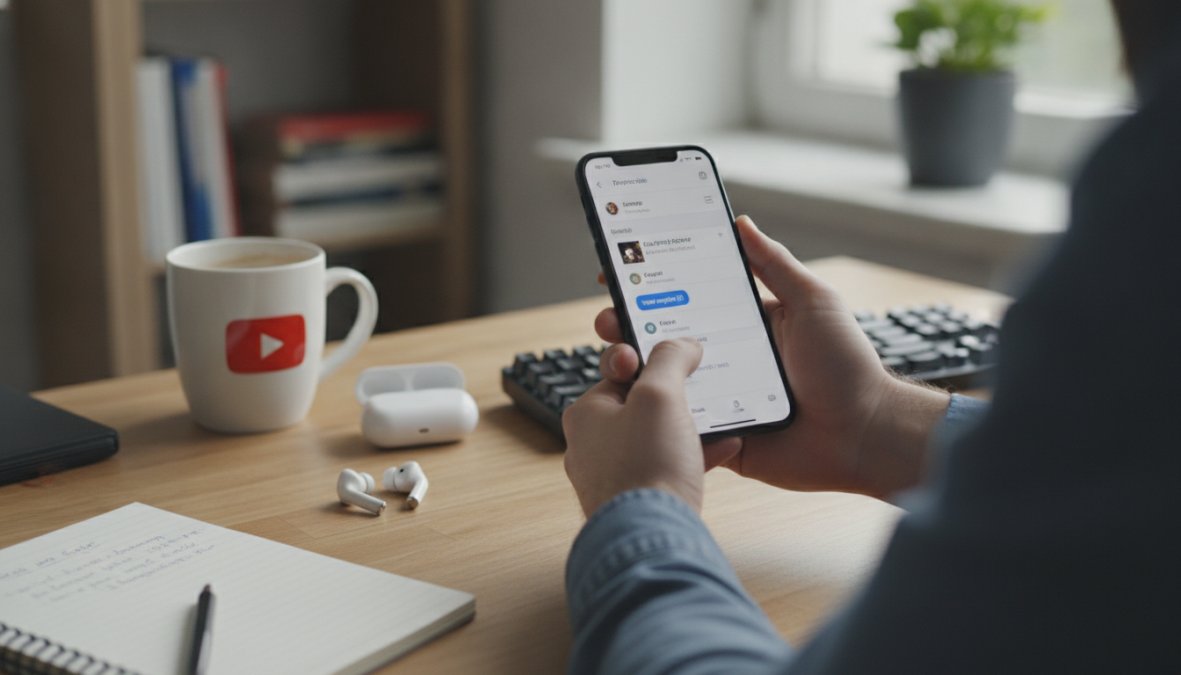
Open the YouTube app on your phone or tablet. Tap the bell icon at the bottom of the screen (on Android) or at the top (on iPhone). This opens your notification feed, showing replies to your comments alongside other activity like new subscribers and channel mentions. Tap any notification to jump to that comment thread and read the full reply.
Mobile notifications can feel delayed compared to desktop. To ensure you catch important replies, enable push notifications in your phone's settings. Go to Settings > Apps > YouTube > Notifications and toggle on all notification types.
Using the YouTube Mobile App Dashboard
The YouTube mobile app's "Subscriptions" tab doesn't show your own comment activity directly. Instead, tap your profile picture at the top right, then select "Your channel" to view your channel dashboard. Scroll down to find your recent comments and activity. However, this view is limited on mobile; for detailed comment tracking, switch to the desktop version or use YouTube Studio's mobile-optimized interface.
How to See Replies to Your Comments Using the Activity Log
Your Google Account activity log is a comprehensive record of all your YouTube interactions, including comments and replies. Access it by going to myactivity.google.com.
Filtering Comments and Replies in Your Activity
On the Google Activity page, click the filter icon on the left sidebar. Select "YouTube" to show only YouTube-related activity. The filtered activity log shows every comment you've posted and every interaction with the platform. Use the search bar to find replies by keyword. The log displays timestamps for each action, so you can see exactly when replies came in.
This method is thorough but cumbersome for daily use. Most people check the notification bell for quick updates and use the activity log only when searching for a specific older reply.
Creator View vs. Viewer View: What You'll See
If you manage a YouTube channel with at least 1,000 subscribers, you have access to Creator View in YouTube Studio. Creator View shows your comments alongside metrics: reply count, like count, and engagement status. You can also pin important comments, delete spam, and mark comments as spam directly from this interface.
Viewer View is what you see when you're not logged in as a creator or when viewing someone else's channel. You can still see replies to your comments, but you don't have moderation tools or detailed engagement metrics.
YouTube Notification Settings for Comments Explained
YouTube's notification system is powerful but confusing because settings are scattered across multiple locations. Understanding where to adjust each setting prevents you from missing important replies.
Customizing Your Notification Preferences
To customize comment notifications, click your profile picture and select "Settings." Then go to "Notifications" on the left sidebar. Make sure "Replies to your comments" is toggled ON. You can also choose how you receive notifications: through the notification bell, via email, or as push notifications on your phone. Email notifications are useful for archiving; you'll have a record of every reply in your inbox.
The notification settings page also lets you mute notifications from specific channels or creators without blocking them entirely.
Managing Alerts for Threaded Conversations
YouTube organizes replies into threaded conversations. When someone replies to your comment, it starts a thread. By default, you receive a notification for the first reply to your comment, but subsequent replies in the same thread may not trigger new notifications. Adjust your settings to "Notify me for every reply" or keep the default "Notify me only for the first reply."
YouTube Comment Notification Not Working: Troubleshooting Guide
If you're not seeing replies to your comments, the problem usually falls into one of three categories: notification settings are disabled, your browser is blocking notifications, or there's a temporary platform issue.
Why You Might Miss Replies to Your Comments
The most common reason for missing replies is that notifications are disabled in your YouTube account settings. Log in, click your profile picture, go to Settings > Notifications, and verify that "Replies to your comments" is toggled ON.
Browser settings can also block YouTube notifications. In Chrome, click the lock icon next to the URL bar, find "Notifications," and ensure it's set to "Allow." In Firefox, go to Preferences > Privacy > Permissions and check that YouTube is allowed to send notifications.
Another possibility is that you're not actually receiving replies. Check the comment itself: is it visible on the video? Did you post it on a live stream, where comments disappear quickly?
Third-party tools like browser extensions can interfere with YouTube's notification system. If you've installed ad blockers or comment filters, try disabling them temporarily to see if notifications resume.
Quick Fixes for Missing Notifications
Start with the simplest fix: refresh your browser and check the notification bell again. Sometimes YouTube's notification system lags, and a refresh brings notifications up to date.
Next, sign out of your YouTube account completely, then sign back in. This resets your session and can resolve temporary notification glitches.
If you're using multiple Google accounts, make sure you're signed into the account that posted the comment.
For persistent issues, try accessing YouTube from an incognito window or a different browser. If notifications work in incognito mode, your browser extensions are likely the culprit.
Managing Comment Interactions and Reply Threads
Once you've found replies to your comments, managing those threads effectively prevents conversations from becoming overwhelming. YouTube provides tools to organize, edit, and delete your comments.
Finding Specific Replies in Long Conversations
Popular videos attract hundreds or thousands of comments. If your comment goes viral, the reply thread can become unwieldy. Use the "View all replies" link to expand the entire thread, then use your browser's search function (Ctrl+F or Cmd+F) to search for keywords within the thread.
YouTube Studio's comment management interface allows you to filter comments by status: published, held for review, or spam. You can also sort comments by newest first, oldest first, or most liked.
Editing and Deleting Your Comments
You can edit your own comments up to one hour after posting them. Click the three-dot menu next to your comment and select "Edit." After one hour, the edit option disappears; you can only delete the comment.
Deleting a comment removes it from the video entirely. Any replies to your deleted comment remain visible but appear orphaned. If a reply to your comment is inappropriate or spam, click the three-dot menu next to it and select "Report comment."
Common Mistakes to Avoid When Tracking YouTube Replies
Many people develop habits that cause them to miss replies or waste time managing comments inefficiently.
The first mistake is relying solely on the notification bell. Check YouTube Studio weekly to catch any replies that fell through the notification cracks.
The second mistake is not customizing notification settings. By default, YouTube sends notifications through the bell only. Enable email notifications or push notifications manually if you want them.
The third mistake is forgetting that different views show different replies. Your activity log, the notification bell, YouTube Studio, and the Community tab all show overlapping but distinct information.
The fourth mistake is not using filters and search. YouTube Studio has powerful filtering tools; use them to save time when tracking specific conversations.
Automating Comment Management with AI Tools
Manually checking replies to your comments is time-consuming, especially if you comment frequently or manage multiple channels. AI-powered tools can automate parts of this process, alerting you to important replies and even drafting responses.
FeedGuardians provides real-time comment moderation across YouTube, Instagram, Facebook, and TikTok. The platform automatically detects spam, hate speech, and competitor links with 98.7% accuracy, hiding harmful comments before they damage your brand reputation. It learns your brand voice and can deliver 24/7 AI-powered replies to common questions, saving your team hours daily.
When you receive a reply to your comment, FeedGuardians categorizes it automatically: is it a question needing an answer, a compliment, criticism, or spam? The platform surfaces high-priority replies in your dashboard so you see what matters first. You can then respond manually, approve an AI-drafted response, or escalate to a team member.
For brands that cannot afford to miss a single customer reply, FeedGuardians ensures 24/7 monitoring and response in your authentic brand voice.
Tracking replies to your comments on YouTube requires understanding multiple interfaces and notification systems. The notification bell catches most replies, but YouTube Studio provides comprehensive history, the activity log offers archival search, and mobile apps keep you updated on the go. Customizing your notification settings ensures you don't miss important conversations, while AI tools like FeedGuardians automate the entire process, detecting important replies, hiding spam, and drafting responses in your brand voice. Start with the notification bell for daily updates, check YouTube Studio weekly for a complete picture, and consider automation tools if you manage multiple channels or high comment volume.
Get started with FeedGuardians to stop missing replies, automatically hide spam and hate speech, and deliver 24/7 AI-powered responses in your unique brand voice. Save hours every day while protecting your reputation and turning comments into genuine conversations that convert.
| Method | Real-Time? | Comprehensive? | Best For |
|---|---|---|---|
| Notification Bell | Yes | No (recent only) | Quick daily checks |
| YouTube Studio | No (manual check) | Yes | Complete tracking |
| Activity Log | No (manual search) | Yes | Historical searches |
| Mobile App | Yes | No (limited view) | On-the-go updates |
| AI Tools (FeedGuardians) | Yes | Yes | Teams managing volume |
Frequently Asked Questions
Why can't I see replies to my YouTube comments?
You may not see replies if notifications are disabled in your account settings, the video creator has disabled comments, or your Google Account privacy settings restrict comment visibility. Check your notification bell and ensure YouTube Studio shows your published comments in the Activity log. Some replies may be hidden if they violate community guidelines or are filtered by the channel's moderation settings.
How do I view YouTube comment history to track all my replies?
Access your complete comment history through YouTube Studio by clicking your profile icon, selecting 'Create,' then 'Go to YouTube Studio.' Navigate to the 'Comments' tab in the left menu to view all your published comments and any direct replies. You can also use your Google Account's 'Manage all history' feature to search your activity log across all platforms.
Does YouTube notify you when someone replies to your comment?
Yes, YouTube sends notifications when someone replies to your comment, but only if notifications are enabled in your account settings. You'll receive alerts through the notification bell icon on desktop and push notifications on the mobile app. Adjust your notification preferences in Settings to control which reply types trigger alerts, you can customize notifications for all replies, mentions, or replies from channel creators only.
What should I do if YouTube comment notifications aren't working?
First, verify notifications are enabled in your YouTube notification settings through your Google Account. Check that the cog icon settings allow comment replies. Ensure your browser or mobile app has permission to display notifications. Clear your cache and refresh the page, or reinstall the YouTube app. If issues persist, confirm the video creator hasn't disabled comments or your replies weren't caught by spam filters in the channel's moderation system.
This article was written using GrandRanker
Tired of manually moderating comments?
FeedGuardians automates spam filtering, responds to customers, and protects your brand — setup in 3 minutes.
Frequently Asked Questions
Why can't I see replies to my YouTube comments?
You may not see replies if notifications are disabled in your account settings, the video creator has disabled comments, or your Google Account privacy settings restrict comment visibility. Check your notification bell and ensure YouTube Studio shows your published comments in the Activity log. Some replies may be hidden if they violate community guidelines or are filtered by the channel's moderation settings.
How do I view YouTube comment history to track all my replies?
Access your complete comment history through YouTube Studio by clicking your profile icon, selecting 'Create,' then 'Go to YouTube Studio.' Navigate to the 'Comments' tab in the left menu to view all your published comments and any direct replies. You can also use your Google Account's 'Manage all history' feature to search your activity log across all platforms.
Does YouTube notify you when someone replies to your comment?
Yes, YouTube sends notifications when someone replies to your comment, but only if notifications are enabled in your account settings. You'll receive alerts through the notification bell icon on desktop and push notifications on the mobile app. Adjust your notification preferences in Settings to control which reply types trigger alerts—you can customize notifications for all replies, mentions, or replies from channel creators only.
What should I do if YouTube comment notifications aren't working?
First, verify notifications are enabled in your YouTube notification settings through your Google Account. Check that the cog icon settings allow comment replies. Ensure your browser or mobile app has permission to display notifications. Clear your cache and refresh the page, or reinstall the YouTube app. If issues persist, confirm the video creator hasn't disabled comments or your replies weren't caught by spam filters in the channel's moderation system.