Quick Summary
| Key Insight | What You Need to Know |
|---|---|
| Why Automated Moderation Matters | Why Automated Moderation Matters for Live Streams |
| Understanding YouTube Live Chat | Understanding YouTube Live Chat Moderation Settings |
| How to Access and | How to Access and Configure Blocked Words in YouTube Studio |
| Building Your Word Filter | Building Your Word Filter Strategy by Category |
| Testing Filters Before Going | Testing Filters Before Going Live |
| Documenting and Maintaining Your | Documenting and Maintaining Your Word List |
Table of Contents
- Why Automated Moderation Matters for Live Streams
- Understanding YouTube Live Chat Moderation Settings
- Creating a YouTube Blocked Words List for Live Chat
- Adding and Assigning Channel Moderators
- Deploying YouTube Live Chat Moderation Bots
- YouTube Live Stream Moderation Best Practices
- Troubleshooting Common Moderation Issues
- Frequently Asked Questions
Last Updated: October 10, 2026
Why Automated Moderation Matters for Live Streams
Live chat moves fast, hundreds of messages flood in every minute. Manual moderation can't keep up, and spam, harassment, and off-topic content slip through.
Setting up automated moderation for YouTube live streams filters harmful content in real time, protects your brand reputation, and frees your team to focus on genuine engagement.
YouTube's native tools only go so far. This guide combines YouTube's built-in features with additional layers of protection, from basic filters to advanced moderation bots.
Understanding YouTube Live Chat Moderation Settings
YouTube live chat moderation settings let you control who can post, what gets held for review, and which messages disappear automatically. Access these in YouTube Studio by selecting a live stream and clicking the "Moderation" tab:
- Chat restrictions, slow mode, followers-only mode, subscriber-only mode
- Blocked words, custom word filters that hold or remove messages
- Held messages, suspicious content that requires manual approval
- User restrictions, timeouts, permanent blocks, and shadow bans
These controls work together, a message with a blocked phrase and a suspicious link gets held for review while the user enters a timeout. Configure them for your stream type: gaming streams have different needs than product launches or educational broadcasts.
Creating a YouTube Blocked Words List for Live Chat
A blocked words list is your first line of defense. YouTube lets you add custom words and phrases that trigger automatic moderation, messages either get held for review or removed immediately.
How to Access and Configure Blocked Words in YouTube Studio
- Go to YouTube Studio
- Select the channel you want to moderate
- Click "Settings" (bottom left)
- Select "Community" > "Blocked words"
- Choose your moderation action: "Remove" (message disappears immediately) or "Hold" (message waits for moderator approval)
- Enter your blocked words or phrases, one per line
- Click "Save"
YouTube's blocked words feature is case-insensitive and catches partial matches. If you block "viagra," it catches "v1agra" and "VIAGRA" but not euphemisms, so you need semantic awareness.
Building Your Word Filter Strategy by Category
Focus on broad categories rather than every variation:
Spam indicators (e-commerce and scam language):
- "click here," "visit this," "free money," "limited time," "act now"
- "dm for," "dm me," "check my link"
- "make $," "earn fast," "passive income"
- "crypto," "bitcoin," "nft," "web3" (if not relevant to your content)
- "work from home," "mlm," "pyramid," "downline"
Competitor links and domains:
- Direct competitor domain names (e.g., "competitor.com")
- Shortened URLs that redirect to competitors (harder to catch; use a bot for this)
- Competitor brand names if you want to prevent cross-promotion
Common harassment terms (use platform guidelines as reference):
- Slurs and derogatory language
- Threats and violent language
- Doxxing language ("I found your address," "your real name is")
- Coordinated harassment phrases ("raid this channel," "spam this user")
Off-topic spam:
- "follow my twitch," "subscribe to my channel" (if you want to prevent self-promotion)
- "buy my merch," "use code" (if you're not promoting products)
- Repeated phrases that indicate bot spam ("nice stream," "check profile")
Misspellings and variations (add these after you see them in chat):
- "v1agra," "v!agra," "viagra123"
- "cl1ck," "clik," "klick"
- "bit.ly," "tinyurl" (URL shorteners used for spam)
Add 20-30 core phrases first, test them during a live stream, then expand based on what appears in your chat.
Testing Filters Before Going Live
Never deploy a filter untested. Create a test stream with trusted people, have them post blocked words, verify the moderation action, check for false positives, and adjust. Testing takes 30 minutes but saves hours of cleanup later.
Watch for false positives: blocking "free" stops "free shipping," blocking "click" stops "click the link in my bio." Test with your audience context, "raid" is legitimate in gaming streams, "bitcoin" is on-topic in crypto education channels.
Documenting and Maintaining Your Word List
Document your word list in a spreadsheet with the phrase, reason, date added, effectiveness, false positives, and variations. This helps refine filters over time and train moderators.
Adjusting Filters During a Live Stream
You can add words to your blocked list in real time during a stream. Open YouTube Studio in a separate tab, go to Settings > Community > Blocked words, add the phrase, and save. Be cautious, set uncertain filters to "Hold" instead of "Remove."
Handling Multilingual and Misspelled Spam
For multilingual audiences, add spam phrases in relevant languages. For misspellings, focus on high-volume variations, if "v1agra" appears five times, add it. Track variations in a spreadsheet to build a list that catches 80% of spam with minimal false positives.
Adding and Assigning Channel Moderators
Assign channel moderators to help manage chat in real time. Go to YouTube Studio > Community/Moderation settings > Add Moderators, then search for the account and set permissions. Choose trusted community members who understand your values, stay calm under pressure, enforce rules fairly, and speak your audience's language.
Moderator permissions include removing messages, timing out users, blocking users permanently, managing pinned messages, and accessing reports. YouTube doesn't allow partial permissions, moderators have full access or none. Train moderators before each stream on community guidelines, blocked words, and removal examples.
Deploying YouTube Live Chat Moderation Bots
YouTube's native tools handle basic filtering. For advanced automation, pattern detection, cross-platform consistency, and machine learning, you need a moderation bot.
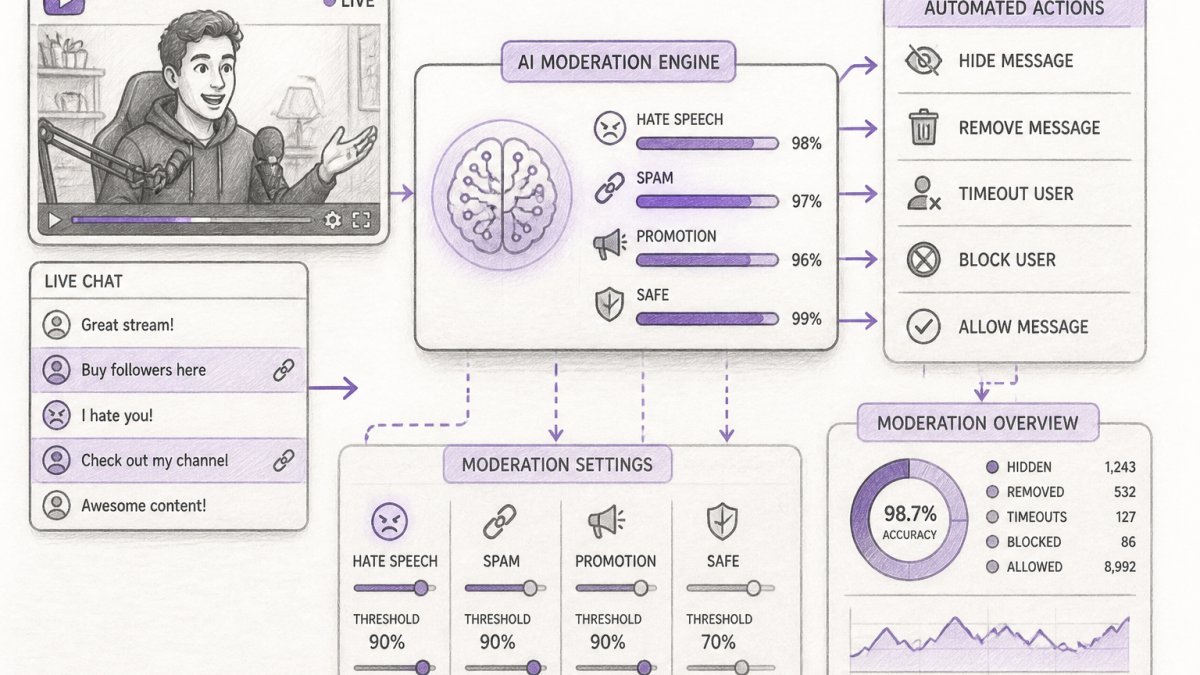
Bots monitor chat continuously and take action without human intervention. They catch spam patterns that simple word filters miss, learn from your moderation decisions, and scale as your audience grows.
Native Moderation vs. Third-Party Bot Integration
YouTube has no native moderation bot, you must use third-party integration. Native filters block words, hold messages, restrict chat access, and block users. Third-party bots add pattern detection, machine learning, cross-platform moderation, analytics, custom rules, granular permissions, and escalation workflows. The trade-off is complexity and account access. Most reputable bots use OAuth 2.0 and request only necessary permissions.
How to Authorize and Configure a Moderation Bot
Setup: choose a bot platform with strong security certifications, create an account, authorize your YouTube channel via OAuth, configure moderation rules (define triggers and actions, whitelist trusted users), test in a private stream, then monitor and adjust.
Permissions and Security Considerations
When you authorize a bot, you're granting it access to your YouTube account. Protect yourself:
- Use a dedicated bot account if possible. Some creators create a separate YouTube account that has moderator permissions on their main channel, then authorize the bot to that account instead of their personal account. This limits exposure if the bot account is compromised.
- Review the bot's privacy policy. Does it log chat messages? For how long? Can it sell or share data? Reputable bots delete logs after 30 days and do not monetize chat data.
- Check what permissions the bot requests. It should ask for "read chat" and "manage messages." If it requests "manage channel settings" or "access your subscriptions," that's a red flag.
- Enable two-factor authentication on your YouTube account. This prevents unauthorized access even if your password is compromised.
- Revoke bot access if you stop using it. Go to YouTube Settings > Connected Apps and remove the bot's authorization.
- Use bots from established companies with public privacy policies and security audits. Avoid bots from unknown developers or those that require you to share your password.
Most Brands Use Both Native and Bot Moderation
Start with YouTube's native blocked words list and chat restrictions. These are free, require no setup, and catch obvious spam. Add a third-party bot for advanced filtering once you understand your moderation needs.
This layered approach catches more spam with fewer false positives:
- Native filters catch exact matches and obvious violations
- The bot catches patterns, context, and coordinated attacks
- Your moderators review held messages and handle edge cases
YouTube Live Stream Moderation Best Practices
Effective moderation isn't just about blocking bad content. It's about creating an environment where your community thrives.
Real-Time Monitoring and Response
During a live stream, assign at least one person to monitor chat actively. This person doesn't respond to every message. Instead, they:
- Watch for emerging spam patterns
- Approve or remove held messages quickly
- Timeout repeat offenders
- Escalate serious issues (threats, harassment) to leadership
Held messages should be reviewed within 60 seconds. A long delay frustrates legitimate users and lets spam pile up.
Use your moderation dashboard to track metrics:
- Messages removed per hour
- Users timed out
- Held messages approved vs. rejected
- Repeat violators
These numbers tell you whether your filters are working. If you're removing 100 messages per hour, your filters might be too aggressive. If you're removing 2 messages per hour in a 5,000-person stream, they might be too loose.
Handling Held Messages and Escalations
Held messages are the gray area. They don't clearly violate your rules but look suspicious.
Review held messages in batches. Don't approve or reject one at a time. Instead:
- Scan the batch for obvious spam (repeated links, cryptocurrency offers)
- Reject those immediately
- For borderline messages, ask: "Does this add value to the conversation?"
- If yes, approve. If no, reject.
Some held messages are worth escalating. If someone makes a threat, shares personal information about another user, or coordinates harassment, don't just remove the message. Screenshot it, document the username, and report it to YouTube. Serious violations may warrant permanent bans and law enforcement involvement.
Keep a log of escalations. Over time, patterns emerge. You might notice one user repeatedly pushing the boundaries or a coordinated group targeting your stream.
Troubleshooting Common Moderation Issues
Even with the best setup, moderation problems happen. Here's how to fix them.
Problem: Legitimate messages are being blocked.
This usually means your word filters are too broad. Review your blocked words list. Remove any phrase that appears in normal conversation.
Problem: Spam is getting through.
Your filters might be catching only exact matches. Spammers use variations. Add common misspellings and number substitutions to your blocked words (e.g., "v1agra," "v!agra").
Problem: Users are complaining about moderation being unfair.
Document your moderation decisions. If a user claims you removed their message unfairly, you should be able to explain why. Was it a blocked word?
Problem: Your moderators are making inconsistent decisions.
Create a moderation playbook. Write down specific examples:
- "This type of message gets removed" (show an example)
- "This type gets held for review" (show an example)
- "This type is allowed" (show an example)
Train all moderators on the playbook before they start. Review moderation decisions weekly to catch inconsistencies early.
Problem: Chat is moving so fast you can't keep up.
Enable slow mode (users must wait 5-10 seconds between messages) or followers-only mode (only channel members can chat).
Automated moderation for YouTube live streams protects your brand and improves the viewer experience.
The setup takes a few hours. FeedGuardians helps you automate this across all your social channels, detecting harmful content with 98.7% accuracy while your team focuses on building real relationships with your audience.
Frequently Asked Questions
How do you set up auto-moderation for a YouTube live stream?
Start by accessing your channel settings and enabling live chat moderation features. Create a blocked words list targeting spam, harassment, and competitor links. Assign trusted moderators with appropriate permissions, then configure automated filters to hold or remove messages matching your criteria. Test your filters in a practice stream before going live. For advanced automation, integrate a third-party moderation bot that can detect context-based violations and enforce timeouts on repeat offenders.
Can YouTube automatically block spam in live chat?
Yes. YouTube's native moderation settings include automated spam filtering, but it catches only obvious violations. You can enhance this by creating a custom blocked words list for your channel and configuring held-message settings so questionable content waits for moderator review. For more sophisticated spam detection, including link filtering, account age verification, and repeat-offender patterns, third-party moderation bots provide deeper automation than YouTube's built-in tools alone.
What moderation settings should you use for a YouTube live stream?
Enable slow mode to limit message frequency, activate the block list for known spam domains and offensive phrases, and set held messages to require approval before appearing. Assign channel moderators with permissions to remove messages and hide users. Configure timeouts for users violating rules multiple times. Consider your audience and content type: family-friendly streams need stricter filters, while niche communities may need custom rules. Review and adjust settings based on the chat activity you observe during streams.
Can a moderation bot manage YouTube live chat?
Third-party moderation bots can enhance YouTube's native controls by automating context-based decisions, enforcing complex rules, and learning your brand voice for intelligent responses. Native YouTube moderation combined with a bot provides comprehensive coverage for high-volume streams.
Tired of manually moderating comments?
FeedGuardians automates spam filtering, responds to customers, and protects your brand — setup in 3 minutes.
Frequently Asked Questions
How do you set up auto-moderation for a YouTube live stream?
Start by accessing your channel settings and enabling live chat moderation features. Create a blocked words list targeting spam, harassment, and competitor links. Assign trusted moderators with appropriate permissions, then configure automated filters to hold or remove messages matching your criteria. Test your filters in a practice stream before going live. For advanced automation, integrate a third-party moderation bot that can detect context-based violations and enforce timeouts on repeat offenders.
Can YouTube automatically block spam in live chat?
Yes. YouTube's native moderation settings include automated spam filtering, but it catches only obvious violations. You can enhance this by creating a custom blocked words list for your channel and configuring held-message settings so questionable content waits for moderator review. For more sophisticated spam detection—including link filtering, account age verification, and repeat-offender patterns—third-party moderation bots provide deeper automation than YouTube's built-in tools alone.
What moderation settings should you use for a YouTube live stream?
Enable slow mode to limit message frequency, activate the block list for known spam domains and offensive phrases, and set held messages to require approval before appearing. Assign channel moderators with permissions to remove messages and hide users. Configure timeouts for users violating rules multiple times. Consider your audience and content type: family-friendly streams need stricter filters, while niche communities may need custom rules. Review and adjust settings based on the chat activity you observe during streams.
Can a moderation bot manage YouTube live chat?
Third-party moderation bots can enhance YouTube's native controls by automating context-based decisions, enforcing complex rules, and learning your brand voice for intelligent responses. Native YouTube moderation combined with a bot provides comprehensive coverage for high-volume streams.