
Quick Summary
| Key Insight | What You Need to Know |
|---|---|
| Find the comment you | Find the comment you want to remove under your post. |
| Hover over it and | Hover over it and click the three-dot menu icon that shows up. |
| Hit Delete from the | Hit Delete from the list of options. |
Yes, you can absolutely delete comments on Facebook. Whether it's something you regret posting, a nasty comment someone left on your photos, or spam cluttering up your Business Page, Facebook gives you the control to remove it. This is a fundamental part of managing your own online space and keeping conversations healthy.
Your Essential Guide to Facebook Comment Management
Knowing you can delete comments is one thing; knowing when and why is another skill entirely. The technical steps are simple, but the real expertise comes from understanding the strategy behind comment moderation. This guide will walk you through it, helping you go from just clicking "delete" to thoughtfully building a better online community.
Who Can Delete What? Understanding Your Permissions
Your power to delete comments on Facebook isn't universal—it all depends on your role in the conversation. It's a system built on ownership and authority.
To make it crystal clear, here’s a quick summary of who holds the power to delete comments in different situations.
Who Can Delete Facebook Comments? A Quick Breakdown
| Scenario | Who Can Delete? | Where to Find It |
|---|---|---|
| You posted a comment | You, and only you. | Any post, page, or group where you left the comment. |
| Someone commented on your post | You can delete their comment. | On any post you created on your personal profile. |
| A comment on a Page you manage | An Admin or Moderator of the Page. | Within the specific Page's posts or comments section. |
| A comment in a Group you manage | An Admin or Moderator of the Group. | Within the specific Group's posts or comments section. |
This table shows a clear pattern: if you own the space (like your post or your Page) or have been granted authority (as a moderator), you're in charge of the conversation.
The guiding principle is straightforward: You control the content on your own digital turf. This setup empowers you to protect your space from spam, harassment, or anything else you don't want there.
The Sheer Scale of the Challenge
For brands and public figures, managing comments is a monumental task, especially when you consider Facebook's staggering 3.07 billion monthly active users. Every comment section is a direct-to-consumer channel, but it can also be a magnet for negativity and spam.
One of the biggest hurdles? Facebook doesn't offer a native way to delete all comments in bulk. This means managers often have to deal with thousands of interactions one by one or turn to third-party tools for help.
To get a handle on this, it helps to understand the bigger picture of social media community management. For a deeper dive into specific strategies, our guide on advanced https://feedguardians.com/blog/facebook-comment-moderation-2025 provides tactics you can put to use right away.
How to Delete Facebook Comments on Any Device
Knowing you can delete a comment is one thing, but actually doing it is another. If you manage any kind of Facebook presence, you'll eventually need to remove a comment. It could be your own embarrassing typo, a customer's question posted in the wrong place, or straight-up spam on your business page.
The good news? It’s a pretty simple process, whether you're on your phone or a computer. Let’s get into the specifics for the most common situations you'll run into.
Deleting a Comment You Posted
It happens to all of us. You hit "Enter" on a comment and immediately see a typo or realize you’ve said something that didn't come out right. Thankfully, taking it back is easy.
On Your Computer:
Just head back to the comment you want to get rid of. When you hover your mouse over it, a little three-dot menu will pop up on the right. Click those dots, choose Delete, and then confirm one more time. It's gone for good.
On Your Phone (iOS or Android):
Find your comment in the thread. Press and hold your finger right on the comment itself, and a menu will appear. Just tap Delete (it usually has a little trash can icon next to it), confirm, and you're all set.
The comment will vanish instantly, and no one gets a notification that you removed it.
Removing Someone Else's Comment on Your Post or Page
When it's your post or your Page, you're in charge of the conversation. That means you have the final say on any comment left by someone else on content you own.
This is what the menu looks like when you’re managing comments on your own stuff:
As you can see, you have the power to not only delete comments but also hide them from the public or report anything that crosses the line.
On a Desktop Browser:
- Find the comment you want to remove under your post.
- Hover over it and click the three-dot menu icon that shows up.
- Hit Delete from the list of options.
On the Mobile App (iOS or Android):
- Navigate to the specific comment.
- Tap and hold it until the action menu pops up.
- Select Delete and confirm.
It's important to know that when you delete someone's comment, they are not notified. However, they will notice it's missing if they come back to the post. For really tricky situations where deleting a comment might just make things worse, you might want to look into how to disable comments on Facebook altogether.
Pro Tip: When you delete a parent comment, all the replies nested under it disappear too. This is a super-efficient way to clean up a negative or off-topic thread in one go. Just be careful, as you might accidentally remove legitimate replies from other people in the process.
A Note on Finding Specific Comments
Trying to find one specific comment in a thread with hundreds of replies can feel impossible. Facebook, unfortunately, doesn't have a great search function for comments within a single post.
Your best workaround is to use your browser's own search tool (Ctrl+F on Windows, Cmd+F on Mac). If you can remember a unique word or the person's name, this can help you jump right to it. For Pages with huge engagement, this is where professional social media management tools really shine, offering much better search and filtering features than Facebook provides natively.
When you're managing a Facebook page or your own profile, not all comment moderation is created equal. Knowing when to delete a comment versus when to just hide it is a critical skill that can directly impact your brand's reputation and the health of your online community.
Think of it this way: deleting is a permanent, public removal, while hiding is a more subtle, targeted action. For instance, if a customer leaves a frustrated comment about a shipping delay, deleting it can make them feel ignored and escalate the situation. Hiding it, however, is a strategic move. It makes the comment invisible to everyone except the person who wrote it and their friends. This gives you a chance to address their concern privately without fueling a public complaint thread.
Comparing Comment Moderation Actions Delete vs Hide vs Report
Deciding on the right action—delete, hide, or report—can feel tricky in the heat of the moment. Each one has a completely different outcome for the commenter, your audience, and your page.
To make it clearer, here’s a breakdown of what each action does and the best time to use it.
| Action | Who Sees the Comment? | Impact on Commenter | Best For... |
|---|---|---|---|
| Delete | No one | The comment is gone, and they know it. Can feel aggressive if it's a legitimate complaint. | Obvious spam, hate speech, dangerous links, or comments from clear trolls. |
| Hide | Only the author and their friends | They usually won't know it's hidden from others. Feels less confrontational. | Legitimate customer complaints, off-topic but harmless remarks, or sensitive feedback you want to address privately. |
| Report | Everyone (until Facebook takes action) | Facebook reviews the comment against its Community Standards. May result in a warning or account suspension. | Threats, harassment, impersonation, or any content that clearly violates Facebook's policies. |
Ultimately, choosing the right tool is all about context. Hiding a comment gives you breathing room to solve a problem behind the scenes, while deleting is your go-to for clearing out junk. Reporting is your first line of defense against genuinely harmful content.
This visual guide can also help you quickly decide what to do based on whether it's your comment or someone else's.
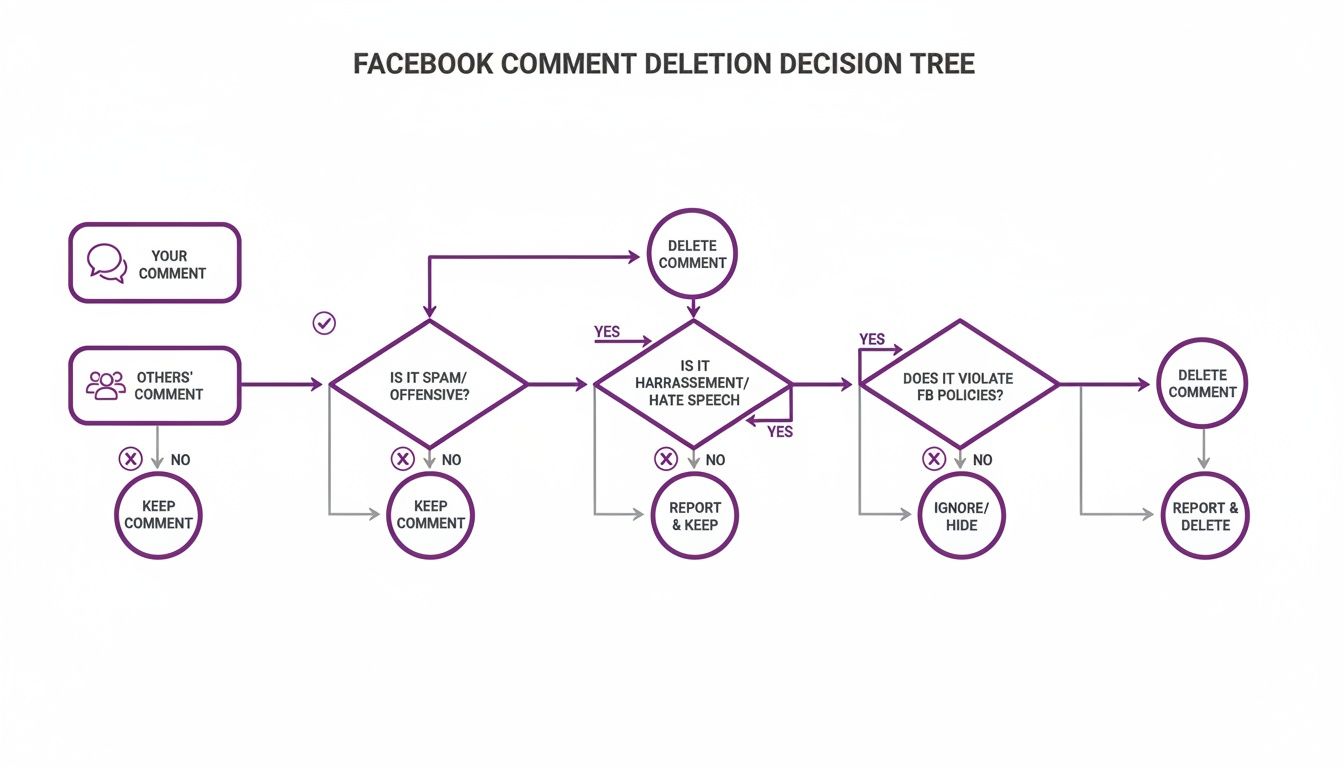
As the infographic shows, the path you take depends entirely on your role and the nature of the comment itself.
When To Use Each Tool
Let's get practical. Here are some real-world scenarios to guide your decision-making:
- Delete immediately when you see blatant spam or abusive language. Don’t hesitate—this protects your community from harmful content.
- Hide a valid but negative review. This is your cue to follow up with a direct message, which can often turn a frustrated customer into a loyal advocate.
- Report any content that violates Facebook's rules or local laws. This is crucial for escalating serious issues like threats or harassment.
A smart strategy often involves a mix of these actions. For example, you can set up keyword filters to automatically hide comments containing certain words, giving your team time to review them manually. This nuance shows you're listening without having to broadcast every single complaint.
Key takeaway: Hiding comments can defuse tension while preserving customer relationships. It's a powerful tool for turning a negative interaction into a positive one.
If you're managing multiple social channels, you'll want to build consistent practices. We have a similar breakdown you might find useful in our guide on hiding comments on Instagram.
Best Practices for Tool Selection
Applying these tools consistently is what builds a positive and engaged community. In fact, research shows that 73% of users have more trust in brands that actively and thoughtfully manage their comment sections.
Here are a few best practices to put into place:
- Create clear internal guidelines. Your whole team should know exactly when a comment should be hidden versus when it should be deleted.
- Train your moderators. Make sure everyone knows how and when to escalate serious issues by reporting them to Facebook.
- Monitor your comment trends. A weekly check-in can help you spot recurring issues and adjust your moderation strategy accordingly.
- Consider automation for high-volume pages. For brands with thousands of comments, AI-powered moderation tools can be a lifesaver, handling the obvious spam so your team can focus on nuanced human interactions.
By balancing the use of delete, hide, and report, you gain fine-tuned control over the conversations happening on your page. This not only protects your brand's reputation but also fosters a space where your audience feels safe and heard.
Advanced Comment Moderation for Business Pages

It’s one thing to zap a stray comment on a personal post. It’s another thing entirely when your Business Page is pulling in hundreds or thousands of interactions every day. At that point, you’re not just moderating; you’re performing professional community management, and simply clicking "delete" isn't going to cut it.
Thankfully, Facebook provides a few built-in tools to help Page admins get a handle on the conversation. Think of these native features as your first line of defense against the spam, negativity, and off-topic chatter that can poison your brand's reputation.
Using Facebook’s Built-in Moderation Tools
The most effective tool right inside Facebook is the Moderation Assistant. It’s essentially an automated gatekeeper that you can train. You set up rules to automatically hide comments that contain specific keywords, phrases, or links.
This is a lifesaver for tackling common problems before they spiral:
- Profanity Filter: Automatically hides comments containing offensive language.
- Link Blocking: Stops users from dropping links to sketchy websites or their own business on your posts.
- Keyword Hiding: You can build a custom list of words—like "scam," "fake," or even competitor names—to automatically hide any comments that include them.
The great thing is these comments aren't gone forever. They’re just hidden from the public and sent to a queue for you to review. This gives you the final say, so you can always unhide a legitimate comment that got caught in the crossfire. It's a smart way to maintain a clean comment section without having to watch it 24/7.
Expert Tip: When you first set up your keyword filter, start small and specific. A filter that's too broad will create a ton of "false positives," hiding genuine customer feedback and actually making more work for you. I recommend checking your hidden comments queue at least once a week to fine-tune your keyword list.
A Workaround for Bulk Comment Deletion
Let's be clear: one of Facebook’s most frustrating omissions is a true "bulk delete" feature for comments on a post. You can't just check a box next to 50 comments and make them disappear. It just doesn't exist.
However, if you're trying to clean up comments you've made across the platform, the Activity Log offers a somewhat clunky but functional workaround.
For comments left by others on your Page's posts, the most efficient tactic is to delete the parent comment. When you do that, all its replies go with it. This is the closest you'll get to a bulk action for clearing out a toxic thread quickly.
The Limits of Native Facebook Tools
While Facebook's built-in tools are a good start, they have some pretty significant limitations, especially for pages with high engagement or brands running major ad campaigns.
- They’re Reactive, Not Proactive: The tools only hide comments after they’ve been posted. They can't stop them from appearing in the first place, even if it's just for a moment.
- They Lack Nuance: A simple keyword filter is dumb. It can’t understand context. It might hide a positive comment like, "This product is definitely not a scam!" just because it saw the word "scam."
- They Don’t Scale Well: Manually reviewing hundreds of hidden comments every single day simply isn't a sustainable strategy for a growing business.
This is usually the point where the discussion shifts from if you can delete comments to how you can do it efficiently at scale. These limitations are why many businesses ultimately turn to third-party, AI-powered solutions to fill the gaps and protect their brand.
And with Meta planning to remove Facebook Like and Comment buttons from external websites, managing conversations directly on the platform is becoming more critical than ever. Brands will have to lean more on native tools and specialized services that integrate directly with Facebook.
For those managing complex campaigns and looking for a deeper strategy, our guide on comprehensive social media content moderation provides a much broader view that goes beyond Facebook's native toolset.
Why You Should Automate Your Comment Moderation
Knowing how to delete comments manually is one thing, but it’s not a real strategy for growth. For any brand running paid ads or fostering a busy community, the constant flood of spam, nasty remarks, and off-topic chatter can get out of hand, fast.
This isn't just an annoyance—it directly hits your bottom line. A comment section filled with negativity and spam can completely derail an otherwise killer ad campaign. Potential customers see a chaotic, untrustworthy space and just keep scrolling, which craters your conversion rates. At the same time, your social media team is stuck doing a repetitive, draining task that leads straight to burnout.
Moving Beyond Basic Keyword Filters
This is exactly why AI-powered moderation has become a game-changer. Modern tools are lightyears ahead of the simple keyword filters Facebook offers. Instead of just flagging a word like "scam," advanced AI can analyze the user's intent behind the comment.
For example, a smart system can tell the difference between:
- A genuine customer complaint ("Your shipping is a scam!")
- A positive, slang-filled comment ("This deal is so good it feels like a scam!")
- A malicious attack from a competitor or a troll.
This kind of sophisticated understanding lets the system automatically hide genuinely harmful comments the second they appear. It can also flag potential customer service issues or even sales opportunities for your team to handle personally. You can get a much deeper look at the options out there in our guide to AI comment moderation tools.
The goal of automation isn't to replace your team, but to empower them. It filters out the noise so your human moderators can focus on high-value interactions that build relationships and drive revenue.
Protecting Your Brand and Boosting ROI
Ultimately, automation turns your comment section from a potential liability into a powerful asset. To truly streamline your comment management and claw back valuable time, exploring the best social media automation tools is a logical next step.
By instantly neutralizing harmful content, you protect your brand's reputation and create a much safer, more welcoming space for your real audience. This clean environment ensures your marketing message actually gets through, your ad spend isn't wasted, and your community can flourish.
Got Questions? Here Are a Few Common Scenarios
Even with a step-by-step guide, you'll inevitably run into some tricky situations that leave you second-guessing your next move. As a brand manager, you know that comment moderation is often more of an art than a science.
Let's tackle some of the most common questions that pop up, so you can handle these nuanced scenarios with confidence.
Will Someone Know If I Delete Their Comment?
The short answer is no. Facebook does not send a notification when you delete a comment on one of your posts or your Page. The action itself is completely silent.
However, don't assume that makes it invisible. An engaged user might come back to the post and notice their comment has vanished. While there’s no official alert, its absence can be just as obvious, especially during a contentious debate. This is precisely why hiding a comment is often a smarter first move—it de-escalates the situation without immediately provoking the user.
Key Takeaway: Deletion is discreet from a technical standpoint, but not always from a human one. Be prepared for the possibility that the original commenter might notice and follow up, sometimes publicly.
Can I Get a Deleted Facebook Comment Back?
Once a comment is gone, it's permanently gone. There's no "undo" button, no trash folder, and no way to get it back.
This is a critical point to remember. If a comment, even a negative one, contains feedback you might need for a report or a customer service ticket, always grab a screenshot before hitting delete. This is standard practice for teams that need to document interactions for training or legal purposes. While you can use Facebook’s "Download Your Information" tool to get an archive of your own activity, it's a clunky backup, not a quick-restore function for a single comment.
If I Delete a Comment, Do Its Replies Disappear Too?
Yes, and this is a massive time-saver. When you delete the main "parent" comment, all the replies nested underneath it are wiped out at the same time.
Think of it as your one-click cleanup tool for a conversation that's gone off the rails. If a single toxic comment has spawned a long, argumentative thread, you don't have to go through and delete every single reply. Just zap the original comment, and the entire toxic tree vanishes with it. It’s the most efficient way to get a problematic discussion off your Page, fast.
Tired of manually policing your comment section? FeedGuardians uses AI to automatically hide spam, harmful comments, and even reply to customer questions in real time. Protect your brand and your ad spend by visiting https://feedguardians.com to see how it works.
Tired of manually moderating comments?
FeedGuardians automates spam filtering, responds to customers, and protects your brand — setup in 3 minutes.