
Quick Summary
| Key Insight | What You Need to Know |
|---|---|
| Why and When You Should Disable Comments | Think of managing your comment section as a core part of your brand and community strategy. It's not about silencing people; it’s about creating a s... |
| Managing Comments on Your Personal Facebook Profile | Your personal Facebook profile is your own little corner of the internet, so you should have the final say on who can chime in on your posts. While th... |
| Disabling Comments on a Facebook Page Post | Running a Facebook Page for a business or a public figure is a whole different ball game than managing a personal profile. You're dealing with a much ... |
| Controlling Comments in a Facebook Group | Facebook Groups are all about community and conversation, but any admin will tell you that not all discussions are created equal. Sometimes, you just ... |
| Automating Your Comment Moderation | Let's be real: if your brand is growing, manually sifting through every single comment just isn't going to cut it for long. As your page or group gets... |
Deciding to turn off comments on a Facebook post isn't just about dodging negativity. It's a deliberate choice to control the conversation around your content. When you're dealing with sensitive announcements or posts that are magnets for spam, shutting down the comment section can be the smartest way to protect your message and your community.
Why and When You Should Disable Comments
Think of managing your comment section as a core part of your brand and community strategy. It's not about silencing people; it’s about creating a safe, on-topic space. You're essentially steering the conversation in the right direction instead of just letting it spiral out of control.
Sometimes, the need to disable comments is obvious. Let's say you're sharing a major company announcement—like a restructuring or some other tough news. Turning off comments from the get-go prevents rumors from spreading and keeps everyone focused on the official statement. The same goes for a PR crisis; temporarily hitting pause on comments buys your team crucial time to craft a thoughtful response without getting drowned out by public speculation.
This flowchart is a great mental model for deciding when to limit or stop the conversation on a specific post.
As you can see, the sensitivity of the content is really the main trigger. If a post is likely to stir up heated, off-topic, or harmful debate, it’s worth considering your options.
Key Scenarios for Disabling Comments
Crisis management is a big one, but there are plenty of other everyday situations where disabling comments makes perfect sense.
- Contests and Giveaways: You’re running a promotion where people need to enter on your website. Disabling comments on the Facebook announcement post funnels everyone to the right place and prevents a pile-up of entries that don't count.
- Purely Informational Updates: Posts about changes to your terms of service, updated holiday hours, or other simple FYI announcements don't really need a discussion. In these cases, comments can just create unnecessary noise.
Taking control of your comments is a proactive move. It keeps the conversation focused, eases the load on your community managers, and makes sure the whole point of your post doesn't get buried under a mountain of irrelevant or toxic chatter.
Facebook itself is constantly trying to get a handle on this. The platform is always tweaking its systems to better deal with harassment and misinformation. If you want to dive deeper into the nuts and bolts, we have a helpful guide on what comment moderation means and why it's so vital for any brand.
The platform's own efforts have gotten much better, combining AI with human reviewers to enforce its rules. In fact, Meta recently reported a nearly 50% reduction in enforcement mistakes in early 2025, which shows how these systems are helping make comment sections safer. You can dig into the specifics in Facebook's content policy enforcement report.
Managing Comments on Your Personal Facebook Profile
Your personal Facebook profile is your own little corner of the internet, so you should have the final say on who can chime in on your posts. While there isn't one magic "off" switch for all comments, Facebook gives you surprisingly granular control to limit who can interact with your public updates.
This is a lifesaver when you're sharing something sensitive—maybe personal news or a strong opinion—and you just aren't in the mood for a free-for-all debate with strangers.
The best way to get ahead of this is by tweaking your account's privacy settings. You can essentially shrink the pool of potential commenters from "everyone on the internet" down to a much smaller, trusted group. It’s a simple, proactive setting that covers all your future public posts.
Adjusting Your Global Comment Settings
First, you’ll want to dive into your main account settings. Head to Settings & Privacy, then click Settings. Once you're there, find the Followers and public content section. Think of this as your main control panel for any content you share publicly.
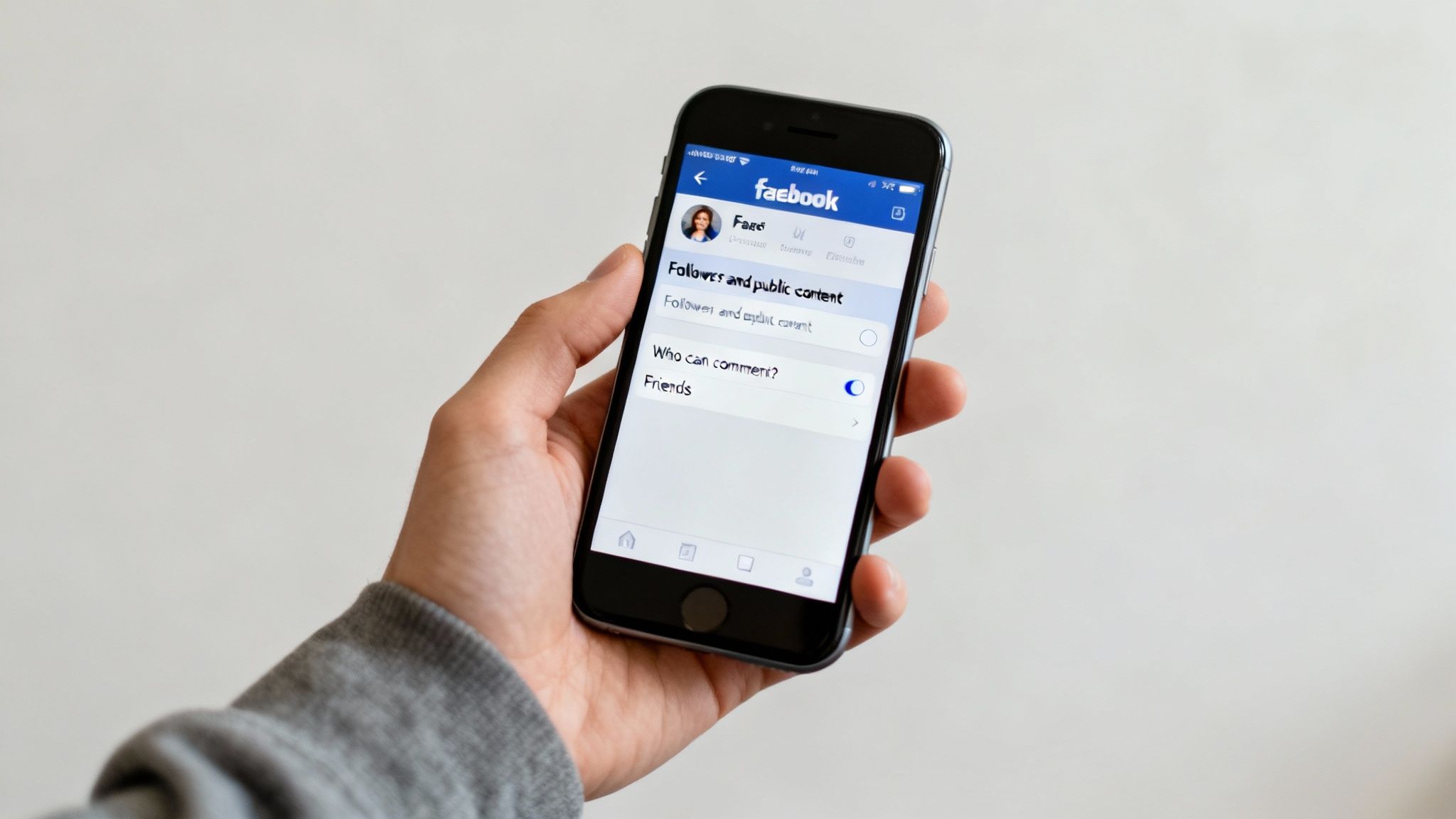
Inside, you'll see an option for Public post comments. It looks just like this:
You’ve got a few choices here: Public, Friends, or Friends of friends.
For most people, setting this to Friends strikes the perfect balance. Your posts can still be seen by the public, but the conversation stays between people you actually know. This one change can cut down on so much unwanted noise and keep trolls at bay. If you find yourself dealing with persistent negativity, our guide to handling trolling on social media has some great, actionable tips.
A Clever Trick for Specific Posts
What if you don't want to change your settings for every post? Maybe you just want to lock down one specific update. Facebook has a slick, slightly hidden feature for this.
When you’re creating a new post (or editing an existing one), you can control comments directly from that post's menu.
The real power move here is to select Profiles and Pages you mention. If you create a post and don't tag a single person or Page, no one can comment. The comment box just... isn't there.
This is perfect for those announcement-only posts where you need to get information out without opening the floor for discussion. It’s a surgical strike, letting you silence a single post while leaving your other content open for engagement.
To make it even clearer, here's a quick breakdown of what each comment setting on your profile really means.
Comment Control Levels on Your Facebook Profile
This table shows you the different audience settings you can apply to comments on your public posts and what each level of restriction means in practice.
| Setting Option | Who Can Comment | Best Use Case |
|---|---|---|
| Public | Anyone, including people who don't follow you. | Great for maximizing reach and engagement on non-sensitive content. |
| Friends | Only your direct Facebook friends. | Ideal for sharing personal updates where you only want feedback from a trusted circle. |
| Friends of Friends | Your friends and their friends. | A good middle ground for broader reach without opening the floodgates completely. |
| Profiles and Pages You Mention | Only the specific people or Pages you tag. | The go-to for effectively disabling comments on announcements or sensitive posts. |
Once you get the hang of these settings, you can completely customize the conversation around every post you share. It's the best way to make sure your personal profile stays a positive and safe space, free from the stress of unwelcome comments.
Disabling Comments on a Facebook Page Post
Running a Facebook Page for a business or a public figure is a whole different ball game than managing a personal profile. You're dealing with a much larger audience, and that means the volume of comments—good and bad—can be overwhelming. You absolutely need a game plan to keep conversations on track and protect your brand.
Sometimes, the smartest move is to just turn comments off on a specific post before things get out of hand. This is especially useful for sensitive announcements, posts you know will be a magnet for spam, or during a PR crisis when you need to keep a tight grip on the message. The tools you have for a Page are a bit different from a personal profile, but they get the job done.
How to Turn Off Comments on a Specific Page Post
Whether a post is already live or you're just about to hit publish, you can control who gets to comment. It's a quick process that gives you immediate control over the conversation.
Here's how to do it:
- First, head over to your Page's timeline and find the post in question.
- Click the three dots (•••) in the top-right corner of that post to open the menu.
- From there, look for and select 'Who can comment on your post?'.
- In the next menu, choose 'Profiles and Pages you mention'.
That's it. If you haven't actually tagged anyone in the post, this effectively shuts down the comment section for everyone. The comment box will just vanish, leaving you with a clean, announcement-style post without any distracting or potentially harmful chatter.
Pro Tip: I recommend using this feature strategically for your most important content. Think about a major product launch or a post addressing a widespread customer service issue. Turning off comments can push all questions directly to your official support channels, like Messenger or email, which stops misinformation from spiraling out of control in a public thread.
Using Moderation Assist for Smarter Filtering
Of course, completely turning off comments isn't always the right call. Engagement is valuable, after all, but it has to be the right kind of engagement. This is where Facebook's Moderation Assist really shines. Think of it as an automated bouncer for your comments, filtering out the stuff you don't want based on rules you create.
Instead of a total shutdown, Moderation Assist lets you automatically hide comments that contain specific keywords or phrases. It’s a much more nuanced approach. For instance, a retail brand could set up a blocklist to automatically hide comments that include:
- Competitor names: A great way to stop people from promoting other businesses on your turf.
- Common slurs or profanity: Helps keep the space safe and welcoming for your entire audience.
- Spam phrases: Get rid of all the "DM for a collab" messages or links to sketchy websites.
This way, the conversation stays open for genuine customers while the junk gets quietly swept away. As of 2025, Page managers can build a pretty hefty keyword list—up to 1,000 keywords—to automatically hide comments. This kind of powerful filtering is essential for any brand trying to cultivate a healthy online community. For more tips on this, NapoleonCat has a great breakdown on Facebook's comment controls.
Ultimately, handling comments on a Page is a balancing act. You want to build a community, but you also need to protect your brand. Whether you choose to completely facebook disable comments on a high-stakes post or use automated filters to weed out the noise, these tools give you the control you need to create a positive space.
Controlling Comments in a Facebook Group
Facebook Groups are all about community and conversation, but any admin will tell you that not all discussions are created equal. Sometimes, you just need to make a simple announcement without a hundred off-topic replies. Other times, a debate gets a little too heated and threatens to poison the group's vibe.
This is where knowing how to shut down comments becomes one of the most important tools in your admin toolkit.
Unlike personal profiles or even Pages, Facebook gives Group admins a straightforward, one-click option to stop a conversation in its tracks on any given post. It’s the perfect way to maintain order and make sure your important messages get seen without getting buried. Think of it as the digital equivalent of a moderator tapping the microphone and saying, "Alright, let's move on."

How to Lock Down a Group Post
Thankfully, this is incredibly easy. You don't have to dig through confusing settings menus; you can do it right from the post itself.
Here’s all it takes to turn off comments on a post in your Group:
- Find the post you want to lock.
- Click the three dots (•••) in the top-right corner of that specific post.
- From the menu that pops up, just select Turn off commenting.
That's it. A small notice will appear on the post letting everyone know comments are off, and the comment box will vanish. Any comments that were already there will stay, but no one can add new ones. If you change your mind later, just follow the same steps to turn commenting back on.
This feature is an absolute lifesaver for admins. Say you're posting the weekly rules reminder. Turning off comments prevents the post from getting derailed by questions and side-chats, keeping the focus right where you want it.
When to Strategically Disable Comments
Knowing how to turn off comments is the easy part. Knowing when to do it is what makes a great admin. You don't want to overuse this, or you risk killing the natural engagement that makes a group feel alive. But in the right situations, it's the perfect move.
Consider locking a post for things like:
- Final Announcements: Details for an event are set in stone? A decision has been made? Lock the post to prevent a flood of last-minute "what if" questions that just create confusion.
- Resolved Issues: A member had a question, and you've given them the definitive answer. Turning off comments stops the thread from filling up with "me too!" replies and keeps things tidy.
- Overheated Debates: If a discussion starts breaking group rules or just devolves into unproductive arguments, locking the thread is a clean way to end it without having to delete the entire post.
Learning when to facebook disable comments is a core skill for any serious community manager. It helps establish your authority and keeps the group focused on its purpose. If you're trying to grow your community, mastering engagement is key, which is why our guide on marketing in Facebook Groups dives deeper into building a space that's both active and well-moderated.
Automating Your Comment Moderation
Let's be real: if your brand is growing, manually sifting through every single comment just isn't going to cut it for long. As your page or group gets bigger, you have to move beyond just turning comments off post-by-post. It’s time to build a smarter, more automated defense system.
Facebook’s own tools are actually a great place to start. Think of the Moderation Assist feature as your first line of defense. It lets you set up rules to automatically hide comments with certain keywords. This is a lifesaver for filtering out the usual spam, profanity, and sneaky competitor mentions before they ever see the light of day.

Building an Effective Keyword Blocklist
A good blocklist is so much more than a list of curse words. It should be a living, breathing document that you update as your community and industry change.
To get started, make sure you include:
- Common spam phrases: You know the ones—"DM for a collab," "check my profile," or those sketchy-looking links.
- Competitor brand names: This stops others from hijacking your posts to promote their own stuff.
- Offensive terms and slurs: Don't forget to add common variations and misspellings to catch as much as possible.
A well-maintained keyword list acts as a silent guardian for your brand. It cleans up the noise, allowing your team to focus on genuine customer interactions rather than constantly playing whack-a-mole with spammers and trolls.
While Facebook's native tools are solid, they’re designed for what happens on Facebook. In fact, Meta is set to pull the plug on its Facebook Like and Comment social plugins for external websites starting February 10, 2026. This shift really underscores how critical it is to get your on-platform moderation strategy right, since that's where all the action will be.
When to Use Third-Party Moderation Tools
There’s a tipping point for every growing brand. Eventually, the sheer volume or complexity of comments will outpace what Facebook’s built-in features can handle. When you hit that wall, it’s time to look at dedicated comment management tools. These platforms offer much more advanced features that save a ton of time and do a better job of protecting your brand’s reputation.
A tool like FeedGuardians, for instance, can use sentiment analysis to automatically hide comments that are negative or dripping with sarcasm, even if they don’t trigger a specific blocked keyword. On the flip side, it can also spot purchase intent in comments like "how much is this?" and flag them for your sales team to jump on.
This mix of hiding the bad while elevating the good is where automation truly becomes a game-changer. If you're juggling multiple ad campaigns or a massive community, checking out a list of the best AI comment moderation tools will show you what’s possible beyond the basics.
Common Questions About Managing Facebook Comments
Facebook's settings for comments can feel scattered, with different rules for Profiles, Pages, and Groups. It’s easy to get confused. Let's tackle some of the most common questions I hear all the time.
Can I Turn Off Comments for My Entire Facebook Page at Once?
Unfortunately, no. Facebook doesn't have a magic "off" switch to disable comments across your entire Page—past, present, and future. You have to manage commenting on a post-by-post basis.
This gives you granular control, letting you decide which conversations stay open and which need to be locked down. But for a Page-wide solution, your best bet is to get really good at using Moderation Assist. By setting up a smart keyword blocklist, you can automatically hide most of the junk without shutting down all engagement. It's a much more practical approach.
What Happens to Existing Comments if I Turn Them Off?
When you disable comments on a post, you’re just stopping new ones from being added. Any comments that were already there will not be deleted. They’ll stay right where they are, visible to everyone.
So, if your goal is to completely scrub a toxic thread, it's a two-step process. First, turn off commenting to halt the pile-on. Then, you'll need to go back and manually hide or delete the existing comments you want gone.
Disabling comments freezes the conversation in its current state. It prevents future issues but doesn't erase the past—that part still requires a manual cleanup.
Will Disabling Comments Hurt My Post's Reach?
It's a definite possibility. Comments are a huge engagement signal to the Facebook algorithm. When a post gets a lot of interaction, the algorithm sees it as valuable and shows it to more people.
By turning off comments, you're taking away one of the primary ways Facebook measures a post's popularity. This can absolutely lead to a drop in organic reach for that specific post. It's a trade-off: you have to weigh the need for a safe, controlled space against the potential hit to your visibility. For sensitive announcements, control is often the smarter choice.
How Do I Manage Comments on Facebook Reels?
Good news here—you have the same comment controls for Reels as you do for your regular posts. When you're in the process of uploading or editing a Reel, just dive into its settings to pick who can comment.
You’ll typically see these options:
- Everyone: The default, wide-open setting.
- Friends: Keeps the conversation limited to people you're connected with.
- Profiles and Pages you follow: An even more restrictive option for when you want a tighter circle.
This lets you tailor the comment environment for your videos, making sure the conversation stays on your terms.
Effective comment management is all about protecting your brand’s reputation and freeing up your team’s time. While Facebook’s native tools are a decent starting point, they just can’t keep up with the demands of busy brands. FeedGuardians uses AI to automatically hide spam, flag sales leads, and keep your comment sections pristine 24/7. Learn how FeedGuardians can safeguard your brand and capture more conversions.
Tired of manually moderating comments?
FeedGuardians automates spam filtering, responds to customers, and protects your brand — setup in 3 minutes.