
Quick Summary
| Key Insight | What You Need to Know |
|---|---|
| Turn Off Commenting | This is your nuclear option. It completely stops all new comments on a single post. |
| Limit Who Can Comment | For public posts, you can restrict comments to just your friends. It’s a great way to keep strangers out of the conversation. |
| Set Up Filters | If you run a Page, you can automatically hide comments containing specific words, phrases, or even emojis using the Profanity and Keyword Filters. |
Ever feel like your Facebook comments section is spiraling out of control? The fastest way to put a stop to it is to find the specific post, click the three little dots in the corner, and hit 'Turn Off Commenting'. Just like that, you've shut down the noise.
Your Guide to Controlling Facebook Comments
Unwanted comments can turn a great post into a real headache. It could be spam, trolls stirring up trouble, or just a conversation that's gone completely off the rails. Managing the dialogue on your personal profile, business page, or in your group isn't just about deleting a few messages—it's about creating a better, healthier space for everyone and protecting your brand's reputation.
This guide will walk you through the practical, real-world ways to block comments on Facebook. We'll cover everything from the quick-and-dirty methods for individual posts to smarter strategies for different scenarios, putting you firmly back in control.
Knowing Your Options
Before we get into the step-by-step, it’s crucial to understand the tools Facebook gives you. It’s not just a simple on/off switch. The best approach really depends on what you're trying to achieve, whether it's dealing with one problematic person or fending off a wave of spam.
Here's a quick rundown of what you can do:
- Turn Off Commenting: This is your nuclear option. It completely stops all new comments on a single post.
- Limit Who Can Comment: For public posts, you can restrict comments to just your friends. It’s a great way to keep strangers out of the conversation.
- Hide Individual Comments: This is a more subtle move. The comment becomes invisible to everyone except the person who wrote it and their friends. Perfect for neutralizing negativity without starting a fight.
- Set Up Filters: If you run a Page, you can automatically hide comments containing specific words, phrases, or even emojis using the Profanity and Keyword Filters.
With over 3.07 billion monthly active users, Facebook has had to get serious about giving users these tools. To give you an idea of the scale, the platform took action on 4.1 million pieces of bullying content in the first quarter of this year alone, and a huge chunk of that was in the comments.
To make it even easier to find the right tool for the job, here's a quick reference table.
Quick Guide to Facebook Comment Controls
This table breaks down the main ways to manage comments across Facebook, so you can quickly find the solution you need.
| Control Method | Best For | Where to Find It |
|---|---|---|
| Turn Off Commenting | Immediately stopping all new comments on a single post that has become problematic. | On the post itself, via the three-dot menu. |
| Limit Commenting Audience | Public posts where you only want friends or specific groups to be able to comment. | Post privacy settings or the three-dot menu. |
| Hide Individual Comments | Quietly removing a negative or spammy comment without notifying the user or deleting it. | Hover over the specific comment and click the three-dot menu. |
| Profanity & Keyword Filters | Proactively and automatically hiding comments on a Page that contain specific offensive words. | Page Settings > General > Content Moderation. |
| Block a User | Preventing a specific person from commenting on any of your content or interacting with your profile/page. | From the user's profile or directly from their comment. |
Think of these options as a toolkit. You wouldn't use a hammer to turn a screw, and you don't always need to turn off all comments when just hiding one would do the trick.
Why You Need to Be Proactive
Good comment management isn't just about damage control; it's a fundamental part of any solid social media plan. When you actively manage your comments, you're fostering a safe and welcoming community, which in turn encourages more of the positive, genuine engagement you actually want.
For a deeper dive into this, our guide on social media content moderation has some great insights. Ultimately, a clean, well-moderated comment section makes your brand look more professional and shows your audience you're paying attention, which is a huge factor in building trust.
Taking Control of Comments on Your Personal Profile
Your personal Facebook profile is your own space, and you get to decide who participates in the conversations there. Unlike pages or groups that come with a whole suite of complex moderation tools, managing your personal profile is much more straightforward. You can easily shut down unwanted interactions, whether it's a heated debate spiraling out of control or just random comments from strangers.
The trick is knowing which tool to pull out of the toolbox for the right situation. Sometimes, you just need to quiet down a single post. Other times, you might want to set some ground rules for who can comment on your public posts from now on.

Shutting Down Comments on a Single Post
Let's say you've shared some great news, but the comment section has completely gone off the rails with an unrelated argument. You don't want to delete your happy post, but you do want the noise to stop. Facebook has a simple fix for this: you can turn off the commenting for that one post.
Here’s how to do it on your phone or computer:
- From the Mobile App: Go to the post in question, tap the three dots (•••) in the corner, and pick "Who can comment on your post?" from the menu. From there, you can limit the audience to "Friends" or even "Profiles and Pages you mention," which is a surefire way to stop the back-and-forth.
- From a Desktop Browser: It's the exact same process. Find the post, click the three-dot icon (•••), and select "Who can comment on your post?" to make your changes.
This won’t erase any of the comments already there, but it puts a hard stop on any new ones. It’s the perfect surgical strike for a post that’s attracting the wrong kind of attention.
Pro Tip: You don't have to overhaul your main privacy settings just to manage one runaway post. Adjusting the comment audience on a post-by-post basis gives you precise control where you need it, without impacting the rest of your profile.
Setting Ground Rules for Future Public Posts
If you regularly share posts with a "Public" audience, you might be tired of getting comments from people you don't know. Instead of tweaking the settings every single time you post, you can set a default for all your future public content.
This lets you keep your posts visible to everyone but ensures only your friends can join the conversation.
To do this, head into your main "Settings & Privacy" menu. From there, go to "Settings" and look for the "Followers and public content" section. In that menu, you'll find an option for "Who can comment on your public posts." Just switch this from "Public" to "Friends." It’s a small change that makes a huge difference in keeping your comment sections more personal and manageable.
How to Handle Problematic People
Sometimes the problem isn't a specific post, but a specific person. If someone is consistently leaving rude, negative, or harassing comments, you've got a couple of solid options: hide their comments or block them completely.
- Hiding a Comment: This is a low-key but brilliant move. The person who left the comment (and their friends) can still see it, but it's now invisible to everyone else on your post. The best part? They aren't notified, which means you avoid poking the bear and escalating the situation. It's a great first line of defense.
- Blocking a User: This is the nuclear option for when someone just won't stop. When you block someone, they're completely cut off. They can no longer see your profile, send you messages, or comment on your stuff. It also deletes all of their past comments and likes from your content, effectively wiping their presence from your corner of Facebook.
Knowing how to deal with these situations is key to keeping your online experience positive. If you find yourself dealing with persistent negativity, you might get some useful strategies from our guide on how to handle trolling on social media, which offers a deeper dive into protecting your peace online.
Keeping Your Page and Group Conversations Clean
When you run a business page or a community group on Facebook, the comment section is basically your digital storefront. If it's messy, chaotic, or filled with spam, it reflects poorly on your brand. A toxic comment section can quickly scare off the very people you’re trying to connect with.
Luckily, Facebook gives you a pretty solid toolkit to manage the conversation. These aren't just the simple on/off switches you have on your personal profile; they're more sophisticated tools designed to help you proactively keep your community healthy. Think of it as hiring a 24/7 digital bouncer for your page—one that lets you focus on creating great content instead of constantly putting out fires.
Set Up Your Automatic Defenses on Your Page
The smartest first move is to put Facebook's automation to work for you. You can teach Facebook what you don't want to see, and it will automatically hide those comments. The two workhorses here are the profanity filter and your own custom keyword list.
- Turn on the Profanity Filter: This is a no-brainer. Facebook has a built-in list of nasty words and phrases that are commonly reported. Flip this switch, and comments containing them get hidden automatically. You'll find it under your Page Settings > Privacy > Public Posts > Content Moderation.
- Build Your Custom Keyword Blocklist: This is where you really take control. You can add specific words, phrases, and even emojis to a list. Any comment with something from that list gets hidden. It’s perfect for blocking spam, competitor links, or those tired troll phrases you see all the time.
For example, a small online shop might block words like "scam," links to other e-commerce sites, or certain emojis that spammers love to use. You can add thousands of terms, so get creative and build it out over time. This kind of proactive work is the foundation of smart Facebook comment moderation in 2025.
Going Hands-On for Sensitive Topics
Sometimes, a filter just isn't enough. If you’re posting about something sensitive or know a particular topic might stir up controversy, you might want to approve every single comment before it sees the light of day.
Facebook has a feature for exactly this scenario: holding all comments for review. When you enable it, no comments show up publicly until you or another admin gives them the green light. It’s a lot of work, sure, but for a major company announcement or during a crisis, that level of control is invaluable.
Here's the bottom line: Proactive moderation isn't about silencing people. It's about curating a space where real, productive conversations can happen without being drowned out by negativity and spam.
Special Tools for Facebook Group Admins
Managing a Facebook Group is all about community, which means the moderation tools are geared more toward enforcing rules and keeping members safe.
One of the most useful tools here is Moderation Alerts. You can set these up to ping you whenever someone uses a specific keyword. Let's say your group has a strict "no self-promo" rule. You could create an alert for phrases like "buy now," "special discount," or posts that include links. When a comment triggers it, you get a notification and can deal with it right away.
Another great feature for groups is the ability to shut down comments on a single post. If a thread gets too heated or goes completely off the rails, an admin can just click the three dots on the post and select "Turn off commenting." Problem solved.
Comparing Comment Moderation Tools
While Pages and Groups both need moderation, the tools they offer are slightly different. Knowing the difference can help you pick the right platform for what you're trying to accomplish.
Here's a quick breakdown to help you compare the moderation features available for Facebook Pages versus Groups. This can help you decide which tools best fit your community's needs.
| Feature | Available on Facebook Pages? | Available in Facebook Groups? | Primary Use Case |
|---|---|---|---|
| Profanity Filter | Yes | Yes | Automatically hides common offensive words. |
| Keyword Blocklist | Yes | Yes | Hides comments with specific words, phrases, or emojis. |
| Moderation Alerts | No | Yes | Notifies admins when specific keywords are used. |
| Turn Off Commenting | Yes (indirectly) | Yes (direct feature) | Immediately stops all new comments on a single post. |
In short, Pages give you powerful, automated tools for brand safety, while Groups offer features designed for hands-on community management and rule enforcement. Using these tools the right way is key to building a positive and engaged community.
Hiding, Deleting, and Blocking: What's the Difference?
When a nasty comment pops up on your post, the first instinct is to nuke it. But hold on a second. How you get rid of it really matters. Choosing to hide, delete, or block the user is a strategic decision, and each one has a very different outcome. Getting this right is the key to managing your community without accidentally pouring gasoline on a fire.
Think of it as a ladder of escalation. You have the quiet, subtle move, the more obvious removal, and the final, door-slamming block. Which one you pick depends entirely on the situation—are you dealing with a cranky customer or a dedicated troll?
This decision tree gives you a great visual for how to think through the process. It helps you quickly sort comments into different buckets like offensive, spam, or just plain off-topic.
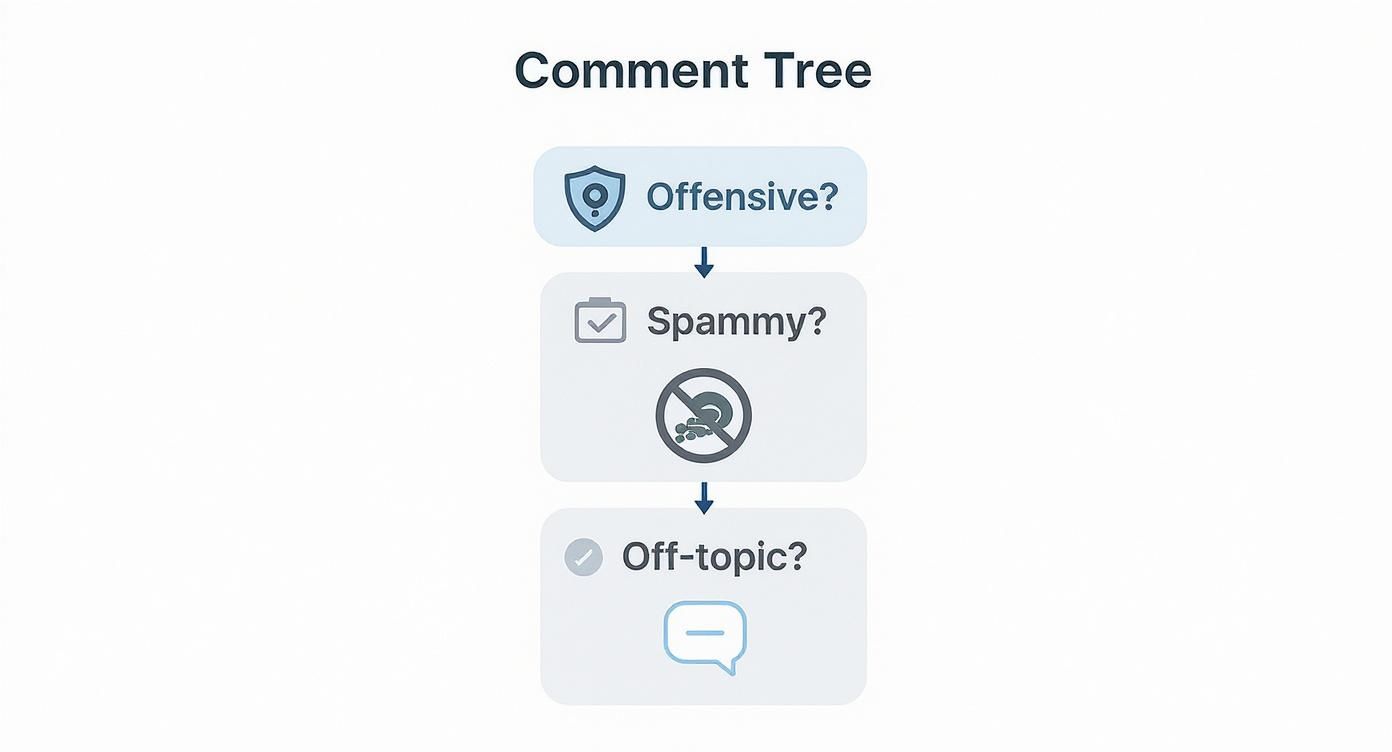
As the flowchart shows, the comment itself should dictate your response. Let's break down when to use each tool.
The Subtle Power of Hiding a Comment
Hiding a comment is, without a doubt, my go-to first step. It's the most powerful and underrated tool in your moderation toolkit for one simple reason: the original commenter and their friends can still see it.
When you hide a comment, it vanishes for everyone else, but not for the person who wrote it. This is pure genius. The troll or angry customer thinks their message is still live, so they don't feel censored. This de-escalates everything instantly, because they have no reason to get angry and post again.
You've essentially neutralized the problem without provoking them or starting a public fight.
Here’s a perfect example: A customer leaves a slightly rude comment on your page about a shipping delay. If you delete it, they'll know. They’ll feel ignored and probably get angrier, maybe even posting again. But if you hide it, you can slide into their DMs to solve the problem privately, all while keeping the negativity away from your other followers.
When Deleting Is the Right Move
Deleting a comment is a much more direct approach. When you delete, it's gone for good, for everyone—including the person who posted it. This is the move for comments that are absolute junk. Think clear-cut spam, dangerous misinformation, or anything that flat-out violates your community rules.
The big downside? Deleting is a public slap on the wrist. The commenter knows you removed their post, and some people take that as a challenge. It can easily provoke them into coming back even more aggressively.
So, save this for content that's so harmful or irrelevant that just hiding it isn't enough.
- Spam links: Someone drops a comment with a shady link promising "get rich quick" schemes. Delete it on sight.
- False info: A comment spreads a blatant lie about your product's ingredients. Deleting it protects your brand and your customers.
Blocking: The Final Step for Problem Users
Blocking is the nuclear option. You save this for the repeat offenders, the truly toxic trolls, and the spammers who just won't quit.
When you block someone from your Page, you're cutting them off completely. They can no longer see your page, post, comment, like, or send you messages. Better yet, it also erases all of their past comments and interactions from your Page. It’s a total reset.
Don't be afraid to use this to protect your community and your own peace of mind. Blocking isn't about shutting down criticism; it's about removing people who are there in bad faith and have no interest in a real conversation.
Using Other Tools to Automate Comment Management
https://www.youtube.com/embed/SblTjhosI5o
Let's be realistic. If you're managing a busy page or running ad campaigns at scale, manually moderating every single comment just isn't going to work. When you’re buried under hundreds or thousands of comments a day, Facebook's built-in tools can feel like you're trying to empty the ocean with a teaspoon.
This is exactly where third-party comment management platforms become essential. Think of them as your 24/7 moderation team, automatically enforcing your rules so you don't have to. These tools are way more powerful than a simple profanity filter. They let you shift from being reactive—scrambling to delete a bad comment—to being proactive, stopping problems before they can do any damage to your brand.
Building Smarter Moderation Rules
The real magic of these platforms is how specific you can get. Facebook’s keyword list is a decent start, but dedicated tools let you build far more sophisticated and powerful rule sets. You can set up automation to handle tricky situations on its own, without a human ever needing to step in.
For example, you could create rules that automatically:
- Hide any comment with an external link. This is a fantastic way to shut down spammers trying to steal your traffic.
- Block mentions of your direct competitors. A simple rule can instantly hide any comment that names a competitor, so they can't poach your audience.
- Scrub comments written in ALL CAPS. This helps keep the conversation civil and avoids that "shouting" feel in your comment threads.
- Flag comments with negative sentiment for manual review. Instead of just zapping an angry comment, the system can ping a team member to jump in and provide some real customer service.
This kind of detailed control helps you maintain a clean, professional space for your community, which is absolutely vital for building trust.
Automating that first line of defense frees up your team to do what they do best: actually engaging with your community and building relationships. They can stop playing whack-a-mole with trolls and focus on what really matters.
This image gives you a good idea of how these platforms work behind the scenes. They don't just block things; they identify, categorize, and apply the right action based on the type of content.
It's a reminder that good moderation is a structured process, not just a blocklist.
Is a Third-Party Tool Worth the Money?
Figuring out if a paid tool is right for you is pretty straightforward. First, calculate how many hours your team sinks into manual moderation every week. Then, think about the potential cost of a PR nightmare caused by one nasty comment that got past you.
For most brands, the monthly subscription for an automation tool is a small price to pay for brand safety and peace of mind.
Platforms like FeedGuardians, for example, go beyond just hiding spam. They use AI to spot things like purchase intent or urgent customer support needs, essentially turning your comments section into a source of leads and customer satisfaction. If you're looking into this, our breakdown of the top AI comment moderation tools for 2025 is a great place to start your research. By taking the tedious work off your plate, these tools let you grow your social media presence without having to hire a massive moderation team.
Quick Answers to Common Comment Control Questions
Even with all the tools at your disposal, managing comments can still feel a bit confusing. You've got options, but when should you use them? Let's clear up a few of the most common questions people have about Facebook's comment settings.
A big one I hear all the time is: "Can I just turn off comments on all my posts at once?" The short answer is no. Unfortunately, Facebook does not have a single, universal "off switch" for comments. For your personal profile, you have to manage this post by post. You can set future public posts to be seen by "Friends only," but there's no way to preemptively block all comments with one click.
Do People Know When I Hide Their Comment?
This is where hiding really shines. No, the commenter is not notified when you hide their comment. From their perspective (and their friends' perspective), the comment is still there. But for everyone else, it’s completely invisible.
This makes hiding your best move for de-escalating a tense situation. The person doesn't feel like you've just deleted their opinion, so they're much less likely to get angry and post something worse. You've effectively neutralized the negativity without starting a fight.
Think of it as a quiet, tactical move. It protects your page's vibe and gives you a moment to decide what to do next, whether that's handling a customer complaint privately or just removing a troll from the conversation without a big scene.
What Happens to Old Comments When I Block Someone?
Blocking is the final word. When you block someone from your personal profile or Facebook Page, yes, all of their past comments and likes on your posts disappear.
It's a complete wipe of their interaction history on your content. This is your go-to solution for those repeat offenders, spammers, or anyone who's crossed the line into harassment. It not only prevents them from ever engaging again but also cleans up the mess they've already made.
Can I Block Comments With Specific Emojis?
You sure can. On a Facebook Page, your keyword blocklist can also include emojis. This is a surprisingly handy trick for shutting down certain types of spam, which often use a string of emojis to get attention or bypass simple text filters.
Just find the emoji you want to get rid of, copy it, and paste it into your blocklist the same way you would with a word or phrase. It’s a small but powerful way to keep your comment section on-topic and free of clutter.
Stop wasting time fighting spam and start building your community. FeedGuardians uses AI to automatically hide harmful comments, reply to customers, and protect your brand 24/7. See how it works at https://feedguardians.com.
Tired of manually moderating comments?
FeedGuardians automates spam filtering, responds to customers, and protects your brand — setup in 3 minutes.