
Quick Summary
| Key Insight | What You Need to Know |
|---|---|
| Managing Comments on Your Personal Profile | Ready to get a handle on the conversation happening on your personal Facebook profile? Look, a lively comment section is great most of the time, but s... |
| Advanced Controls for Pages and Groups | Managing a busy Facebook Page or Group is a whole different ball game compared to a personal profile. For businesses and community organizers, you're ... |
| Smart Moderation for Brands and Community Managers | Knowing how to shut down comments on a Facebook post is a useful skill, but for brands and community managers, the real challenge is figuring out when... |
| Your Top Questions Answered | Facebook's comment settings can feel a bit all over the place. What works for your personal profile might not apply to your business Page, and Groups ... |
Sometimes, you just need to shut down the conversation on a Facebook post. The quickest way is to find the post, click the three-dot menu (•••), and choose "Who can comment on your post?" to limit the audience. If you're managing a Facebook Group, you'll often see a straightforward "Turn off commenting" option, which gives you instant control.
Why You Might Need to Control Facebook Comments
Ever posted something with the best intentions, only to watch the comments section descend into chaos? It happens to everyone—from individuals sharing personal news to community managers and big brands.
Managing your digital space isn't about censorship. It’s about creating an environment where you, your friends, or your customers feel safe and respected. Deciding to block comments on a Facebook post is often a smart, strategic move to protect your online presence and your peace of mind.
Common Scenarios for Comment Control
The reasons for wanting to wrangle your comments are as varied as Facebook itself. A sweet family photo can suddenly attract unsolicited advice, or a business announcement might get swamped with spam. Knowing why you might need to step in helps reframe comment control as a vital moderation tool.
Here are a few situations where you might want to take action:
- Preventing Negativity and Harassment: On a personal level, turning off comments can be an act of self-care. It shields you from harsh criticism, hostile debates, or plain old nastiness, protecting your mental health.
- Stopping Spam and Scams: Business pages are magnets for bots and spammers. They litter your posts with shady links and irrelevant promotions, which can damage your brand's credibility and annoy your actual followers.
- Maintaining Focus in Groups: If you run a community group, you know how quickly important posts can get buried. Admins often turn off comments on announcements or rule reminders to keep the key information front and center, free from off-topic chatter. You can learn more about handling this kind of behavior in our guide on trolling on social media.
Taking a Proactive Approach
Think of your Facebook profile or page as your digital home. You get to decide who comes in and what kind of conversations are acceptable. Taking a proactive stance on comment moderation is simply about setting the house rules.
More and more, users are looking for ways to have greater control over their online interactions, and thankfully, the platforms are catching on.
Meta’s recent reports show that the company saw a 50% reduction in enforcement mistakes. This points to more refined and effective moderation tools being made available to everyday users, giving you more power to curate your own experience.
Managing Comments on Your Personal Profile
Ready to get a handle on the conversation happening on your personal Facebook profile? Look, a lively comment section is great most of the time, but sometimes things can get out of hand. Maybe a post on a sensitive topic blew up, or you're just tired of the noise. Facebook gives you the tools to quiet things down with just a few clicks.
This isn't about shutting down every conversation for good. It's about making your own corner of the internet a more positive place. At the end of the day, you get to decide what kind of discussions happen on your timeline, whether you're sharing big news or a simple photo of your dog.
Limiting Comments on a Specific Post
The easiest way to block comments on a Facebook post is to decide who can comment in the first place. The great thing is, you can do this for a brand-new post or go back and change it on something you've already shared. The steps are pretty much the same whether you're on your computer or your phone.
Just find the post you want to manage and look for the three-dot menu (•••) in the top-right corner. Clicking that little icon pulls up all the options for that post.
It's this menu right here, with the option you need highlighted.
From that list, just select "Who can comment on your post?" This is your control panel for the conversation.
Once you tap that, Facebook gives you a few choices. You can't turn comments off completely like a Page or Group admin can, but you can lock things down pretty tight.
- Public: Just what it sounds like. Anyone who sees the post can jump in.
- Friends: Only people you're directly connected with can leave a comment.
- Profiles and Pages you mention: This is your most restrictive setting. If you don't tag a specific person or Page in your post, nobody can comment. It's that simple.
Choosing "Profiles and Pages you mention" is the closest you can get to disabling comments entirely. It's a fantastic option for announcements or updates where you just want to share information without needing a ton of feedback.
Adjusting Your Default Comment Settings
Do you find yourself constantly tweaking the comment settings on every single public post? You can save yourself a lot of hassle by changing your default settings. Think of it as setting a ground rule for all your future public content. It's a smart, proactive move, especially if you tend to attract replies from strangers or pesky spam accounts.
To get this done, head into your main Facebook Settings & Privacy, then click Settings. Look for the Audience and Visibility section and find Followers and public content. In there, you'll spot an option for "Public post comments."
By changing this setting from "Public" to "Friends" or "Friends of friends," you're making sure that only people you actually know (or are connected to) can comment on anything you share publicly from that point on. It's a small change that can make a huge difference in cutting down unwanted noise.
Advanced Controls for Pages and Groups
Managing a busy Facebook Page or Group is a whole different ball game compared to a personal profile. For businesses and community organizers, you're often dealing with a volume of interaction where checking every single comment by hand just isn't realistic. This is where Facebook's more powerful, automated tools come into play, helping you keep your space healthy and on-topic.
These features aren't just about damage control; they're about being proactive. You get to set the ground rules for your community and have them enforced automatically, even when you're offline. It's about building a scalable system to manage communication effectively.
This little diagram breaks down the two main levers you can pull on a post to control the conversation.
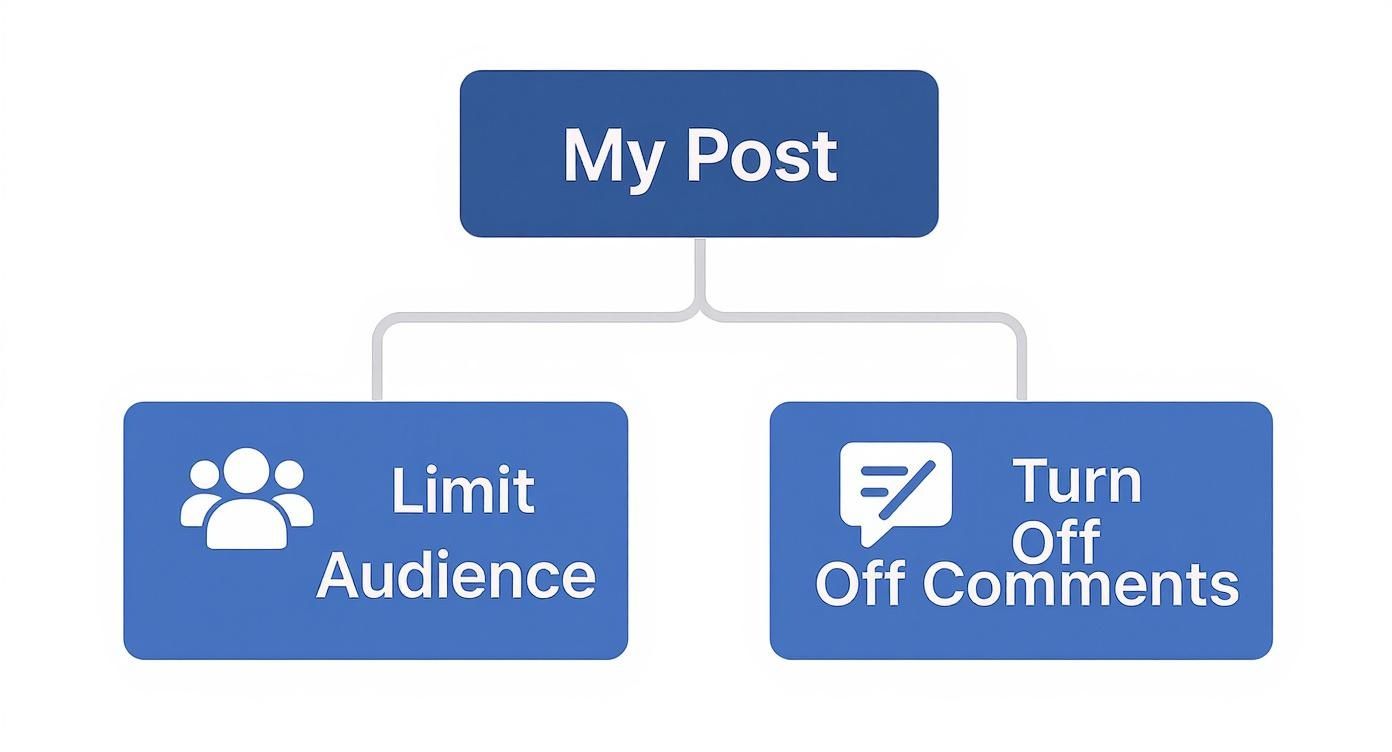
As you can see, your first decision is whether to narrow the post's audience from the start or to shut down the comment section entirely. The best choice really depends on your goal for that specific post.
Mastering Your Facebook Page With Moderation Assistant
While you can't just flip a switch to turn off comments on a single Facebook Page post, you get something much better: the Moderation Assistant. Think of it as your own 24/7 digital bouncer, automatically hiding comments based on rules you set up. It's a lifesaver for keeping your comment threads free of spam and negativity.
You can create rules to automatically hide comments that:
- Contain links or images. This is a fantastic way to stop spammers dead in their tracks before they can drop unsolicited URLs.
- Include specific keywords. Build a custom blocklist of words—competitor names, common scam phrases, or anything else you don't want on your Page.
- Have profanity. Facebook offers different filter strengths, from mild to strong, so you can align the moderation with your brand’s voice.
- Come from new accounts or profiles with no friends. This is a great defense against newly created troll or bot accounts.
Setting up these rules gives you a much more surgical approach than a simple on/off switch. Instead of a total shutdown, you're precisely removing the comments that derail the conversation, letting the genuine engagement shine through.
Building a Safer Community in Facebook Groups
Group admins have a unique toolkit designed specifically for fostering a community. While Pages are all about broadcasting a message, Groups are built for member-to-member interaction, which calls for a different moderation style.
One of the most useful features is the ability to turn off commenting on any post, which is perfect for announcements. When you share important updates like new rules or event details, disabling comments keeps the information front and center, preventing it from getting buried under a mountain of questions. Just click the three dots on your post and select "Turn off commenting."
For more hands-on management, Group admins can also use:
- Post Approval: This requires an admin or moderator to approve all member posts before they go live, stopping potential problems before they even start.
- Keyword Alerts: You can set up alerts for specific words. If a member uses one in a comment, you get a notification, allowing you to jump in and review the situation immediately.
These tools are absolutely essential for running a smooth and positive group. If you're looking to dive deeper, you can find more strategies in our guide on marketing in Facebook Groups.
Comment Moderation Features Profile vs Page vs Group
It can be tough to keep track of which tools are available where. This table breaks down the key comment control features across personal profiles, Pages, and Groups to help you figure out the best approach for your needs.
| Feature | Personal Profile | Facebook Page | Facebook Group |
|---|---|---|---|
| Turn off comments on a single post | No | No | Yes |
| Restrict who can comment | Yes | Yes | Yes |
| Hide individual comments | Yes | Yes | Yes |
| Automated Keyword/Link Filtering | No | Yes | Yes |
| Profanity Filter | No | Yes | Yes |
| Post Approval | No | No | Yes |
| Keyword Alerts | No | No | Yes |
As you can see, Pages and Groups offer a far more robust set of tools for proactive moderation. While a personal profile gives you basic controls, serious community management requires the advanced features found in Pages and Groups.
The entire landscape of content moderation has evolved dramatically. Platforms are constantly refining their systems to combat harmful content. For instance, by the first quarter of 2025, Facebook had removed three million pieces of hate speech, a testament to its ongoing effort. You can find more data on hate speech content removal trends on Statista.com.
Smart Moderation for Brands and Community Managers
Knowing how to shut down comments on a Facebook post is a useful skill, but for brands and community managers, the real challenge is figuring out when and why you should. Just turning everything off can backfire, making it look like you can't handle feedback, which can seriously damage customer trust.
Smart moderation is more of an art. It's about keeping your brand's space positive and productive without completely silencing the conversation. Instead of just flipping an on/off switch, think about moderation as a range of tools at your disposal. Sometimes, a disruptive comment doesn't need to be nuked from orbit—just quietly moved out of sight.
The Art of Hiding vs. Deleting
The choice between hiding a comment and deleting it outright is a strategic one, and the right move really depends on the situation. Each action sends a different signal to your community and, importantly, to the person who left the comment.
Hide a Comment: This is your go-to for things like spam, off-topic rants, or comments that are just grumpy but not truly harmful. The magic of hiding a comment is that the original poster (and their friends) can still see it. They don't get a notification that it's been removed, so you avoid poking the bear. For everyone else, though, it's gone. This keeps your comment section clean without escalating a minor issue.
Delete a Comment: Deleting is the big red button. Save it for comments that clearly cross the line and violate your community guidelines—we're talking hate speech, personal attacks, or spreading dangerous misinformation. This is a firm, decisive action that shows you’re serious about protecting your community. When you delete a comment, it vanishes for everyone, including the original author.
Hiding a comment is like quietly escorting a disruptive person out of a party. Deleting it is like having security throw them out. Both are useful, but you use them for very different levels of trouble.
Establish a Public Commenting Policy
One of the best things you can do to manage expectations (and cover your back) is to create a simple, public commenting policy. This doesn't need to be a dense legal document. A few clear bullet points in your Page's "About" section or in a pinned post is all it takes.
This policy lays down the ground rules and gives you a standard to point to whenever you have to take action. It’s no longer a personal decision; it’s just you enforcing the house rules.
Your policy could include simple guidelines like:
- We welcome constructive feedback and questions.
- No spam, self-promotion, or irrelevant links.
- Hate speech, personal attacks, and harassment will be removed immediately.
- Please keep the conversation respectful and on-topic.
Having this policy in place makes your moderation feel transparent and fair. When you remove a comment, you're not just silencing a critic—you're upholding the standards everyone agreed to. For a deeper dive, check out our guide on Facebook comment moderation in 2025, where we cover more advanced brand strategies.
Responding to Negative Feedback Professionally
Look, not every negative comment is a candidate for deletion. In fact, most aren't. Responding with a professional and empathetic touch can actually turn a bad situation into a win for your brand. When you acknowledge a customer's frustration, you show that you're listening, which can build incredible loyalty.
Imagine a customer complains about a shipping delay. Instead of hiding it, try a public, non-confrontational reply:
"Hi [Name], we're so sorry to hear your order is taking longer than expected. That's definitely not the experience we want for our customers. Could you please send us a DM with your order number so we can look into this for you right away?"
This kind of response does three things perfectly: it validates their feelings, moves the problem-solving to a private channel, and shows every other person reading the comments that you take customer service seriously. It’s a powerful way to manage your reputation without reaching for the block button.
Solving Common Commenting Problems
Even after you've got your settings dialed in, managing Facebook comments can still throw you a curveball. You might find yourself hunting for an option that isn't there or wondering why your meticulously crafted keyword filters just aren't catching certain comments. It can make you feel like you're playing a guessing game with the platform.
Let's clear up some of that confusion. More often than not, the fix is simpler than it seems and usually comes down to the type of post you're working with or a small oversight in your moderation rules.
Why You Cannot Turn Off Comments
Ever tried to find the "Turn off commenting" option on a post, only to come up empty-handed? It's a super common point of frustration. The truth is, the ability to completely shut down comments isn't available on every single post across Facebook.
This powerful feature is really only available in a couple of specific situations:
- On posts within a Facebook Group where you are an admin. Group admins get this level of control to keep announcements clean and focused.
- On your personal profile's public posts. You can restrict comments to "Profiles and Pages you mention," which is a clever way to block all comments if you don't tag anyone.
So, if you're trying to stop comments on a post in a marketplace group you don't run or a standard post shared only with "Friends," that option simply won't exist. Facebook tailors the available tools based on the context of the post and your role.
Don’t get discouraged if you can’t find the off switch. Instead, pivot to the tools you do have. For a business Page post, for instance, your best weapon is the Moderation Assistant, which can auto-hide comments for you.
When Your Keyword Filters Fail
Another real headache is when your keyword filters don't seem to be working. You create a list of words you want to block, but somehow, comments containing those exact words still slip through. What gives? This usually happens because of sneaky variations that the filter doesn't recognize.
You have to think like a spammer or a troll for a second. They know about filters, so they get creative to bypass them. They might use:
- Creative misspellings: Using symbols instead of letters, like "s@le" instead of "sale."
- Special characters or emojis: Breaking up a word with symbols (l-i-n-k) can easily fool a basic filter.
- Variations and plurals: If your blocklist only has the word "scam," it will likely miss comments with "scammer" or "scams."
The solution here is to beef up your keyword list. Brainstorm all the different ways someone might try to type the word you want to block and add every single variation to your moderation rules. Getting ahead of them like this will make your filters much more powerful and keep your comment section clean.
Your Top Questions Answered
Facebook's comment settings can feel a bit all over the place. What works for your personal profile might not apply to your business Page, and Groups have their own set of rules entirely. Let's clear up some of the most common questions people have when trying to get a handle on their comment sections.
Can I Block Comments on an Old Post?
Yes, you absolutely can. It doesn’t matter if the post went live five minutes ago or five years ago; you can always go back and change who can comment. This works for your personal profile, any Page you’re an admin of, or in a Group you manage.
Just find the post, click the three-dot menu (•••), and look for an option like "Turn off commenting" or "Who can comment on your post?". This lets you retroactively lock down the conversation whenever you need to.
Do People Know When I Hide Their Comment?
Nope. Facebook doesn't send any kind of notification when you hide a comment. This is easily one of the most useful moderation tools you have.
When you hide a comment, it vanishes for everyone else, but the person who wrote it (and their friends) can still see it. They’ll just assume no one engaged with their comment. This is the perfect move for dealing with spam or off-topic rants without starting a fight. The user isn't provoked, and you keep your comment section clean. It's a win-win.
Should I Hide, Delete, or Block a Comment?
It really comes down to what you're dealing with. Think of it as a toolkit, with each tool designed for a specific job.
- Hide: This is your go-to for low-level annoyances. Think spam links, self-promotion, or comments that are just grumpy but not abusive. It’s a quiet, no-drama way to tidy things up.
- Delete: Use this for comments that cross a line and break your rules. We're talking hate speech, harassment, or spreading dangerous misinformation. Deleting sends a clear message that the content is not welcome.
- Block: This is the nuclear option, reserved for repeat offenders. If someone is consistently causing trouble, blocking them prevents them from commenting on any of your posts in the future.
What about simple negative feedback? It's almost always better to try and respond professionally first before jumping to one of these actions.
Why Can't I Find the 'Turn Off Comments' Button?
If you're hunting for the "turn off comments" option and coming up empty, it's probably because of where you're posting. You can completely shut down comments on posts in Facebook Groups you run and on public posts you make on your personal profile.
But for a Facebook Page, you can't actually disable comments on a post-by-post basis. The workaround is to use the Moderation Assistant. You can set up a rule to automatically hide every single new comment, which gets you pretty close to the same result.
Tired of manually weeding out spam and trolls? FeedGuardians uses AI to automatically hide harmful comments and reply to customer questions, keeping your social media feeds clean 24/7. Find out more at https://feedguardians.com.
Tired of manually moderating comments?
FeedGuardians automates spam filtering, responds to customers, and protects your brand — setup in 3 minutes.