
Quick Summary
| Key Insight | What You Need to Know |
|---|---|
| First, find the post | First, find the post on your profile. |
| Click the three-dot menu | Click the three-dot menu (•••) in the top-right corner of the post. |
| From the options that | From the options that appear, choose "Who can comment on your post?" |
| To shut down new | To shut down new comments, select "Profiles and Pages you mention." If you haven't tagged anyone, this effectively closes the comment section. |
Controlling the conversation around your content on Facebook is a powerful move, and sometimes that means shutting it down completely. You can turn comments off for posts on your personal profile and in groups you manage. For business Pages, you have the option to restrict who can comment, giving you a similar level of control. It's all done through the post's option menu—that little three-dot icon is your best friend here.
Why You Might Need to Turn Off Facebook Comments
Before we jump into the "how-to," let's talk about the "why." For anyone managing a brand's social presence, from community managers to e-commerce owners, the comment section can feel like a full-time job. Knowing when to hit the off switch isn't just a defensive tactic against negativity; it's a strategic tool in your communications arsenal.
Protecting Your Brand's Reputation
Think about a sensitive company announcement or a major update to a beloved product. In these high-stakes moments, disabling comments can be a lifesaver. It prevents a firestorm of misinformation or knee-jerk negativity from hijacking your message.
This gives you command of the narrative, ensuring your announcement lands exactly as intended without being muddied by unverified claims or off-topic rants. It’s also an essential tactic for preventing harassment on posts that touch on potentially controversial subjects. You can dive deeper into strategies for handling social media trolling to learn more.
Easing the Moderation Burden
High engagement is what we all strive for, but it comes with a price: a mountain of moderation work. With Facebook posts seeing an average engagement rate of 5.07%, which is among the highest of any platform, the comment volume can quickly become overwhelming.
For small teams or solo entrepreneurs, sifting through every single comment just isn't feasible. Turning off comments on certain posts—like a contest announcement once the winner has been chosen—is a simple way to lighten the load and free up your team for other tasks.
I've seen e-commerce brands run a flash sale and then turn off comments the moment it ends. This is a smart move. It stops latecomers from getting frustrated about a missed deal and funnels any real customer service issues into proper support channels.
Sharpening the Focus on Your Call-to-Action
Sometimes, a post has one job and one job only: get people to click a link, sign up for a webinar, or visit your store. A busy, distracting comment section can pull focus right away from that primary call-to-action (CTA).
By disabling comments, you remove the detours. You create a clean, direct path that guides your audience straight to the action you want them to take, making your post far more effective at achieving its goal.
How To Control Comments On Your Personal Facebook Profile

Your personal profile is your corner of the internet, and you get to decide who joins the conversation. Sometimes you just want to share an update without a flood of notifications or unsolicited advice. Knowing how to manage comments gives you that control.
This isn't about being antisocial; it’s about curating your online experience. Maybe you're sharing a sensitive life event and just want to put the news out there, or perhaps you're posting about a controversial topic and want to avoid a heated debate.
Facebook gives you a simple way to do this, letting you adjust settings on posts that are already live or set them up before you even publish.
For a Post That's Already Live
Ever had a post blow up unexpectedly? Maybe the comments took a turn you didn't like. No problem—you can retroactively lock it down in a few seconds.
On Your Computer:
- First, find the post on your profile.
- Click the three-dot menu (•••) in the top-right corner of the post.
- From the options that appear, choose "Who can comment on your post?"
- To shut down new comments, select "Profiles and Pages you mention." If you haven't tagged anyone, this effectively closes the comment section.
On the Mobile App:
- Open the Facebook app and navigate to the post on your timeline.
- Tap the three-dot icon (•••) at the top right of the post.
- A menu will pop up. Tap "Who can comment on your post?"
- Just like on desktop, pick "Profiles and Pages you mention" to prevent new comments.
This gives you immediate control to stop a conversation from spiraling or simply to quiet the notifications.
Setting the Rules Before You Post
The best time to control comments is often before they even start. If you know you're posting something you'd rather not have a discussion on, you can set the restrictions from the get-go.
When you're drafting a new post, you’ll see the audience selector (it usually says "Friends" or "Public"). This is where the magic happens.
A key thing I've learned is that the most powerful comment controls appear when your post's visibility is set to Public. If a post is only for "Friends," then only friends can comment by default. The real granular control kicks in when you share more broadly.
Once you set the post's audience to Public, you'll see the option to limit who can comment. You can apply the same "Profiles and Pages you mention" rule right from the start, giving you total peace of mind the moment you hit "Post."
As a social media manager, you know your brand's Facebook Page is more than just a marketing channel—it's a community hub. The conversations that happen there can build you up or cause serious headaches. That's why mastering comment control isn't just a "nice-to-have" skill; it's absolutely essential for protecting your brand's reputation.
One of the biggest myths I see floating around is that you can just flip a switch and turn off comments on a Page post, the same way you can on your personal profile. Unfortunately, it's not that simple. Facebook Pages are designed for public interaction, so there’s no big red "off" button.
But don't worry, there's a powerful workaround. Instead of disabling comments outright, Facebook lets you tightly control who is allowed to comment in the first place.
The Best Way to "Turn Off" Comments on a Page Post
The trick is to restrict the commenting audience. You can limit comments to only the specific profiles or Pages you’ve tagged in your post. For posts where you haven't tagged anyone, this move effectively shuts down the comment section for the general public.
This is my go-to tactic for sensitive company announcements, high-stakes promotions, or any situation where a stray negative comment could derail the entire message. It gives you complete control over the narrative.
Ready to lock it down? Here’s how you do it:
- Head over to your Facebook Page and find the post you want to adjust.
- Click the three-dot menu (•••) located in the top-right corner of that post.
- From the menu that appears, select "Who can comment on your post?"
- Choose the option "Profiles and Pages you mention."
And that's it. If you haven't tagged anyone, you’ve effectively closed the comments. This works whether you're using the classic Page experience or the newer layout, making it a reliable tool for any marketing lead.
A Smarter Approach: Moderation Over Muting
Restricting comments is a great tool for specific scenarios, but it shouldn't be your default strategy. Remember, engagement is the lifeblood of social media. Every comment is a touchpoint, a piece of feedback, or a potential customer. Shutting it all down means you’re missing out on valuable insights and interactions.
The real challenge isn't just managing the number of comments, but the quality.
It's fascinating how much comment quality impacts performance. For instance, data from a Hootsuite report shows that mid-length comments can drive 151.6% higher engagement for brands. This just proves that fostering the right kind of conversation is far more powerful than silencing the discussion altogether.
Instead of a blanket ban on comments, a more sophisticated strategy is to filter out the noise—the spam, trolls, and negativity—while encouraging the good stuff. This is where modern tools really shine.
This brings us to a key decision for any social media manager: stick with Facebook's native tools or invest in an automated solution?
Comment Management Options for Facebook Pages
| Feature | Native Facebook Tools | FeedGuardians (AI Tool) |
|---|---|---|
| Spam & Link Filtering | Manual hiding or blocking | Automatic, real-time detection and hiding |
| Hiding Harmful Comments | Manual review and action required | Automatic, based on keywords and AI sentiment analysis |
| Commenter Restrictions | Manually ban problematic users | Proactively identify and manage repeat offenders |
| Response Time | Dependent on human availability | 24/7 automated responses and moderation |
| Scalability | Difficult to manage high volume | Easily handles thousands of comments at once |
| Team Workload | High, requires constant monitoring | Significantly reduced, freeing up team for strategy |
As you can see, while Facebook provides the basic toolkit, it puts the entire burden of moderation squarely on your shoulders.
For brands dealing with a high volume of comments or those who prioritize a consistently safe online environment, an automated tool is a game-changer. Platforms like FeedGuardians use AI to do the heavy lifting. It can instantly hide harmful comments, filter out spam, and even handle common customer questions, all in real-time.
This approach lets you keep the conversation going without the constant risk of brand damage. For a more in-depth look at building a solid defense, check out our guide to effective social media content moderation. It’s about creating a safe space for your community to thrive while your team focuses on what they do best: building meaningful relationships.
Managing Comments in Facebook Groups
Facebook Groups are fascinating digital spaces, built entirely on community and conversation. But for anyone running a group, keeping that environment healthy and on-track can feel like a full-time job. Thankfully, unlike personal profiles or even Pages, Groups give admins a powerful, direct tool to manage discussions: the ability to completely shut down comments on any post.
This isn't just a panic button for when a debate gets too heated. It's a strategic tool for smart community management. I’ve seen admins use it brilliantly to close off announcement posts after all questions are answered, or to archive old threads that are no longer active but need to be saved for the record. It just gives a clean, clear end to a conversation.
When to Proactively Turn Off Comments
One of the best ways I've seen this used is proactively. Let's say you're running a giveaway in your group. You can post the rules and clearly state that comments will be turned off in 24 hours to lock in the entries. This simple step sets expectations and saves you the headache of late comments trickling in and complicating things.
It's also an essential de-escalation tool. If a discussion starts to spiral or breaks group rules, turning off comments stops the back-and-forth cold. This gives you, the admin, breathing room to handle the situation with the members involved without the fight getting worse in public.
As a community manager, I’ve found this feature indispensable for "closing the loop." When we post a final decision or a summary of a long discussion, turning off comments prevents the conversation from re-opening and keeps the focus on the resolution.
How to Turn Off Comments in Your Group
Locking down a post in a group you manage is incredibly simple, and the steps are the same whether you're on a computer or your phone.
- First, head over to the specific post within your Facebook Group.
- Find and click the three-dot menu (•••) located in the top-right corner of that post.
- A dropdown menu will pop up. Just select "Turn off commenting."
That's it. The comment box vanishes immediately, replaced by a small note saying comments are off. Any existing comments will still be there for people to read, but no one can add new ones. If you ever change your mind, just follow the exact same steps and you'll see the option to "Turn on commenting."
This simple action is a fundamental part of fostering a positive community. It ensures discussions stay productive and true to your group's mission. If you're focused on growing your community, mastering these engagement tools is crucial. You can dive deeper into these tactics by exploring successful marketing in Facebook Groups, which has some great insights for building a truly vibrant online space.
Advanced Comment Control Alternatives and Best Practices
Knowing how to turn off comments on a Facebook post is a handy tool, but completely shutting down the conversation isn't always the right call. Engagement is the lifeblood of social media, after all. The real trick is managing it effectively.
Thankfully, Facebook gives you more surgical tools than just the on/off switch. Think of these alternatives as a scalpel instead of a sledgehammer. You can carefully remove the negativity and spam while keeping the healthy, productive parts of the discussion alive. This is how you protect your brand’s reputation without sacrificing valuable interaction.
Hiding Individual Comments and Threads
We've all been there: a post is getting great feedback, but one person's off-topic or nasty reply starts derailing everything. Instead of nuking the entire comment section, you can just hide that one problematic comment.
It’s a surprisingly elegant solution. The person who wrote it (and their friends) can still see their comment, so they don’t feel like they've been publicly silenced. But for everyone else, it’s completely invisible. It’s a discreet way to clean things up without fanning the flames.
To do it, just find the comment, click the three-dot menu next to it, and choose "Hide comment." Problem solved.
Using Keyword Moderation Filters
If you want to get ahead of the problem, Facebook's built-in moderation tools are your first line of defense. You can create a blocklist of specific words, phrases, and even emojis you want to be automatically hidden from your Page. This is a game-changer for catching common spam, profanity, or trolling before it ever sees the light of day.
- Build a smart blocklist: Go beyond the obvious profanity. Add common spam phrases like "DM for info," competitor names, or any other terms you'd rather not see.
- Think like a spammer: Don't just block a single word. Include common misspellings and variations to catch more comments.
- Keep it updated: Spammers and trolls change their tactics. Revisit your list every so often to add new terms and keep your filters effective.
This feature is a massive time-saver for anyone managing a busy page. It works around the clock, acting as a silent guardian for your comment section.
This flowchart maps out the decision-making process for managing comments on a post within a Facebook Group.
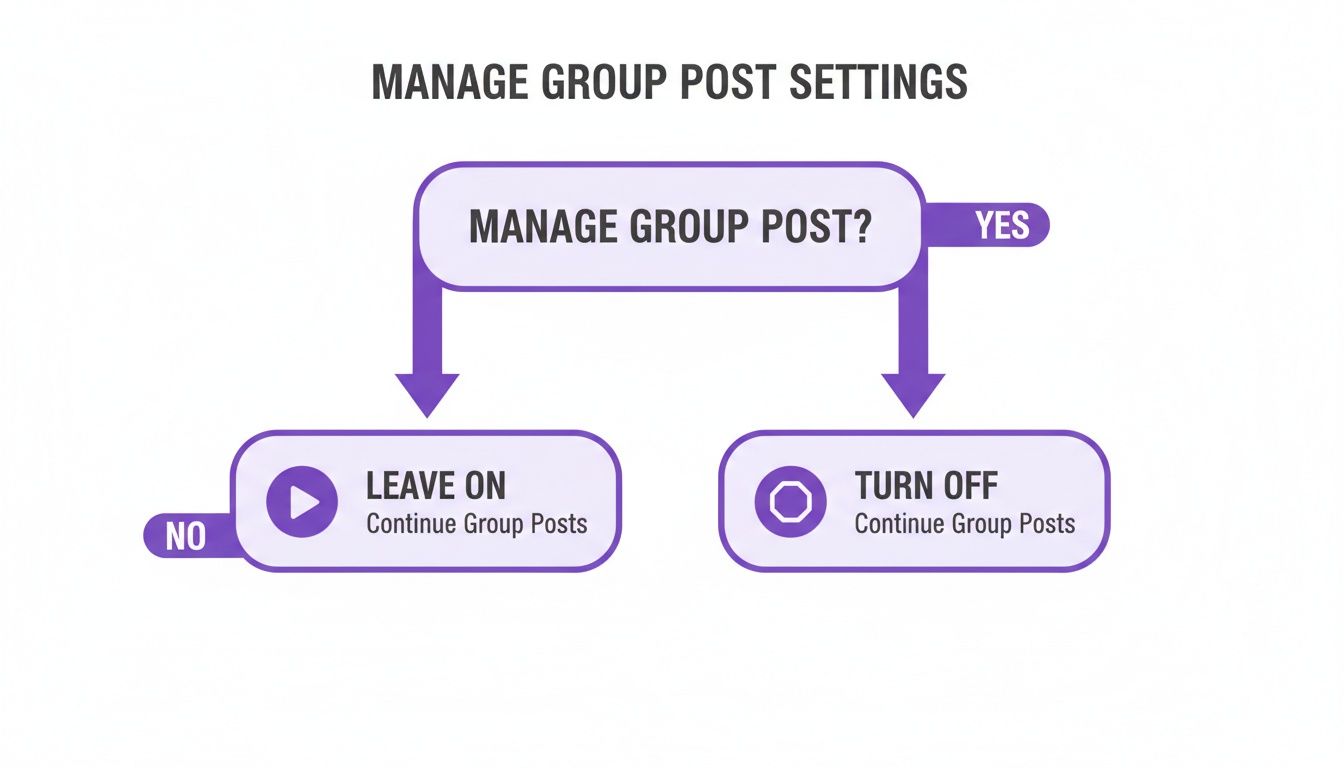
As you can see, the flowchart shows the straightforward choice a Group admin has: either let the conversation continue or shut it down completely. It highlights just how much direct control you have.
Automating Brand Safety with AI Tools
For bigger brands, especially those running large-scale ad campaigns or managing pages with massive followings, manual moderation and basic keyword lists just don't cut it. The volume of comments is simply too much to handle, and it's easy for harmful content to slip through, damaging your brand's image and wasting ad spend.
This is where AI-powered moderation tools really shine. They go way beyond simple keyword blocking, analyzing the actual sentiment and intent behind a comment in real time to protect your brand at scale.
Platforms like FeedGuardians can automate the entire workflow. These tools can instantly hide spam and harmful comments, automatically reply to frequently asked questions, and even flag potential sales leads buried in the comments. For performance marketers and e-commerce brands, this provides a scalable solution for 24/7 protection without needing a dedicated team watching the page around the clock.
If you're ready to build a more sophisticated defense for your brand, exploring advanced Facebook comment moderation strategies is the next logical step.
Frequently Asked Questions
It's one thing to know how to turn off comments, but it's another to understand the nuances. You've probably got some specific questions floating around about what happens next.
Let's dig into some of the most common questions we hear from brand managers, group admins, and everyday users.
Can I Turn Off Comments on a Facebook Post for Everyone Permanently?
For your personal profile or a post in a group you manage, the answer is a simple yes. You can shut down comments entirely. Once you do, the conversation is locked unless you manually flip the switch back on.
Facebook Pages are a different beast, though. You can't disable comments completely. The closest you can get is restricting comments to only profiles or Pages you specifically tag. It's an important distinction for businesses—it effectively stops public comments without offering a true "off" button.
If I Turn Comments Off, Will Existing Comments Be Deleted?
Nope. Disabling comments doesn't erase what's already there. It just puts a stop to any new replies from showing up.
Every comment posted before you made the change will remain visible. If you want them gone, you'll have to hide or delete them one by one. This is actually pretty useful for putting a lid on a heated discussion while keeping the original context intact.
For community managers, this is a critical feature. You can halt a toxic thread without wiping the slate clean, which is often a much better look than outright deleting everything.
Is It Possible to Turn Off Comments on a Facebook Ad?
Unfortunately, you can't just turn off comments on an ad directly from your Ads Manager settings. Facebook designs ads for public interaction, so the comment section is open for business by default.
The best practice here is active, hands-on management. You can hide specific comments, set up moderation rules to block certain keywords, or use a dedicated tool to handle the influx for you. This approach keeps your brand safe without throttling your ad's visibility. For more on this, our online reputation management guide covers these strategies in detail.
What Is a Better Strategy Than Turning Off Comments for a Brand?
For nearly every brand, the smarter play is automated comment moderation. Shutting down the conversation completely means you lose out on everything—the good, the bad, and the potential sales.
Instead, using a tool to manage the conversation quality gives you the best of both worlds. You can automatically hide spam, trolls, and irrelevant noise while allowing positive feedback and customer questions to shine. It protects your brand's reputation, saves your team a ton of time, and makes sure you never miss a lead that's buried in the comments.
Ready to stop worrying about your comment section? FeedGuardians uses AI to automatically hide spam, filter negativity, and highlight sales opportunities 24/7. Protect your brand and free up your team by visiting https://feedguardians.com to see how it works.
Tired of manually moderating comments?
FeedGuardians automates spam filtering, responds to customers, and protects your brand — setup in 3 minutes.