
Quick Summary
| Key Insight | What You Need to Know |
|---|---|
| How to Delete Your | How to Delete Your Own Comment on Facebook Delete a Comment on Desktop Browser Delete a Comment Using the Mobile App |
| Delete a Comment on | Delete a Comment on Desktop Browser |
| Delete a Comment Using | Delete a Comment Using the Mobile App |
| Can Page Admins Delete | Can Page Admins Delete Comments on Facebook? Removing Comments from Your Facebook Page Using Admin Tools for Comment Management |
| Removing Comments from Your | Removing Comments from Your Facebook Page |
| Using Admin Tools for | Using Admin Tools for Comment Management |
Table of Contents
- How to Delete Your Own Comment on Facebook
- Can Page Admins Delete Comments on Facebook?
- How to Hide Comments on Facebook (Alternative to Deletion)
- How to Turn Off Comments on Facebook Posts
- Managing Comments Using Your Activity Log
- Editing vs. Deleting: When to Use Each Option
- Troubleshooting Common Comment Deletion Issues
- Privacy and Account Security: What Happens When You Delete
Last Updated: July 11, 2026
When you post on Facebook, your comments become part of your digital footprint. Sometimes you'll want to remove them, whether it's a typo, a change of mind, or cleaning up your account history. Knowing how to delete a comment on Facebook is essential for managing your online presence. Below, we'll walk you through every method for deleting comments, from personal posts to managing conversations on your Facebook Page.
How to Delete Your Own Comment on Facebook
Delete a Comment on Desktop Browser
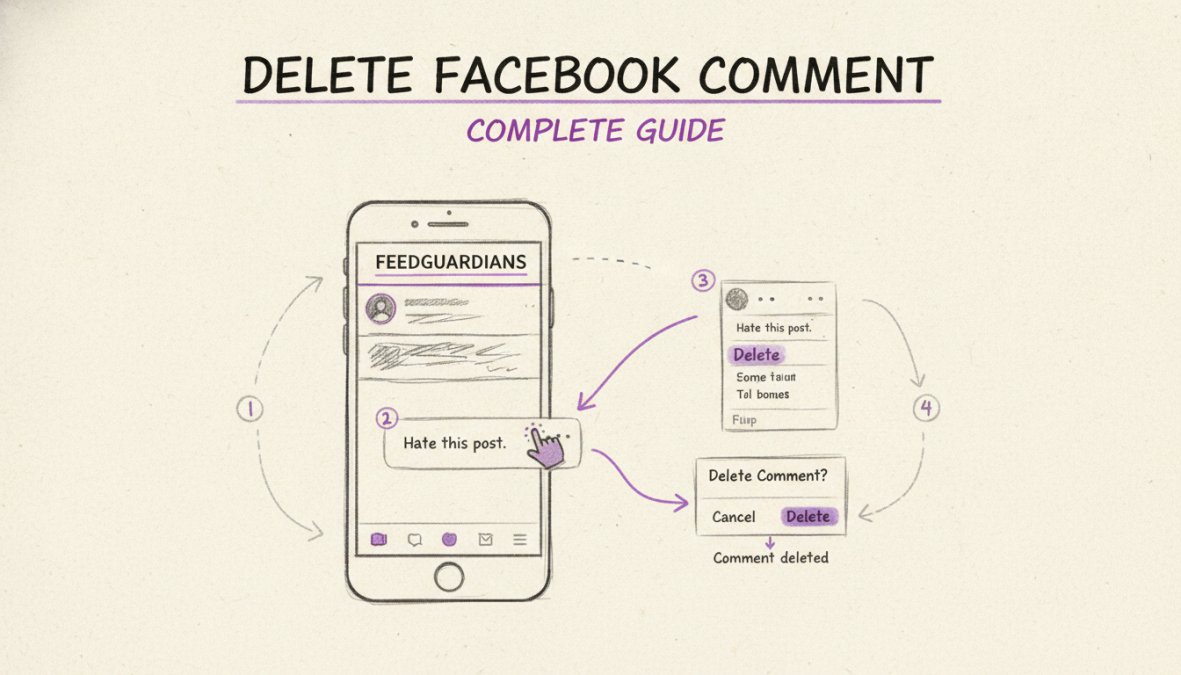
To remove your own comment on Facebook using a computer, locate the comment and look for the three dots menu that appears when you hover over it. Click the three dots, select Delete from the dropdown, and confirm. Your comment disappears permanently.
The entire process takes about 10 seconds and works on any Facebook post, your own profile, a friend's post, or a public page. The three dots menu only appears for comments you authored.
One advantage of desktop browsing is seeing the full comment thread clearly, which helps you understand context before deleting. You can also edit your comment instead of deleting it if you just need to fix a typo.
Delete a Comment Using the Mobile App
On the Facebook mobile app, tap and hold on your comment text. This triggers a menu of options. Select Delete and confirm. Mobile deletion works identically on iPhone and Android.
If tap-and-hold doesn't work, try swiping left on your comment (iOS) or look for a three dots menu. Facebook periodically updates its interface, so exact button placement may vary.
Can Page Admins Delete Comments on Facebook?
Removing Comments from Your Facebook Page
If you manage a Facebook Page, you can delete any comment on your page, not just your own. Click the three dots menu on the comment and select Delete. As page admin, you have full authority over what appears on your page.
Active comment moderation improves engagement quality significantly. Removing spam and hostile comments creates a more welcoming environment for genuine community members.
Using Admin Tools for Comment Management
Facebook Pages have dedicated admin tools beyond basic deletion. The Comments section in your Page's admin panel shows all comments across all posts, filterable by date and status. You can hide comments instead of deleting them, removing them from public view while keeping them in your system for reference. You can also mark comments as spam, which alerts Facebook's systems.
The Activity Log in your Page settings shows every action taken on your page, including comment deletions. This is useful for tracking what was removed and understanding patterns in your audience's behavior.
How to Hide Comments on Facebook (Alternative to Deletion)
Difference Between Hiding and Deleting Comments
When you delete a comment, it's gone completely. When you hide a comment, it disappears from your timeline and others' view, but you can still see it in your activity history and as a page admin.
Hiding is useful when you want to remove something temporarily or preserve context without permanently erasing it. For example, if a comment is borderline inappropriate but not quite spam-worthy, hiding it removes the visibility problem while keeping it available for reference.
To hide a comment, click the three dots menu and select Hide. The comment vanishes from public view but remains in your records. Deletion is permanent and absolute; hiding is reversible and less confrontational.
How to Turn Off Comments on Facebook Posts
You can disable comments on individual posts or adjust your privacy settings to control who can comment by default. To turn off comments on a specific post, click the three dots menu and select Turn Off Comments. This prevents anyone from adding new comments while existing comments remain visible.
This feature is valuable when a post has attracted unwanted attention or when you want to prevent further discussion on a sensitive topic. In your Settings, go to Privacy and adjust "Who can comment on your posts?" to Friends Only or Custom to filter out strangers and reduce spam.
Managing Comments Using Your Activity Log
Your Facebook Activity Log is a comprehensive record of everything you've posted and commented on. To access it, click the menu icon on your profile and select Activity Log. Filter by Comments to view only your comments across all of Facebook.
This view shows every comment you've ever made, dating back to when you created your account. You can filter by date and visibility to target specific comment batches for deletion. While Facebook doesn't offer true bulk deletion, the Activity Log makes it much faster to navigate to comments you want to remove.
Each comment in the Activity Log has a three dots menu. Click it and select Delete to remove that comment. This approach is invaluable for users who want to maintain a clean historical record.
Editing vs. Deleting: When to Use Each Option
You have two ways to change a comment after posting: edit it or delete it. Editing preserves the conversation thread and shows you corrected yourself. When you edit a comment, Facebook adds an "(edited)" label next to the timestamp.
Use editing when you made a typo, want to add clarification, or are in a discussion where your comment is part of an important thread. Delete the comment when you completely change your mind, posted it in the wrong place, or the comment contains information you don't want associated with your account.
The edit option appears in the same three dots menu as delete. Click Edit, revise your comment, and save the changes.
Troubleshooting Common Comment Deletion Issues
Why You Can't Delete a Comment
The most common reason the delete option doesn't appear is that you're not the comment author. You can only delete your own comments unless you're a page admin. If you're trying to delete someone else's comment on a personal profile, you can't, only they can delete it.
Another reason is that the comment is too old. Facebook's interface sometimes has trouble loading options for very old comments. Try refreshing the page, clearing your browser cache, or accessing the comment through your Activity Log.
If the three dots menu doesn't appear, try refreshing the page, logging out and back in, clearing your browser's cache and cookies, trying a different browser, or updating your Facebook app if you're on mobile.
Mobile vs. Desktop Differences in Deleting Comments
On desktop, the three dots menu appears when you hover over your comment. On mobile, you need to tap and hold the comment to trigger the menu. This difference exists because mobile devices don't have a hover state.
If tap-and-hold doesn't work consistently, ensure you're using the latest version of the Facebook app, tap directly on the comment text, and wait a moment for the menu to load. Desktop users should move their mouse directly over the comment area to find the three dots menu.
Privacy and Account Security: What Happens When You Delete
When you delete a comment, it immediately disappears from public view. Other users cannot see it, search for it, or access it. However, Facebook retains records of deleted content in its backend systems for legal compliance and abuse investigation.
Deletion is permanent and irreversible. If someone replied to your comment, their reply remains visible even after you delete your original comment. In these cases, editing your comment to say "Comment removed" is sometimes clearer than deleting it entirely.
Deleted comments don't affect your account standing or visibility. Deleting comments doesn't improve your profile ranking or change how Facebook's algorithm treats your content.
| Action | Visibility | Reversible | Others See It | In Your Activity Log |
|---|---|---|---|---|
| Delete | Gone | No | No | No |
| Hide | Gone | Yes | No | Yes (admin only) |
| Edit | Visible (marked edited) | Yes | Yes | Yes |
| Turn Off Comments | N/A (affects new comments) | Yes | Existing comments stay | Yes |
Cleaning up your Facebook comments is straightforward once you understand your options. Whether you're managing a personal profile or a business page, the tools exist to keep your presence clean and professional.
Frequently Asked Questions
Why can't I delete a comment on Facebook?
You may not be able to delete a comment if you're not the original commenter or page admin, if the post has been deleted, or if there's a technical glitch. Check that you're using the correct account and that the three dots menu appears next to your comment. If the option still doesn't show, try refreshing the page or clearing your browser cache. Some older comments may have restrictions depending on Facebook's platform updates.
Can I delete someone else's comment on my Facebook post?
Yes, as the post owner or page admin, you can delete comments on your posts using your admin tools. Simply hover over the comment, click the three dots menu, and select delete. You can also block the profile if needed. However, you cannot delete comments on other people's posts unless you're the page administrator with full moderation permissions.
Does deleting a Facebook comment notify the person who wrote it?
No, deleting a comment does not send a notification to the original commenter. However, they may notice the comment is missing if they return to view the post. If you want to communicate why a comment was removed, consider sending a direct message or posting a comment explaining your page's guidelines. This is especially important for page admins managing community standards.
How do I delete multiple comments on Facebook at once?
Use your Facebook Activity Log to bulk remove comments. Go to your profile, click the Activity Log, filter by comments, and select multiple comments using the checkboxes. Then choose the delete option. For page admins managing large volumes of spam or inappropriate content, consider using moderation tools or AI-powered solutions that can automatically detect and hide problematic comments with high accuracy.
This article was written using GrandRanker
Tired of manually moderating comments?
FeedGuardians automates spam filtering, responds to customers, and protects your brand — setup in 3 minutes.
Frequently Asked Questions
Why can't I delete a comment on Facebook?
You may not be able to delete a comment if you're not the original commenter or page admin, if the post has been deleted, or if there's a technical glitch. Check that you're using the correct account and that the three dots menu appears next to your comment. If the option still doesn't show, try refreshing the page or clearing your browser cache. Some older comments may have restrictions depending on Facebook's platform updates.
Can I delete someone else's comment on my Facebook post?
Yes, as the post owner or page admin, you can delete comments on your posts using your admin tools. Simply hover over the comment, click the three dots menu, and select delete. You can also block the profile if needed. However, you cannot delete comments on other people's posts unless you're the page administrator with full moderation permissions.
Does deleting a Facebook comment notify the person who wrote it?
No, deleting a comment does not send a notification to the original commenter. However, they may notice the comment is missing if they return to view the post. If you want to communicate why a comment was removed, consider sending a direct message or posting a comment explaining your page's guidelines. This is especially important for page admins managing community standards.
How do I delete multiple comments on Facebook at once?
Use your Facebook Activity Log to bulk remove comments. Go to your profile, click the Activity Log, filter by comments, and select multiple comments using the checkboxes. Then choose the delete option. For page admins managing large volumes of spam or inappropriate content, consider using moderation tools or AI-powered solutions that can automatically detect and hide problematic comments with high accuracy.