
Quick Summary
| Key Insight | What You Need to Know |
|---|---|
| Obvious Spam | Get rid of things like "link in bio," "follow for follow," and other classic spam you see everywhere. |
| Competitor Names | If you want the spotlight to stay on you, you can add the names of your direct competitors. |
| Off-Limit Topics | Add any words related to subjects you just don't want to deal with, whether that's politics, controversies, or anything that's just off-topic for your stream. |
Keeping your TikTok Live chat positive and on-topic is a game-changer. You can absolutely hide disruptive comments using TikTok's built-in tools, both before you even start your stream and while you're live. This isn't just about blocking negativity; it’s about creating a space where your real fans feel comfortable and want to stick around.
Why Managing Comments on Your TikTok Live Matters
A well-managed comment section stops spammers and trolls from completely derailing your broadcast. When you take control, you encourage longer watch times and help build a genuinely loyal community. Think of it as curating an experience. A clean, positive chat can transform a potentially chaotic stream into a professional, engaging event that people actually want to come back to.
Cultivating a Positive Community
Your comment section is basically the culture of your community, on full display. When new viewers pop in and see a chat flooded with spam or hateful comments, they're not likely to participate. By actively managing the conversation, you're setting the tone and showing everyone what's acceptable. This proactive approach is what keeps your live stream a safe and fun place for everyone involved.
Understanding the strategy behind this is key. You can learn more about what this all entails in our guide on what comment moderation means: https://feedguardians.com/blog/what-does-comment-moderation-mean. It’s so much more than just deleting bad comments—it's about shaping an environment that truly reflects your brand and values.
Enhancing Viewer Engagement and Growth
A clean chat feed has a direct impact on how much your viewers engage. When real questions and positive remarks aren't getting buried under a mountain of spam, you can actually interact with your audience. This builds a much stronger connection and makes your viewers feel seen and heard.
The amount of interaction on TikTok is staggering. During a typical LIVE, hosts now have the power to filter, hide, or approve comments in real time. This is critical when you consider that TikTok videos received an average of 19 comments in 2024—a big jump from 15.65 in 2023. Live streams often see even higher rates.
Learning how to hide comments on TikTok Live isn't about silencing your audience. It's about amplifying the voices that actually matter. This builds a healthier community, which leads to better engagement and, ultimately, sustained growth for your channel.
Taking the time to manage your comments effectively can also give your overall success on the platform a serious boost. It's a big piece of the puzzle when you're trying to understand your TikTok engagement rate.
Key Comment Moderation Features on TikTok Live
To get a handle on all this, it helps to see the tools at your disposal laid out. Here’s a quick rundown of the main features TikTok gives you to manage your live chat.
| Feature | What It Does | When to Use It |
|---|---|---|
| Comment Filters | Automatically hide comments containing specific keywords or phrases you set in advance. | Great for pre-setting rules to block common spam, profanity, or off-topic words before you go live. |
| Mute User | Temporarily prevents a specific user from commenting for a set duration (e.g., a few minutes or the entire Live). | Ideal for dealing with a single disruptive person without permanently banning them. |
| Block User | Permanently prevents a user from viewing your videos, sending you messages, and commenting on your Lives. | Use this for repeat offenders, trolls, or anyone who consistently violates your community guidelines. |
| Moderators | Appoint trusted users to help you manage the chat by muting or blocking disruptive commenters on your behalf. | Essential for larger streams where you can't keep up with the chat and need to focus on your content. |
Having a solid grasp of these tools lets you create a custom moderation strategy that fits your channel perfectly, keeping your community safe and your engagement high.
Set Up Your Comment Filters Before You Go Live
The best way to deal with a chaotic chat is to stop it before it even starts. Seriously, taking just a couple of minutes to tweak your comment settings before you hit the ‘Go LIVE’ button will save you a world of hurt later. It lets you focus on your content and your real fans, not on playing Whac-A-Mole with spammers while you're on camera.
First things first, head to your LIVE settings screen right before you start your broadcast. The most basic line of defense is a simple toggle: "Filter comments". Flip that switch on. This tells TikTok’s algorithm to automatically hide comments that have been flagged by other users or contain words the platform considers inappropriate. It's a great first pass that catches a lot of the obvious junk.
Building Your Custom Keyword List
While TikTok’s default filter is a decent start, the real magic happens when you build your own custom keyword list. This is your chance to really shape the conversation and protect your space. You can block up to 200 keywords or phrases, which gives you a ton of control.
So, what should you block? Think about the kind of stuff that would derail your stream. Your list should be personal and reflect your niche.
- Obvious Spam: Get rid of things like "link in bio," "follow for follow," and other classic spam you see everywhere.
- Competitor Names: If you want the spotlight to stay on you, you can add the names of your direct competitors.
- Off-Limit Topics: Add any words related to subjects you just don't want to deal with, whether that's politics, controversies, or anything that's just off-topic for your stream.
For example, if you're doing a live cooking tutorial, you might block phrases like "that looks gross" or keywords tied to fad diets to keep the vibe positive. A musician streaming a live set could filter out the names of other artists to stop the chat from turning into a comparison-fest.
Remember: The point isn't to shut down all criticism. It's about creating a safe, constructive space for your community. Think of your keyword list as a bouncer for your chat, quietly handling disruptions so you can focus on the show.
Here’s a peek at the settings screen you'll use to find all these comment controls before you go live.
This is your mission control for setting up everything, including the all-important comment moderation tools we're talking about.
Keep Your Filters Fresh
Your keyword list isn't something you can just set once and forget about. After each live stream, spend a few minutes looking through the chat. Did any annoying comments get through? If so, you've just found new words to add to your blocklist.
Treating your list like a living document is the secret to making it super effective over time. This ongoing process of tweaking and refining is what separates the pros from the beginners when it comes to hiding comments on TikTok Live for good.
How to Moderate Comments During Your Live Stream
Once you're live, the chat can move at a dizzying pace. You need to be able to act fast. Thankfully, TikTok gives you a few powerful tools right at your fingertips to keep things under control.
You can hide a single comment with a quick tap, mute a user who's getting a little rowdy, or block someone who's crossed a line. Each action has its place, and knowing when to use which is key.
For example, a casual troll dropping a one-off spammy comment might just need a 5-minute mute. But someone repeatedly harassing you or other viewers? That's a block. It's all about balancing fair moderation with keeping your community safe.
Here's a quick rundown of your main options:
- Filter Comments: Automatically hides messages that contain words you've flagged.
- Mute: Temporarily stops a specific user from commenting for a set amount of time.
- Block: Permanently removes a user and prevents them from commenting on any of your future content.
- Approve: Manually unhides a comment that your filter caught by mistake.
Hide or Approve Filtered Comments
Even with your keyword filters active, TikTok’s own AI is also working in the background, flagging comments based on its community guidelines. These filtered messages don't disappear forever; they land in a separate review queue, so you don't accidentally miss out on genuine feedback.
You or your moderators can scroll through these hidden comments at any time during the live. From there, you can decide whether to approve them for everyone to see or just leave them hidden.
The process is pretty straightforward, as you can see below. It all starts with toggling on your filters and building out that keyword list.
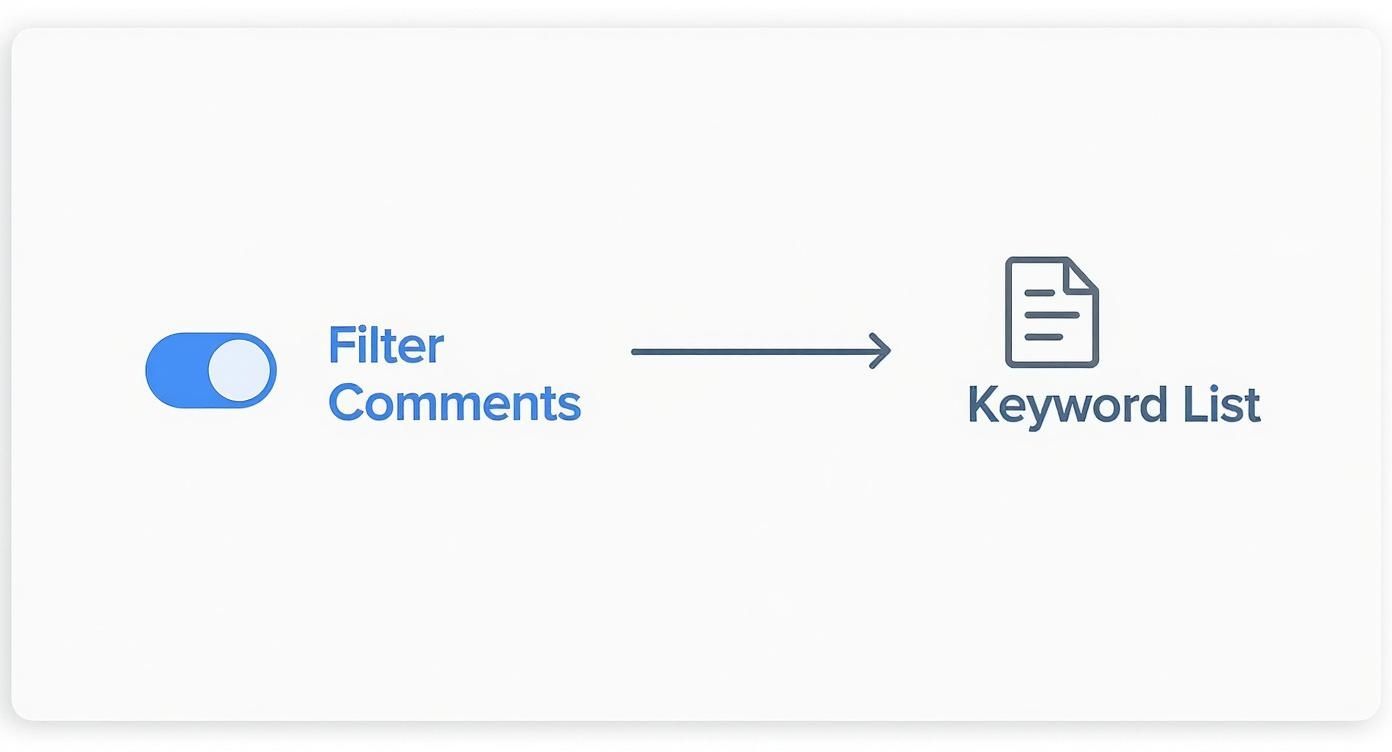
When a comment gets caught, you can just tap the filter button next to it and confirm you want to keep it hidden. If you see one that was filtered by mistake, simply press and hold on it, then tap 'Allow comment' to make it public.
Pro Tip: Make a habit of checking your filtered comments queue every few minutes. Approving good messages quickly shows you're engaged and prevents real fans from feeling ignored.
Temporary Mute vs. Permanent Block
Think of the mute button as your temporary timeout corner. It's a great way to cool down a heated conversation without permanently kicking someone out. You can mute someone for just a few minutes or for the rest of your live stream.
Blocking, on the other hand, is the final word. It completely severs the connection and is your best tool against persistent troublemakers who just won't take the hint.
Here’s a simple way to think about it:
| Action | Duration | When to Use |
|---|---|---|
| Mute | 5 minutes to the end of the live | For someone who's off-topic or spamming occasionally. |
| Block | Permanent | For repeat offenders, trolls, or hateful comments. |
If you're looking for more advanced strategies on this, the guide on Advanced TikTok Comment Moderation 2025 has some great insights.
Use Moderators for Extra Hands
Once your audience grows, trying to host a live and moderate the chat by yourself becomes nearly impossible. This is where moderators come in.
Bringing on a trusted friend or a long-time community member to help can be a game-changer. They can handle muting, blocking, and filtering comments without interrupting your flow. The key is to make sure they understand your community's vibe and rules.
Before you go live, give your mods a simple one-page guide. Outline what kind of comments get a mute versus a block, and empower them to make judgment calls. This prep work helps them act confidently and decisively.
A good moderator's duties usually include:
- Welcoming new people to the stream.
- Filtering out obvious spam and muting or blocking users who break the rules.
- Approving filtered comments from legitimate viewers.
- Flagging anything they're unsure about for you to review later.
Integrate Automation Tools
Sometimes, even the best team of moderators can't keep up. That's when you can look into third-party automation tools like FeedGuardians. These platforms act as an AI-powered assistant, scanning your chat in real time.
These tools can automatically hide comments containing harmful language, spam links, or any other keywords you've defined. This frees you and your human moderators up to focus on engaging with the positive side of your community.
I've seen small e-commerce brands, for instance, cut down on spam by over 40% almost immediately after setting up a few keyword rules. Suddenly, genuine questions about products were no longer buried under a flood of bots.
By blending smart manual moderation with powerful automation, you can create a live experience that feels both professional and welcoming. It's about spending less time fighting fires and more time building connections.
Using Moderators for Advanced Live Stream Management
When your TikTok Live sessions really start to take off—we're talking hundreds or even thousands of viewers—trying to keep up with the chat on your own is a recipe for disaster. It's just not possible. This is precisely when moderators become your secret weapon.
By appointing a few trusted people to help manage the conversation, you can stay focused on your content instead of getting bogged down by a chaotic chat. Moderators on TikTok Live have the power to mute disruptive users or block trolls and spammers for good. It's all about sharing the load so you can scale up your streams while keeping the vibe positive and welcoming for everyone.
Choosing Your Moderation Team
First things first, you need to pick the right people. You can add moderators before you go live or even right in the middle of a stream, so you have plenty of flexibility. I always recommend looking at your most loyal followers—the people who show up consistently and already contribute to the community in a good way. They get the tone you're going for.
When you're making your list, think about:
- Trustworthiness: You're handing over the keys to your chat. Pick people who you know will make fair calls and represent you well.
- Availability: Make sure they can actually be there and pay attention during your most important streams.
- Knowledge: The best mods understand your community's inside jokes, rules, and general vibe. This context is gold; it helps them moderate effectively without being too heavy-handed.
Before your stream, it’s a great idea to have a quick chat with your new mods. Just a simple set of guidelines can empower them to act confidently. If they want to get a better handle on the job, learning more about what a social media content moderator does can give them a solid foundation for their new role. This prep work ensures they're ready for whatever the chat throws at them.
Equipping Your Moderators for Success
Clear instructions are everything. You don't want your moderators guessing what to do when the chat is flying by. I suggest creating a simple doc or a private group chat where you can lay out the rules of engagement. This becomes their go-to guide.
A moderator's goal isn't to be a power-tripping gatekeeper. Their purpose is to be a helpful guide and a protector of the community, ensuring the conversation stays on track and positive so the creator can shine.
Make sure your instructions are crystal clear on the difference between a mute and a block. For example, someone spamming a bunch of emojis might just need a temporary mute. But a person spewing hateful comments? That's an instant block. This kind of clarity keeps the moderation consistent and fair for everyone watching.
A Simple Moderator Duty Checklist:
- Welcome New Viewers: A quick "hey!" to new people makes them feel included right away.
- Manage Spam: Mute or block users who are just posting repetitive junk, weird links, or spam.
- Handle Disruptions: Deal with off-topic or negative comments based on your guidelines.
- Answer Basic Questions: If they can answer frequently asked questions, it takes a ton of pressure off you.
- Escalate Issues: Have them flag any really serious concerns or tricky questions for you to address when you get a chance.
This teamwork is fundamental for any creator with a growing audience who wants to hide comments on TikTok Live without killing all the interaction. And for those who are more technically inclined and thinking about custom solutions, digging into the TikTok Posting API can open up some powerful automation possibilities beyond the built-in tools. By delegating moderation, you’re not just managing a chat—you’re building a scalable system that protects your community and lets you focus on what you do best.
Troubleshooting Common Comment Moderation Problems
Even when you've done all the prep work, things can still get a little chaotic during a live stream. Maybe your keyword filter starts blocking friendly comments, or a muted user somehow pops back up. Knowing how to handle these little fires quickly is what separates a smooth broadcast from a stressful one.
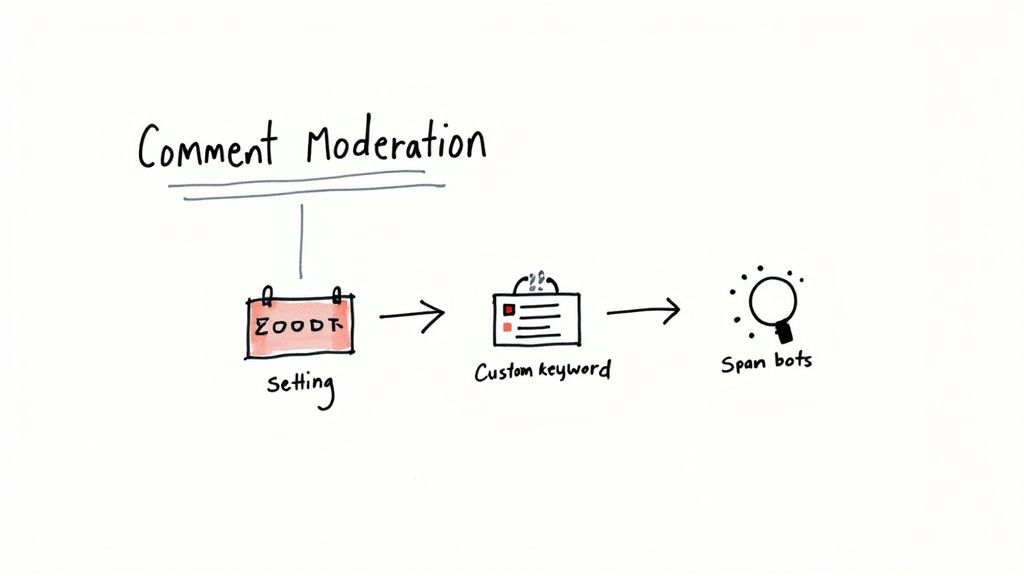
Sometimes, the very tools you set up to hide comments on TikTok Live do their job a bit too well. If you notice your filters are catching legitimate comments from genuine fans, it’s a sign that you need to do some fine-tuning. This happens all the time, especially when you’re building out your keyword list from scratch.
When Your Filter Is Too Aggressive
The number one reason for an overzealous filter? A keyword that's just too broad. For example, if you add "money" to your blocklist to stop scammers, you might also hide a perfectly innocent question like, "How much money can this save me?"
Here’s how to dial it back:
- Audit your keyword list: Go through it and hunt for any general terms that could easily be misinterpreted.
- Check the filtered comments queue: While you're live, pop into the hidden comments section. If you spot friendly messages getting caught, figure out which keyword triggered the block.
- Get more specific: Instead of just "money," try blocking full phrases like "make money fast" or "free money."
This isn’t just a TikTok problem, by the way. Fine-tuning your filters is a universal challenge for creators on any platform. In fact, learning how to hide comments on Instagram often involves the same process of making your filters more precise. The goal is always to adapt based on what’s actually happening in your chat.
Handling a Coordinated Bot Attack
Few things are more jarring than a full-blown bot attack, where dozens of spam accounts flood your chat all at once. It’s easy to panic and just end the stream, but you absolutely can get things back under control.
The second you spot a bot attack, act fast. The mission is to shut down the spam immediately without losing your cool. Your real audience will get it—and they’ll respect you for protecting the space.
If your chat is suddenly overrun, your first move should be to hit the "Mute comments" button in your LIVE settings. This buys you precious time to think without the relentless flow of spam. You can set the mute for just a few minutes, giving you and your mods a chance to block the problem accounts.
Once the coast is clear, you can unmute the chat and get back to your broadcast. Acting decisively turns a potential disaster into a minor speed bump.
Common Questions About TikTok Live Moderation
As you get more hands-on with managing your TikTok Live chat, a few common questions are bound to pop up. Let's clear up some of the most frequent ones so you can moderate with confidence.
Can Viewers See If Their Comment Is Hidden?
Nope, they can't. When you or a moderator hide a comment, it vanishes for everyone else in the stream. The interesting part is that the person who sent the message can often still see it on their end.
This is actually a pretty smart, low-key way to handle things. It keeps the commenter from knowing they've been moderated, which can prevent them from getting frustrated and just hopping on a different account to keep spamming. It's a simple trick to de-escalate without a big confrontation.
Does Hiding Lots Of Comments Hurt My Live Performance?
Hiding comments won't hurt your live stream's performance or reach. TikTok's algorithm cares a lot more about the quality of your engagement than the sheer quantity of comments.
In fact, creating a positive and safe chat environment actively helps your performance. It makes people want to stick around longer and interact authentically, sending strong signals to the algorithm that your stream is valuable. A clean chat is the foundation of a strong community, and that's always the end goal.
Just think about it: the algorithm is more likely to boost a stream with 100 happy, engaged viewers over one with 500 people where the chat is a mess of spam and negativity.
How Do I Unblock Someone I Accidentally Blocked?
It happens to the best of us, especially when the chat is flying by. If you accidentally block someone during a Live, you can easily undo it once the stream is over by digging into your settings.
Here’s how to find and manage your block list:
- Head to your main TikTok profile page.
- Tap the three horizontal lines up in the top-right corner.
- Go to Settings and privacy, then tap on Privacy.
- Scroll down to find and select Blocked accounts.
You'll see a list of everyone you've blocked. Just find the user you blocked by mistake, tap the Unblock button next to their name, and they'll be able to see and interact with your content again.
Ready to stop playing whack-a-mole with comments and get back to what you do best? FeedGuardians uses AI to automatically hide spam and harmful comments in real-time. You can focus on your content and your community while we handle the noise. Check out how FeedGuardians keeps your brand safe and helps you build a better community.
Tired of manually moderating comments?
FeedGuardians automates spam filtering, responds to customers, and protects your brand — setup in 3 minutes.