
Quick Summary
| Key Insight | What You Need to Know |
|---|---|
| Standard Feed Posts | This is your bread and butter. The speech bubble icon is your gateway, and comments are typically shown chronologically. |
| Reels | The comment icon lives in the right-hand menu. Tapping it slides open a comment overlay, so you can scroll through them while the video keeps playing in the background. |
| Your Quick Guide to Finding Instagram Comments | Ever feel like you're hunting for comments on Instagram? Let's fix that. Here’s a straightforward guide to viewing comments on any post, whether you... |
| Mastering the Basics of Viewing Comments | Before you can even think about managing your Instagram comments, you need to know exactly where to find them. It might sound simple, but the process ... |
| Uncovering Hidden and Filtered Comments | Ever get the feeling you’re not seeing the whole picture in your Instagram comments? You're probably right. Instagram has a built-in filter that aut... |
| Finding Your Own Comment History | Have you ever left a comment on a post, only to completely forget where you left it? Trying to track down that one specific interaction days or even w... |
It's actually pretty simple to see comments on an Instagram post. Just look for the speech bubble icon right under the post itself, or tap the “Comments” link if you're watching a Reel. Tapping that will open up all the public responses, and you can dive into specific conversations by hitting "View replies" under any comment.
Your Quick Guide to Finding Instagram Comments
Ever feel like you're hunting for comments on Instagram? Let's fix that. Here’s a straightforward guide to viewing comments on any post, whether you’re on your phone or scrolling on your computer.
The process is generally the same, but the exact button placement can shift slightly between Reels, Stories, and regular feed posts. This is your go-to reference for finding what you need quickly before we get into the more advanced stuff, like managing all those comments.
This visual gives you a quick breakdown of where to look on both the app and the desktop site.
As you can see, the main action is always clicking that speech bubble. It's a consistent design choice that makes keeping up with conversations easy, no matter which device you're using.
Finding Comments Across Instagram A Quick Comparison
To give you an even clearer picture, this table breaks down exactly where to click depending on the type of content you're looking at.
| Comment Type | How to View on Mobile App | How to View on Desktop |
|---|---|---|
| Feed Posts | Tap the speech bubble icon directly below the photo or video. | Click the speech bubble icon next to the like and share buttons. |
| Reels | Tap the speech bubble icon on the right side of the screen. | Click the Reel to open it, then find the comment section on the right. |
| Comment Replies | Find the original comment and tap the "View replies" link underneath it. | Locate the parent comment and click the "View replies" text to expand the thread. |
| Story Replies | Open your Story and swipe up to see replies (only visible to you). | Not directly viewable; replies are sent as Direct Messages to your inbox. |
This quick comparison should clear up any confusion and help you navigate the platform's comment sections like a pro, whether you're checking in on your community or just seeing what people are saying on a viral post.
Mastering the Basics of Viewing Comments
Before you can even think about managing your Instagram comments, you need to know exactly where to find them. It might sound simple, but the process has a few quirks depending on where you're looking and what kind of content you're viewing.
On the mobile app, it's all about the icons. For any regular feed post—a photo, video, or carousel—just look for the little speech bubble icon right under the post. A quick tap there and you’ll see every comment that’s been left. When you're watching a Reel, things shift slightly. The speech bubble moves to the vertical menu on the right side of your screen, stacked with the like and share buttons.
Things are just as straightforward on a desktop. If you’re scrolling your main feed, Instagram lays it all out for you, with the comments displayed in a panel to the right of the post. No clicking required. For Reels, you'll need to click on the video first. It’ll pop up in a new view, and you'll find the comments in that same right-hand panel.
Navigating Comment Threads and Replies
Okay, so you've found the main comment list. But the real conversations? They’re usually buried one level deeper in the replies. When someone responds directly to another person's comment, Instagram neatly tucks it away into a threaded conversation. You'll see these marked with a "View replies" link right under the parent comment.
Key Takeaway: If you're only reading the top-level comments, you're missing half the story. A simple compliment can easily turn into a detailed customer service question or a valuable piece of user feedback within a thread.
Tapping on "View replies" opens up that specific exchange, letting you follow the conversation from start to finish. This is an absolute must for anyone managing a brand account. Imagine a user asks where to buy a product, and another helpful follower replies with the link—you'd completely miss that interaction if you didn't check the threads.
Viewing Comments Across Different Post Types
While the core idea is the same, how you access comments can change depending on the content format. Let's run through the main ones.
- Standard Feed Posts: This is your bread and butter. The speech bubble icon is your gateway, and comments are typically shown chronologically.
- Reels: The comment icon lives in the right-hand menu. Tapping it slides open a comment overlay, so you can scroll through them while the video keeps playing in the background.
- Story Replies: Here’s the big exception. Replies to your Stories don't show up publicly at all. Instead, they land directly in your DMs. We cover this in more detail in our guide to commenting on Instagram Stories, but the main thing to remember is that these are private conversations.
Getting comfortable with these fundamentals is the first step. Once you know how to find every interaction, you’re ready to move on to managing them effectively.
Uncovering Hidden and Filtered Comments
Ever get the feeling you’re not seeing the whole picture in your Instagram comments? You're probably right. Instagram has a built-in filter that automatically hides comments it thinks are offensive, spammy, or just plain harmful. It’s a great first line of defense, but for brands and creators, it can be a double-edged sword.
A genuine customer question or a valuable piece of feedback can easily get swept up in this automated net. Suddenly, you've missed an important chance to connect. That’s why learning how to find these hidden comments isn't just a neat trick—it's essential for anyone serious about community management.
Don't get me wrong, this filter is crucial. Imagine your brand’s comment section completely overrun with bots and irrelevant nonsense—a social media manager's worst nightmare. The scale of the problem is massive. In an analysis of over 118 million comments, a jaw-dropping 42% were flagged as spam or harmful. You can dig into all the details in the 2025 Social Media Comment Insights Report.
Finding Your Hidden Comments Folder
So, where does Instagram stash these filtered comments? They’re tucked away in your account settings, keeping your main feed clean while still giving you the final say.
Here's a quick walkthrough to find them:
- Start by going to your Instagram profile.
- Tap the hamburger menu (the three horizontal lines) in the top-right corner.
- Select Settings and privacy.
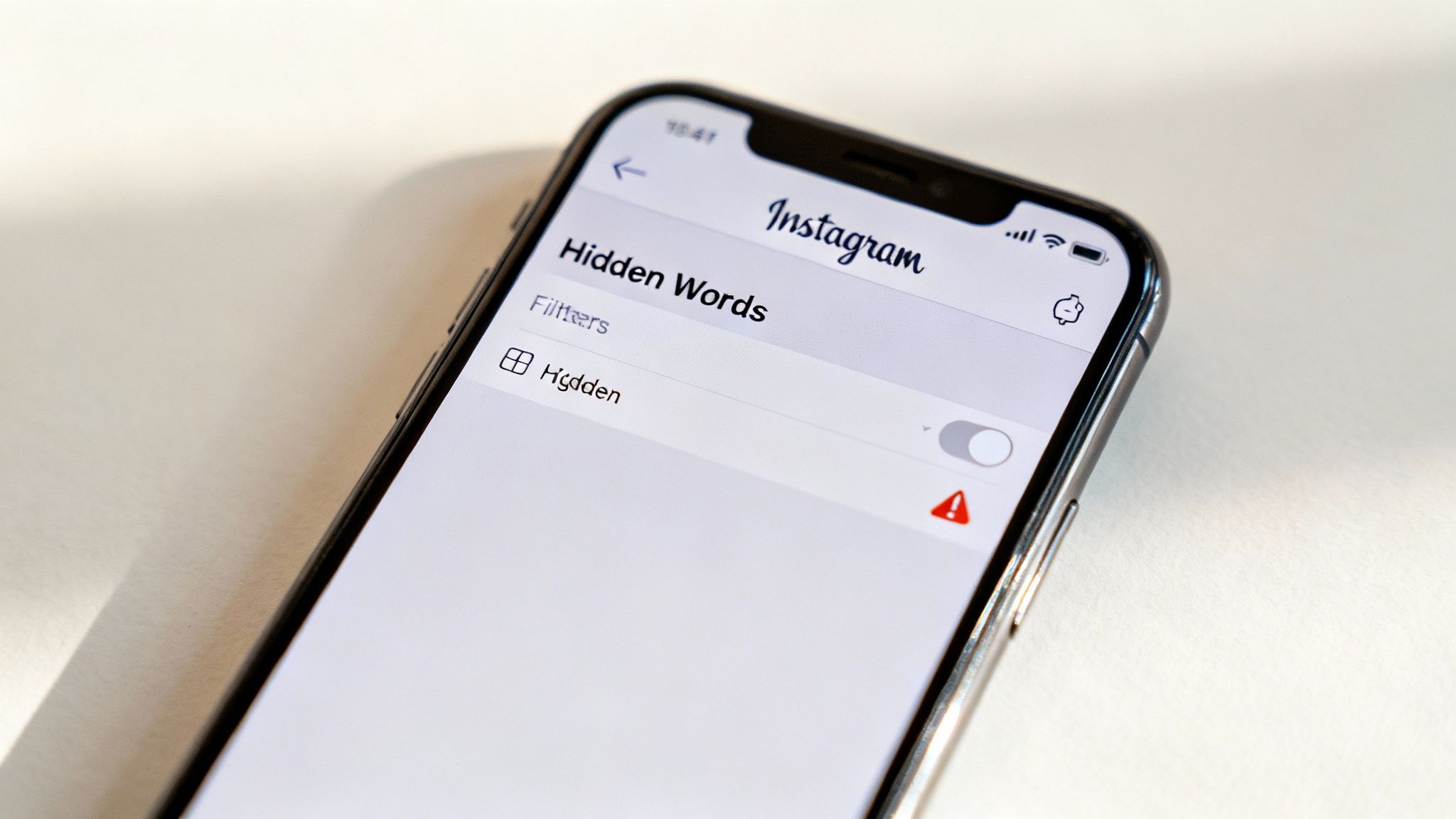
- Scroll down to the "How others can interact with you" section and tap on Hidden Words.
This is your moderation headquarters. You'll see options for managing offensive words, but the gold is in the Hidden comments section. If Instagram has flagged anything, you'll see a blue link inviting you to review what's been caught.
Regularly checking this folder is a simple habit that can pay off big time. You'll make sure no legitimate comment from a potential customer or follower ever slips through the cracks, preventing missed opportunities and keeping your community happy.
What to Do with Filtered Comments: Approve or Delete?
Once you’re looking at the review screen, you’re in control. Instagram will show you a list of every comment it has flagged. You can tap on each one to see the original post and get the full context.
From there, the choice is yours:
- Approve: This makes the comment public for everyone to see.
- Delete: This gets rid of the comment for good.
- Restrict or Block: If a specific account is causing trouble, you can take stronger action to stop them from interacting with you again.
This manual review is a non-negotiable part of any solid comment management strategy. Instagram's filters are good, but they're not infallible. If you want to get even more granular with your moderation, our guide on how to hide comments on Instagram is a great next step. Just a few minutes a week spent in this folder can turn a forgotten feature into one of your most powerful engagement tools.
Finding Your Own Comment History
Have you ever left a comment on a post, only to completely forget where you left it? Trying to track down that one specific interaction days or even weeks later can feel like searching for a needle in a digital haystack. It happens to all of us.
Fortunately, Instagram keeps a surprisingly detailed log of your activity, making it pretty simple to pull up your entire comment history.
This isn't just about satisfying your curiosity. Knowing how to see your comments on Instagram is a great way to manage your digital footprint. You can revisit old conversations, see how your opinions have evolved, or even find and delete comments you no longer want out there. It puts you back in the driver's seat.

Accessing Your Interaction History
Finding this log is straightforward once you know where to look. Everything is neatly tucked away in the "Your activity" section of your account settings.
Here’s the path to get there:
- First, head to your Instagram profile page.
- Tap the hamburger menu (the three horizontal lines) in the top-right corner.
- From the menu that pops up, choose Your activity.
- Look for the "How you use Instagram" section and tap on Interactions.
- Finally, select Comments. You'll see a complete, reverse-chronological history of every comment you've ever left.
From this screen, you get a full list of your comments, starting with the most recent. You can scroll through to find what you're looking for or, even better, use the built-in tools to narrow things down.
Pro Tip: Think of the "Your activity" hub as your personal command center. Beyond just comments, this is where you can review your past likes, story replies, and even check your screen time. It’s an incredibly useful feature for understanding your own social media habits that most people overlook.
Sorting and Filtering Your Comments
A massive, unfiltered list of comments isn't always helpful, especially if you're trying to find something specific you posted months ago. This is where Instagram’s filtering options really shine.
At the top of the "Comments" screen, you'll see a Sort & filter button. Tapping it unlocks a few powerful options:
- Sort by: You can flip the default "Newest to oldest" view to "Oldest to newest."
- Author: This lets you filter for comments you left on posts from specific accounts.
- Date range: Need to find something from last summer? Just set a start and end date to zero in on that timeframe.
For example, if you know you left a comment on a specific brand’s giveaway post sometime in July, you can set the date range and filter by that author's account to find it in seconds. This is a crucial skill for learning how to search Instagram comments when the platform's native search capabilities feel limited. Mastering this tool gives you a precise way to audit your engagement and manage your online presence.
A Strategic Approach to Comment Management for Brands
For any brand or creator, learning how to see comments on Instagram is just the start. The real magic happens when you move beyond simply viewing interactions and start strategically managing them. Think of every comment as a direct line to your audience—a chance to build loyalty, solve a problem, or even make a sale. Leaving them unanswered is like leaving money on the table.
This shift in thinking is more critical than ever. Ever feel like your posts get plenty of views but the comment section is a ghost town? It's not just you. The average user comment rate on Reels is projected to be a mere 0.5% in 2025. That's a significant drop from TikTok's 0.9%, especially when you consider that over half of user time on Instagram is now spent watching Reels.
This makes every single comment you receive that much more valuable. When engagement is scarce, you can't afford to let it go to waste. A comment section left to its own devices quickly becomes a mess of spam, unanswered questions, and missed leads, creating a pretty poor impression for anyone new who lands on your profile.
Why Proactive Management Matters
When you treat your comments section with care, it transforms into a powerful asset. It becomes a hub for customer service, a goldmine of social proof, and a direct channel for honest feedback. When your followers see that you’re actually present and responsive, it builds trust and encourages more people to join the conversation.
And this isn't just about basking in praise. How you handle negative feedback or technical questions in public can speak volumes about your brand's commitment to its customers. It shows potential buyers you're attentive and reliable, turning what could be a PR headache into a showcase of excellent service. For brands, managing comments can also mean knowing how to handle your own replies, including learning how to edit Instagram comments when you make a mistake.
Here's a sobering thought: in a dataset of 118.4 million comments, brands that ignored moderation lost an estimated 35% of potential leads simply because they didn't answer questions. Each ignored comment is a potential customer walking away.
The Power of AI-Powered Moderation
Manually sifting through hundreds or thousands of comments just doesn't scale. It's incredibly time-consuming, and as your account grows, it’s easy for important messages to slip through the cracks. This is where AI-powered tools come in, turning a chaotic comment feed into an efficient, well-oiled machine.
Tools like FeedGuardians go way beyond basic keyword filtering. They use sophisticated intent detection to understand what a user is really asking.
Here’s a glimpse of what that looks like:
- Instantly Hides Spam: The tool automatically catches and removes harmful, irrelevant, or spammy comments, keeping your feed clean and professional around the clock.
- Pinpoints Purchase Intent: It can detect when a user asks something like, "How much is this?" or "Do you ship to Canada?" and immediately flag it so your sales team can jump in.
- Provides Instant Answers: For all those common questions about shipping, sizing, or store hours, the AI can fire back an automated, accurate reply in seconds.
The level of automation here is a total game-changer. Imagine a system that never sleeps and never misses an opportunity. FeedGuardians, for example, can auto-reply to 70% of typical customer queries almost instantly. This not only boosts brand response rates by 40% but has also been shown to increase conversions for e-commerce brands by a massive 25%.
Manual vs AI-Powered Comment Management
Choosing the right approach can make or break your social media strategy. While manual management has its place, the efficiency and scale of an AI-powered solution are hard to ignore.
| Feature | Manual Management | FeedGuardians (AI-Powered) |
|---|---|---|
| Speed & Availability | Limited by human hours and availability. | 24/7, instant moderation and responses. |
| Spam & Troll Removal | Slow and reactive; requires constant monitoring. | Proactive and automatic; hides spam before it's widely seen. |
| Lead Identification | Relies on a person spotting purchase-related questions. | Automatically detects and flags buying intent comments. |
| Response Accuracy | Can be inconsistent depending on the team member. | Consistent, pre-approved answers for common questions. |
| Scalability | Becomes overwhelming as comment volume grows. | Effortlessly handles thousands of comments per day. |
| Cost-Effectiveness | Requires significant staff hours and resources. | Reduces a full-time workload to a fraction of the cost. |
Ultimately, a tool like FeedGuardians doesn't just clean up your comments; it turns them into a predictable engine for customer service and sales, freeing up your team to focus on the high-level conversations that truly build your brand. If you're exploring your options, our guide to other Instagram moderation tools can help you find the right fit for your strategy.
Quick Answers to Common Questions About Instagram Comments
Even after you’ve got the basics down, a few tricky situations always seem to pop up with Instagram comments. Whether you're just scrolling for fun or you’re a social media manager in the trenches, some things can be genuinely confusing.
Let's clear up some of the most common snags you might hit.
Why Can't I See All the Comments on a Post?
This is a classic—and frustrating—problem. It usually boils down to one of three culprits.
First, Instagram loves a tidy feed, so it often collapses long comment threads automatically. To see everything, you'll need to tap "View replies" under the main comment to expand the full conversation.
Second, the platform’s own filters might be hiding comments it thinks are spam or offensive. You can always check these by digging into your "Hidden Words" settings. And finally, the simplest reason: the original poster might have deleted the comment, or the account that left it could have been blocked.
Can You See Who Liked a Specific Comment?
Yes, you absolutely can! Right next to every comment is the little heart icon. If anyone has liked it, you'll see a count right there (e.g., "2 likes").
Just tap on that "... likes" text. A new screen will pop up showing you a full list of every single person who liked that comment. For brands, this is a great way to see which messages are really hitting home with the audience.
Expert Tip: Watching which comments get likes is a subtle but powerful form of audience feedback. It shows you what people agree with or find valuable, which can help shape your content strategy and even identify key advocates in your community.
How Can I Get Notified About Every Single Comment?
Feeling like you're a step behind on new comments? Your push notification settings probably just need a quick tweak. This is an easy fix that makes sure you never miss a chance to engage.
Here’s how to turn on all comment notifications:
- Head to your Profile and tap the hamburger menu icon (three lines) in the top-right corner.
- Go to Settings and privacy > Notifications.
- Select Posts, Stories and comments.
- Look for the "Comments" section and switch the setting from "From people I follow" to "Everyone".
That one change ensures you get an alert for every comment that comes in—a must-have for timely brand responses.
Is There a Way to Search for a Specific Comment?
Unfortunately, Instagram doesn't have a built-in search function to find specific words or users within a post's comments. You’re stuck scrolling manually, which can be a massive headache on posts with hundreds or thousands of interactions.
This is a huge pain point for brands trying to find product questions or track down specific feedback. It really highlights why dedicated comment management tools are so valuable. It's the same reason dealing with spam comments like "send me this post" is such a chore. If you're swamped with those, our guide on why bots are commenting on Instagram can shed some light on the problem.
Managing comments well goes far beyond just seeing them—it's about building a clean, responsive, and valuable community hub. FeedGuardians uses AI to automatically hide spam, spot buying signals, and answer customer questions in real time, turning your comment section from a chore into a conversion engine. Learn how FeedGuardians can protect your brand and boost your sales.
Tired of manually moderating comments?
FeedGuardians automates spam filtering, responds to customers, and protects your brand — setup in 3 minutes.