
Quick Summary
| Key Insight | What You Need to Know |
|---|---|
| Protect Your Privacy | Share personal moments and candid thoughts with your inner circle, knowing certain people won't see them. |
| Dodge the Awkward Conversation | Since they are never notified, you avoid the potential fallout that comes with unfriending or blocking someone. |
| Safeguard Your Professional Image | If you use your personal profile for work, you can restrict clients or colleagues to ensure they only see your public, professional-facing content. |
When you need to put some distance between yourself and a Facebook friend without the drama of unfriending or blocking, the Restricted list is your best tool. It’s a subtle way to limit what they see on your profile.
Think of it as moving a friend to an "acquaintance" zone. They’ll only be able to see your public posts or any posts you specifically tag them in. Everything you share with your "Friends" becomes invisible to them.
Take Back Control of Your Facebook Feed
Let's be real—not everyone on your friends list needs to see your vacation photos or personal updates. You might have a new coworker you've added out of courtesy, a relative who shares a bit too much, or just an old acquaintance you'd rather keep at arm's length.
This is exactly why Facebook created the 'Restrict' feature. It's a smart, quiet way to manage those connections and curate who gets a front-row seat to your life.
Create a More Comfortable Online Space
The beauty of the Restrict feature lies in its subtlety. You're not burning a bridge; you're just building a small, polite fence. The person you restrict stays on your friends list, they can still send you messages, and they won't have a clue anything has changed because Facebook doesn't send a notification.
The big difference? They're no longer included in your "Friends" audience. It’s the perfect one-way privacy screen.
Here’s why this is so effective:
- Protect Your Privacy: Share personal moments and candid thoughts with your inner circle, knowing certain people won't see them.
- Dodge the Awkward Conversation: Since they are never notified, you avoid the potential fallout that comes with unfriending or blocking someone.
- Safeguard Your Professional Image: If you use your personal profile for work, you can restrict clients or colleagues to ensure they only see your public, professional-facing content.
Ultimately, restricting someone is about smart audience management. It's a key tool for creating an online environment that feels safe and controlled. In a similar vein, you might want to manage interactions on other platforms and view Instagram stories discreetly. And if you're looking to cut down on unwanted engagement across the board, learning how to disable comments on Facebook for certain posts is another great step.
Restrict vs. Block vs. Unfriend: What's the Difference?
Facebook gives you a few different tools to manage who you interact with, but they aren't interchangeable. Knowing the difference between restricting, blocking, and unfriending is key to managing your online space without causing any unnecessary drama. Each one serves a very specific purpose.
Think of it like this: unfriending is the digital equivalent of consciously ending a friendship. Blocking is more like a restraining order—you essentially become invisible to each other. But to restrict someone on Facebook is the most subtle move you can make. It’s like shifting someone from your close friend group to a casual acquaintance, and they'll never be the wiser.
Choosing The Right Action For Your Situation
Sometimes, you just need a little space. Deciding which action to take depends entirely on the outcome you're looking for.
Unfriending completely severs the connection. You won't see their posts, they won't see yours, and you'd have to send a whole new friend request to reconnect. It’s a pretty clear signal that the friendship is over.
Blocking is the most definitive step you can take. When you block someone, they can't find your profile, message you, or even see your comments on mutual friends' posts. You effectively erase each other from your Facebook worlds.
Over the years, Facebook has gotten much smarter about managing these interactions. In fact, Meta has improved its systems so much that it cut down on moderation mistakes by 50% in the U.S. by the first quarter of 2024. This means the platform is better at handling serious violations, so you can be confident that when you need to block someone, it's for legitimate reasons, not just a misunderstanding over flagged content.
Key Takeaway: The 'Restrict' feature is your silent privacy shield. It lets you stay "friends" on paper while tightly controlling what that person can see of your personal life—all without sending them a notification.
This handy decision tree can help you figure out the best course of action.
The flowchart makes it simple: if you just need some temporary or discreet distance, 'Restrict' is your best bet. If the separation needs to be more permanent and final, then unfriending or blocking are the ways to go. This is also a great tactic for handling suspicious profiles. If you’re curious, we have a great guide on what a spam account is and how to spot one.
To make it even clearer, here’s a side-by-side comparison of what happens with each action.
Facebook Actions Compared: Restrict vs. Block vs. Unfriend
| Action | What They See | What You See | Can They Contact You | Are They Notified |
|---|---|---|---|---|
| Restrict | Only your public posts or posts they are tagged in. They are moved to your "Restricted" list. | You see their posts in your feed as normal. | Yes, via Messenger, but messages go to your "Message Requests" folder. | No. |
| Block | Nothing. They cannot find your profile, posts, or comments. | Nothing. You cannot find their profile, posts, or comments. | No. They cannot message you or add you as a friend. | No. |
| Unfriend | Only your public posts. You are no longer on their friends list. | Only their public posts. They are no longer on your friends list. | Yes, via Messenger, but messages may go to "Message Requests." | No. |
Ultimately, choosing the right tool comes down to what level of privacy and separation you need for your own peace of mind.
How to Restrict Someone on Facebook, Step by Step
Putting someone on your Restricted list is one of the most useful—and subtle—privacy tools Facebook offers. It’s a simple process you can knock out in less than a minute, whether you’re at your desk or on your phone.
The core idea is to limit what that specific person can see to only your public posts, without the drama of unfriending them. Let's walk through exactly how to do it on both desktop and mobile.
On a Desktop Browser
When you’re on a computer, the quickest route is to go straight to the person's profile page. It’s direct and you can verify the change in just a few clicks.
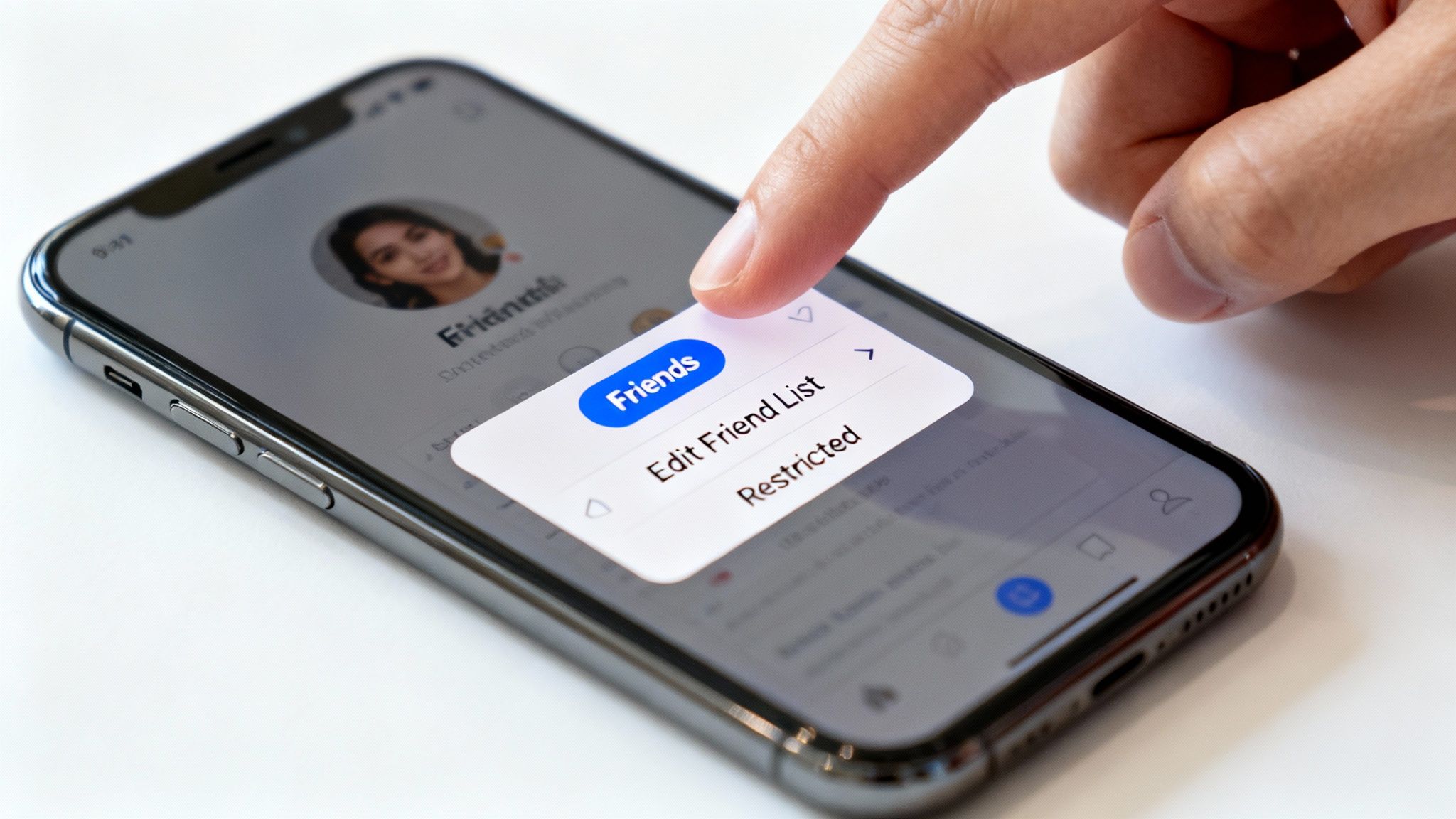
First, head over to the profile of the friend you want to restrict. Look for the Friends button, usually sitting right below their cover photo. Give that a click.
A dropdown menu will appear. From there, select Edit Friend List. This brings up another set of options, and the one you're looking for is Restricted. Just click it. A little checkmark will pop up next to the word, confirming they've been added. And you're done.
On the Facebook Mobile App
The process is nearly identical on the Facebook app, so you can easily manage your friend lists no matter where you are.
Start by opening the app and finding the person’s profile. You can either use the search bar or just tap on their name from a post or comment. Once you're on their page, find and tap the Friends button.
This opens up a menu with a few choices. All you need to do is:
- Tap Edit Friend List.
- Then, select Restricted.
Pro Tip: Need to restrict a few people at once? Instead of going to each profile individually, you can edit the Restricted list directly. Find the "Friend Lists" page in your settings and you can add multiple people there. It saves a ton of time.
As soon as you tap Restricted, the change is saved. The best part? The person gets zero notification that anything has changed. This level of control is a fundamental part of good social media content moderation, letting you quietly curate your audience without causing a fuss.
When to Use the Restrict Feature
Knowing how to restrict someone on Facebook is one thing, but understanding when to pull that lever is what really gives you control over your online space. The restrict feature is your go-to for situations that need a delicate touch—it’s not as final as blocking or unfriending.
Think of it less like a brick wall and more like a digital velvet rope. You're simply curating who gets a front-row seat to your life and content.
For Your Personal Profile
On a personal level, using the restrict list is all about navigating those tricky real-world relationships that spill over onto social media. It's a fantastic way to maintain a polite connection while quietly protecting your own peace of mind.
Here are a few classic scenarios where it comes in handy:
- Your New Boss: You accept their friend request to be a team player, but maybe you don't want them scrolling through photos from your weekend getaway. Restricting them keeps things professional.
- That Oversharing Relative: We all have one. You love them, but their constant, unsolicited commentary on every post can be draining. Pop them on the restricted list, and you can share updates without bracing for impact.
- The "We're Still Friends" Ex: When you're trying to keep things civil after a breakup but need some genuine space to heal, restricting is the perfect middle ground. You stay connected, but they fade into the background.
For Social Media Managers
From a brand perspective, restricting is a strategic move for community management and reputation protection. It’s a much softer, often more effective, approach than an outright ban. For example, if you suspect a competitor is keeping a few-too-many tabs on your page, restricting them ensures they can only see what the general public sees.
It's also incredibly useful for handling users who are consistently negative but don't quite violate your community guidelines. Restricting them keeps them from interacting with posts meant for your loyal followers, so they can't hijack the conversation. This is a critical tactic for performance marketers who need to manage their account interactions carefully. Rapidly adding friends or page followers can trigger security checks, so pacing your growth to look organic is key. You can find more details on navigating these limits on Elfsight.com.
By using the restrict feature proactively, you can neutralize difficult users and potential online trolls without causing a scene. For a deeper dive into this, see our guide on how to deal with trolling on social media.
What Happens After You Restrict Someone on Facebook?
So, you’ve just moved someone to your Restricted list. What now? The beauty of this feature is its subtlety. From your perspective, absolutely nothing changes. You’ll still see their posts, Stories, and updates in your News Feed, just like always.
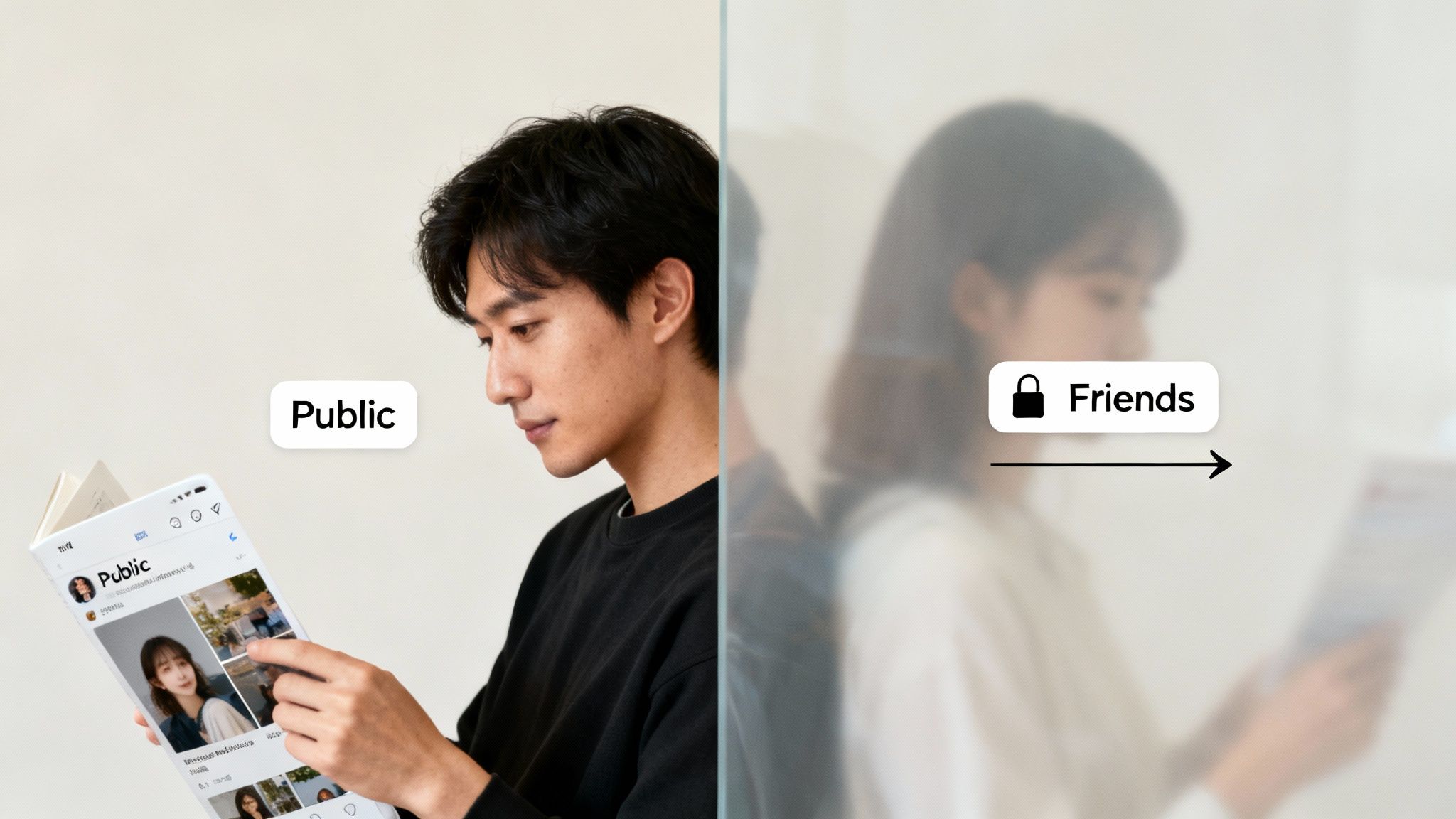
The real difference is what they see—or rather, what they don't see. They won't get any notification that you've restricted them, so the change is invisible. They can still navigate to your profile, but their view is now limited.
How Their View of Your Profile Changes
The core change is this: the person on your Restricted list will no longer see any of your posts shared with the 'Friends' privacy setting.
They can only see two things from you:
- Content you share publicly.
- Posts where you specifically tag them.
This creates a powerful, one-way privacy screen. You can share family photos or personal updates with your actual circle of friends, knowing that certain individuals are discreetly kept out of the loop.
Essentially, you've curated their access without the drama of unfriending or blocking them. They'll experience your profile almost like a stranger would, while you maintain your connection. This kind of managed boundary is a vital skill in social media management. For brands, understanding these tools is just as crucial as knowing what comment moderation means when building a positive online space.
Common Questions About Restricting Someone on Facebook
Even after you've got the steps down, you might still have a few questions about how restricting someone on Facebook actually works. It's a subtle tool, so it’s completely normal to want to be sure about what's happening behind the scenes.
Let's walk through the most common questions I hear. My goal is to help you use this feature with confidence, so you can manage your privacy without creating any social awkwardness.
Will Someone Know If I Restrict Them?
Simply put, no. Facebook does not send any kind of notification when you add someone to your Restricted list. That's the whole point of the feature—it’s designed to be completely discreet.
From their perspective, your friendship status remains exactly the same. At first, nothing will seem different. Now, could a very eagle-eyed person eventually notice they haven't seen your personal posts in a while? Possibly. But since they can still visit your profile and see all your public posts, it's a soft change that usually flies under the radar.
What Does a Restricted Person See on My Profile?
Think of it this way: someone on your Restricted list essentially gets the "public" view of your profile, similar to what a complete stranger would see.
Here's what's visible to them:
- Your Public Information: This is your profile picture, cover photo, and any other info you've set to "Public."
- Posts You Share Publicly: If you use the globe icon to share a post, they'll see it.
- Posts You Tag Them In: If you tag them in a photo or a status update, they will be notified and can view that specific content.
Anything you share just with your "Friends" is completely hidden from them. This is the key to keeping your personal updates firewalled off to just your trusted circle.
The Bottom Line: Restricting someone moves them to the outermost ring of your social media world. They're still technically a "friend," but they lose their access pass to the content you only share with your real connections.
Can I Still See Posts from Someone I've Restricted?
Yes, you can. Restricting is a one-way street; it only limits what they can see of your content. It has zero effect on your News Feed.
You’ll continue to see their posts, stories, and updates just like you always have, based on how Facebook's algorithm serves them up. You can still interact with their content—liking, commenting, sharing—without any issues. This one-way control is exactly what makes it the perfect tool for creating some quiet distance without burning a bridge.
How Do I Unrestrict Someone on Facebook?
Reversing the process is just as quick and silent as setting it up. If you've patched things up or just decided the boundary isn't needed anymore, you can take them off the Restricted list in seconds.
Just pop over to their profile again, tap that Friends button, and choose Edit Friend List. From the menu that appears, simply uncheck the Restricted option. The change takes effect instantly.
The moment you unrestrict them, they'll be able to see all of your past and future "Friends-only" posts, restoring their original permissions. And just like before, they won't get a notification that anything has changed.
Managing your social media interactions shouldn't be a headache. For brands looking to protect their reputation and foster a positive community, FeedGuardians offers an AI-powered solution to automatically handle spam, harmful comments, and customer inquiries, turning your comment section into a clean, safe, and effective sales channel. Learn more about how FeedGuardians can help.
Tired of manually moderating comments?
FeedGuardians automates spam filtering, responds to customers, and protects your brand — setup in 3 minutes.